
Front of house quick start
How to run a front of house shift on the BREW POS terminal, from logging in to your shift report, plus a manager section for closing out the day. Setting up products, staff and the floor plan is done in BREW POS Admin and is not covered here.
Before you start: this is for front of house staff and managers. You need the User ID and PIN your company gave you. The last part, closing out the day, needs a manager login.
Log in and clock in
On the login screen, type your User ID and PIN on the keypad (Figure 1).
Tap Login, bottom right.
If you are not clocked in, the terminal asks Do you want to Clock In? Tap the green check to clock in, or the red X to log in without clocking in. The order screen opens.
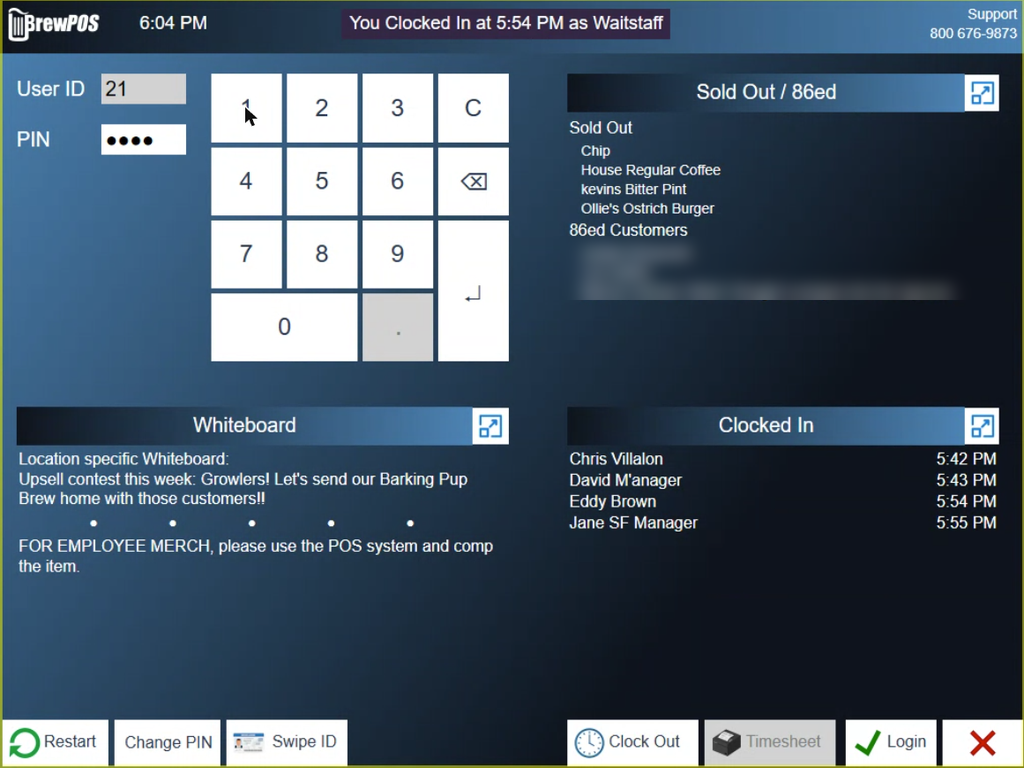
Figure 1. The login screen. Change PIN, Clock Out, Timesheet and Login are along the bottom
Clock In and Clock Out only touch your time card. Timesheet prints your time card, and Change PIN sets a new PIN. Forgotten your PIN? Ask a manager to reset it.
Full guide: Logging in and clocking in
Start a ticket
Every order is on a ticket. The buttons along the bottom left of the order screen are the ways to start one (Figure 2).
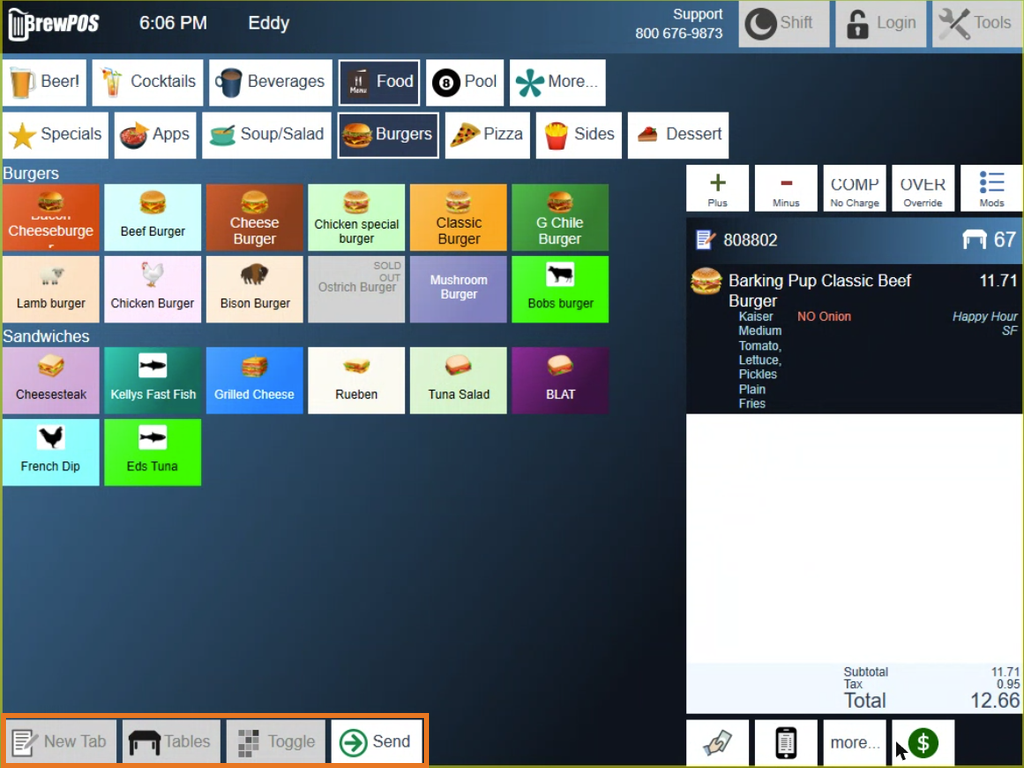
Figure 2. The order screen. New Tab, Tables, Toggle and Send are boxed at the bottom left. New Tab and Tables are greyed out while a ticket is open
At a table
Tap Tables, at the bottom of the order screen. The floor plan opens (Figure 3).
Tap a free table to start a ticket on it, or a table that already has one to open that ticket.
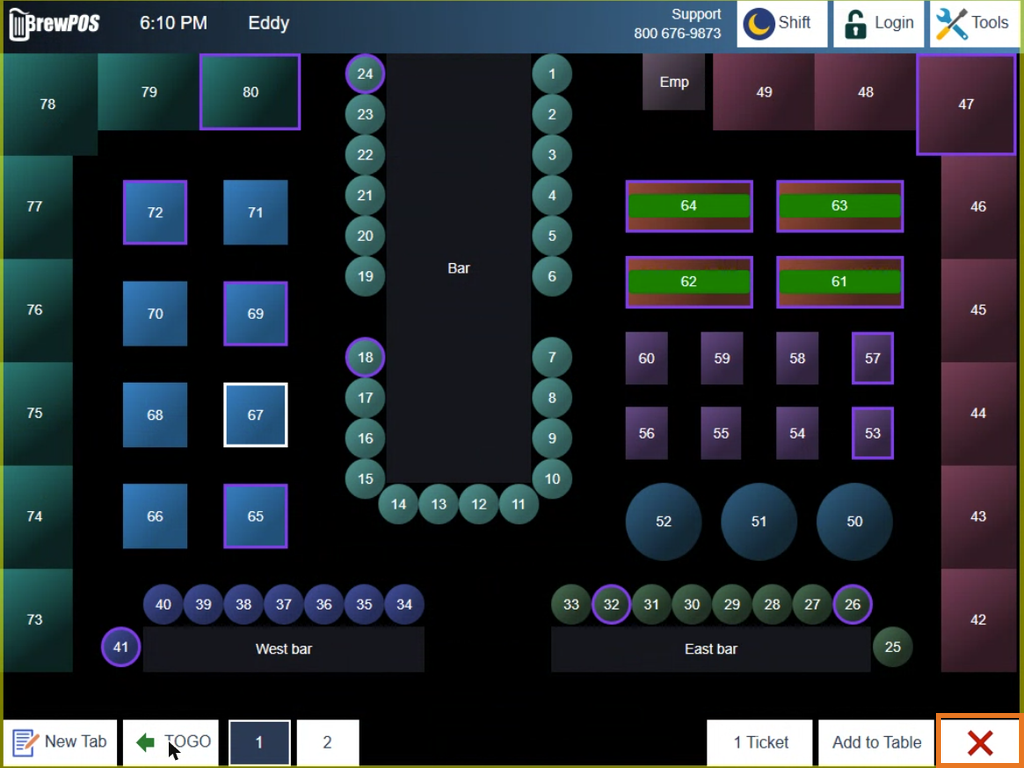
Figure 3. The tables screen. Table 67 is yours and the purple tables belong to other servers. The red X, boxed at the bottom right, closes the screen
A white outline is your open ticket, a purple outline is someone else's, and no outline means the table is free.
A green table has had its presenter ticket printed and is waiting to pay.
Add to Table, along the bottom, puts a second ticket on a table that already has one.
TOGO starts an order to go.
The red X, bottom right, closes the tables screen without opening a table and takes you back to the order screen.
A tab at the bar
Tap New Tab (Figure 4), at the bottom of the order screen or the tables screen. The customer screen opens (Figure 5).
Type the guest's name.
Tap New Tab at the top. The order screen opens on a ticket in that guest's name.
Figure 4. The New Tab button
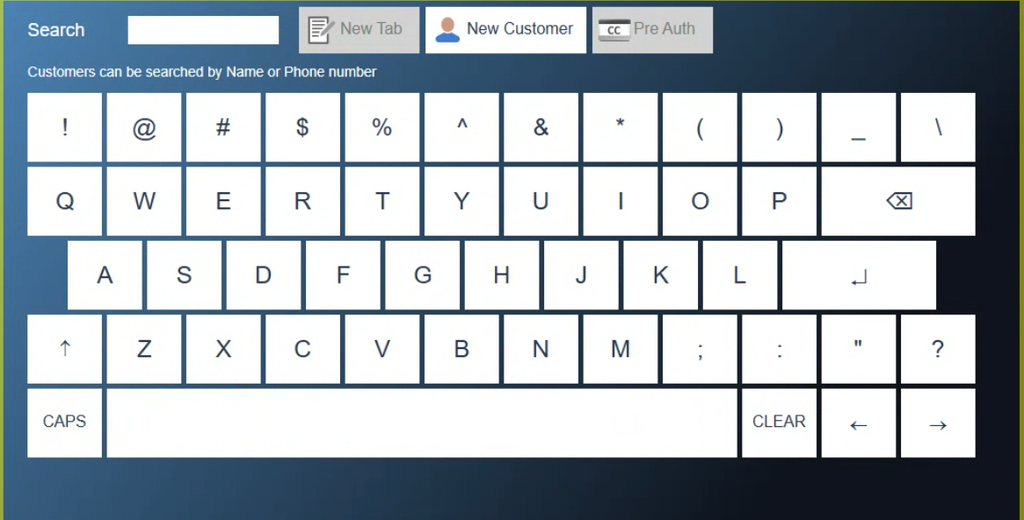
Figure 5. The customer screen that opens from New Tab. Start typing a name or phone number to find a saved customer
New tab or new customer
On the customer screen, start typing the guest's name or phone number. Customers saved in the system who match appear below the keyboard; tap one to put the ticket in their name.
If the guest is not there, choose how to keep the name:
New Tab, at the top, starts a tab in the name you typed. A tab is for today only.
New Customer saves the guest as a customer in the system. Customers are kept for good, so they come up again next time.
All, Club, Emp and Trade, along the bottom, narrow the list. TOGO and HERE set whether the order is to go.
A card pre-auth
To hold a card and leave the tab open, tap Pre Auth at the top of the customer screen (Figure 6), then run the card. The terminal takes the name off the card, and a card symbol on the ticket shows it is a pre-auth tab. On a station with no card reader, Pre Auth is greyed out.
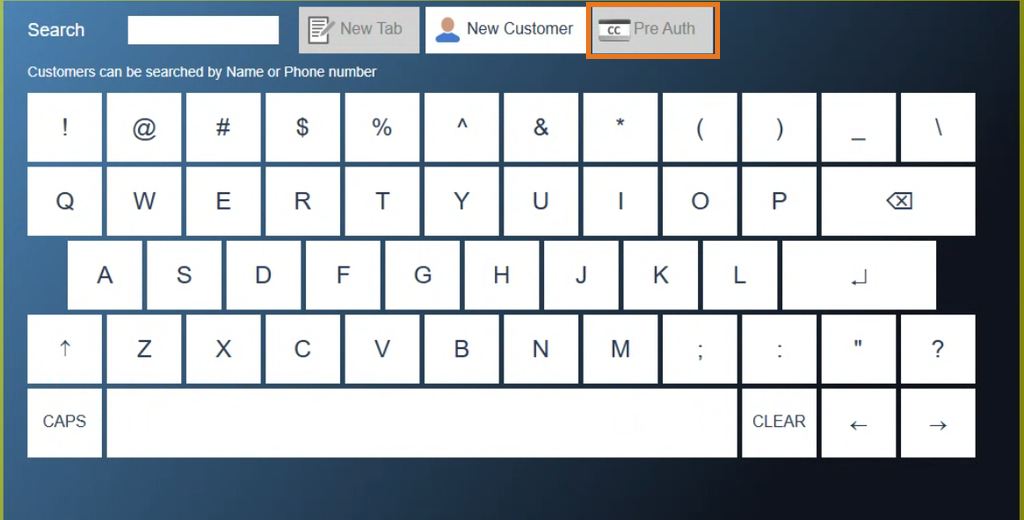
Figure 6. The customer screen, with Pre Auth boxed at the top beside New Tab and New Customer. Here it is greyed out, on a station with no card reader
Ring up an order
Your products are grouped in categories across the top of the order screen. Tap an item to add it to the ticket (Figure 7).
You do not have to pick a table or a tab first. If no ticket is open, tapping an item starts one, which suits a quick order at the counter. To put a name on it afterwards, tap the ticket number at the top of the ticket and the customer screen opens.
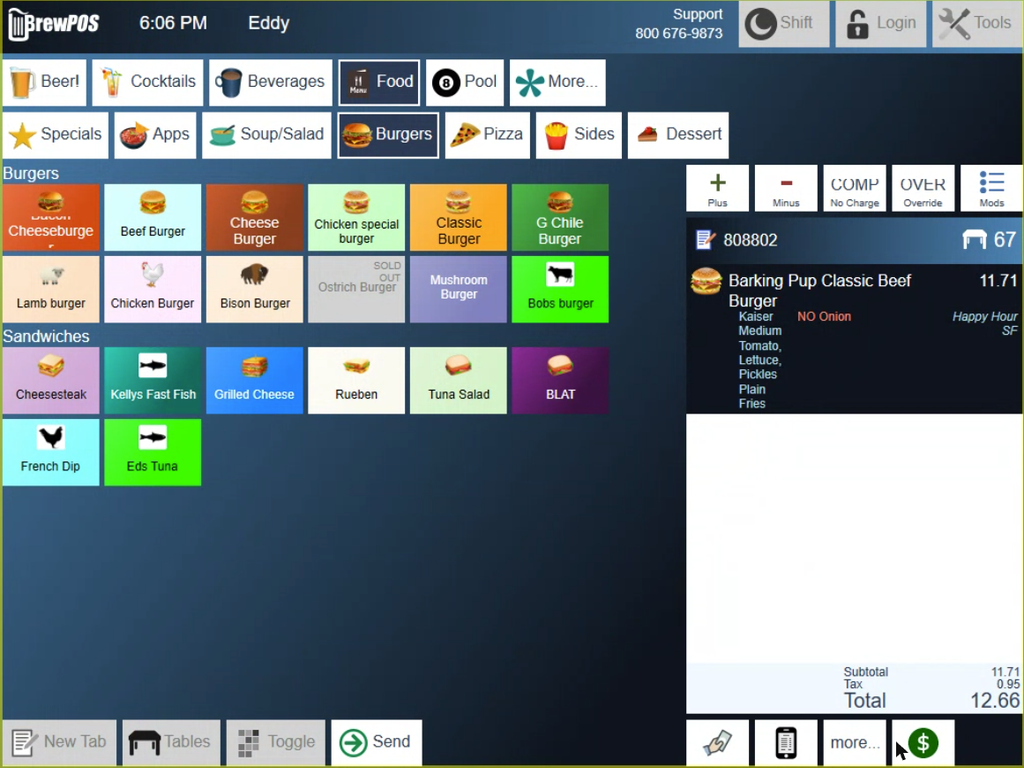
Figure 7. The order screen. Categories run across the top and the ticket is on the right
To remove an item, select it on the ticket, then tap Minus, above the ticket.
To change an item, select it, then tap Mods, above the ticket. No, Add and Mod tell the kitchen to hold something, add extra, or make it a little different.
To send the order to the kitchen or bar, tap Send, bottom left.
To add to the order later, open the ticket again from Tables or Toggle, ring in the new items and tap Send. Items already sent show in grey.
Full guides: Taking an order and Finding your way around tables and tickets
Comps and discounts
For one item, select it on the ticket, then tap COMP to make it free, or OVER (override) to change its price.
For the whole ticket, tap more..., below the ticket (Figure 8). From there you can:
type a discount. It is a percentage unless you tap $ first;
use a discount button along the bottom;
cancel, comp or hold the ticket, or take the tax off with No Tax;
transfer the ticket to another employee, or split it;
add a note, which prints on the receipt;
add a set gratuity with the Gratuity tab at the top.
Full guides: Comps, voids and discounts at the POS and Taking tax off an order
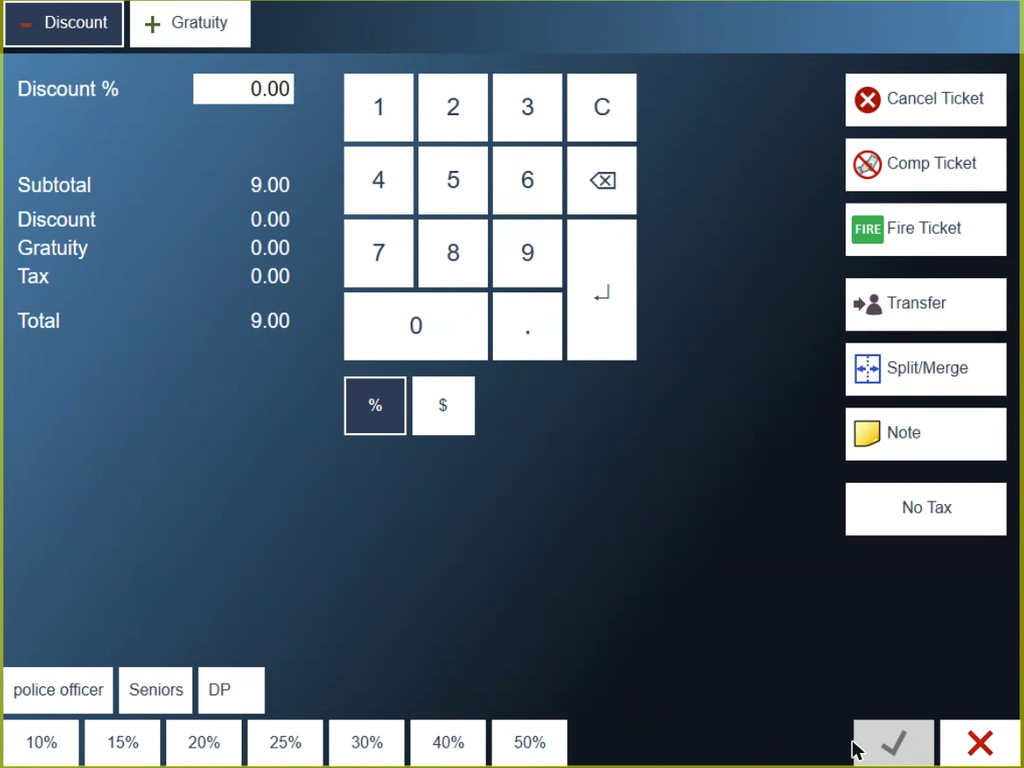
Figure 8. The more... screen. Discount at the top left, the ticket buttons down the right
Print the presenter ticket
The presenter ticket is the bill you take to the table before the guest pays.
Open the ticket from Tables, or tap Toggle to see your open tickets.
Tap the printer button, in the row under the ticket, beside Pay (Figure 9).
The presenter ticket prints (Figure 10) and the ticket is put away. Take it to the table.
Printing also sends anything on the ticket that has not gone to the kitchen or bar yet.
The table turns green on the tables screen, so you can see who is waiting to pay.
If the guest orders more, ring it in and print the presenter ticket again.
With dual pricing, the ticket shows a card price and a cash price for each item. CASH TOTAL is what the guest owes in cash and TOTAL is what they owe on a card.
On a station with no receipt printer, the button shows a phone and texts the ticket instead.
Full guide: Printing the presenter ticket
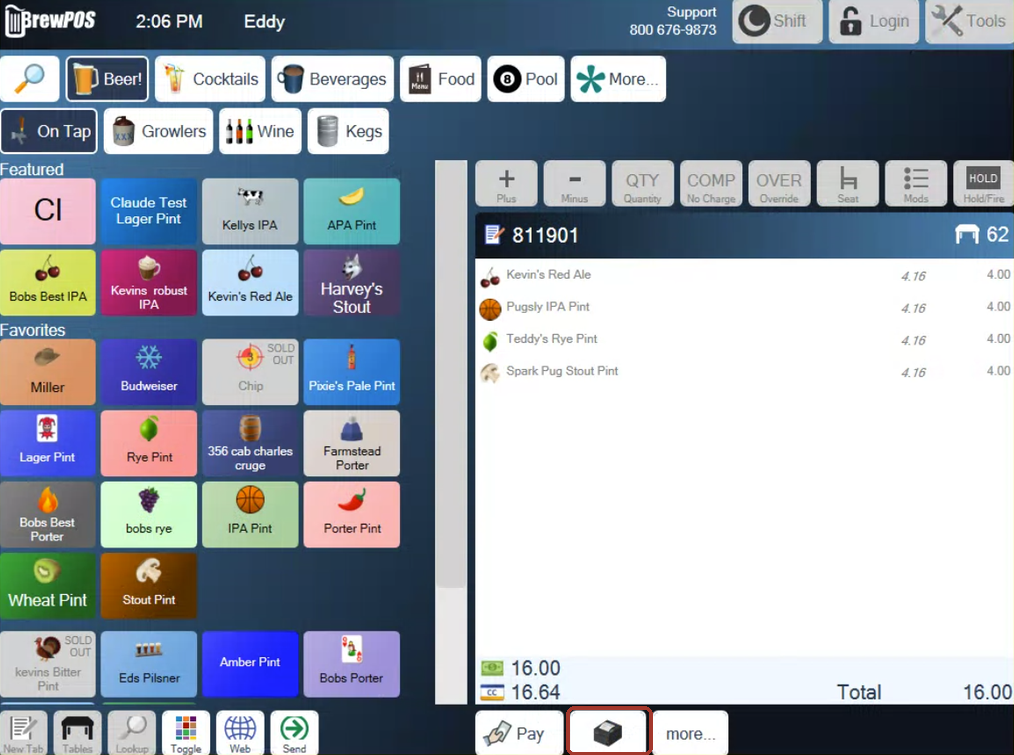
Figure 9. The order screen with a ticket open. The printer button is boxed, between Pay and more...
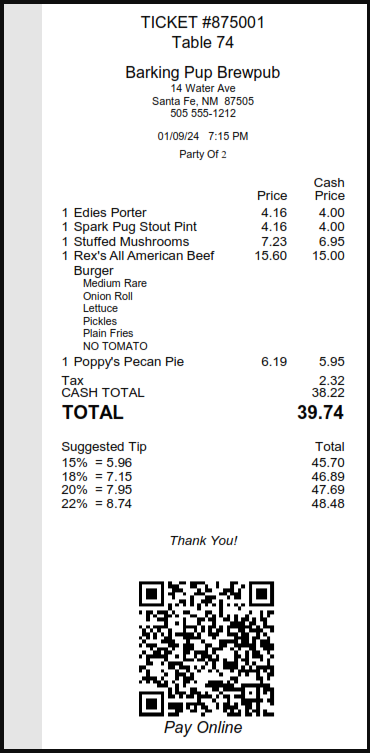
Figure 10. A presenter ticket
Take a payment
Pay is the hand holding cash, in the row under the ticket (Figure 11). It opens the payment window, where you choose how the guest is paying.
When the guest hands you a card or cash, open the ticket from Tables, or tap Toggle to see your open tickets.
Tap Pay, the hand holding cash, at the bottom of the order screen. The payment window opens (Figure 12).
Choose Cash, Credit Card, Gift Card or Other, and enter the amount. When NEED reaches zero, the ticket closes.
To change a payment, tap its amount on the payment window.
Full guide: Taking a payment and adjusting tips
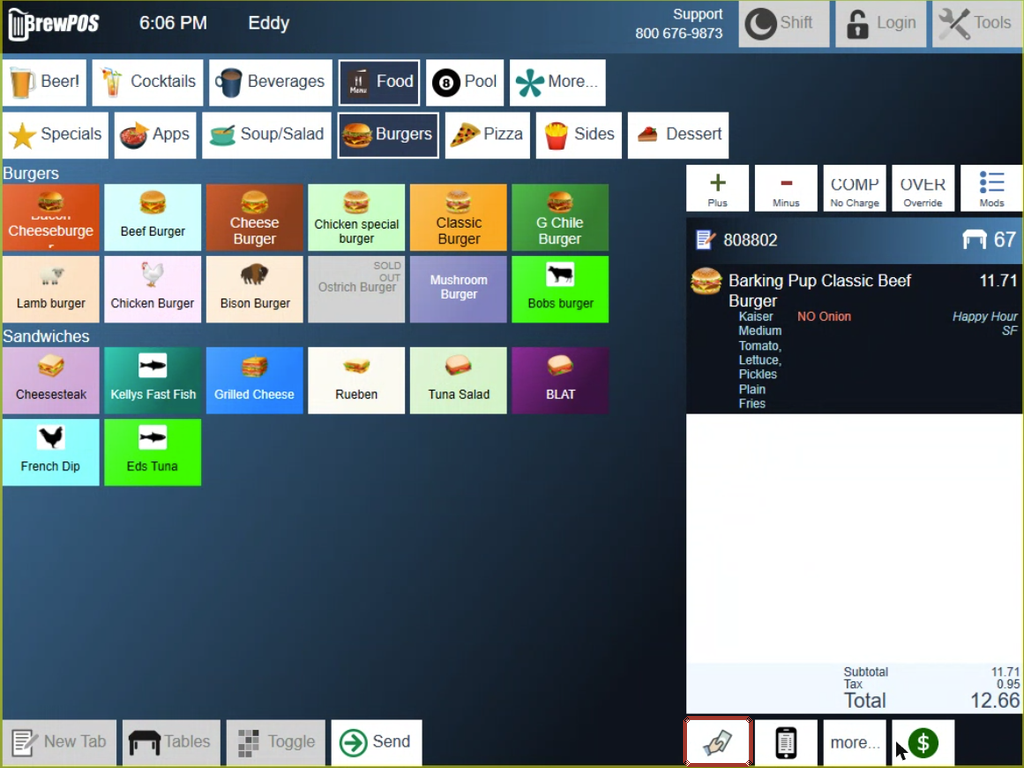
Figure 11. The order screen with a ticket ready to pay. Pay, the hand holding cash, is boxed in the row under the ticket
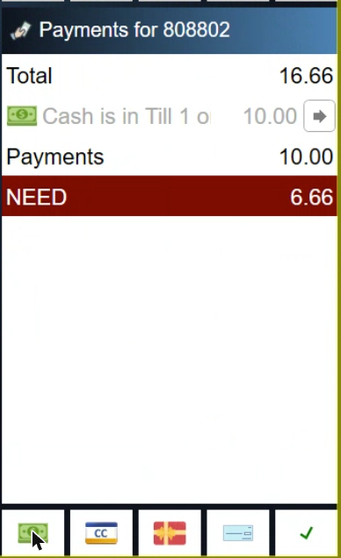
Figure 12. The payment window. NEED shows what is still owed
Adjust card tips
Processing tips ties up the card machines for a moment, so other stations may have to wait to take a card. Do it at a quiet moment.
Tap Shift, top right, then the My Tips tab.
Tap a card payment and type the tip on the keypad (Figure 13).
Tap Process, bottom right.
Full guide: Taking a payment and adjusting tips
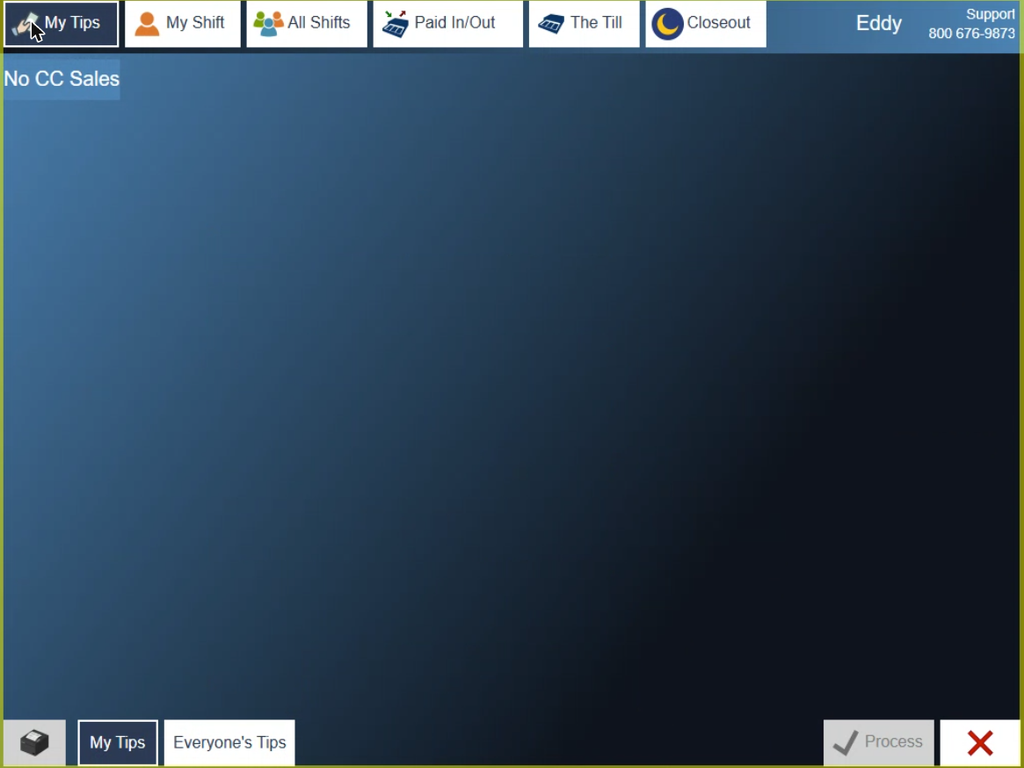
Figure 13. My Tips. Card payments are listed here with the tip on each; this one has no card sales yet
Void or edit a closed ticket
Tap Tools, top right, then History (Figure 14).
Select the closed ticket on the left. It shows on the right.
Tap Void to void the ticket, or Edit to change the payment or reopen it.
Enter your PIN when the terminal asks. Void also asks you to confirm.
If you reopened the ticket, make your change, then take the payment again.
Full guides: Taking a payment and adjusting tips and Processing a refund
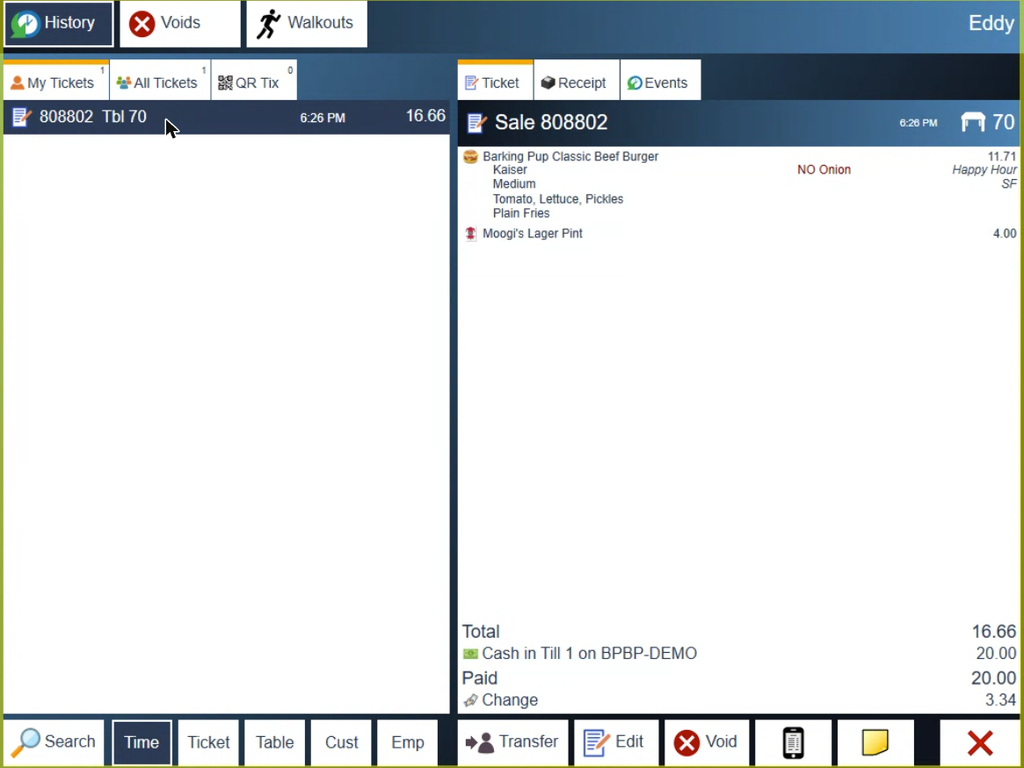
Figure 14. History. Transfer, Edit and Void are under the closed ticket
End your shift
Run your shift report only at the end of your shift. To check your totals earlier, tap Trial instead.
Tap Shift, top right, then the My Shift tab (Figure 15).
Close or hand on any open tickets. They show in red, and Run Shift Report stays greyed out until they are gone.
If you have cash tips, tap the arrow beside Cash Tips and enter them.
Tap Run Shift Report, bottom right, and confirm. If you entered no cash tips, the terminal first asks whether to carry on anyway. Once the report is run, your shift shows in green on All Shifts.
CC tips are tips on card payments. Gratuities are set tips added to a ticket, for a large group say, and can be cash or card.
Full guides: Starting and ending your shift, Closing out the end of the day and Reopening a shift report to enter tips
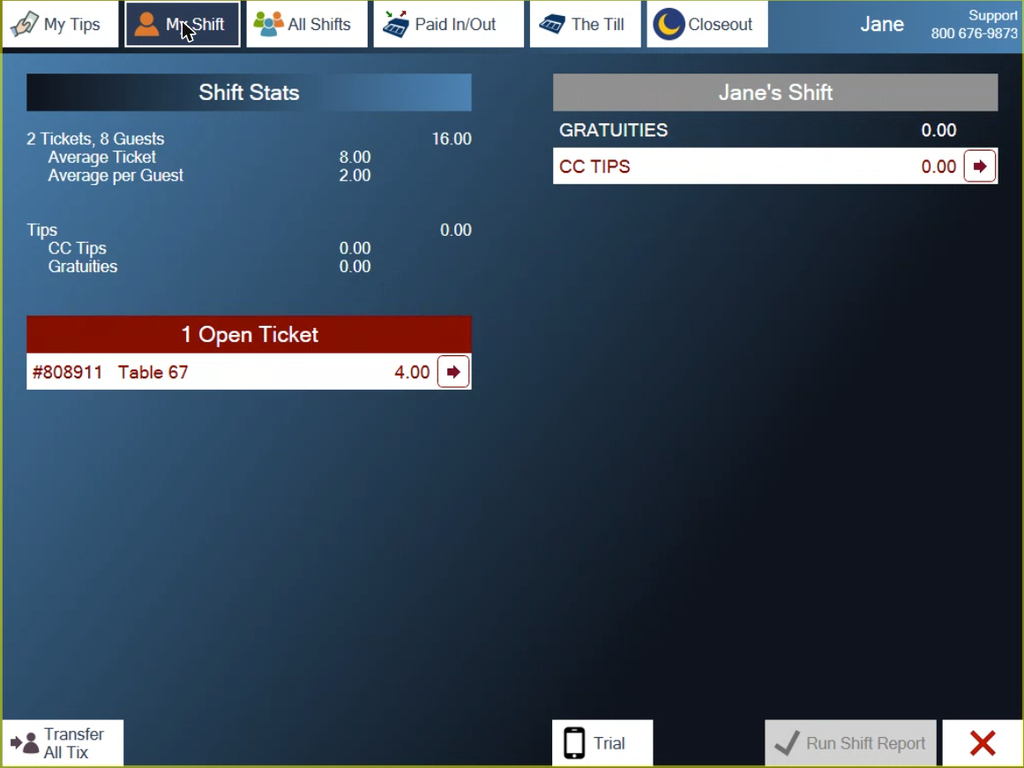
Figure 15. My Shift. An open ticket shows in red and has to be closed before your shift report
For managers: other shifts and closing out
Other people's shifts
Under Shift, the All Shifts tab lists every shift. Open shifts are in red with what each one still needs, such as needs a Shift Report. Tap the arrow on one to enter that person's tips and run their report. To fix a finished shift, tap its arrow, then Re-open, and run the report again.
Close out the day
Close out at the end of every day, so each day's sales are reported on their own.
On All Shifts, check every shift is finished and in green.
Enter any cash taken out of or put into the drawer on the Paid In/Out tab.
On The Till tab, tap the arrow beside Cash Count and type the cash in the drawer (Figure 16). The screen says Bingo! when it matches Cash Expected.
Tap Drop Till, bottom right, then the green check.
On the Closeout tab, anything stopping the close out shows in red. Tap the arrow on each to deal with it.
When it reads System ready for Closeout, tap Closeout, bottom right, then the green check. The terminal shows its progress, says goodnight and restarts.
Full guides: Closing out the end of the day and When the till is over or under
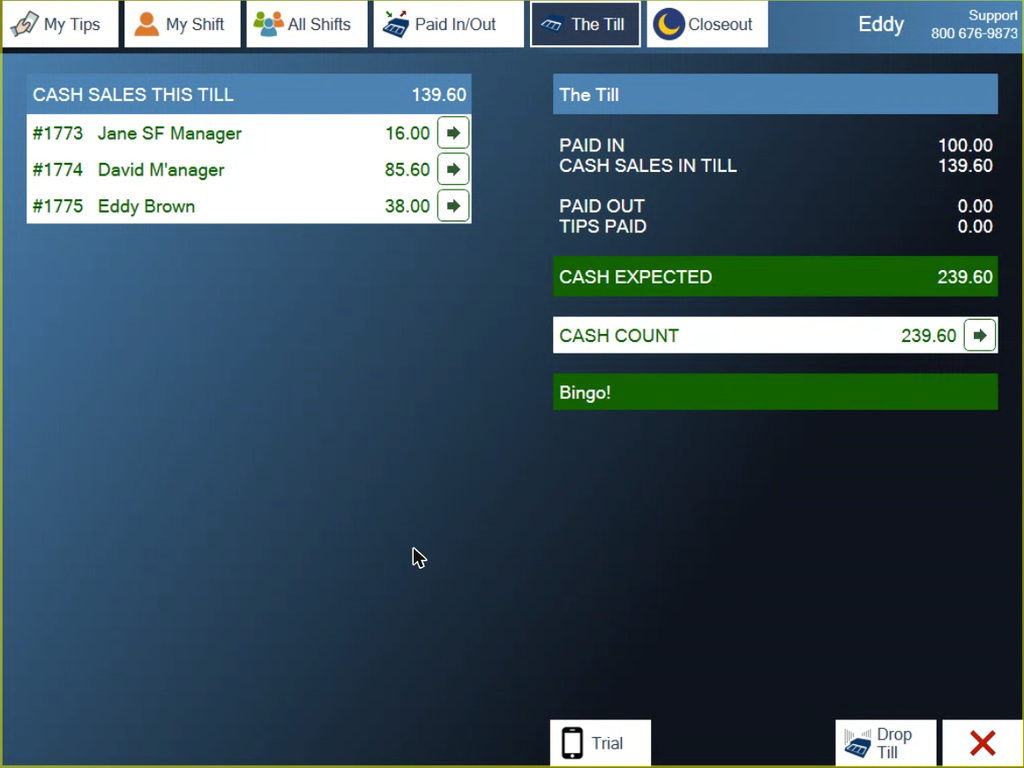
Figure 16. The Till tab, counted. Bingo! means the count matches Cash Expected
Still stuck?
Search the guides at brewpos.com/help, or call BREW POS support on 1-800-676-9874.
About this guide
Applies to: the BREW POS terminal
Last reviewed: 5 October 2026
BrewPOS How to use
Support 1-800-676-9874
Email [email protected]
© 2026 BREW POS. All rights reserved.