
Processing a refund
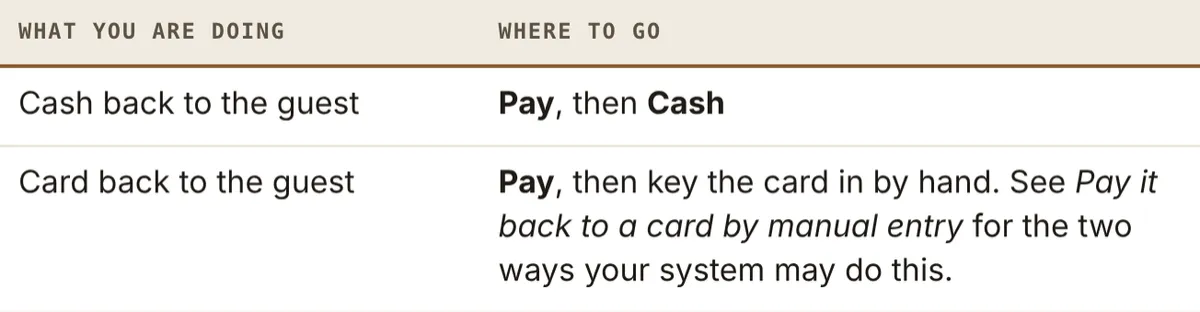
Giving money back to a guest after the sale is closed. You ring the refund up on its own ticket with the REFUND button, then pay it back the way the guest paid: cash out of the till, or back onto a card by keying the card number in by hand.
Taking an item off a ticket that is still open is not a refund. That is a void or a comp, and it is in Comps, voids and discounts at the POS.
Before you begin
For front of house staff at the register, and for the manager who sets the button up.
You are signed in at the register, on the order screen with the menu buttons along the top.
Your menu has a REFUND button. On most systems it is under More..., then Misc. If you cannot find it, see Setting up the REFUND button.
For a card refund, have the card in hand. The refund does not reach back to the original sale for the card details, so the number is keyed in fresh.
Which way you pay it back
Ring up the refund
Do this part whichever way you are paying it back.
1. Start a new ticket, for example with New Tab.
2. Tap More... along the top, then Misc. The REFUND button is in the panel below (Figure 1).
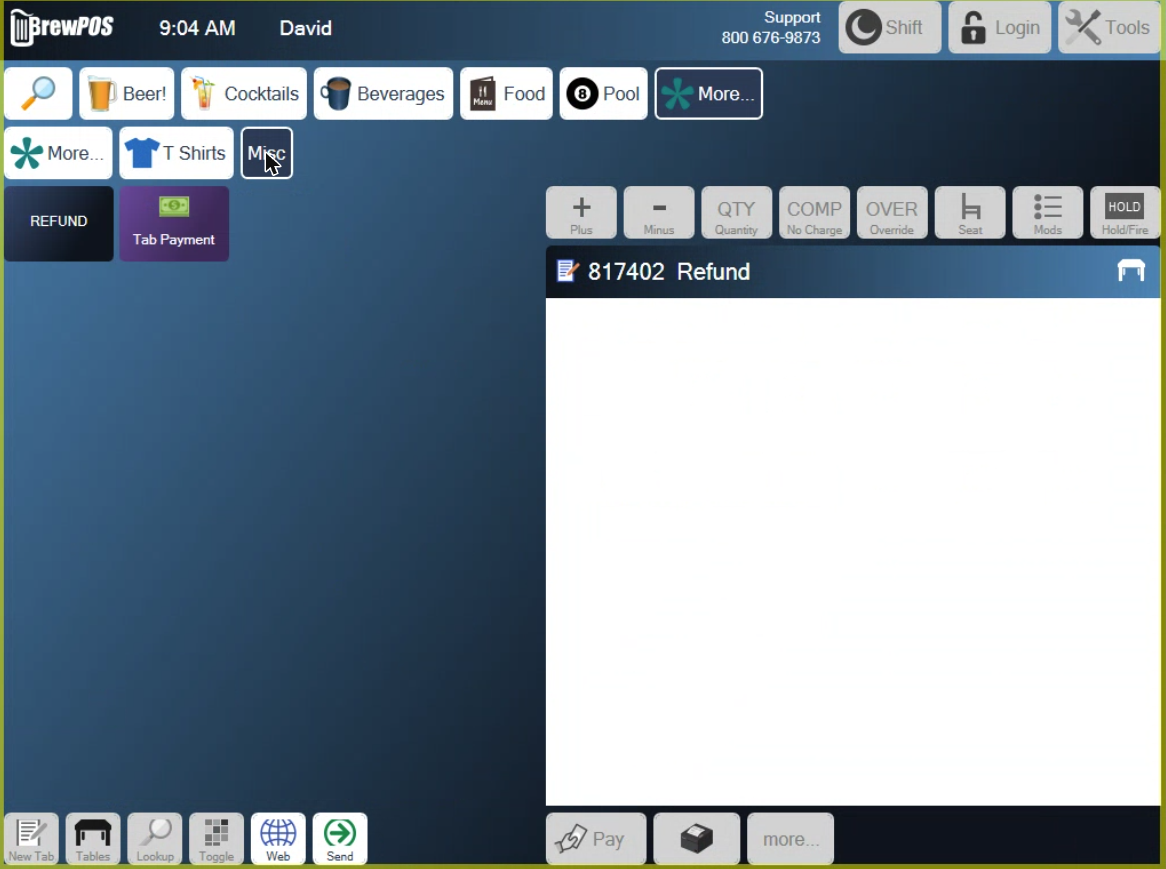
Figure 1. REFUND under More... and Misc, on a new ticket
3. Tap REFUND. A keypad opens and asks for the amount (Figure 2).
4. Key in the amount. The keypad works in whole dollars: 5 gives 5.00.
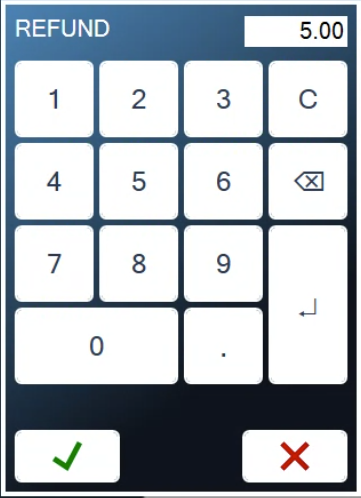
Figure 2. Key in the amount to give back
5. Tap the green check mark. The ticket shows REFUND as a minus amount, and the bottom of the ticket reads Refund (Figure 3).
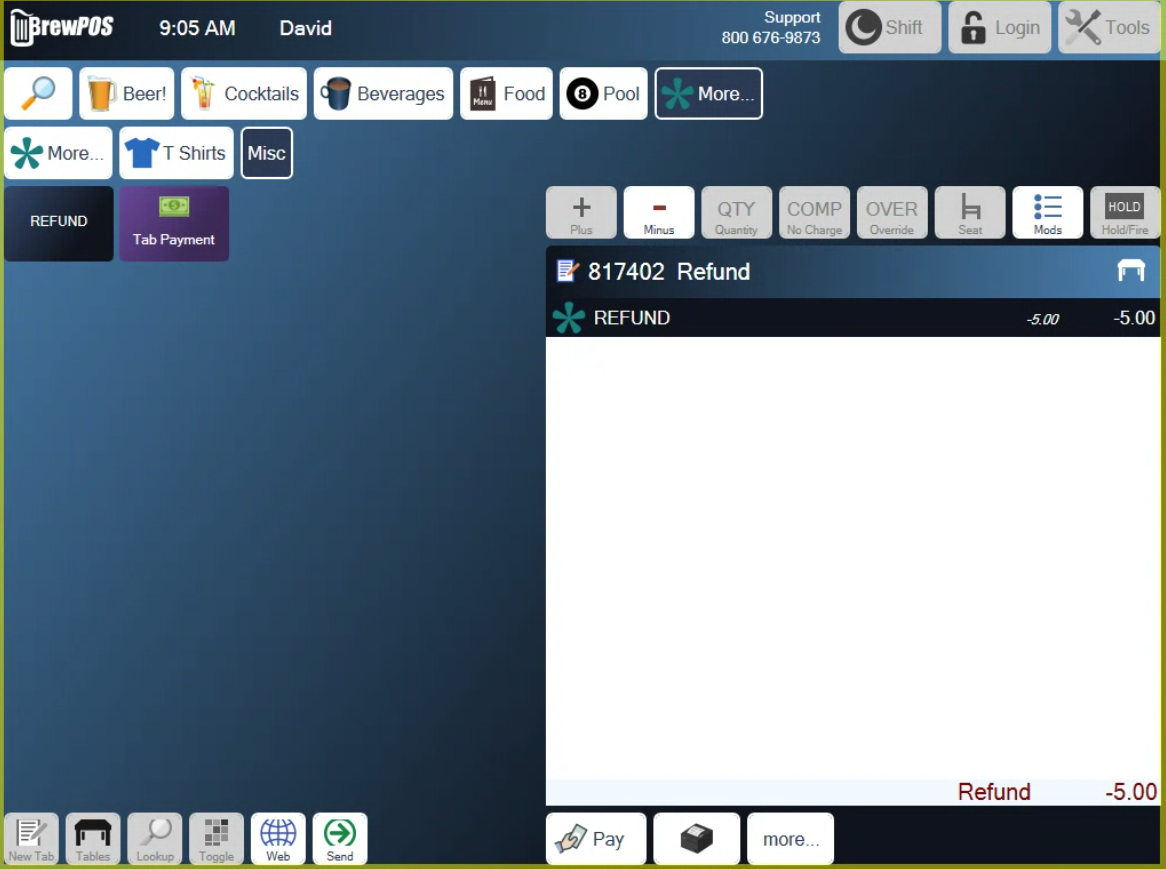
Figure 3. A 5.00 refund on its own ticket
6. Tap Pay under the ticket. The ticket turns into the payment window: CREDIT shows the refund, Due shows the amount to give back, and the ways to pay it out run along the bottom: Cash, Credit Card, Gift Card and Other (Figure 4).
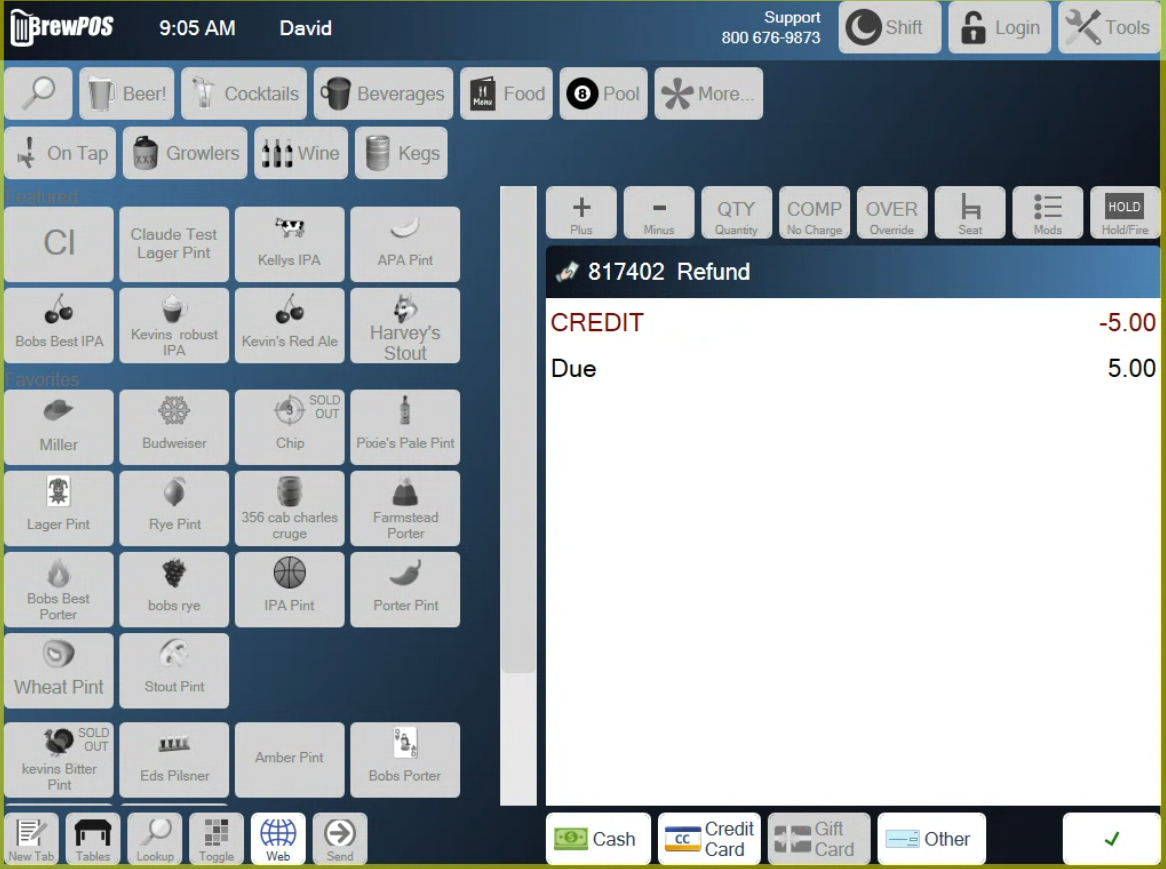
Figure 4. The payment window, where you choose how to give the money back
Now pay it back in cash or to a card, below.
Pay it back in cash
1. In the payment window, tap Cash. A line appears reading Cash Payout is in Till 1 (your till and station name), and Due turns green at 0.00 (Figure 5).
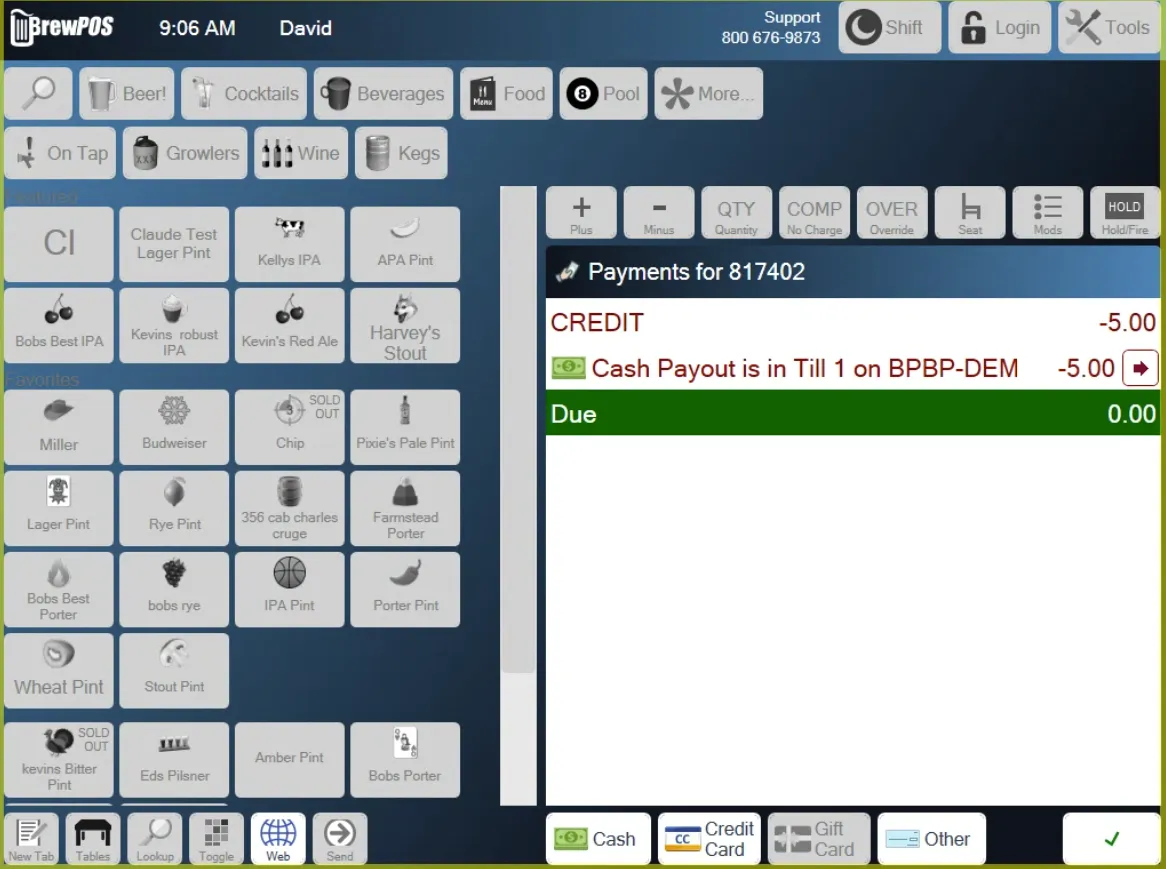
Figure 5. The cash payout, ready to finish
2. Tap the green check mark at the bottom right. The ticket closes.
3. Hand the guest the cash from your till. The payout comes off the till, so the count at the end of the shift still balances.
Pay it back to a card by manual entry
A card refund is keyed in by hand rather than tapped, inserted or swiped. Your system handles manual entry in one of two ways: either you hand enter the card on the card device, or, if that is not available on your system, manual entry is under Other in the payment window. Which one you have depends on how your card payments are connected, through Datacap or directly to a PAX device. You do not need to know which; the steps below tell you what to look for.
On the card device
1. In the payment window, tap Credit Card. A keypad opens showing the amount (Figure 6).
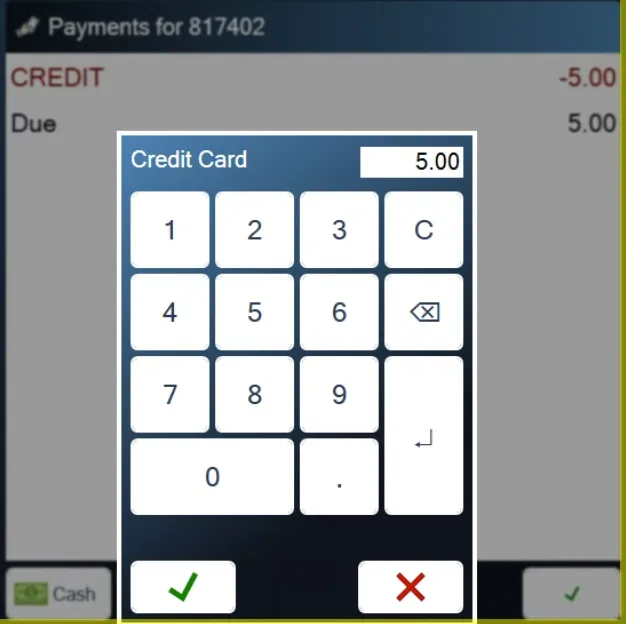
Figure 6. The Credit Card keypad
2. Check the amount matches the refund, then tap the green check mark on the keypad.
3. Key the card number in on the card device when it asks, along with anything else the device asks for.
4. When the device approves it, tap the green check mark at the bottom right of the payment window. The ticket closes.
Under Other
Use this if your system does not hand enter on the card device.
1. In the payment window, tap Other, the last of the payment buttons along the bottom (Figure 7).

Figure 7. The payment buttons, with Other at the end of the row
2. The other payment types run along the bottom, with Manual CC at the right, next to the red X (Figure 8).
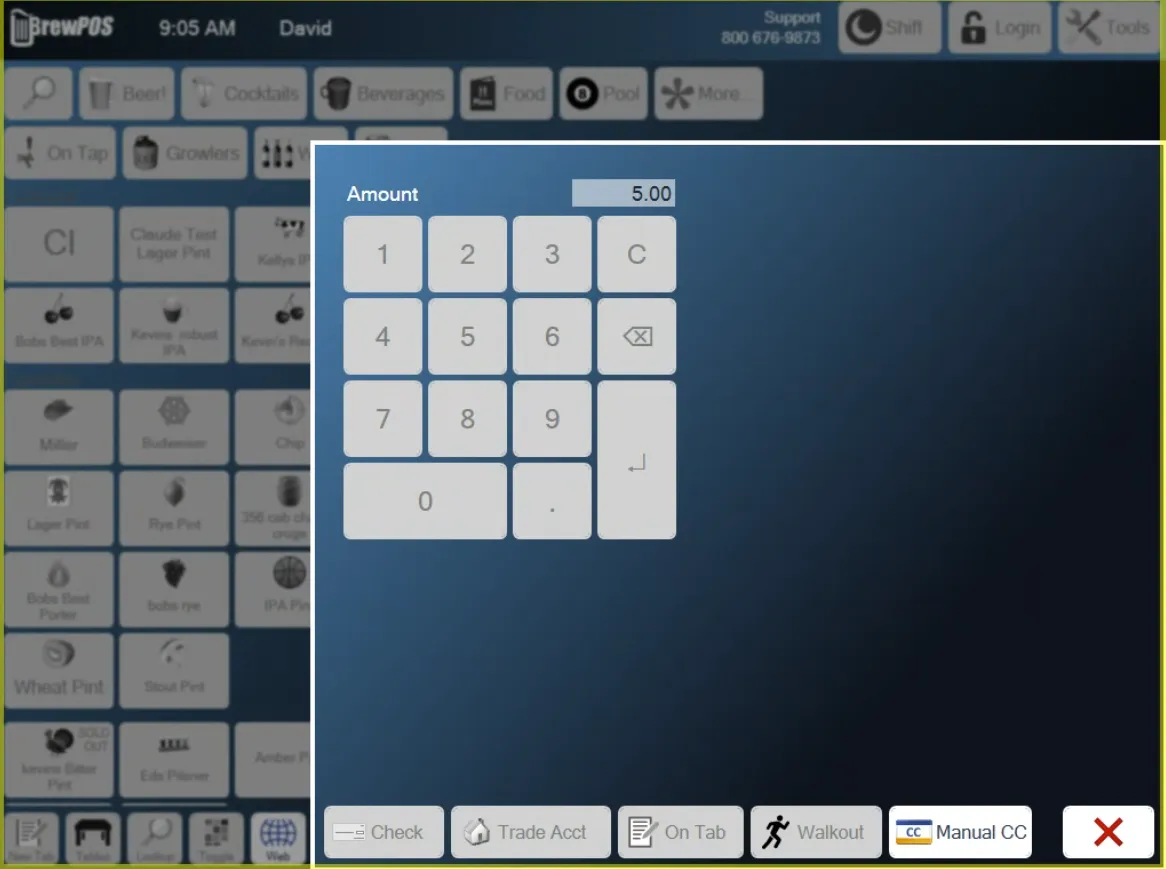
Figure 8. The Other screen, with Manual CC at the bottom right
3. Check the Amount at the top matches the refund, then tap Manual CC.
4. Key the card number in when you are asked, along with anything else it asks for.
5. When the refund is approved, tap the green check mark at the bottom right of the payment window. The ticket closes.
Setting up the REFUND button
For managers, in BREW POS Admin. The REFUND button is built into the system, so every site already has one. You can change its color and move it to a different category, but you cannot make a second REFUND button or build one of your own.
1. Go to Setup, then Products, then Categories.
2. In the category list, open More..., then Misc. REFUND is listed under Products in Misc category (Figure 9).
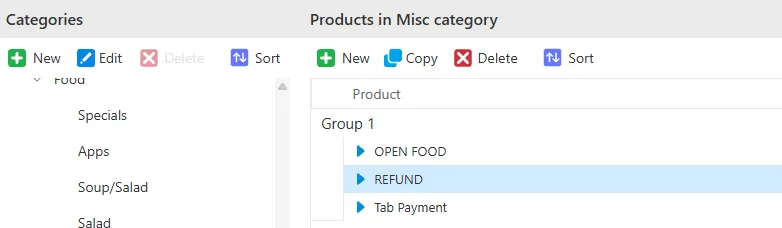
Figure 9. REFUND in the Misc category in Admin
3. Open REFUND (Figure 10). From here you can:
change its color with Color at the top left, or
move it to a different category with the Category box, so it shows up somewhere else at the register.
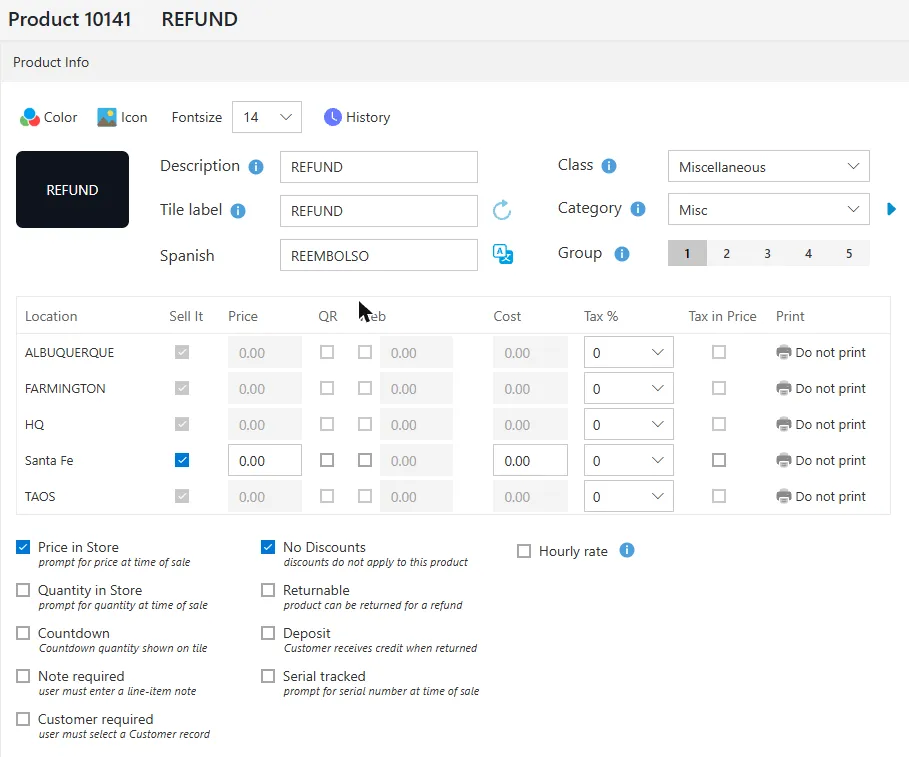
Figure 10. The REFUND product record
4. Click Save at the top right to keep your change, or Cancel to leave without changing anything.
Leave the rest of the settings as they are. Price in Store is what makes the register ask for the amount each time, and Sell It has to stay ticked for each location that gives refunds.
Troubleshooting
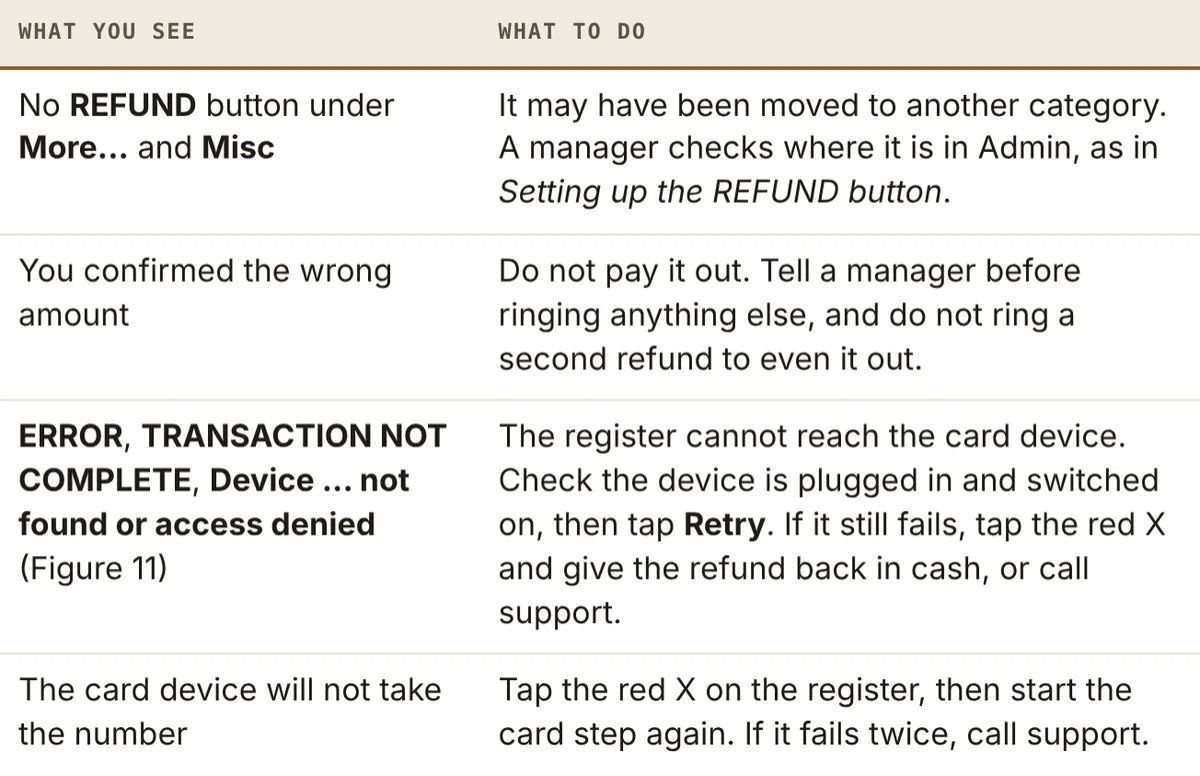
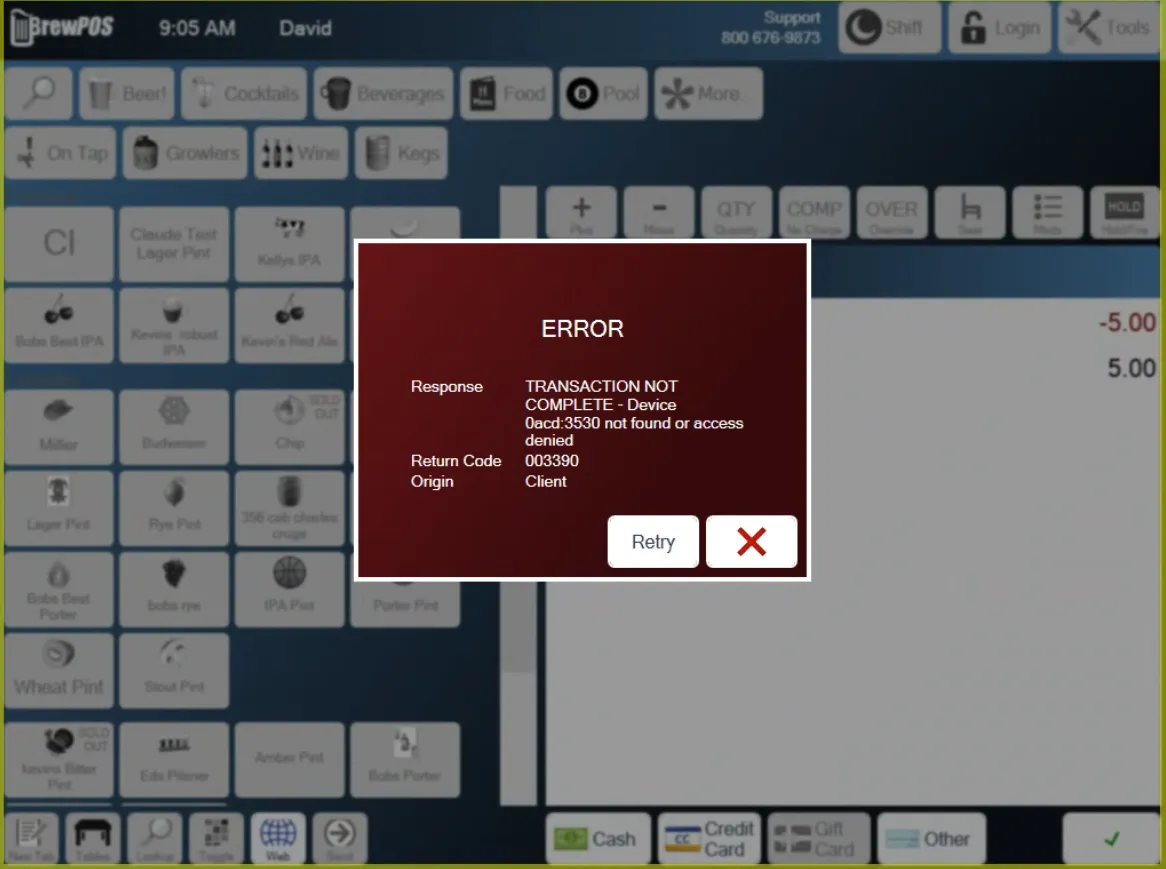
Figure 11. The error when the card device cannot be reached
About this guide
Applies to: BREW POS register and BREW POS Admin
Last reviewed: 18 October 2026
BrewPOS How to use
Support 1-800-676-9874
Email [email protected]
© 2026 BREW POS. All rights reserved.