
Taking an order
The order screen is where you ring items in, tell the kitchen how to make them, and hold an order back until the guest is ready. This guide covers adding and removing items, modifiers, No, Add and Mod, and hold and fire.
Add and remove items
Your products are in categories across the top of the screen, with a second row of subcategories under some of them (Figure 1).
1. Tap a category, then a subcategory if there is one.
2. Tap an item to add it to the ticket on the right.
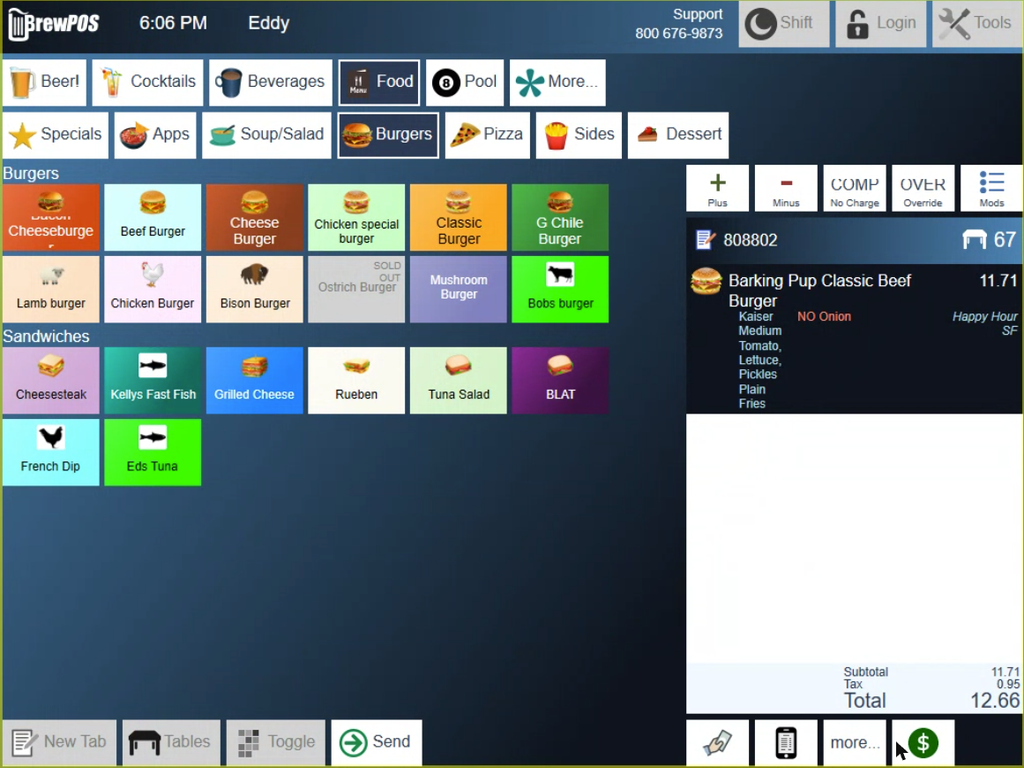
Figure 1. Categories across the top, items below them, the ticket on the right
To add another of the same item, select it on the ticket and tap Plus. To take an item off the ticket, select it and tap Minus. Both are in the row of buttons above the ticket. What happens when you minus something that has already gone to the kitchen is covered in Comps, voids and discounts at the POS.
Pick the modifiers
If an item has modifiers, its modifier screen opens as soon as you add it (Figure 2).
1. Pick one from each group that says choose 1, such as the bun and the meat temperature.
2. Pick any optional extras. A price in the corner of a button is what that extra adds.
3. Tap the green check mark.
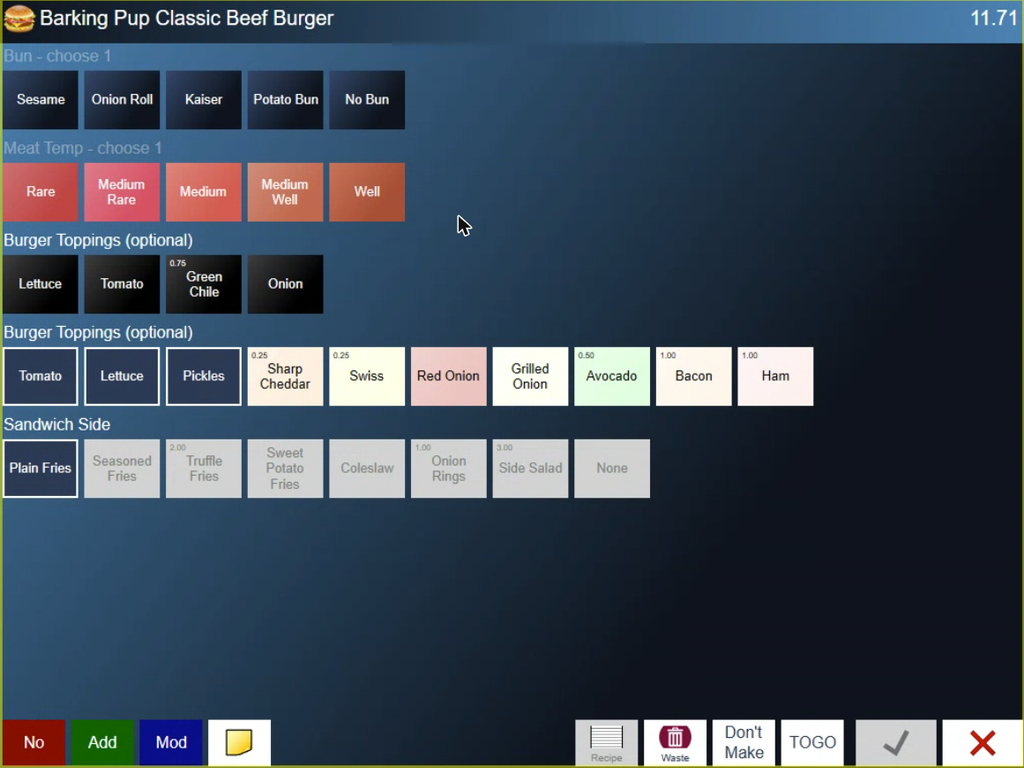
Figure 2. An item's modifier screen. No, Add and Mod are at the bottom left
The buttons along the bottom of this screen also include a note (the yellow square), Recipe, Waste, Don't Make and TOGO.
No, Add and Mod
No, Add and Mod, at the bottom left of the modifier screen, open the universal modifiers, which work on any item (Figure 3). They let you tell the kitchen to leave something off, add extra of something, or make it a little differently.
1. Tap No, Add or Mod.
2. Pick a tab, such as General, Sauces or Veggies, then the modifier. Left and Right buttons also appear once you have picked one.
3. Tap the green check mark to go back to the item's modifier screen, then the check mark again to finish the item.

Figure 3. The universal modifiers, here in No mode
On the ticket the item shows every modifier, with No items in red, for example NO Onion.
Change modifiers you already picked
Select the item on the ticket and tap Mods, the last button in the row above the ticket (Figure 4). The item's modifier screen opens with your choices already highlighted.

Figure 4. Plus, Minus, Comp, Over and Mods, above the ticket
Send the order
Tap Send, at the bottom of the order screen. The order goes to the kitchen and bar, and the ticket closes on your screen so you are ready for the next one. Items that have been sent show in grey when you open the ticket again.
Add to an order later
When a table orders another round, you add it to the ticket they already have.
1. Tap Tables and then the table, or tap Toggle and pick the ticket from your list. The ticket opens with the items already sent in grey.
2. Ring in the new items.
3. Tap Send. Only the new items go to the kitchen and bar.
When the table is ready to pay, print the bill and take it to them. See Printing the presenter ticket.
Hold an order and fire it later
Sometimes a table wants its food later, for example a course they want brought out after the drinks. You hold the whole ticket, then fire it when they are ready.
1. With the ticket open, tap more... at the bottom right of the order screen.
2. Tap Hold Ticket.
3. Choose Hold to hold it until you fire it yourself, or a time (5 minutes, 10 minutes, 15 minutes, 20 minutes or Other) to hold it for that long (Figure 5). Every item on the ticket is marked HOLD.
4. Tap Send. The kitchen does not get it yet.
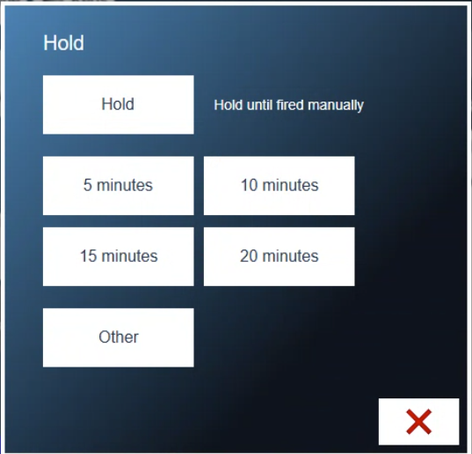
Figure 5. Hold until fired, or hold for a set time
When the guests are ready:
1. Open the ticket and tap more.... Hold Ticket now reads Fire Ticket (Figure 6).
2. Tap Fire Ticket, then the green check mark at Fire this Ticket? It goes to the kitchen to be made.
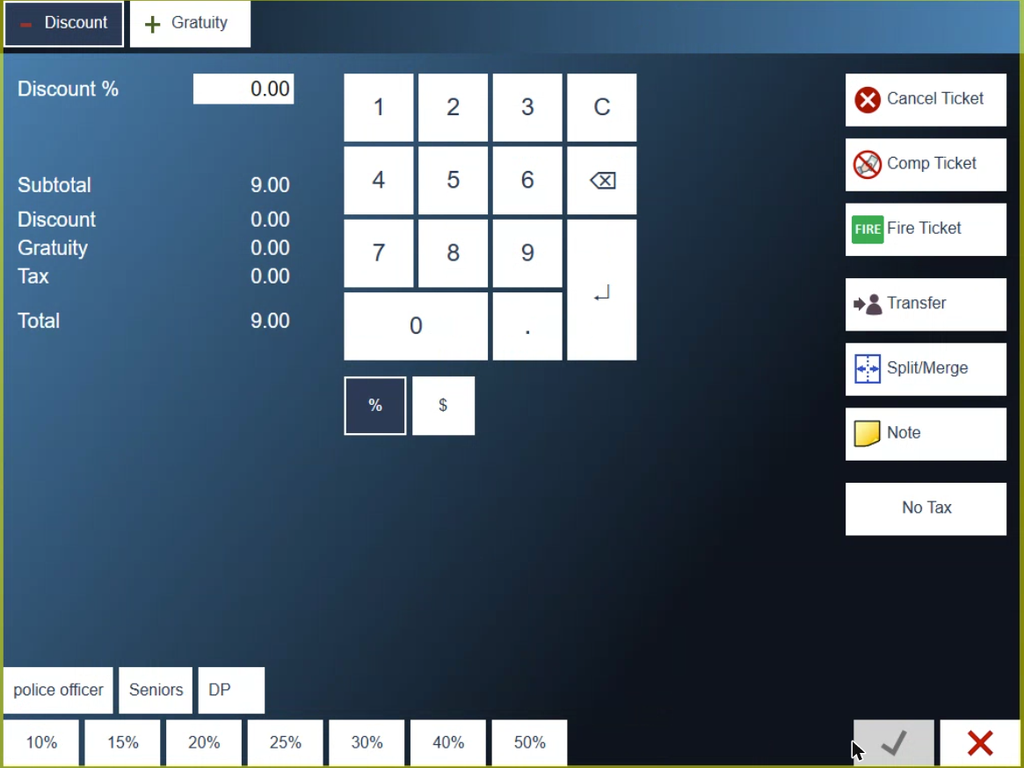
Figure 6. The more screen on a held ticket. Fire Ticket sends it to the kitchen
Change the price
To comp or override one item, select it and tap COMP or OVER (override). To discount the whole ticket, tap more... at the bottom of the order screen. Both are covered in Comps, voids and discounts at the POS.
About this guide
Applies to: the BREW POS terminal.
Last reviewed: 4 October 2026
BrewPOS How to use
Support 1-800-676-9874
Email [email protected]
© 2026 BREW POS. All rights reserved.