
Logging in and clocking in
You log in to the POS with the user ID and PIN your company gives you. Logging in puts you on the order screen, and if you are not clocked in yet it offers to clock you in on the way. This guide covers the login screen and what each of its buttons does.
Log in
1. If someone else is on the order screen, tap Login, at the top right of the screen (Figure 1). It locks the screen and brings up the login screen.

Figure 1. Login sits between Shift and Tools
2. Type your User ID on the keypad and tap the Enter key, then type your PIN (Figure 2).
3. Tap Login, bottom right.
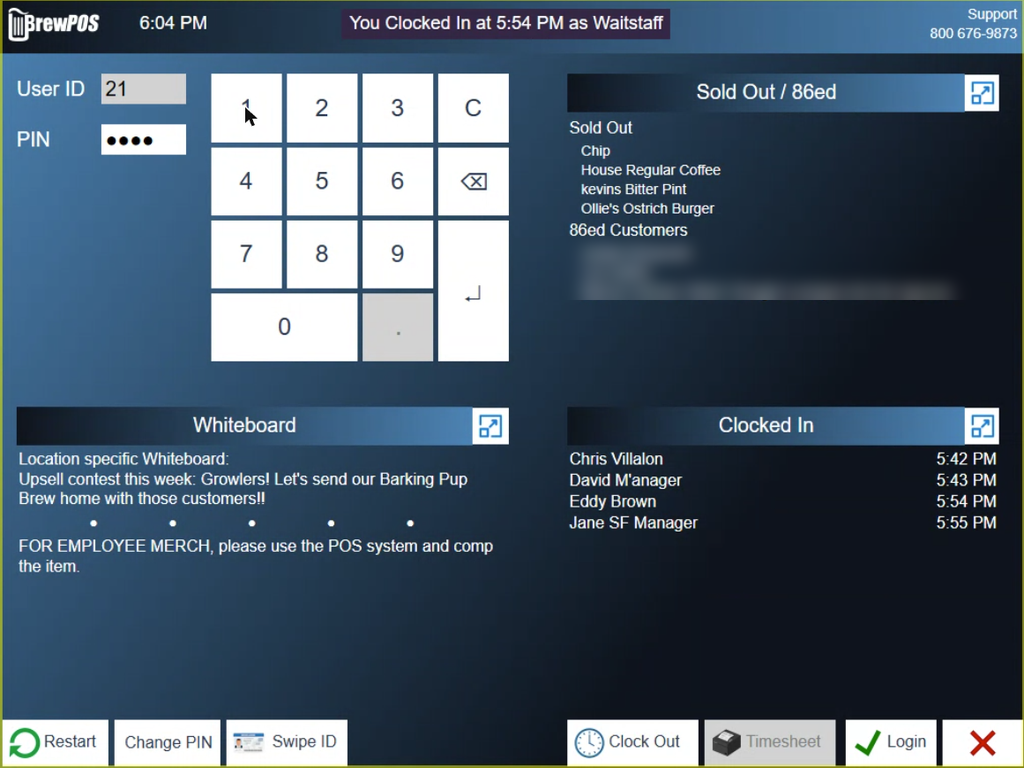
Figure 2. The login screen with a user ID and PIN entered. The bar at the top says whether you are clocked in
If you are not clocked in yet, the POS asks Do you want to Clock In? (Figure 3). Tap the green check mark to clock in, or the red X to log in without clocking in.
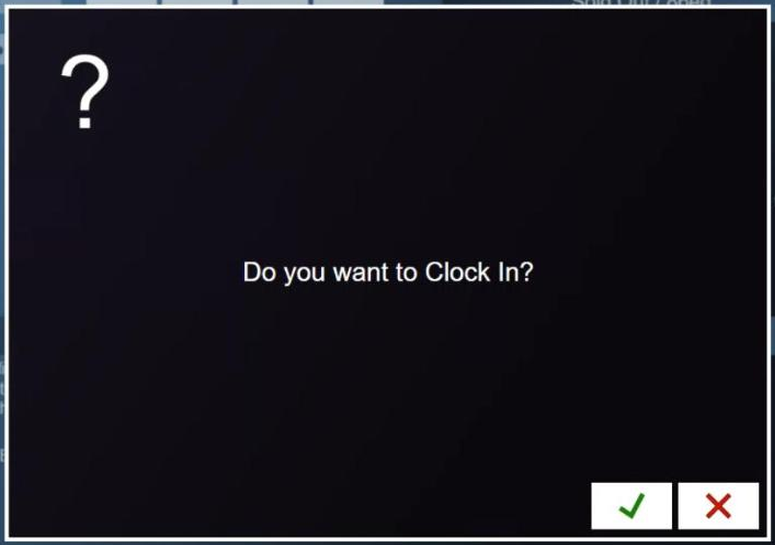
Figure 3. Logging in offers to clock you in
If you have more than one job, pick the one you are working today (Figure 4). The POS confirms You have Clocked In. Tap the red X to close the message.
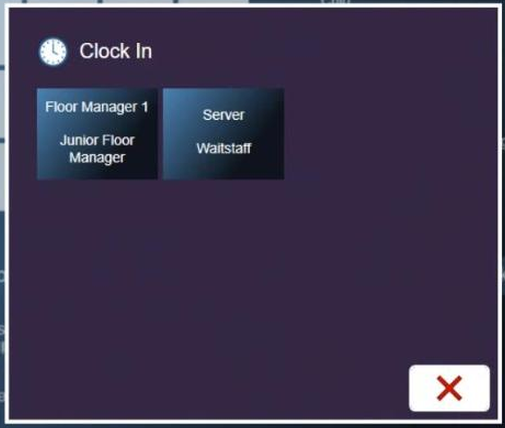
Figure 4. Pick a job when you have more than one
The first person to log in on a till may be asked for a bank start next. That is covered in Starting and ending your shift. Then you land on the order screen, ready to take an order.
The rest of the login screen
Once you have typed your user ID and PIN, the bar at the top tells you whether you are clocked in, for example You Clocked In at 5:54 PM as Waitstaff, and more buttons appear along the bottom.
Clock In or Clock Out only touch your time card. Only the one that applies to you shows. You can clock in or out at any time, and it has nothing to do with taking orders.
Timesheet prints your current time card.
Change PIN lets you set a new PIN for yourself. The steps are in Setting up a station, which also covers sharing a station between several people and the lock screen.
Swipe ID lets you log in with an employee card instead of typing your user ID. Once a user ID is typed, it changes to Clear ID, which empties the user ID box.
Restart restarts the POS program.
The panels on the right of the screen show what is Sold Out or 86ed, and who is Clocked In and since when. The Whiteboard panel shows messages for your location and for the whole company.
About this guide
Applies to: the BREW POS terminal.
Last reviewed: 3 October 2026
BrewPOS How to use
Support 1-800-676-9874
Email [email protected]
© 2026 BREW POS. All rights reserved.