
Closing out the end of the day
Closing out finalizes the day. It processes the day's credit cards and sends the day's figures up to Admin for your reports. Before the system lets you do it, every ticket has to be closed, every shift report run, every till dropped and every count entered.
This guide takes you through those checks in the order the POS asks for them. Running your own shift report is covered in Starting and ending your shift.
Before you start
Closing out needs all four of these done:
• every ticket closed to a payment, a walkout or a tab
• every shift report run
• every till dropped
• every till count entered, if your system asks for counts
Watch out: closing out cannot be undone
Once you confirm Do you want to Closeout? the day is finished and the workstation restarts. Clear everything first.
Check your own shift
1. At the top of the POS, tap Shift (Figure 1).

Figure 1. Shift, at the top of the POS
2. Tap My Shift. It shows your shift stats, and any open tickets on your shift in red (Figure 2). Run Shift Report stays greyed out until they are closed or handed on.
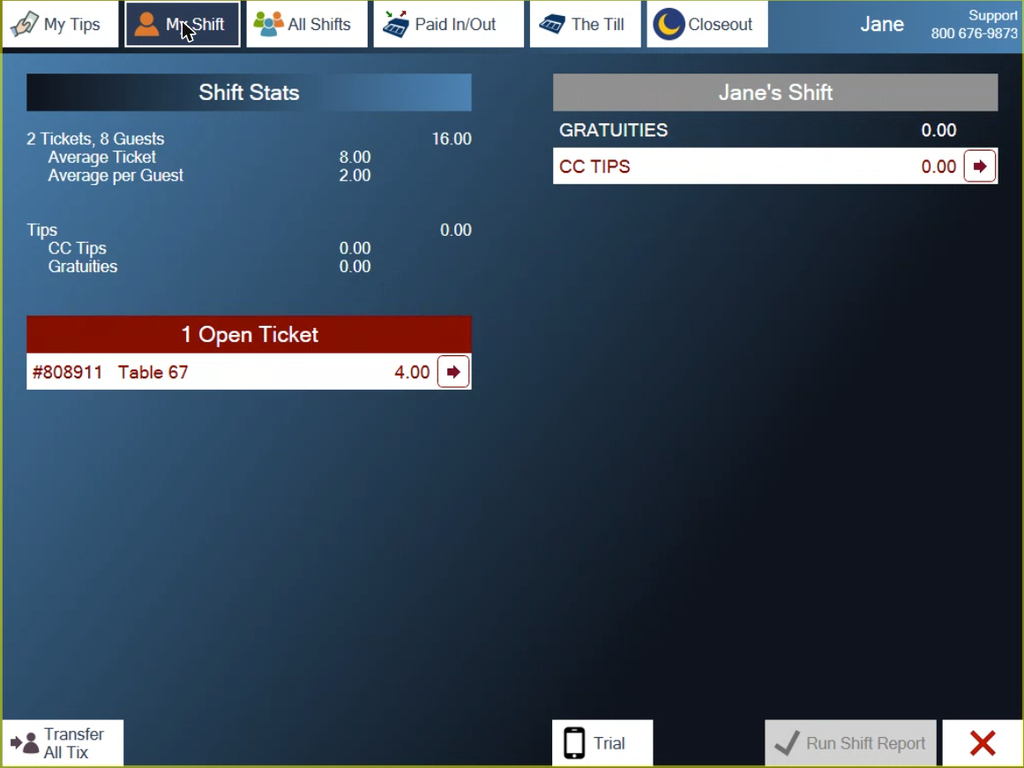
Figure 2. One open ticket is still on Jane's shift
3. Tap the arrow on an open ticket to see more about it.
4. To hand your open tickets to someone else, tap Transfer All Tix, bottom left, then the person to give them to (Figure 3). The POS confirms Ticket was transferred to and their name.
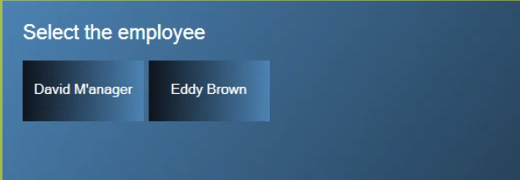
Figure 3. Pick who gets the open tickets
Check everyone else's shifts
Every shift has to be closed before the day can be.
1. Tap All Shifts. Open shifts are on the left in red, with what each one still needs, such as needs a Shift Report or has an Open Ticket. Closed shifts are on the right in green (Figure 4).
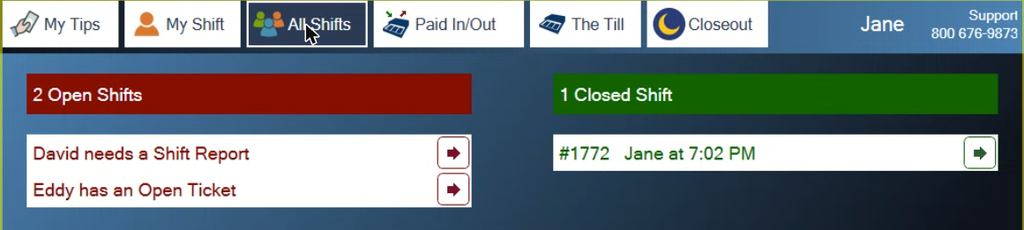
Figure 4. Two open shifts and one closed one
2. If you have the permission, you can finish someone else's shift. Tap the arrow on their line. Their shift report opens (Figure 5). You can transfer their open tickets from here, the same way as on your own shift.
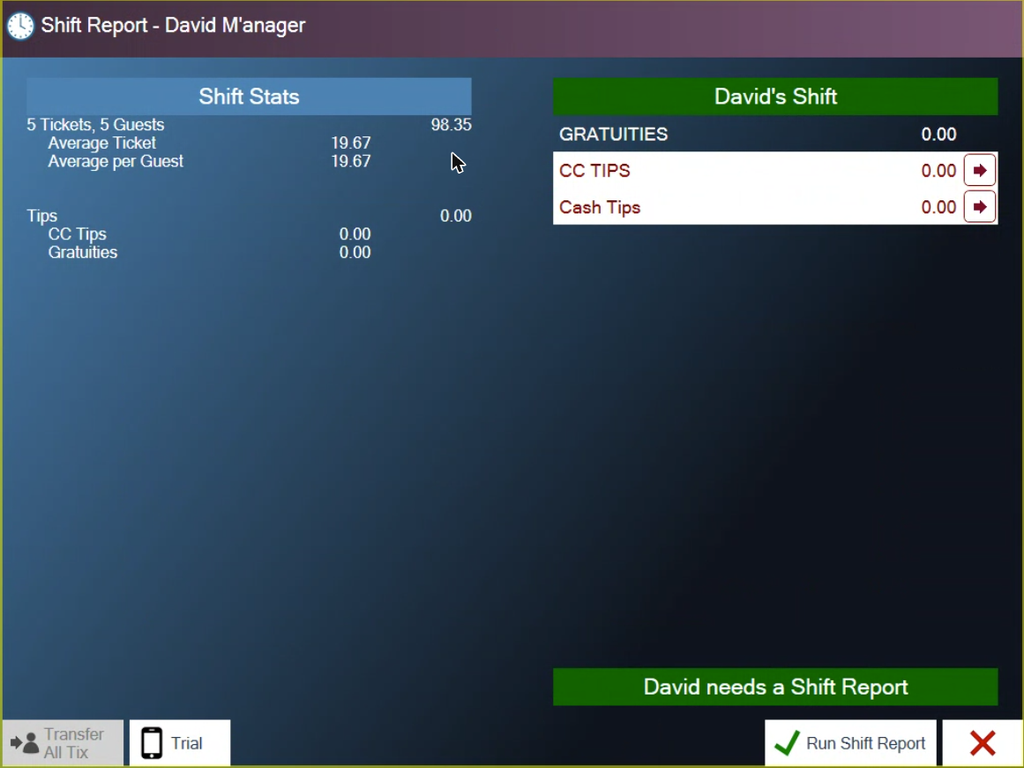
Figure 5. A manager working on David's shift
3. Once their tickets are paid or transferred, check their tips are in, then tap Run Shift Report and confirm.
4. Tap the arrow on a green, completed shift to View, Reprint or Re-open it (Figure 6). Re-opening is covered in Reopening a shift report to enter tips.
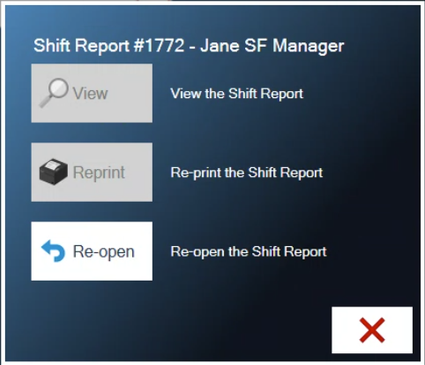
Figure 6. A completed shift can be viewed, reprinted or reopened
Do not reopen a shift that is part of a drop.
Check the till and drop it
1. Tap The Till (Figure 7). The last person to run a shift report on the till lands here by themselves. It shows:
• each shift report with cash sales in this till
• Paid In: the bank start and any other paid-ins for the day
• Paid Out and Tips Paid: cash taken out of the till
• Cash Expected: all the cash that should be in the till, bank start included
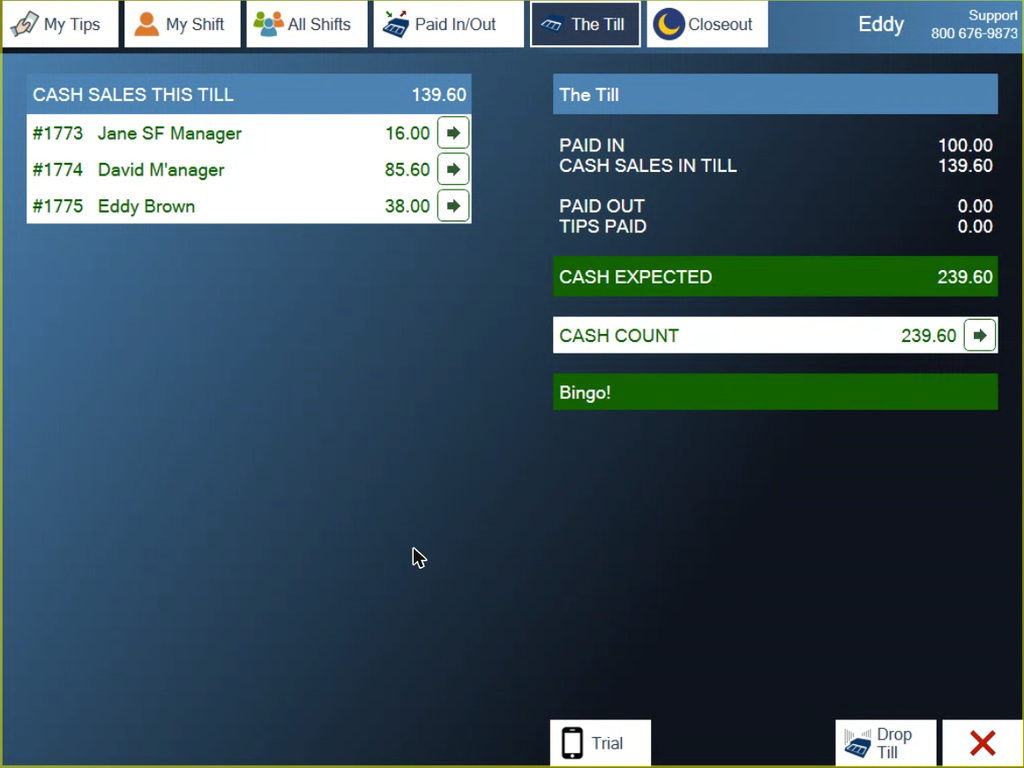
Figure 7. The Till tab, counted. Bingo! means the count matches Cash Expected
2. If you have to count the till, tap the arrow on Cash Count, type the count and tap the green check mark. You can also enter it later on the Closeout tab.
3. Tap Drop Till, bottom right, then the green check mark at Drop the Till?
Count by denomination with the Cash Count screen
By default, bank starts and cash counts take a single number, as above. If you would rather count bill by bill and coin by coin, there is a setting that swaps in the Cash Count screen instead.
1. Highlight a denomination.
2. Type how many you have. The Enter key on the keypad moves to the next row.
3. Tap OK when you are done. A count slip prints for your records.
If you do not see this screen and want it, it is turned on by a setting.
Clear the red lines and close out
1. Once the till is dropped, tap the Closeout tab.
2. Anything stopping the closeout is in red. Tap the arrow on each line to deal with it.
• Close every ticket to a payment, a walkout or a tab.
• Close every shift report. You may have to receive and count a server's cash.
• Drop every till. If your system has more than one, all of them have to be dropped. BrewPOS lets you drop a till from another station, but go to the till if you can, so you can take the cash out of it.
• Enter a count for each till, if your system asks for one.
3. When every line is green, the screen reads System ready for Closeout (Figure 8). The day's cash and card totals are at the bottom.
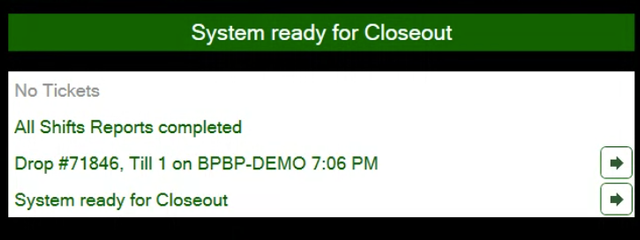
Figure 8. Everything green, ready to close out
4. Tap Closeout, bottom right, then the green check mark at Do you want to Closeout? A progress screen lists each step as it finishes (Figure 9).
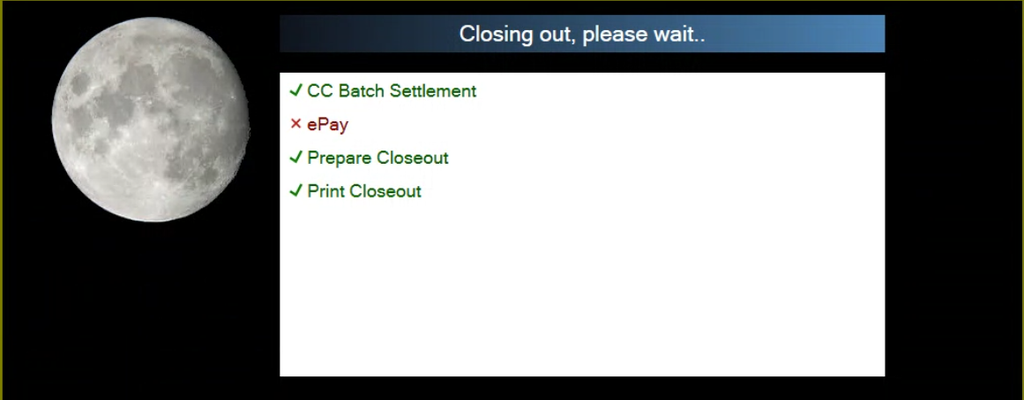
Figure 9. Closing out. ePay shows a red X on a system with no online payments
5. The POS says goodnight and the workstation restarts.
The next person to log in is asked Start a new day?
About this guide
BREW POS: front of house how-to guide
Applies to: the BREW POS terminal, build installed 23 September 2026. The whole closeout was run on a terminal on 30 September 2026, with cash sales only. The Cash Count screen was not switched on, so that section comes from the BrewPOS quick reference Cash Count Screen (March 2021).
Last reviewed: 30 September 2026 · Owner: Eddy
BrewPOS How to use
Support 1-800-676-9874
Email [email protected]
© 2026 BREW POS. All rights reserved.
Privacy Policy | Terms and Conditions