
Taking a payment and adjusting tips
This guide covers printing the bill for a table, taking a payment on a ticket, changing a payment you have already taken, adjusting card tips, and editing or voiding a ticket that is already closed.
At a table, print the presenter ticket first
At a table, the guest normally sees the bill before they pay. That bill is the presenter ticket.
Open the ticket.
Tap the printer button, in the row under the ticket, beside Pay.
Take the presenter ticket to the table, and come back with the guest's card or cash.
Printing also sends anything on the ticket that has not been sent yet. The table shows green on the tables screen until it is paid. If the guest orders more, ring it in and print again. Everything else about it, including the two prices on a dual pricing ticket, is in Printing the presenter ticket.
At the bar or the counter, skip this and go straight to the payment.
Take a payment
1. Open the ticket from the tables screen or the tickets list.
2. Tap Pay, the hand holding cash, at the bottom right of the order screen (Figure 1).
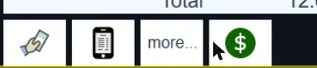
Figure 1. Pay is the hand holding cash, at the bottom right
3. The ticket is replaced by the payment window. It shows the Total, the Payments taken so far and what you still NEED (Figure 2). Along the bottom are Cash, Credit Card, Gift Card and Other.
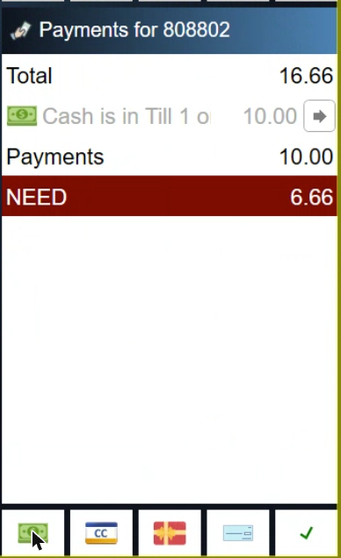
Figure 2. The payment window. NEED is what is left to pay
4. Tap the way the guest is paying and follow the prompts. For cash, the amount due is filled in for you (Figure 3). Type the cash you were handed, or tap 10, 20, 50 or 100, then the green check mark.
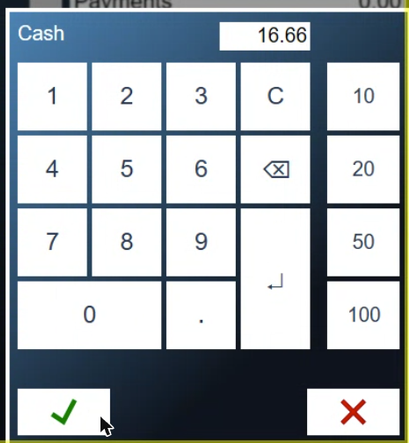
Figure 3. Cash. The quick buttons on the right enter a whole bill
5. When the ticket is paid, Payments turns green and any Change to hand back shows below it. Tap the green check mark at the bottom right to close the ticket.
If the guest pays part of the bill, take that payment, and the payment window shows what is still needed. Pay the rest the same way, now or later. A partly paid ticket shows a $ in the tickets list.
Other ways to pay
Other, the last of the four payment buttons, opens a screen with the less common payments (Figure 4): Check, Trade Acct for a house account, On Tab, and Walkout for a guest who left without paying. Pay it forward and Pub Money sit on the right.
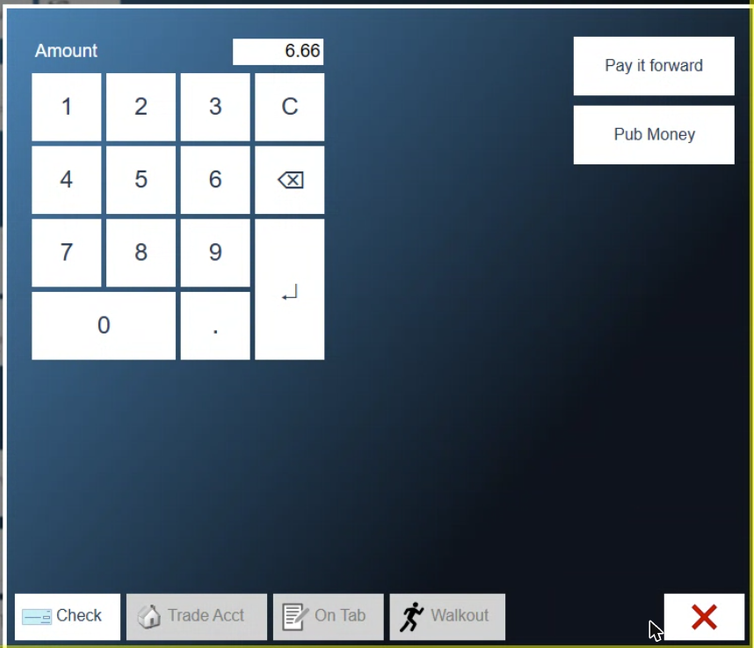
Figure 4. Other payments
Charging to a house account is covered in Charging to a house account at the POS.
Change a payment
To change a payment already taken, tap the arrow at the end of its line in the payment window (Figure 5). The amount opens on the keypad. Type the right amount and tap the green check mark. The payment window works out the change again.
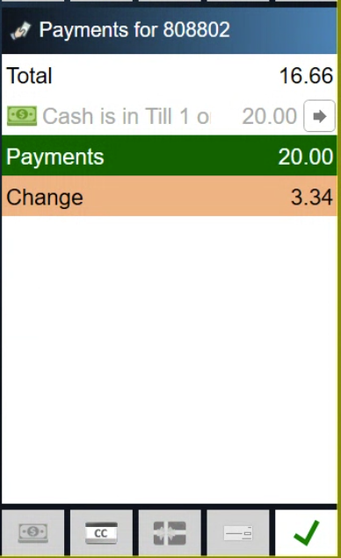
Figure 5. A cash payment changed to 20.00. The arrow on the payment line opens it again
Adjust tips
Watch out: only for tips written on the slip
You only adjust tips when the customer writes the tip on the card slip. If your card machines ask the customer for the tip, it is already in the system and you can skip this.
The merchant copy of the card slip has a TIP line and a TOTAL line for the guest to fill in, and a place to sign (Figure 6). Keep it: the tip written on it is what you type in below.
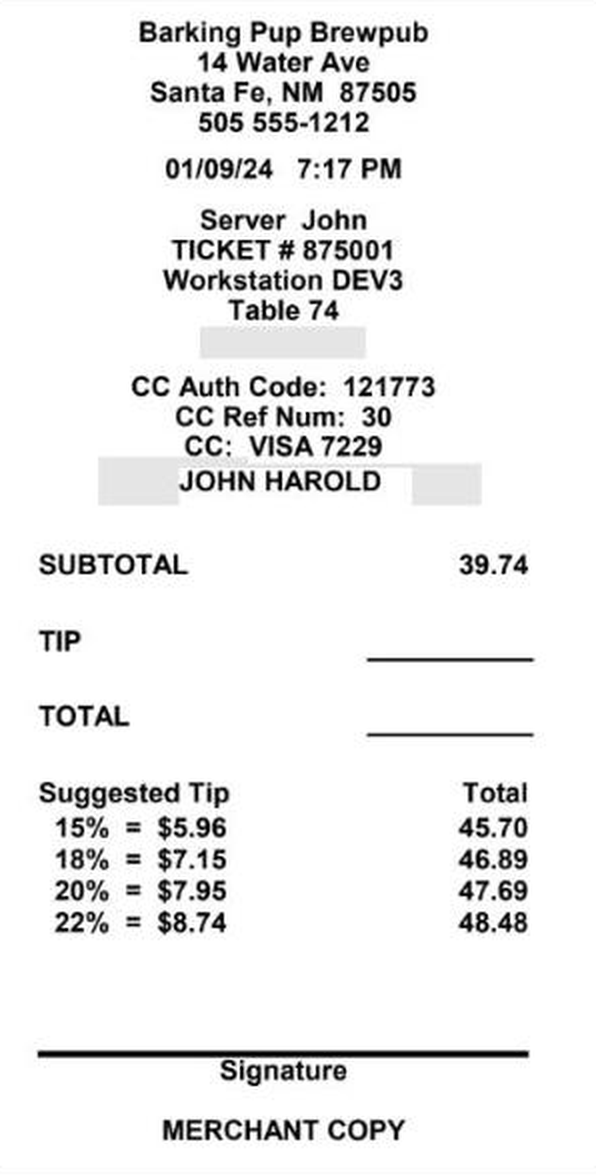
Figure 6. The merchant copy of a card slip, with the tip and total left for the guest to write in
1. Tap Shift, top right.
2. Tap My Tips (Figure 7). It lists your card sales. Everyone's Tips, at the bottom, shows the whole team's.
3. Tap a card transaction and type the tip on the keypad. Repeat for each one.
4. Tap Process, at the bottom right.
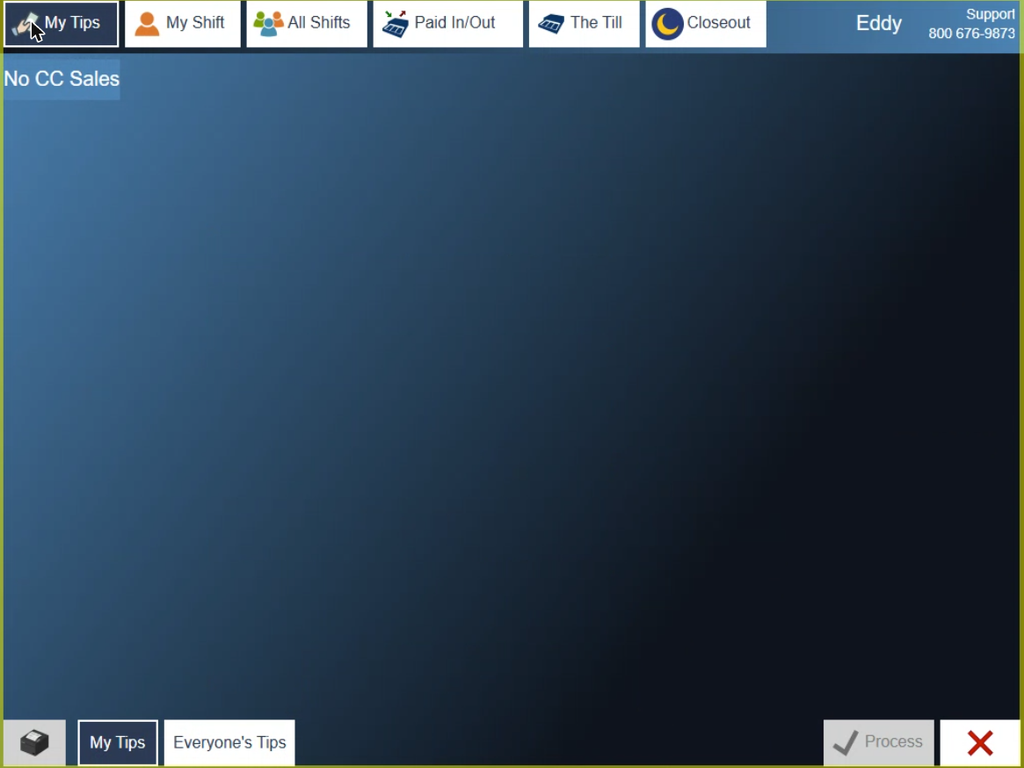
Figure 7. My Tips. Here there are no card sales yet
While tips process, the card machines are busy. Other stations may have to wait to run cards, and they are told so if it happens.
Edit or void a closed ticket
1. Tap Tools, top of the screen, then History. Closed tickets are listed under My Tickets and All Tickets (Figure 8). Use Search, or sort by Time, Ticket, Table, Cust or Emp, to find one.
2. Select the closed ticket. It shows on the right with its payments.
3. Tap Void at the bottom to void it, or Edit to reopen it. Edit asks you to re-enter your PIN, then opens the ticket at its payment window.
4. Change the payment or the items as needed and take the payment again.
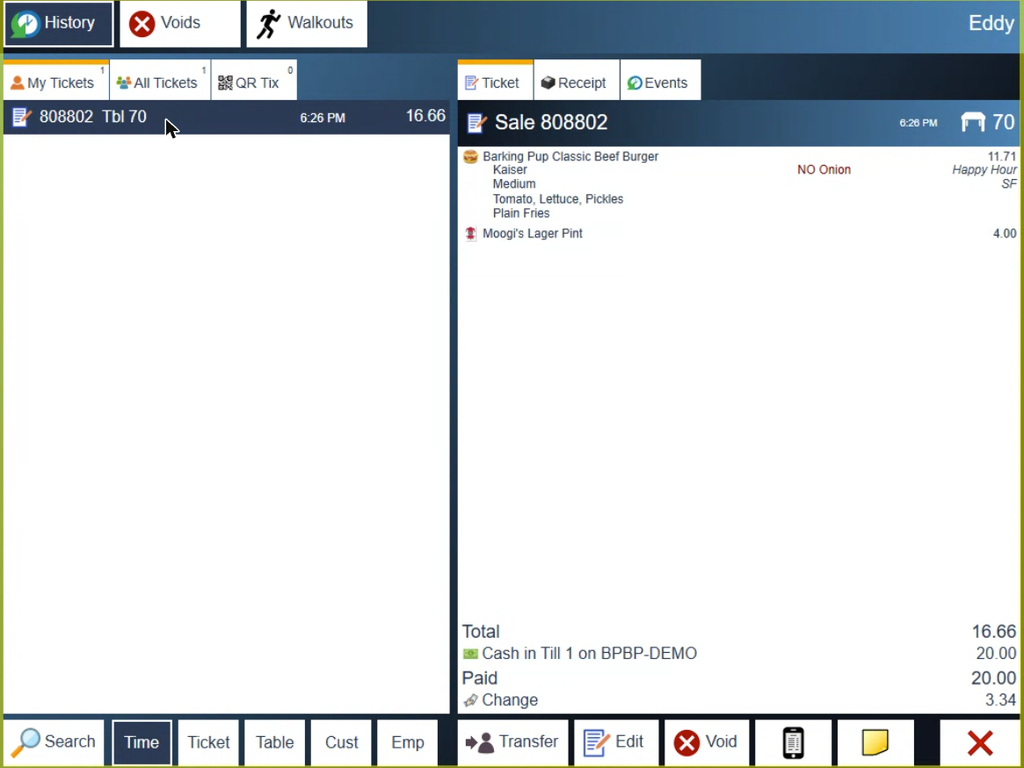
Figure 8. History. Transfer, Edit and Void are under the closed ticket
The Voids and Walkouts tabs at the top of History list voided and walked-out tickets.
About this guide
Applies to: the BREW POS terminal.
Last reviewed: 4 October 2026
BrewPOS How to use
Support 1-800-676-9874
Email [email protected]
© 2026 BREW POS. All rights reserved.