
Starting and ending your shift
Every shift at the POS starts by telling the system where your cash will live: in a till, or in your apron. It ends with a shift report that works out who owes whom. This guide walks through both, for till users and apron users.
Logging in and clocking in are covered in Logging in and clocking in. Closing out the whole day, after everyone has shifted out, is covered in Closing out the end of the day.
Start the day
The first person to log in each day is asked whether to start a new day (Figure 1).
1. Log in with your user ID and PIN, and clock in if the POS asks.
2. At Start a new day?, tap the green check mark. The question closes by itself after a few seconds (the box counts down), so answer it promptly.
3. You are asked for the bank start on Till 1. See Enter the bank start, below.
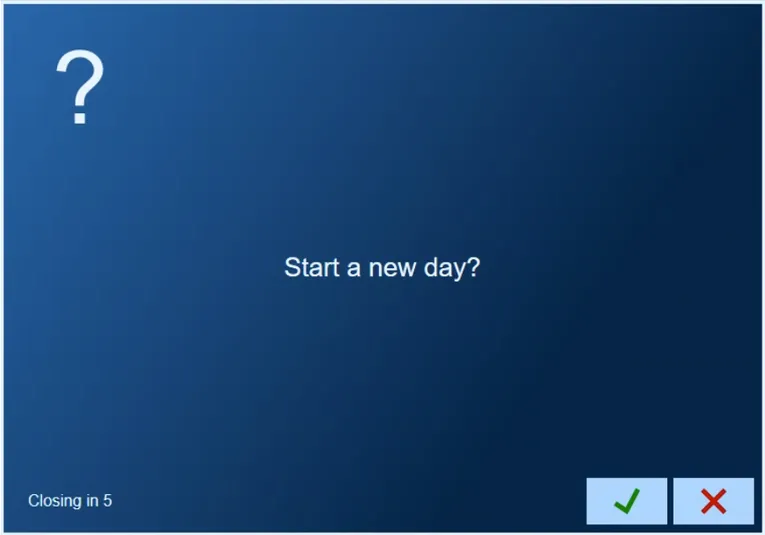
Figure 1. Only the first login of the day sees this question. Note the countdown at the bottom left
Choose where your cash goes
If your POS is set up for apron users, the system next asks where you will keep your cash sales and tips for this shift. You get four choices (Figure 2). If it is not, every user works from the till, and you skip straight to the bank start when one is needed.
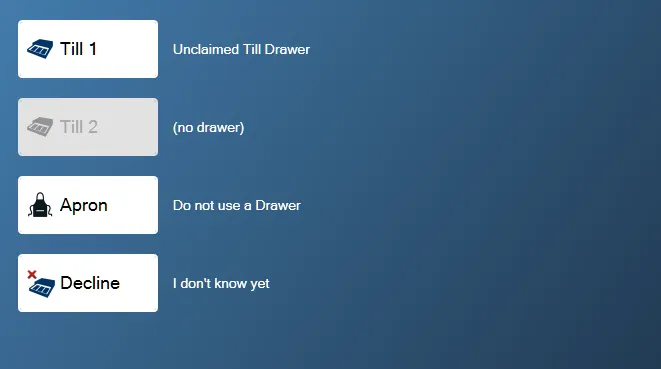
Figure 2. The four choices. Till 2 is greyed out when the station has only one drawer
Till 1 claims the first till, which is usually the only one. Your cash sales and your tips go in it. If someone else has already claimed it, their name shows to the left of the button, and that is fine: several people can share a till. The drawer only opens for people who have claimed it.
Till 2 is for stations with two drawers. Different people can claim different tills and keep their cash apart. Only your own till opens when you ring a cash sale.
Apron means you keep your cash on you, not in a drawer. You settle up with a till when you run your shift report, and the system tells you whether the house owes you money or you owe the house.
Decline logs you in without going to the order screen. Use it when you only need reports or tools.
Enter the bank start
The first person on a till, at the start of the day or after the till has been dropped, is asked for a bank start: the money you are putting in the drawer to begin with (Figure 3). The screen says who dropped the till last, and when.
1. Count the cash in the drawer, coins included.
2. Type the total on the keypad.
3. Tap the green check mark. The order screen opens.
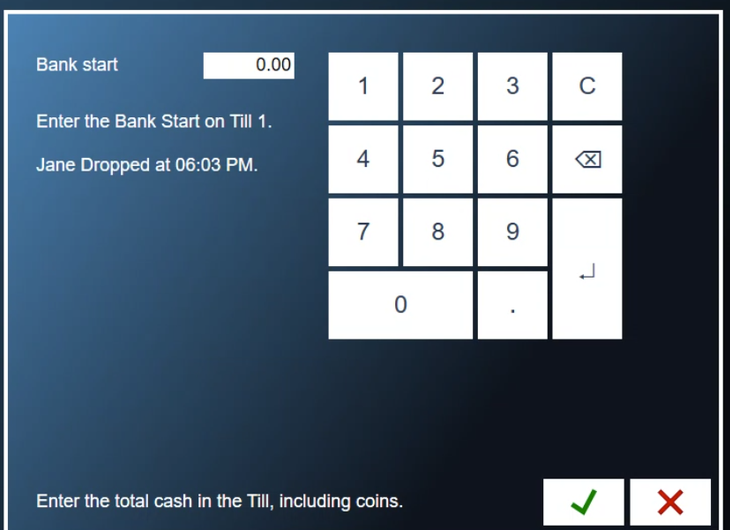
Figure 3. The bank start. The system counts this as cash in the till when it is dropped
Everyone else who logs in on that till goes straight to the order screen.
End your shift as an apron user
1. Go to a station that has a till. Apron users have to shift out on one.
2. Tap Shift, then My Shift. The screen tells you whether you owe the house or the house owes you (Figure 4).
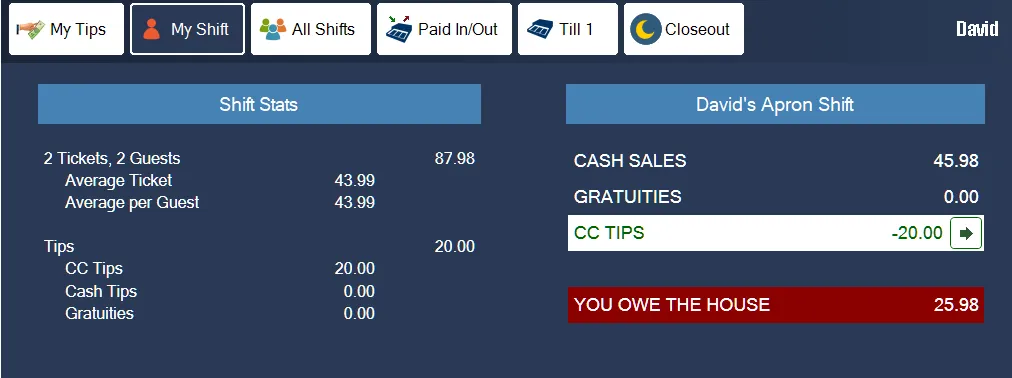
Figure 4. Here David owes the house 25.98
3. Run your shift report. You are asked to count your cash.
4. The system prints your shift report. It says where to take the cash if you owe the house, or who to collect from if the house owes you (Figure 5).
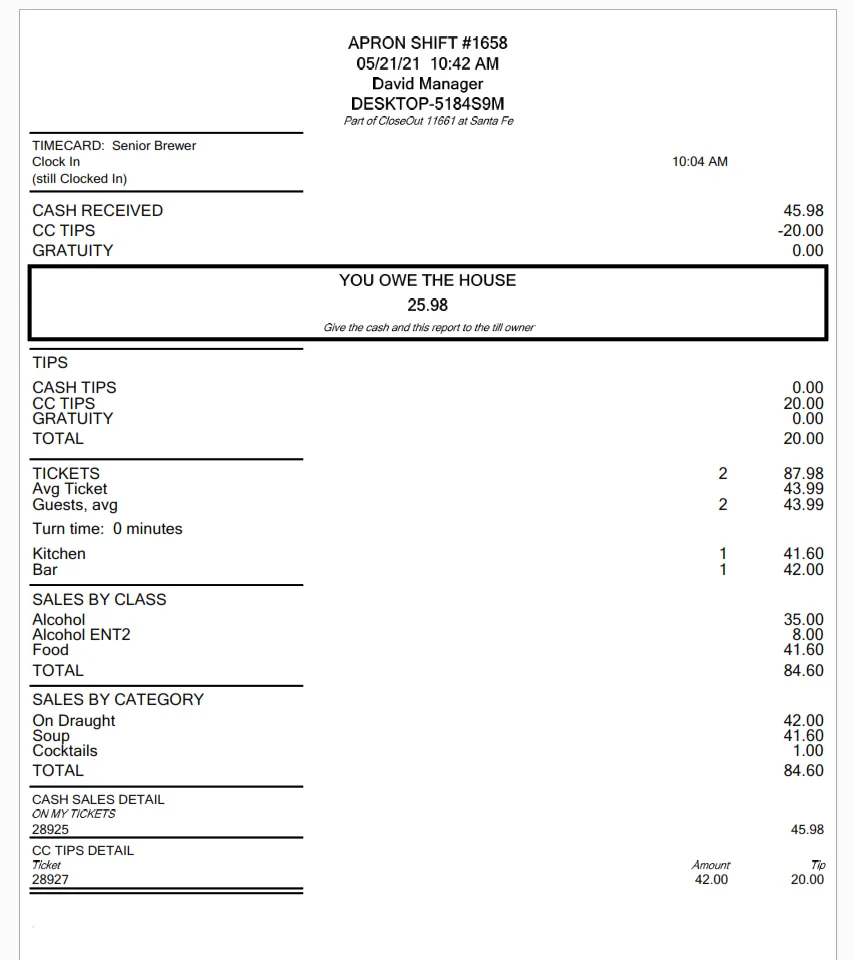
Figure 5. An apron shift report. The boxed line is the one that matters
End your shift when you share a till
If other people are still using your till:
1. Tap Shift, at the top of the screen, then My Shift (Figure 6). It shows your sales and tips, and any tickets you still have open. Close or transfer those first.
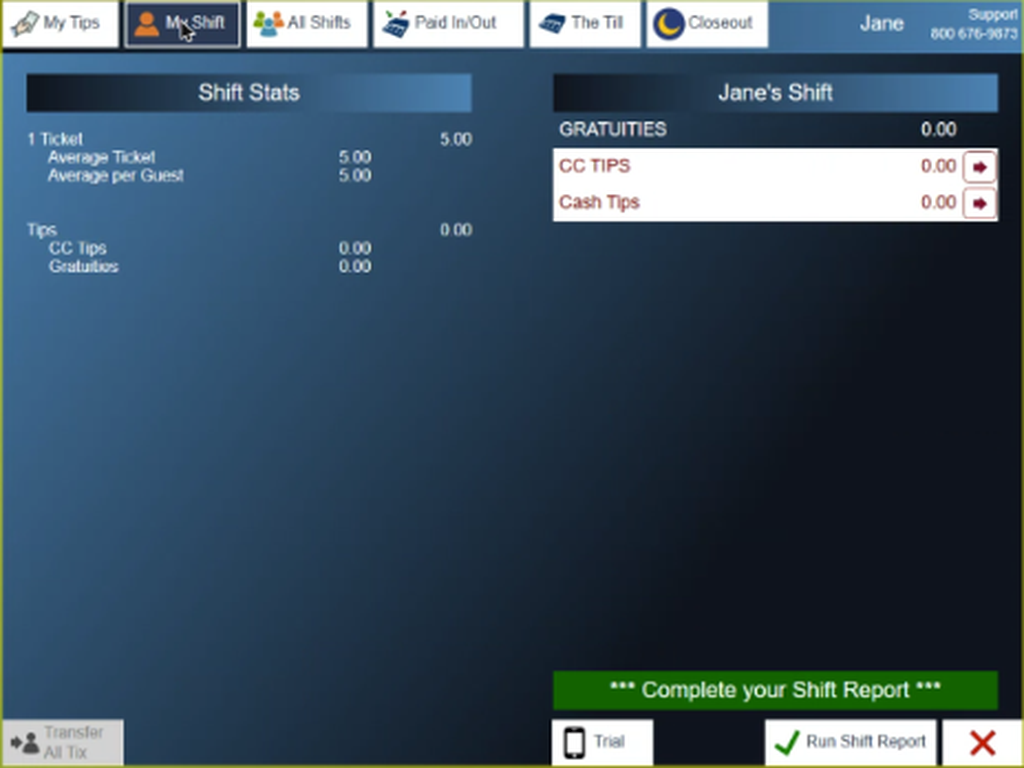
Figure 6. My Shift, ready for the shift report
2. Tap Run Shift Report, bottom right. If you have no cash tips in, the POS asks Cash Tips are Zero. Continue anyway? Tap the green check mark if that is right, or the red X to go back and enter them.
3. The system prints your shift report (Figure 7).
4. Take your cash tips out of the till, as the report tells you.
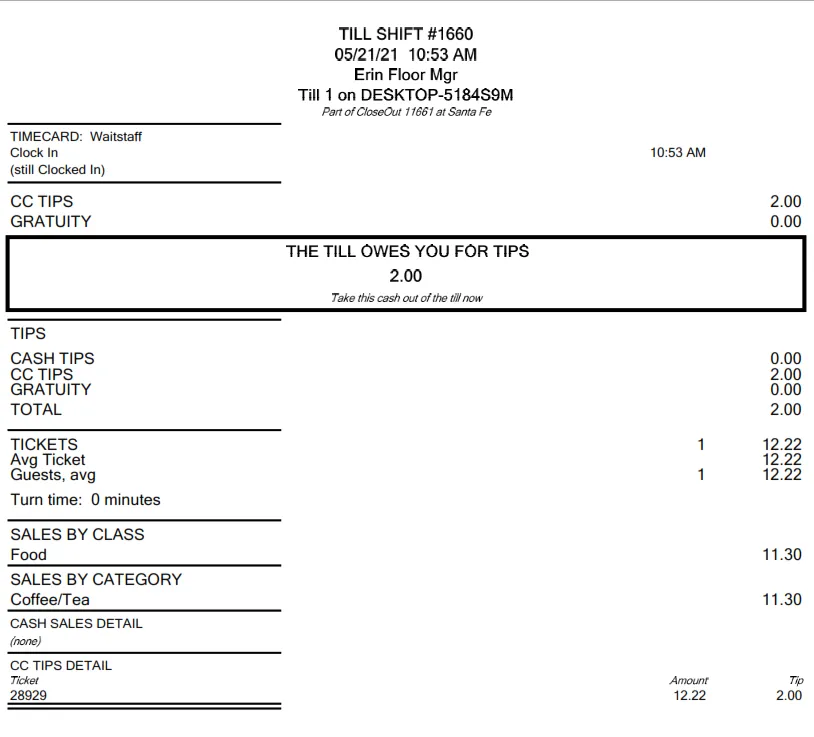
Figure 7. A shift report for one of several people on a till. The till owes Erin 2.00 in tips
Once your shift report is done, the POS offers to clock you out.
End your shift as the last person on a till
If you are the last person on the till, or the only one:
1. Run your shift report from Shift, My Shift, the same way. You are asked whether all your tips are in.
2. The system prints your shift report and says how much in tips to take out of the till (Figure 8).
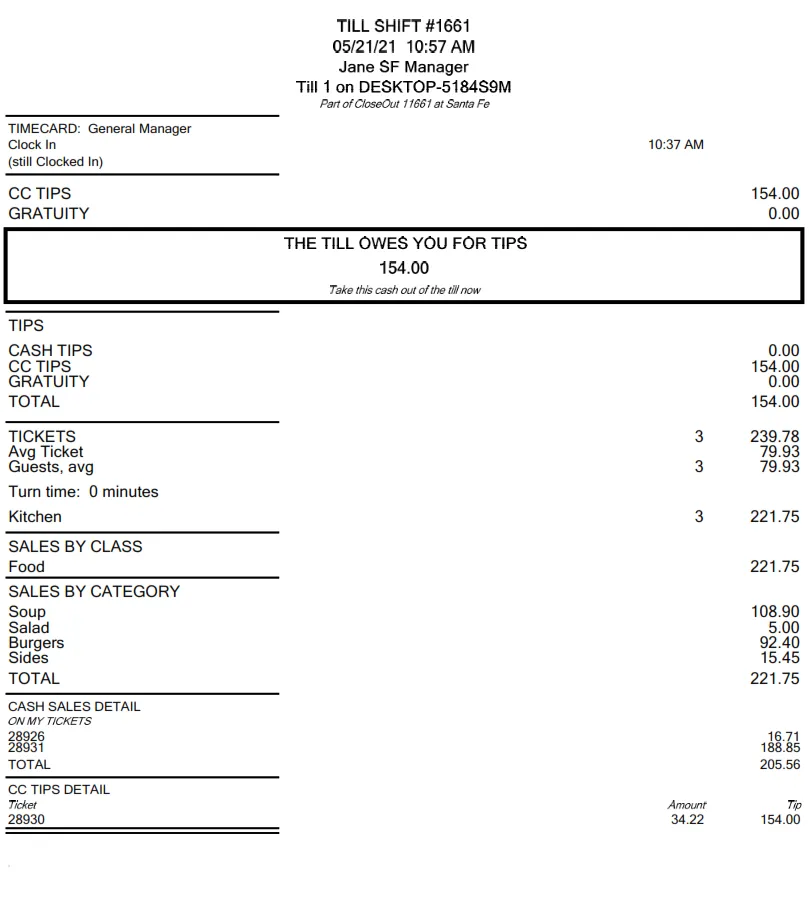
Figure 8. The last person on the till is told what to take out in tips
3. You land on The Till tab (Figure 9). It shows:
• every cash sale in the till, from everyone who used it
• Paid In: the bank start and any other cash paid in
• Paid Out and Tips Paid: cash taken out of the till
• Cash Expected: the total cash the till should hold
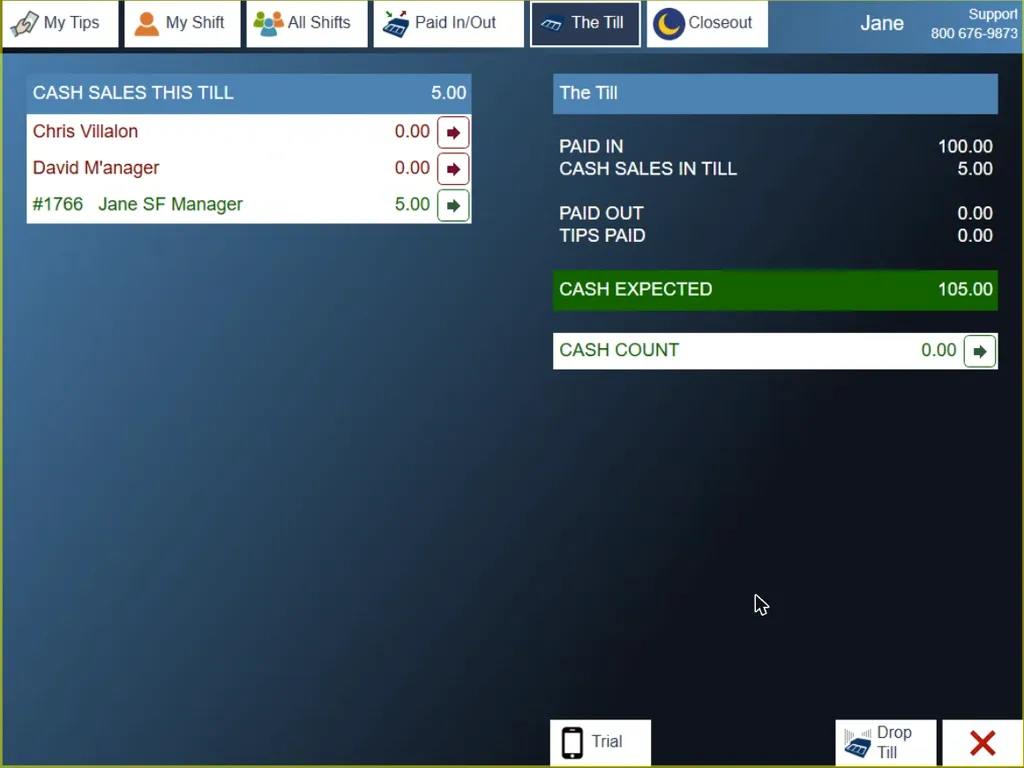
Figure 9. The Till tab. Cash Expected is what should be in the drawer
4. Count your cash now and enter it in Cash Count: tap its arrow, type the count and tap the green check mark. Bingo! means it matches. Or drop the till first and count it afterwards. Dropping first lets the next person start using the station straight away.
5. Tap Drop Till, bottom right, then the green check mark at Drop the Till?
Record a count after you drop
If you dropped before counting, you still have to record the count.
1. Count the till.
2. From any screen, tap Shift (Figure 10).

Figure 10. Shift is at the top of the screen
3. Tap the Closeout tab. Anything still to do is listed in red (Figure 11). Your drop reads enter Cash Count, expecting and the amount, with its station and drop number.
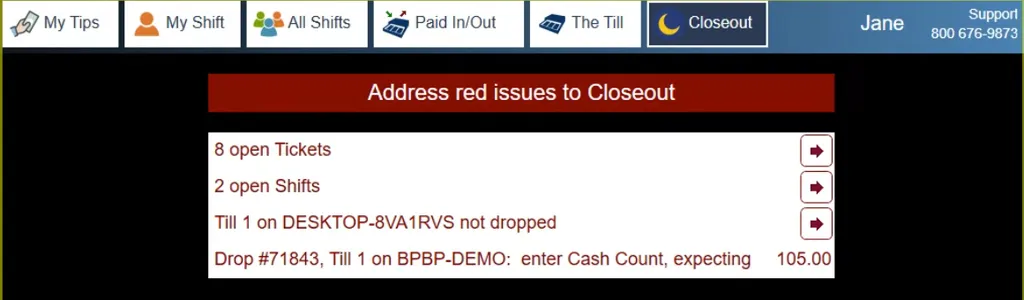
Figure 11. The Closeout tab. The last line is a drop waiting for its count
4. Tap the arrow at the end of your drop's line. A box opens for that drop (Figure 12).
5. Tap Count, re-enter your PIN, type the count and tap the green check mark. The line turns green.
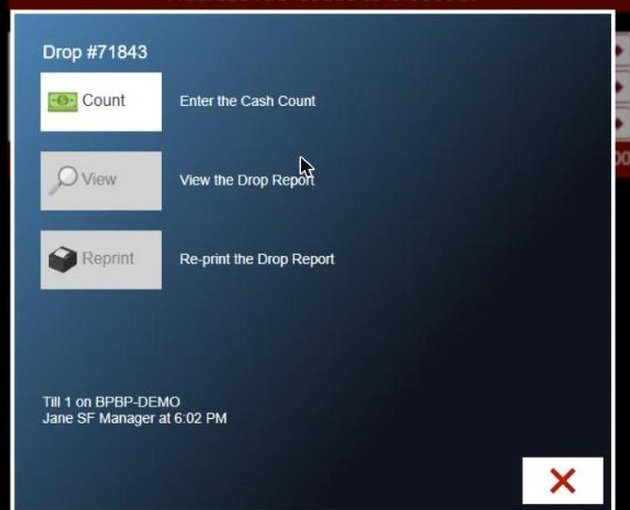
Figure 12. The drop's options: Count, View the drop report, or Reprint it
To check which station you were on, tap the time on any order screen.
About this guide
BREW POS: front of house how-to guide
Applies to: the BREW POS terminal, build installed 23 September 2026. Checked on a running terminal on 30 September 2026, including Start a new day?, except the till and apron choice and the apron steps, which come from the BrewPOS quick reference Login and out with apron servers or till users (May 2021).
Last reviewed: 30 September 2026 · Owner: Eddy
BrewPOS How to use
Support 1-800-676-9874
Email [email protected]
© 2026 BREW POS. All rights reserved.
Privacy Policy | Terms and Conditions