
Managing gift cards
Every gift card your business has issued is listed on the Giftcards screen in BREW POS Admin, with what is left on it, and a line for every time it was loaded, spent or changed. This guide covers reading that list, issuing a card from Admin without selling it, looking up a card when a customer asks about it, correcting a card, and checking gift card movement over a period.
Selling a card, topping one up and taking payment with one all happen at the POS, not in Admin. Those sales show up here, so this guide explains how to read them, but it does not cover ringing them in.
Setting up gift cards for the first time? Download the gift card setup guide and card template (PDF). It has the cost, the artwork guidelines and the template for your card. See Setting up gift cards.
Contents
Setting up gift cards
Before you start
How gift cards work
The gift card list
Issue a card with Donate
Check the card saved
Looking up a card: its history
Changing a card: Edit
Taking a card out of use
Gift card movement over a period: the Activity tab
What you owe on gift cards
Reference
Troubleshooting
About this guide
Setting up gift cards
Gift cards are an add-on to BrewPOS, with a monthly fee. Before you can sell your own cards, BrewPOS switches gift cards on for your business, and your cards are printed with your own artwork.
Download the gift card setup guide and card template (PDF). The first page sets out the cost, the second page is the artwork guidelines, and the third is the template for the front and back of your card.
Depending on your card reader, gift cards may require extra equipment. BrewPOS Support will tell you what your setup needs.
Download the setup guide and template from the link above.
Read the cost and the artwork guidelines on the first two pages.
Fill out the template with your artwork for the front and the back of the card.
Send your finished artwork to [email protected]. Include the full files for the front and the back separately, as a high-quality PDF or JPEG.
No artwork yet? Send BrewPOS Support your logo and a sketch of how you would like the card to look, and their designers can build it for you. The cost is on the first page of the setup guide.
Before you start
This guide is for owners and managers. It assumes you already use BREW POS Admin day to day.
You need two things before Giftcards appears in the dark menu on the left:
Gift cards switched on for your business. BREW POS support does this for you, so there is no setting for it on your side. If gift cards are not on and you want them, start with Setting up gift cards.
Giftcards access on your own employee record. It is a tick box under Admin Permissions, set by whoever manages staff records. The guide Managing employees shows where it is.
How gift cards work
A gift card's balance is money your business owes the customer. It is not income until it is spent.
A balance changes in one of three ways:
At the POS, a card is sold or topped up. The balance goes up.
At the POS, a card is used to pay. The balance goes down.
In Admin, someone changes it. Either by issuing a new card with Donate, or by typing a new balance with Edit.
The gift card list
Click Giftcards in the dark menu on the left. The screen opens on the Giftcards tab: one row for every card that still has money on it (Figure 1).
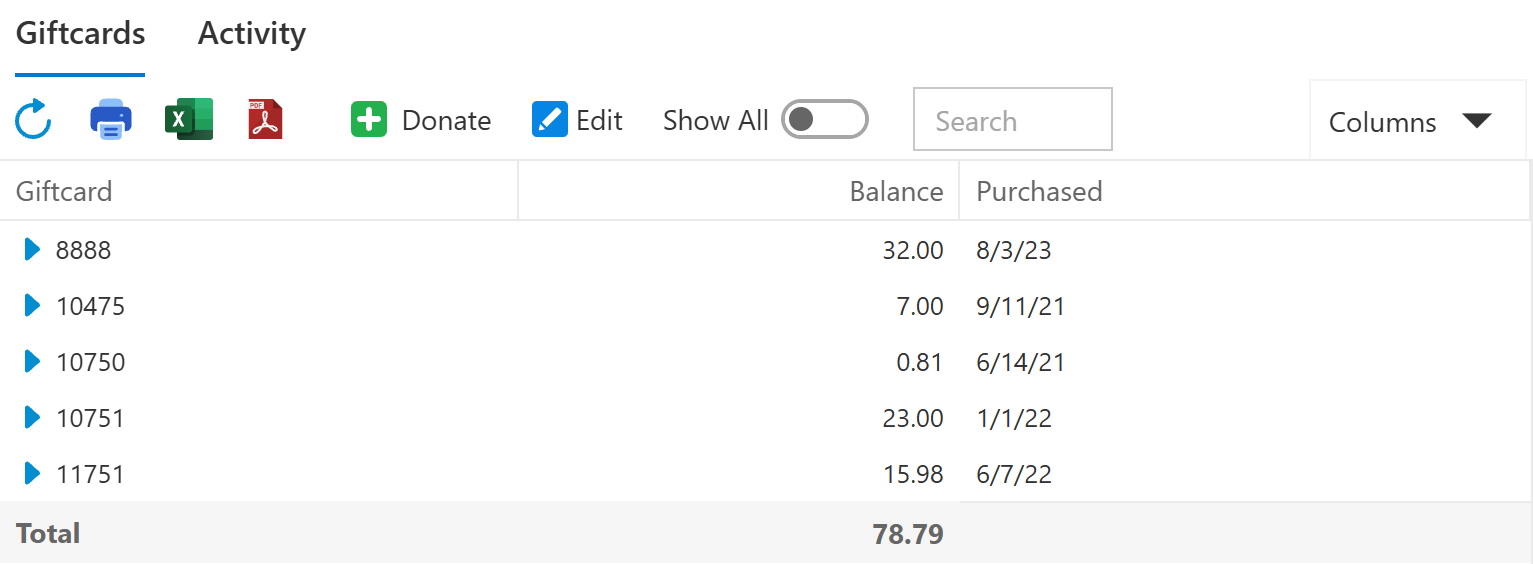
Figure 1. The Giftcards tab. The Total row at the bottom is everything still owed on these cards
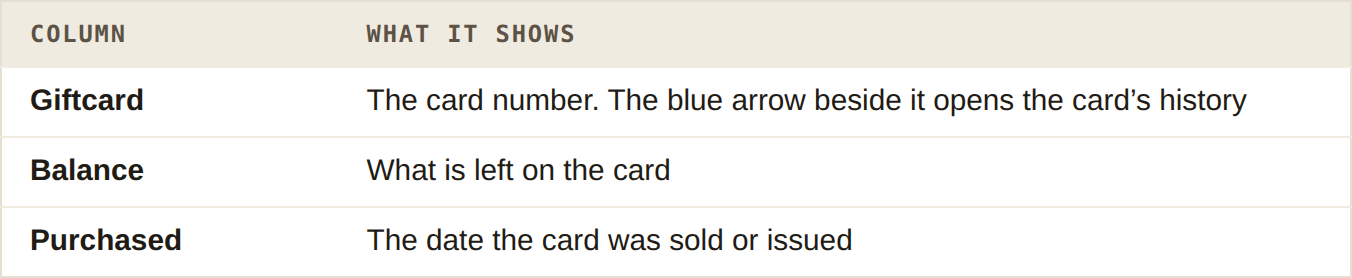
The columns on the Giftcards tab
The Total row at the bottom adds up the Balance column for the cards shown.
Seeing more about each card: Columns
Click Columns at the right of the toolbar, tick the columns you want (Figure 2), then click OK. Figure 3 shows the list with all of them ticked.
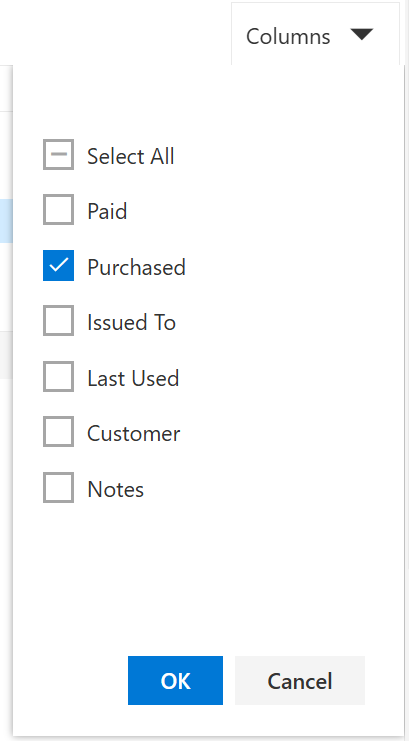
Figure 2. The Columns list. Paid, Issued To, Last Used, Customer and Notes are hidden until you tick them
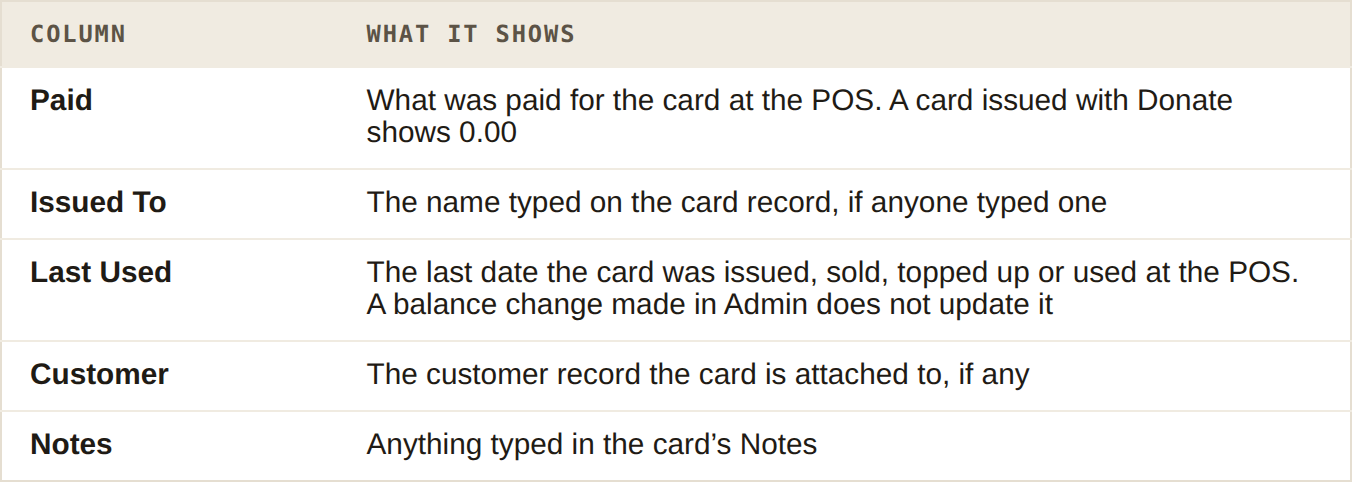
The columns you can switch on with Columns
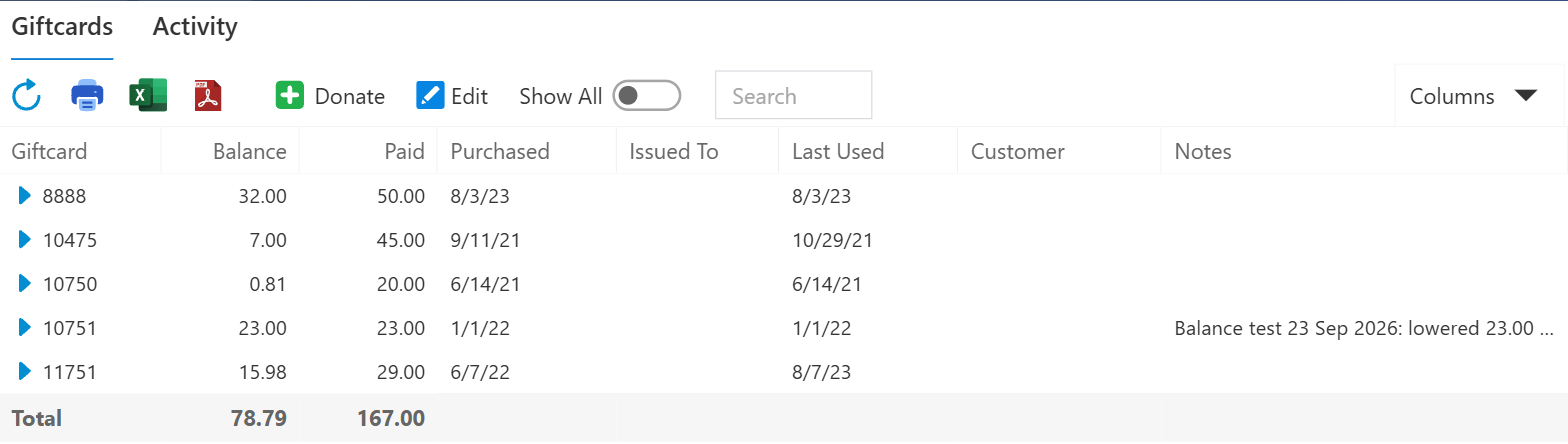
Figure 3. The same list with the hidden columns switched on
The screen remembers your choice of columns on this computer.
The rest of the toolbar
Refresh (the circular arrow) reloads the list. Use it after changing a card from its history; see Troubleshooting.
Print, Excel and PDF print or export the list as it is showing, with its Total.
Show All adds cards with nothing left on them. See taking a card out of use.
Search finds a card by its number. It does not search names or notes.
Clicking a row, rather than its blue arrow, selects that card for the Edit button.
Issue a card with Donate
Donate creates a new card with a balance, without a sale. Use it for a card you give away: a raffle prize, a donation to a school auction, a make-good for a customer, a staff reward. No money is taken, so the card shows 0.00 in Paid.
To sell a card for money, ring it in at the POS instead, so the payment is recorded with the sale.
Only Giftcard and Balance must be filled in. The rest are optional, but worth doing.
On the Giftcards tab, click Donate. A blank card opens, headed Giftcard (new).
In Giftcard, type the number printed on the card. Numbers only. Check it against the card before you go on: the number cannot be changed once you save.
In Balance, type the amount to put on the card, for example 25.
Optional: in Issued To, type the name of the person it is for. This is free text and is not checked against anything.
Optional: attach the card to a customer record. Click the magnifier beside Customer, then click the customer's row in the list that opens.
Click OK at the top right of that list. The customer's name appears in Customer. The red X beside it removes it again. On a card of real value this means a lost card can be traced to a person.
Optional: in Notes, say why the card was issued, for example Raffle prize, charity night. Anyone looking at the card later will want to know.
Check the form looks like Figure 4, then click Save at the top right.
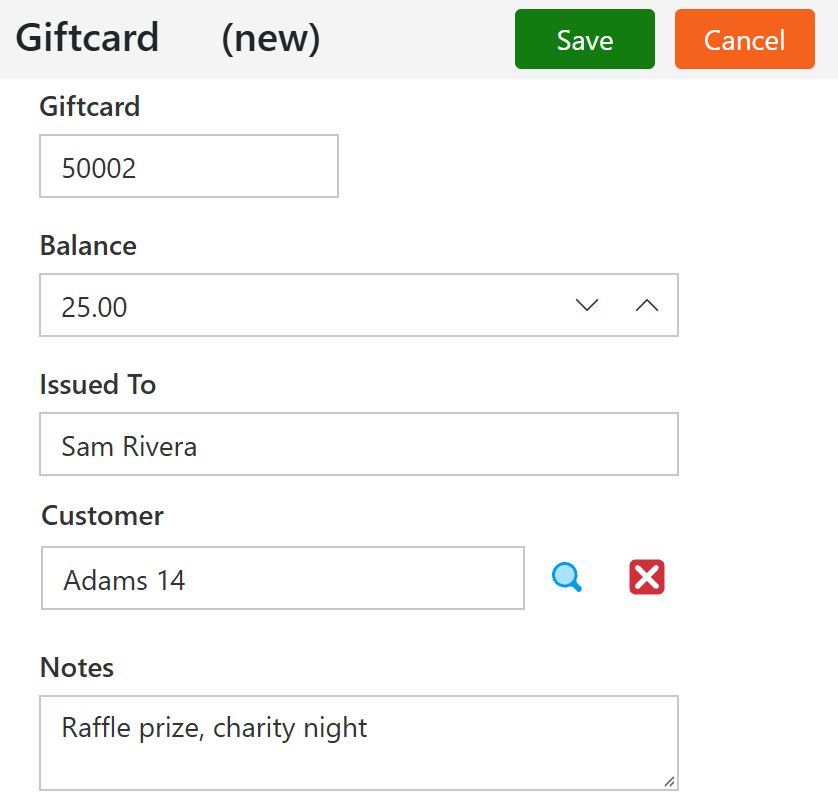
Figure 4. A new card ready to save
Save stays pale until there is a card number. If that number already belongs to another card, Duplicate Giftcard appears under it and Save stays pale (Figure 5). Check the number on the card; two cards cannot share one.
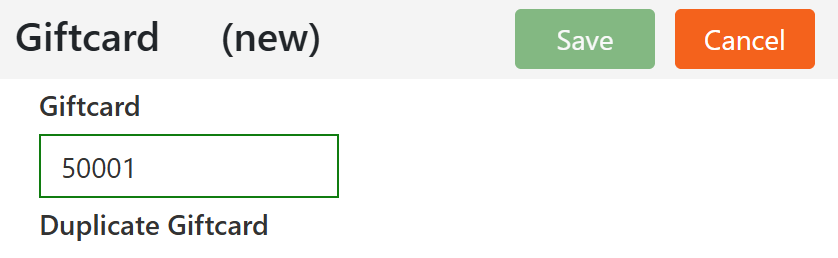
Figure 5. A card number that is already in use
If you saved a wrong number, take that card out of use (see below) and issue it again under the right number.
Check the card saved
Saving takes you back to the list, and the new card is on it, with the Total up by its balance (Figure 6).
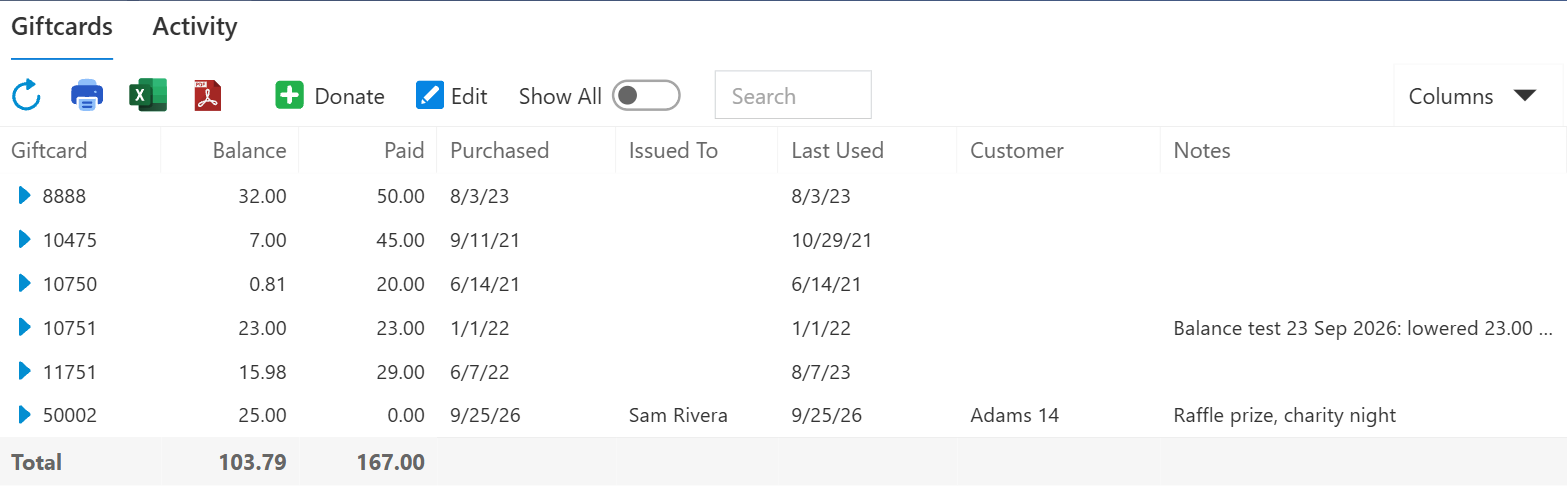
Figure 6. Card 50002 on the list, issued today with 0.00 paid
Click the blue arrow beside it to open its history. A card issued with Donate starts with one line: Admin in the Ticket column, your name, the amount as a credit and Beginning Balance as the description (Figure 7).

Figure 7. A donated card's history: one Beginning Balance line
The card can now be used at the POS like any other.
Looking up a card: its history
Use this when a customer asks what is left on their card, or says the balance is wrong. Click the blue arrow beside the card on the Giftcards tab. The top line shows the card number and its Balance, and below it is every movement on the card, oldest first (Figure 8).
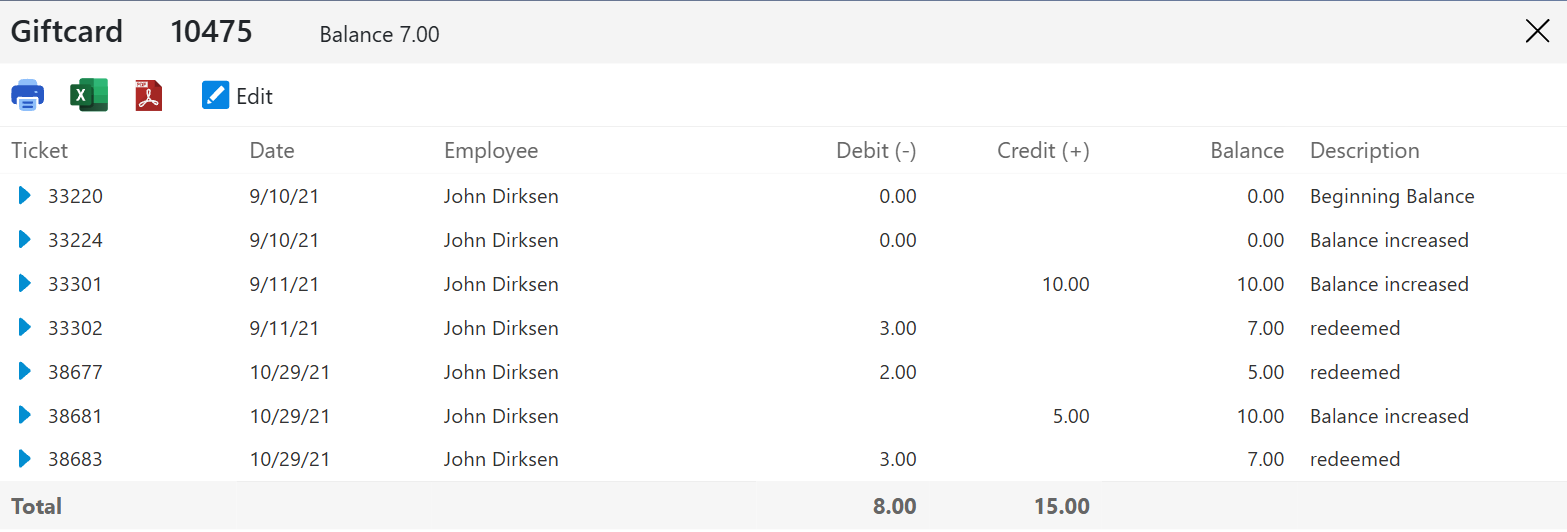
Figure 8. A card's history. Sold with nothing on it, topped up with 10.00, spent twice, topped up with 5.00 and spent again, leaving 7.00
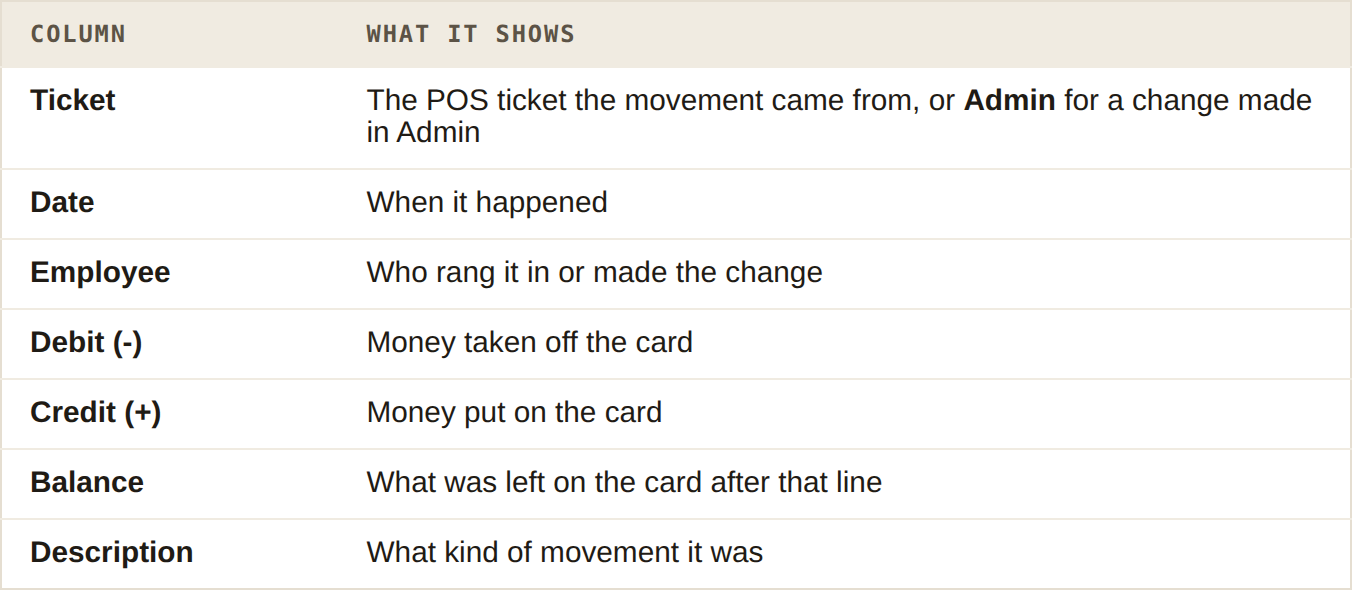
The columns in a card's history
The descriptions you will see:
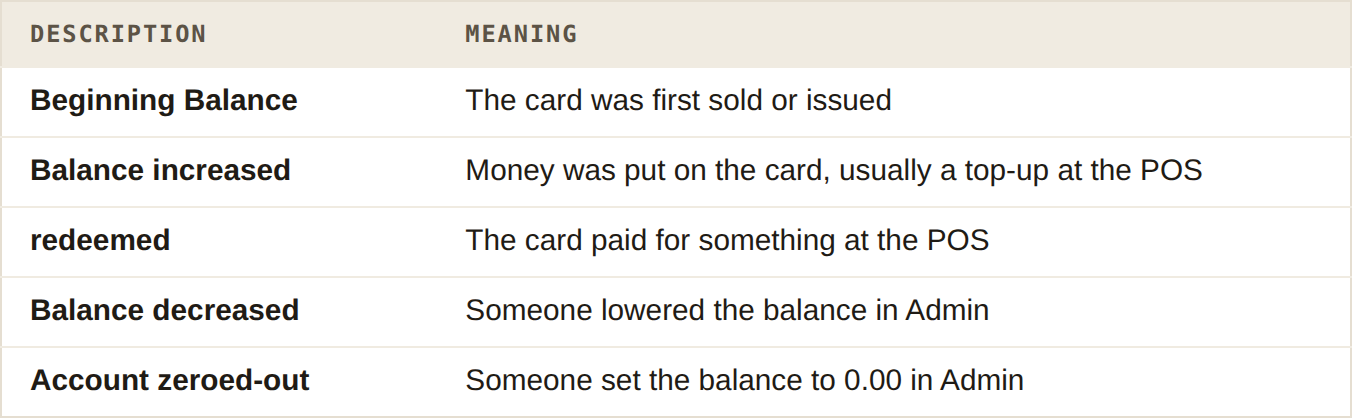
The descriptions in a card's history, and what each one means
Read the Balance column down the page to see how the card got to where it is. That, rather than the Total row at the bottom, is the figure to trust. See what lowering a balance does.
Opening the sale behind a line
Click the blue arrow beside a ticket number to open that ticket's receipt. It shows what was bought, how the card paid, and the balance left on the card afterwards (Figure 9). Click the X at the top right to go back to the card.
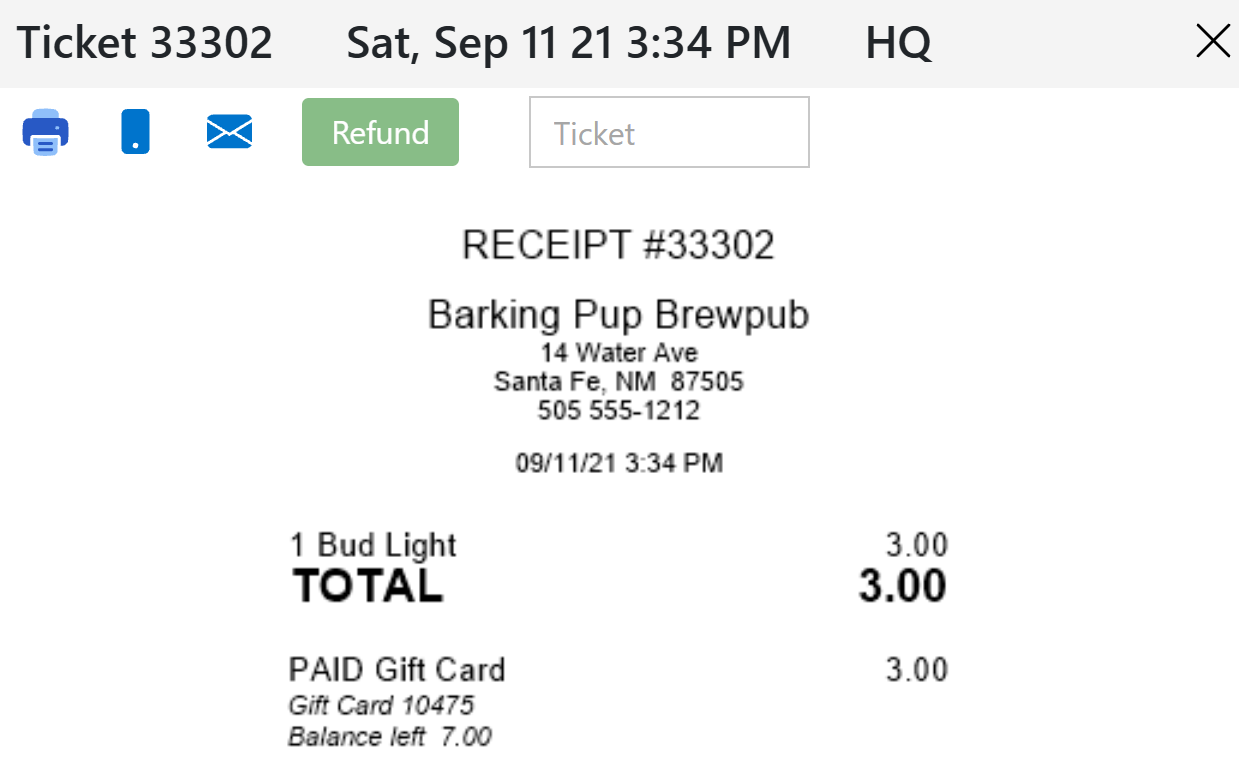
Figure 9. The receipt behind a redeemed line: 3.00 paid by gift card 10475, 7.00 left
Lines made in Admin have no ticket, so they have no arrow.
To hand a customer a copy of their card's history, use Print or PDF at the top of the history.
Changing a card: Edit
You can change a card's balance, who it was issued to, the customer it is attached to, and its notes. The card number cannot be changed.
Open the card from its history by clicking Edit, or click the card's row on the Giftcards tab once and click Edit in the toolbar.
Change what you need (Figure 10).
Put the reason in Notes, with the date and your initials, for example 25 Sep: 5.00 spent on the night on a paper chit, taken off here (EB).
Click Save. From the list, you go back to the list with the new balance showing. From a card's history, you also go back to the list, but it shows the old figures until you click Refresh.
Open the card's history to check. A change of balance adds a line with Admin as the ticket (Figure 11).
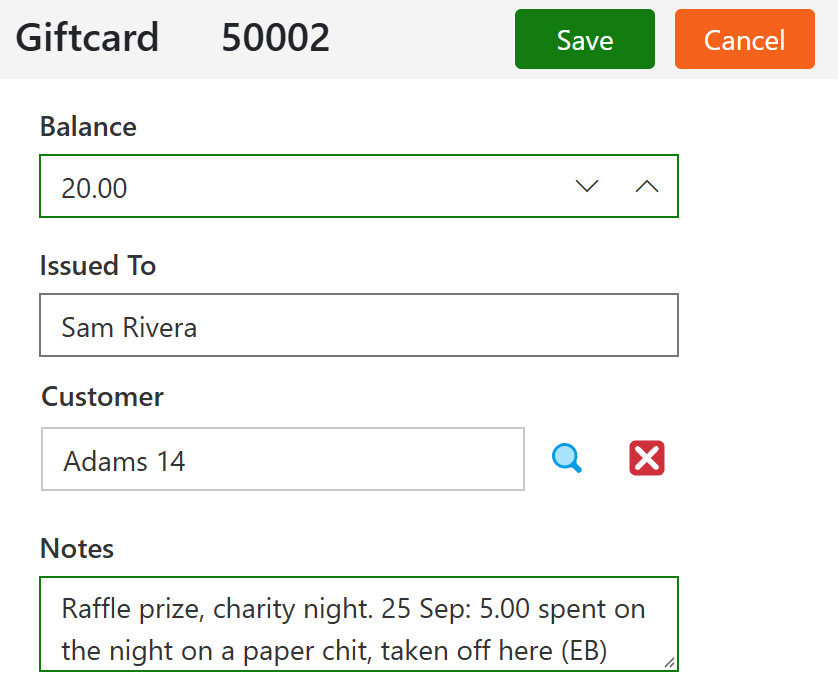
Figure 10. Lowering a card's balance from 25.00 to 20.00, with the reason in Notes
Cancel leaves without saving. If you have changed something, it asks whether to save first.
What lowering a balance does
The balance becomes the number you typed as soon as you click Save. There is no confirmation step and no undo, and the card is worth the new amount at the POS from that moment.
The card's history gets one line, with Admin as the ticket, today's date, your name and the description Balance decreased.
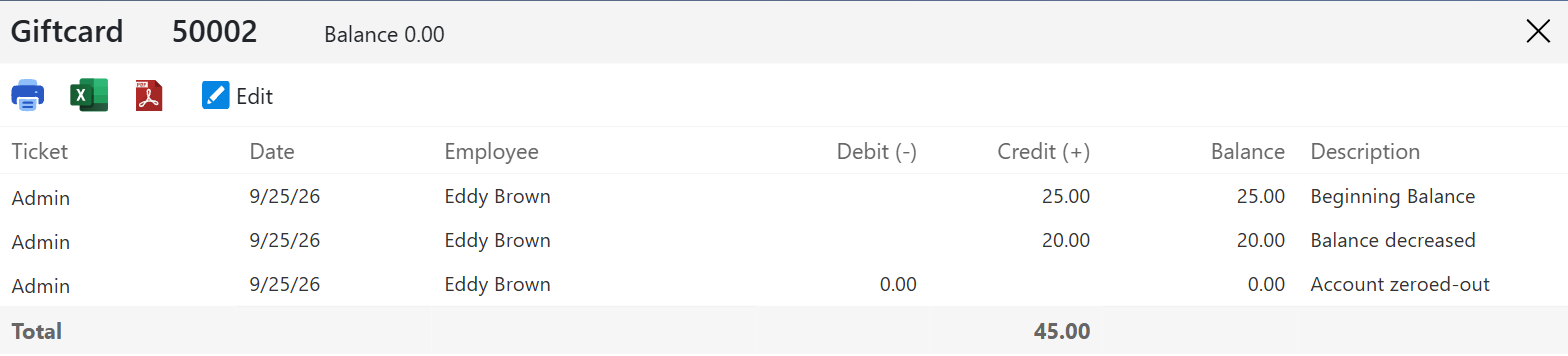
Figure 11. The same card after lowering it to 20.00 and then zeroing it. The 20.00 in Credit is the new balance, not money put on the card
Taking a card out of use
There is no Delete for gift cards. To take a card out of use, for example one that was issued by mistake or reported lost, set its balance to 0.00 with Edit and say why in Notes. Its history gets an Account zeroed-out line, and it drops off the list.
Cards with nothing on them are hidden from the list, whether they were zeroed in Admin or simply spent. Switch on Show All to see them. They show in grey (Figure 12). Their blue arrow still opens their history.
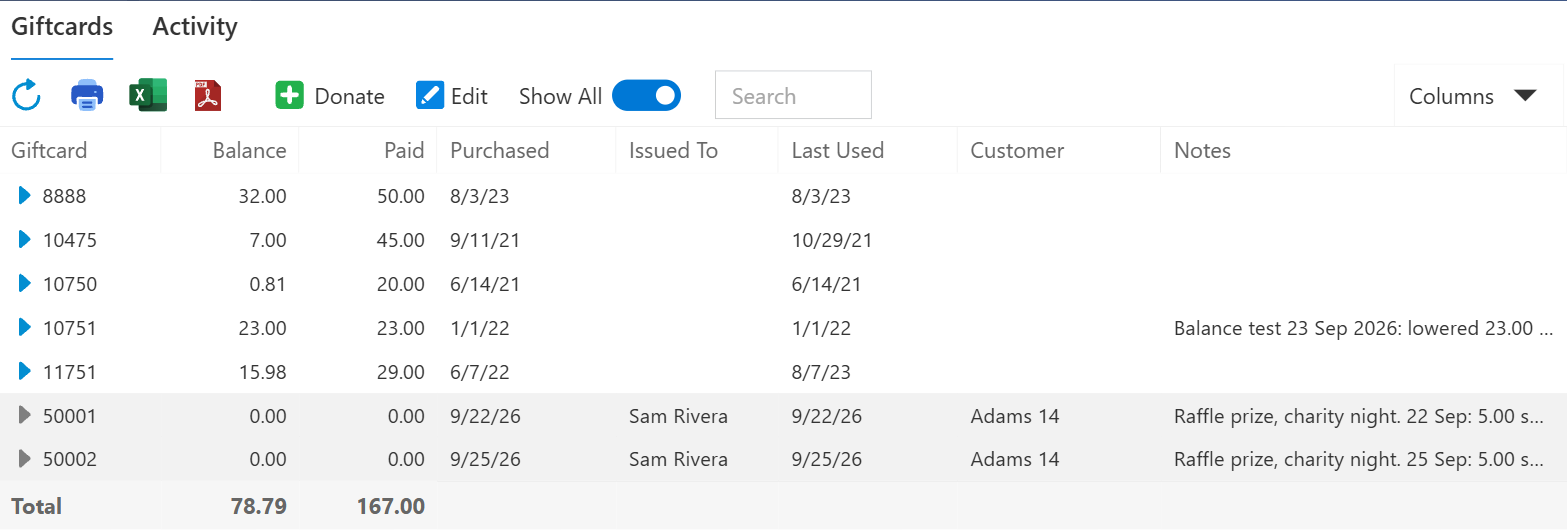
Figure 12. Show All switched on: cards 50001 and 50002, at 0.00, show in grey
If money is put back on a card, it comes back onto the list.
Gift card movement over a period: the Activity tab
The Activity tab lists every movement on every card between two dates, newest first. Use it to see what was loaded and spent on gift cards over a week, a month or a year.
It opens on the last seven days (Figure 13). If nothing moved on any card that week, it reads No records to display, even when your cards clearly have history.
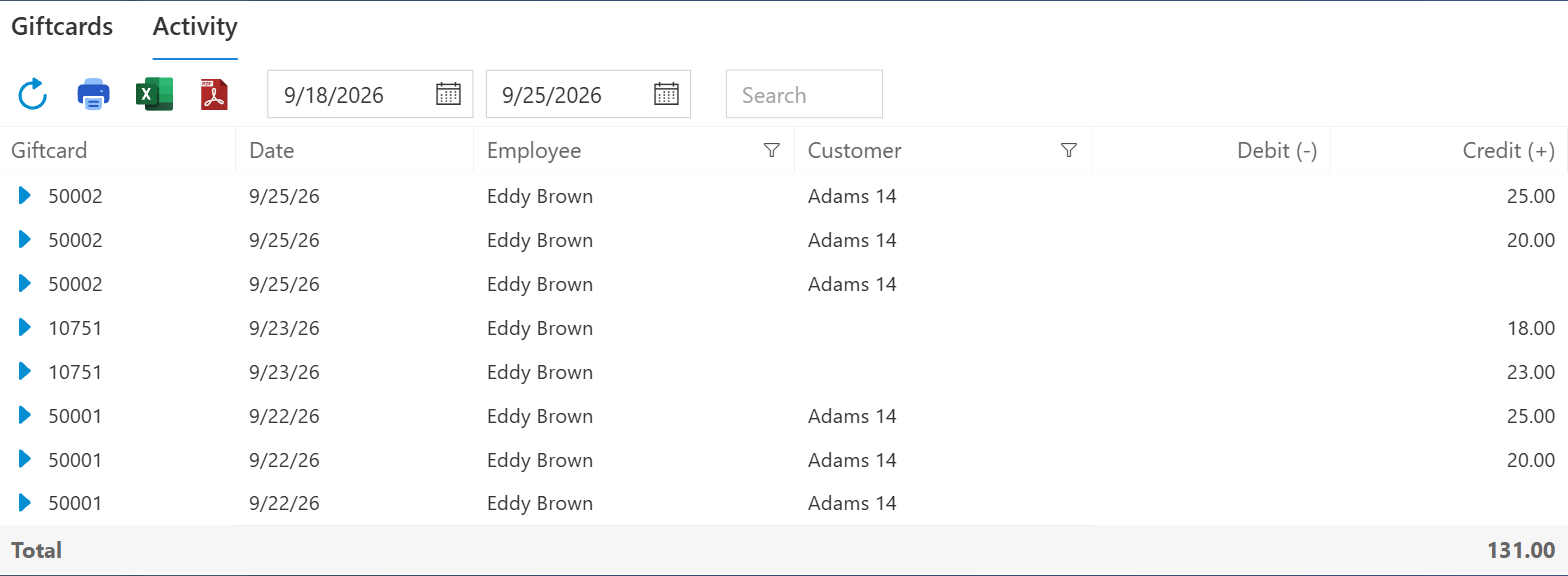
Figure 13. The Activity tab when it first opens, set to the last seven days
Click the Activity tab.
Set the first date box to the start of the period and the second to the end. Type a date or pick one from the calendar icon.
Click Refresh. The list does not reload until you do. The movements for your dates appear, newest first (Figure 14).
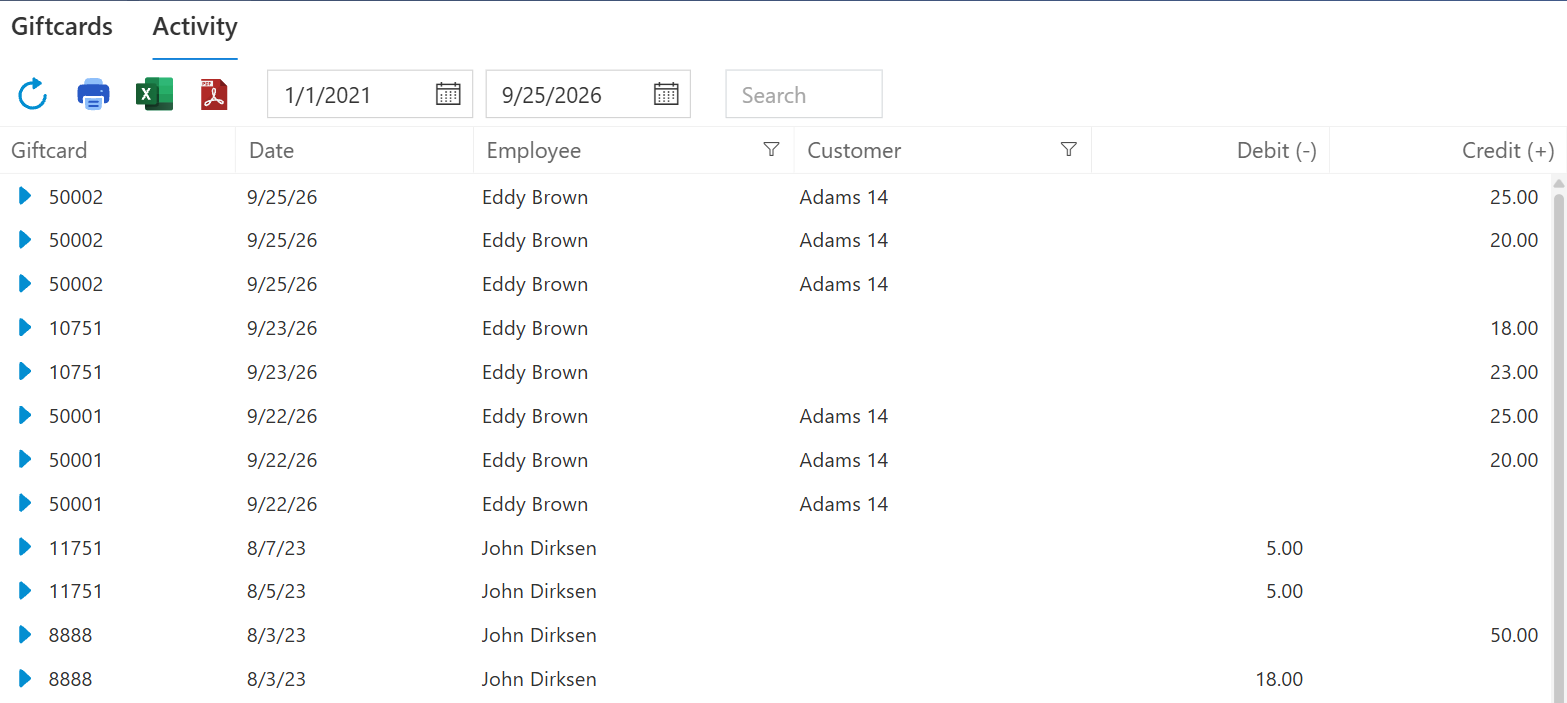
Figure 14. The dates set from 1 January 2021 to today. The newest movements are at the top, and the list carries on below
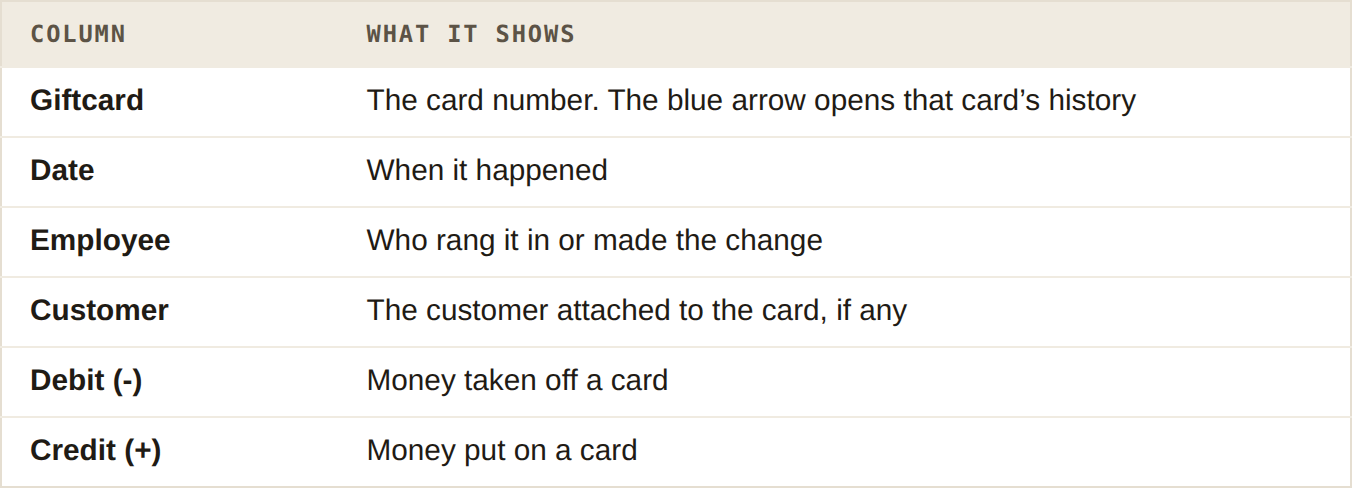
The columns on the Activity tab
The Total row adds up the Debit and Credit columns. The funnels beside Employee and Customer narrow the list to one person, and Search finds a card by its number. If you have more than one location, the list is grouped by location.
The Activity tab has no Description column. It cannot tell you whether a line was a sale at the POS or a change in Admin. Balance changes made in Admin show here the same misleading way as in a card's history: as a credit of the new balance. To see what a line was, open the card's history with its blue arrow.
What you owe on gift cards
The Total under Balance on the Giftcards tab is everything still owed on your gift cards today. Your accountant will want it at the end of each month or year, because it is money you hold on customers' behalf.
Switch Show All off, so only cards with money on them are counted. The total is the same either way, but the printout is shorter.
Click Print, Excel or PDF. The export carries the Total row.
For what was loaded and spent during the month, use the Activity tab with the month's dates and export that as well.
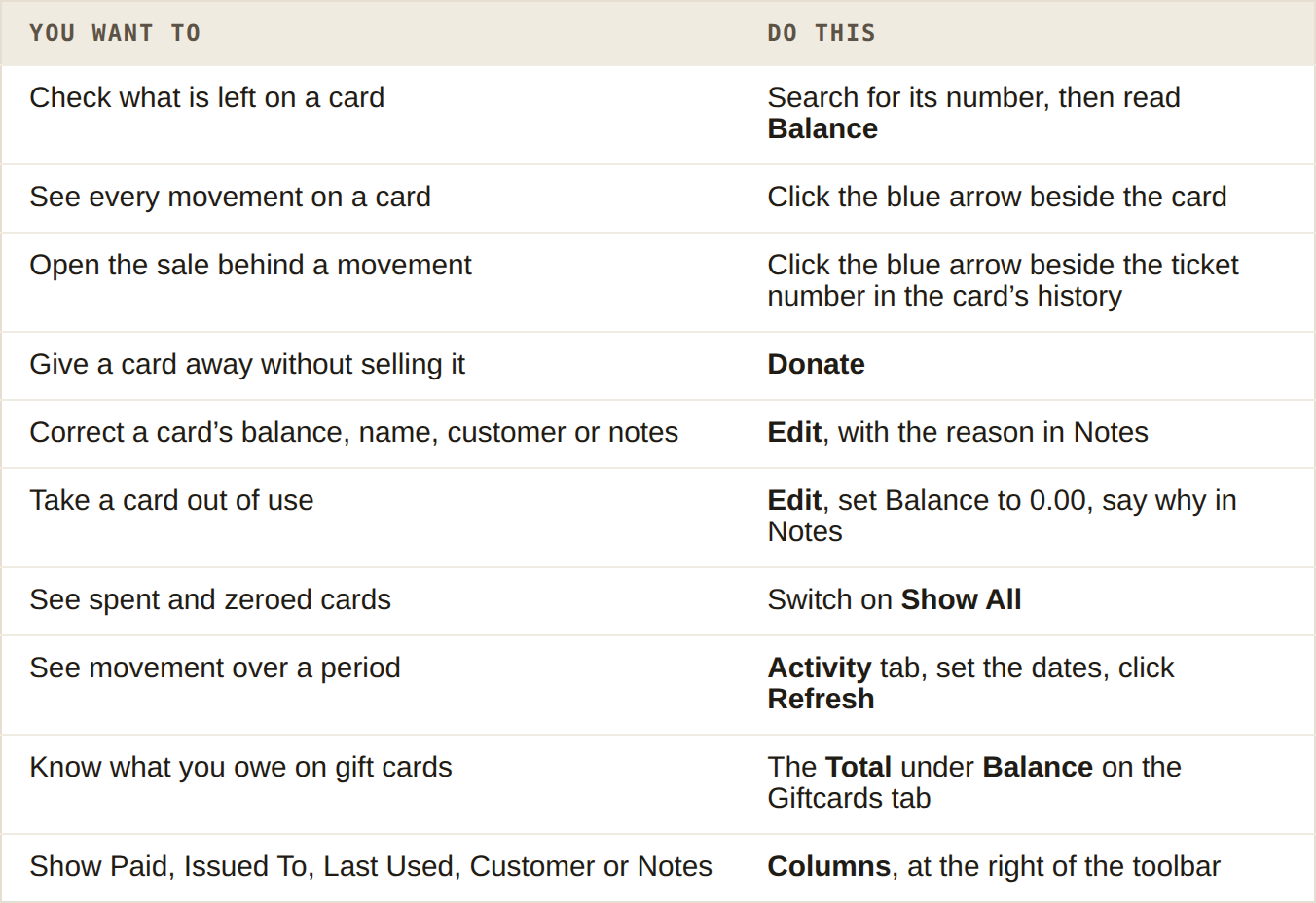
Reference
Troubleshooting
Giftcards is not in my menu. Either gift cards are not switched on for your business (call BREW POS support on 1-800-676-9874), or your employee record does not have Giftcards ticked under Admin Permissions (ask whoever manages staff records).
A card is not on the list. It has nothing left on it. Switch on Show All. If it is still not there, it was never issued; check the number.
I changed a card and the list still shows the old balance. You changed it from the card's history, which does not reload the list on the way back. Click Refresh.
Save stays pale on a new card. There is no card number yet, or Duplicate Giftcard is showing because that number is already in use.
A card's history does not add up. Look for Balance decreased, Balance increased or Account zeroed-out lines with Admin as the ticket. The Credit figure on those lines is the new balance, not the change. Read the Balance column, and the card's Notes for the reason.
The Activity tab says No records to display. Nothing moved in the dates shown. It opens on the last seven days. Widen the dates and click Refresh.
I widened the Activity dates and nothing changed. Click Refresh. The dates alone do not reload the list.
A customer says their card has money on it, but it shows 0.00. Open the card's history and read it from the top. Every sale shows its ticket, and the blue arrow opens the receipt, which you can show or print for them.
I need to change a card's number. You cannot. Zero out the card with the wrong number, say why in its Notes, and issue the card again under the right number with Donate for the same balance.
Search does not find a customer's name. Search on this screen looks at card numbers only. Show the Customer column with Columns and look down it, or find the customer on the Customers screen.
Next: Keeping customer records.
About this guide
BREW POS Admin: merchant how-to guide
Applies to: BREW POS Admin, master branch, 4 September 2026 snapshot.
Last reviewed: 21 October 2026 · Owner: Eddy
Still stuck?
Call BREW POS support on 1-800-676-9874. Tell them which step you reached and what the screen is showing.
Updated 21 October 2026 · BREW POS Admin, master branch, 4 September 2026 snapshot · Admin
BrewPOS How to use
Support 1-800-676-9874
Email [email protected]
© 2026 BREW POS. All rights reserved.
Privacy Policy | Terms and Conditions