
Printing the presenter ticket
The presenter ticket is the bill you take to the table before the guest pays. It lists what they had and what they owe, and it can carry suggested tips and a code to pay by phone. This guide covers printing it, what changes on your screen afterwards, and how to read the two prices on it.
Before you start
Anyone who can ring an order can print a presenter ticket.
The ticket needs at least one item on it. The printer button is greyed out on an empty ticket.
The station needs a receipt printer. Without one, the button shows a phone and texts the ticket instead. See If the button shows a phone.
Where it fits
At a table, a ticket usually goes like this:
You start the ticket and ring in the order.
You come back later and add more to it.
When the table is ready to pay, you print the presenter ticket and take it to them.
The guest hands you a card or cash.
You take it back to the POS and take the payment.
Ringing and adding to an order is in Taking an order. Taking the payment is in Taking a payment and adjusting tips.
Print the presenter ticket
Watch out: printing also sends the order
Tapping the printer button sends anything on the ticket that has not gone to the kitchen or bar yet. Check the ticket first. To take off something that has already been sent, see Fixing an item you rang in wrong.
Open the ticket.
From the tables screen: tap Tables, then the table.
From your list: tap Toggle, then the ticket.
Under the ticket, beside Pay, tap the printer button (Figure 1).
If the POS asks "Receipt to", tap Printer.
Take the presenter ticket to the table.
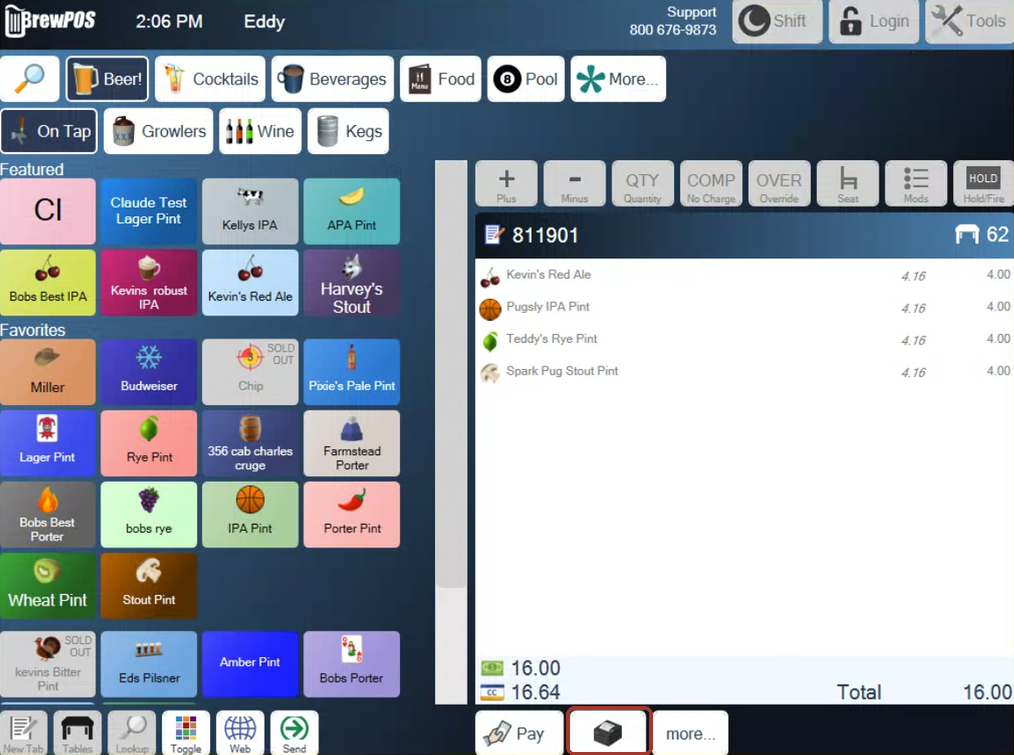
Figure 1. The order screen with a ticket open. The printer button is boxed, between Pay and more...
The ticket is put away and the order screen is ready for your next one. Printing does not pay the ticket: it stays open until you take the payment.
See which tables are waiting to pay
Once the presenter ticket has printed, the POS marks the ticket so everyone can see it is waiting to pay.
On the tables screen, the table turns green with a bright green outline (Figure 2).
In your ticket list, the ticket's symbol changes to a printer (Figure 3).
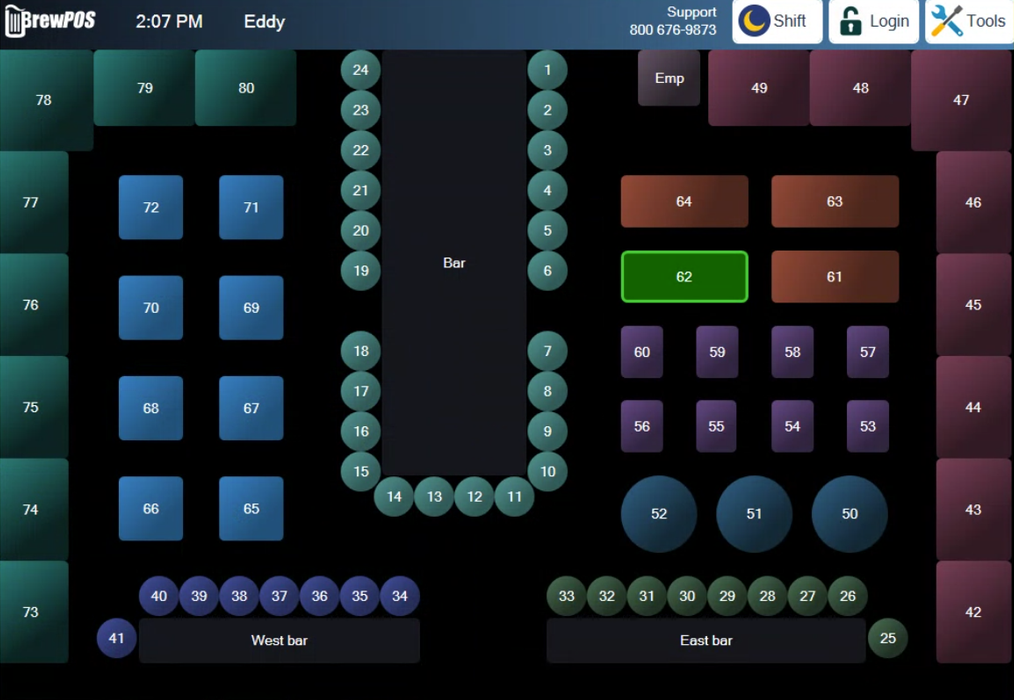
Figure 2. Table 62 is green: its presenter ticket has been printed
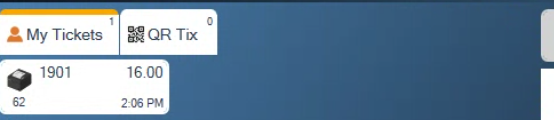
Figure 3. The printer symbol on ticket 1901, table 62
Print it again when the guest orders more
Open the ticket and ring in the new items as usual. As soon as you add one, the table goes back to its normal color and the printer symbol comes off the ticket.
Tap the printer button again to print a new one. You can print a presenter ticket as many times as you need.
The same goes for a discount or a comp added after you printed: print again, so the guest sees the right total.
Read the presenter ticket
From the top (Figure 4):
TICKET # and the table, then your business name, address and phone.
The date and time, and the size of the party.
Each item with its price. Modifiers print under the item.
Any discount or gratuity on the ticket, then the tax and the TOTAL.
Suggested Tip, with the tip and the new total worked out for each percentage.
Any note on the ticket, under Notes.
Your receipt message, such as "Thank You!"
A code under Pay Online, which the guest can scan to pay from their phone. See Paying at the table with a QR code.
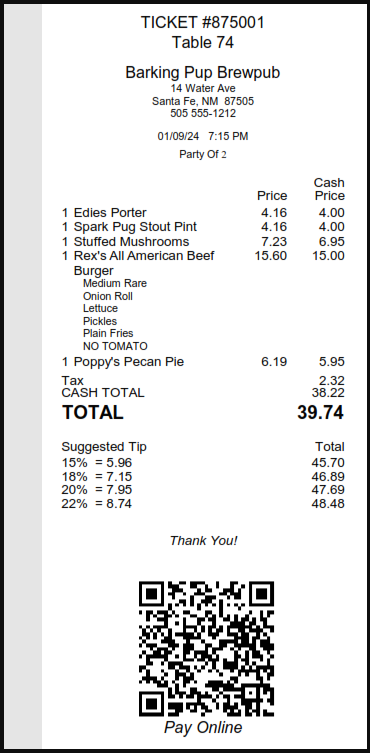
Figure 4. A presenter ticket
Suggested tips, the receipt message and the Pay Online code are set up for your business in BREW POS Admin, so yours may not show all three. Suggested tips only print on a ticket over 10.00.
Watch out: suggested tips still print when a gratuity is on the ticket. If you added a gratuity for a large party, tell the table it is already included. See Adding a gratuity to a large party.
The presenter ticket is not the receipt. Once the guest has paid, the receipt is headed RECEIPT # and shows how they paid, with no suggested tips and no code.
Read the cash and card prices
If your business uses dual pricing, the presenter ticket has two price columns, as in Figure 4.
Price is what the item costs on a card.
Cash Price is what it costs in cash.
At the bottom, CASH TOTAL is what the guest owes if they pay cash, and TOTAL is what they owe on a card. On the ticket in Figure 4 that is 38.22 in cash or 39.74 on a card.
Suggested tips are worked out on the card total.
If your business does not use dual pricing, there is one price column and one total.
If the button shows a phone
What the button beside Pay does depends on how the station is set up.
It shows a printer and prints. This is the usual setup.
It shows a printer and asks "Receipt to". Tap Printer to print the presenter ticket, or SMS Text to text it to the guest's phone (Figure 5). The red X goes back to the ticket without sending anything.
It shows a phone. The station has no receipt printer, or it is set to text. It asks for the guest's mobile number and texts the ticket. See Sending a receipt by text.
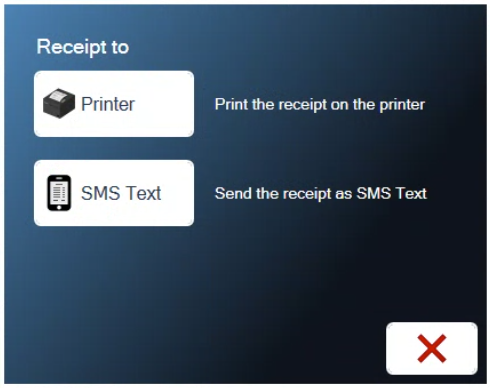
Figure 5. Receipt to: Printer or SMS Text
A manager sets this with Print to, under Tools, Settings, Configure. See Setting up a station.
If the button shows a printer and nothing prints, see Restarting the Windows print spooler, or call BREW POS support on 1-800-676-9874.
About this guide
Applies to: the BREW POS terminal.
Last reviewed: 4 October 2026
BrewPOS How to use
Support 1-800-676-9874
Email [email protected]
© 2026 BREW POS. All rights reserved.