
Sending a receipt by text
The POS can text a receipt to the guest's phone instead of printing it. You can text a paid receipt at the end of a sale, or text an open ticket so a guest can see what they've had so far.
Choose how receipts go out
Each station has its own receipt settings. A manager, or anyone with the Settings permission, can change them.
Tap Tools, then Settings, then Configure. Stay on Workstation.
Set Print Receipts (Figure 1). Yes gives a receipt after every sale, No never gives one, and Ask asks "Print Receipt?" after every sale.
Set Print to. Printer prints it, SMS Text texts it, and Ask lets you choose each time.
Tap the red X to close Settings.
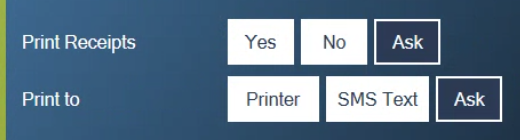
Figure 1. Ask on both lines lets you choose sale by sale
Most places that want both set Print Receipts to Ask and Print to to Ask. A station with no receipt printer always texts.
Print Receipts only covers the receipt after a sale. Print to also decides what the button beside Pay does on an open ticket, which is the next section but one.
Text the receipt when the guest pays
With both settings on Ask:
Take the payment as usual.
The POS asks "Print Receipt?" (Figure 2). Tap the green check. Tap the red X if the guest doesn't want one.
The POS asks where to send it: Printer or SMS Text. Tap SMS Text.
The Phone keypad opens (Figure 3). Type the guest's mobile number and tap the green check.
The receipt is on its way and the ticket closes.
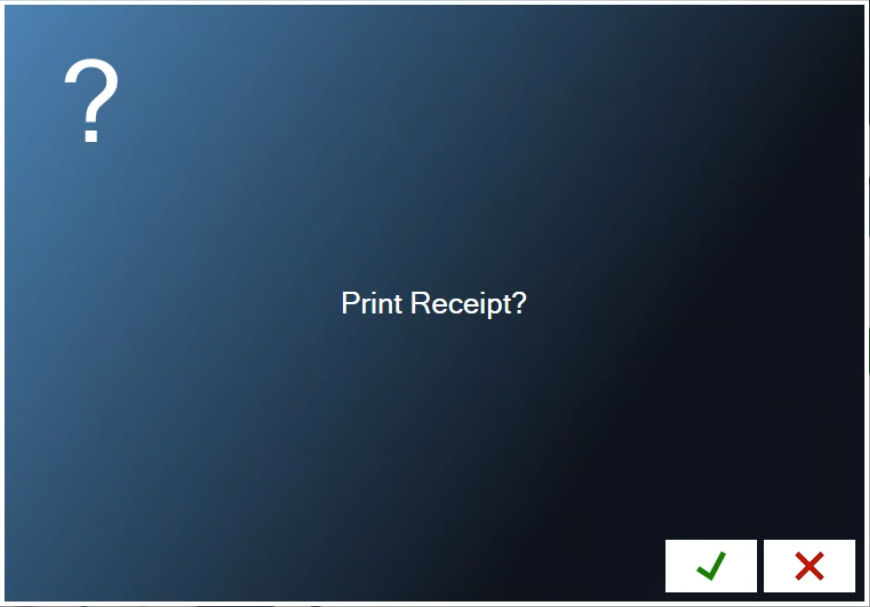
Figure 2. Asked after every sale when Print Receipts is set to Ask
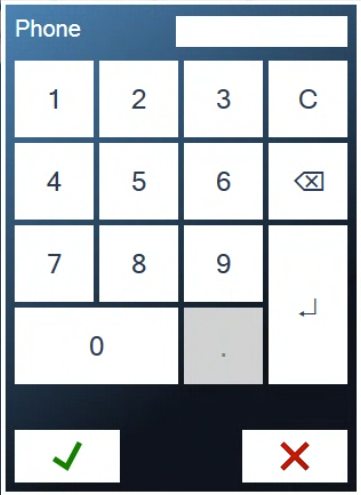
Figure 3. Type the guest's mobile number
If the ticket has a customer on it and their record has a phone number, the number is already filled in. Check it with the guest and tap the green check.
Changed your mind? Tapping the red X on the Phone keypad sends nothing. The sale is still finished.
Text an open ticket
The button beside Pay sends the open ticket to the guest. What it looks like depends on the station:
A phone, when the station has no receipt printer or Print to is set to SMS Text (Figure 4). It texts the ticket.
A printer, when the station has a receipt printer. It prints the bill for the table instead. See Printing the presenter ticket. To text from a station like this, set Print to to Ask.
To text the ticket:
Open the ticket.
Tap the button beside Pay. If the POS asks "Receipt to", tap SMS Text.
Type the guest's mobile number and tap the green check.
The POS tells you "Text was sent". The ticket stays open.

Figure 4. The phone button texts the open ticket
If the text doesn't arrive
Check the number with the guest and send it again. For a ticket that's already closed, find the sale in Tools > History and use the text receipt button there.
Texts need the internet. If the top of the screen says Offline, print the receipt instead. See When your system says Offline.
If the POS says "Text was not sent", it gives the reason underneath. If it keeps happening, call BREW POS support on 800-676-9874.
About this guide
Applies to: the BREW POS terminal.
Last reviewed: 4 October 2026
BrewPOS How to use
Support 1-800-676-9874
Email [email protected]
© 2026 BREW POS. All rights reserved.