
Setting up a station
Every station keeps its own settings: how big the tiles are, which buttons show, what the screen opens on, whether it locks when nobody's using it. Set them once on each station and they stay that way for everyone who uses it. This guide also covers sharing a station between several people and changing your own PIN.
Before you start
You need to be a manager, or have Settings ticked on your employee record in BREW POS Admin. Otherwise Settings is greyed out on the Tools menu. See Managing employees.
Settings belong to the station, not to you. Change the tile size on the bar terminal and it changes for everyone who uses the bar terminal, and nowhere else. To set up five stations the same way, you do it five times.
The red X saves. There's no Save button and no Cancel in Settings. Whatever is showing when you tap the red X is what the station keeps. If you were only looking, put anything you touched back the way it was before you close.
Open Settings
Send or close any ticket that's on screen. Tools is greyed out while a ticket has changes that haven't been sent.
Tap Tools at the top right.
Tap Settings.
Settings opens on Appearance, with the station's name at the top right. This guide covers Appearance and Configure. The other tabs are for printers, extra screens and card readers, which are normally set up with BREW POS support when the station is installed. On Printers, only BREW POS support can choose which printer a line uses; Test, Queue and Margins are open to you.
Choose how the screen looks
Everything on Appearance changes what the order screen looks like (Figure 1). A dark button is switched on.
Theme. Tap a square to change the colours. The name of the theme shows beside the word Theme.
Font. Pick a typeface. - and + change the size of the text in lists and on the ticket.
Tiles. Small, Medium, Large and X Large set the size of the product buttons. Prices puts the price on every tile (Figure 2). ProdIDs shows the product number. Flat Colors takes the shading off.
Ticket buttons. Which buttons show at the bottom left of the order screen: Tables, Lookup and Web. Product lookup adds the magnifying glass in front of the categories.
Layout. Send in Ticket moves Send next to the ticket. Center Tables centres the floor plan. Tix on Left puts the ticket on the left. Hide Icons takes the pictures off ticket lines. Mods Footer shows the notes panel at the bottom of the modifier screen. Cats on Top runs the categories across the top instead of down the side. Big buttons makes every button taller. Big Mods makes the modifier tiles bigger. Square buttons squares off the corners.
Line Item buttons. Quantity, Return, Seat and Hold/Fire add those buttons above the ticket. See Ordering by seat, quantity and course.
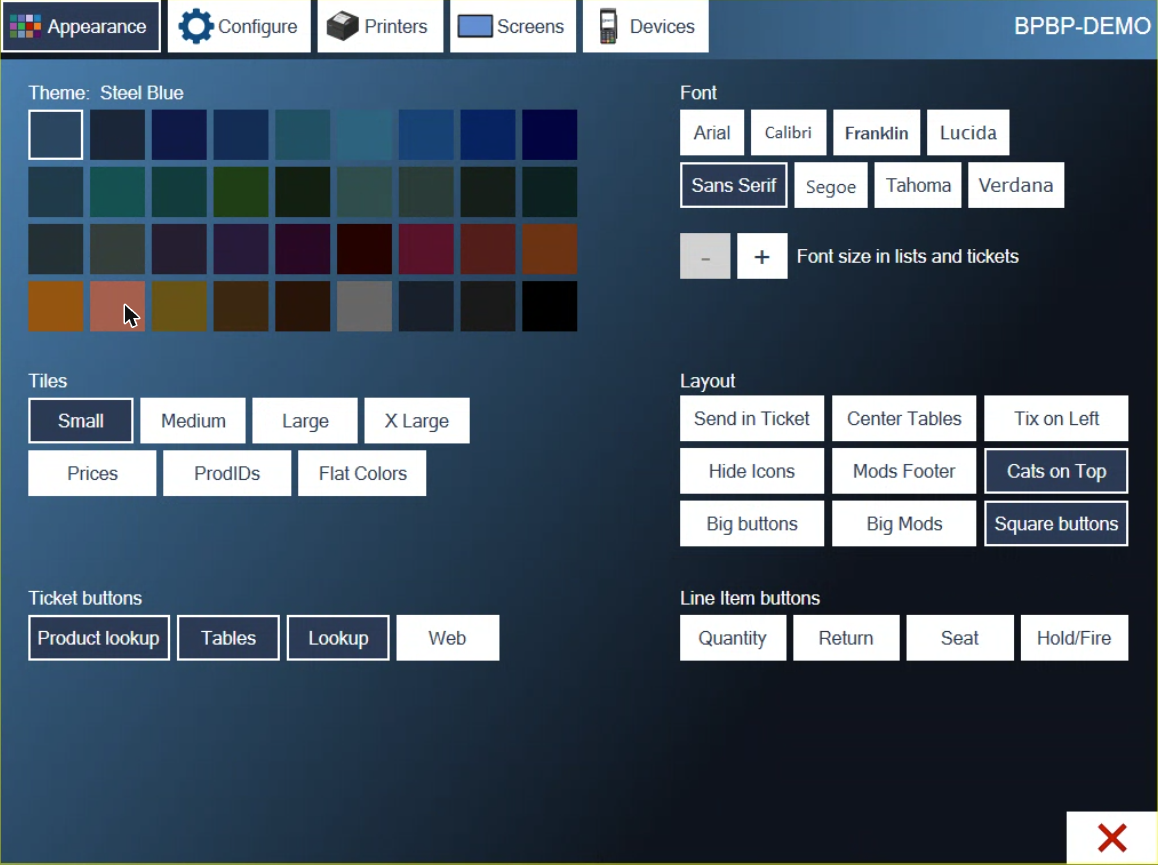
Figure 1. Appearance. Dark buttons are switched on
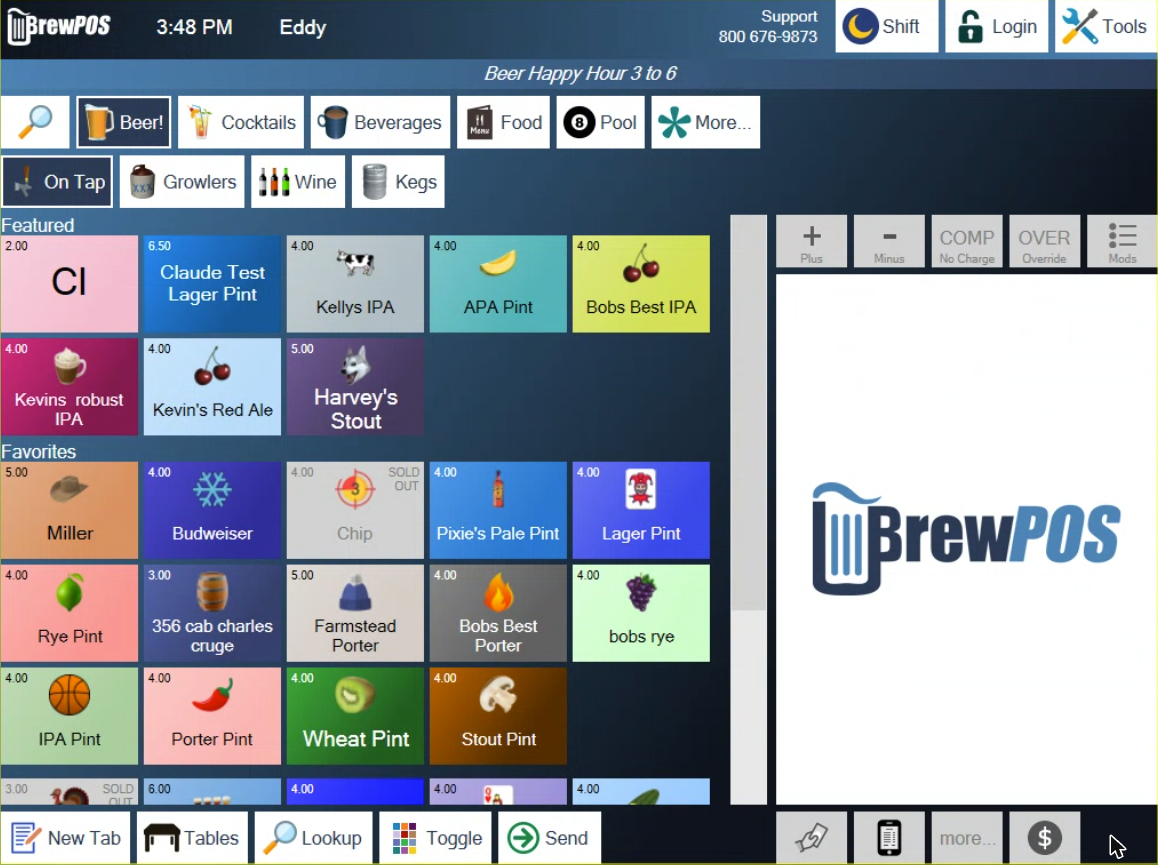
Figure 2. The order screen with Tiles on Large and Prices switched on
The theme and font change as you tap them. The rest shows when you close Settings.
Choose how the station works
Tap Configure. It opens on Workstation (Figure 3).
View. What the station shows when you log in and after each ticket is sent: Tables for the floor plan, Tiles for the product buttons, or Tickets for the list of open tickets.
Sort Tickets. The order of the ticket list: by Ticket number, by Table, by Cust for the name on the tab, or Details for names with more on each line.
Floorplan. Which floor plan opens first. A number is greyed out when there's no floor plan behind it.
Lock Screen. How long the station waits before it locks. See the next section.
Print Receipts and Print to. Whether a receipt is offered after a sale, and whether it prints or goes by text. See Sending a receipt by text. Print to also decides what the button beside Pay does on an open ticket: Printer prints the presenter ticket, SMS Text texts it, and Ask lets the server choose. See Printing the presenter ticket.
Print CC Cust Copy and Print CC Merch Copy. Whether the customer and merchant copies of a card slip print: Yes, No or Ask each time.
Print Bar Orders. Whether drinks rung in on this station print at the bar.
The buttons on the right switch features on and off for this station:
Send & Stay. Keeps the ticket on screen after Send instead of putting it away.
QuickPay button. Shows QuickPay on the ticket for staff who are allowed to use it.
Guests in Header. Shows the guest count at the top of each table's ticket, where you can tap it to change it.
Ticket Tiles. Shows ticket lists as tiles instead of lines.
Wait List. Shows the wait list on this station. It's greyed out unless your location uses wait lists. See Using wait lists.
Web Controller. Makes this the one station that brings in online orders. Only one station at a location can have it. To move it, turn it on at the new station. It can't be turned off.
The button with a language on it, such as Spanish, shows the menu in your second language on this station.
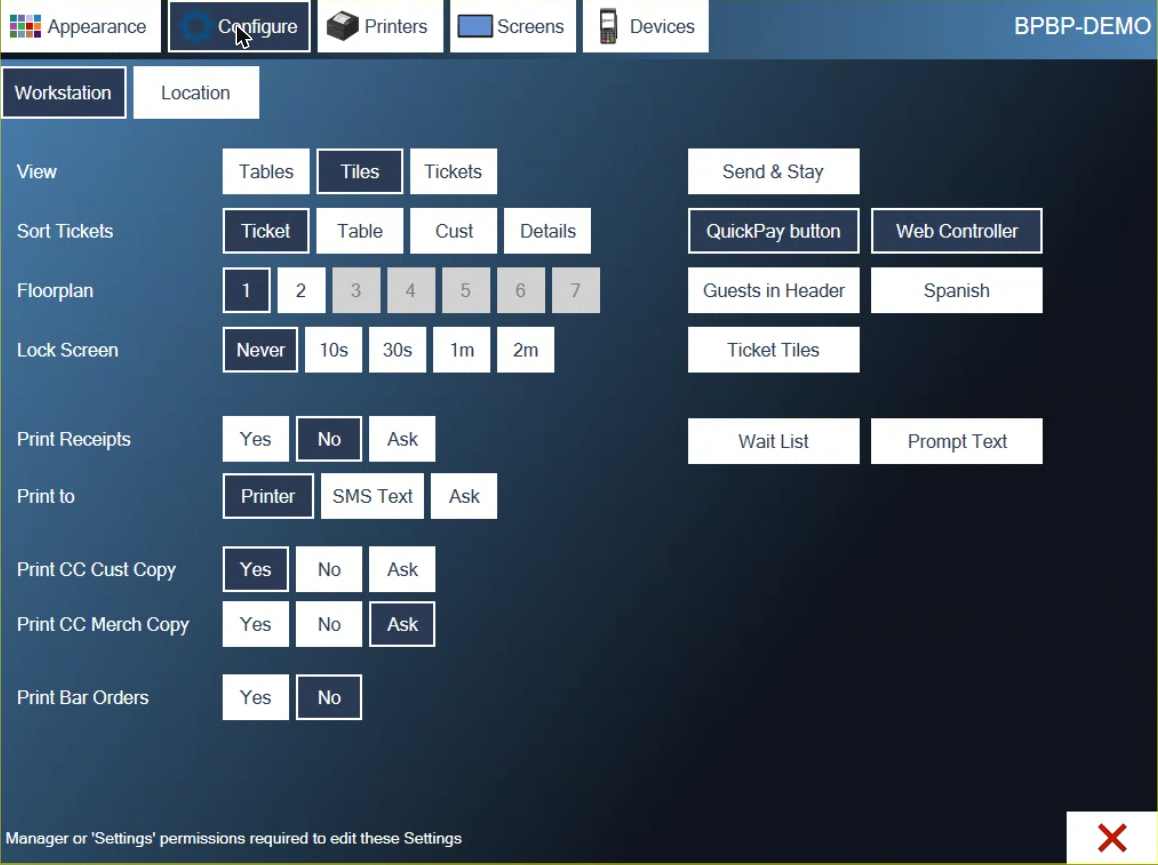
Figure 3. Configure, Workstation
Lock the station when it's idle
Lock Screen sets how long the station waits before it locks: Never, 10s, 30s, 1m or 2m. It only counts down on the order screen with an empty ticket, so it never locks in the middle of an order.
When it locks, the order screen is replaced by a drifting logo (Figure 4). The names of the people logged in stay at the top.
To unlock it, tap your name and type your PIN (Figure 5). Or tap Login to log in as someone else.
You can lock the station yourself at any time: tap your own name at the top of the order screen.
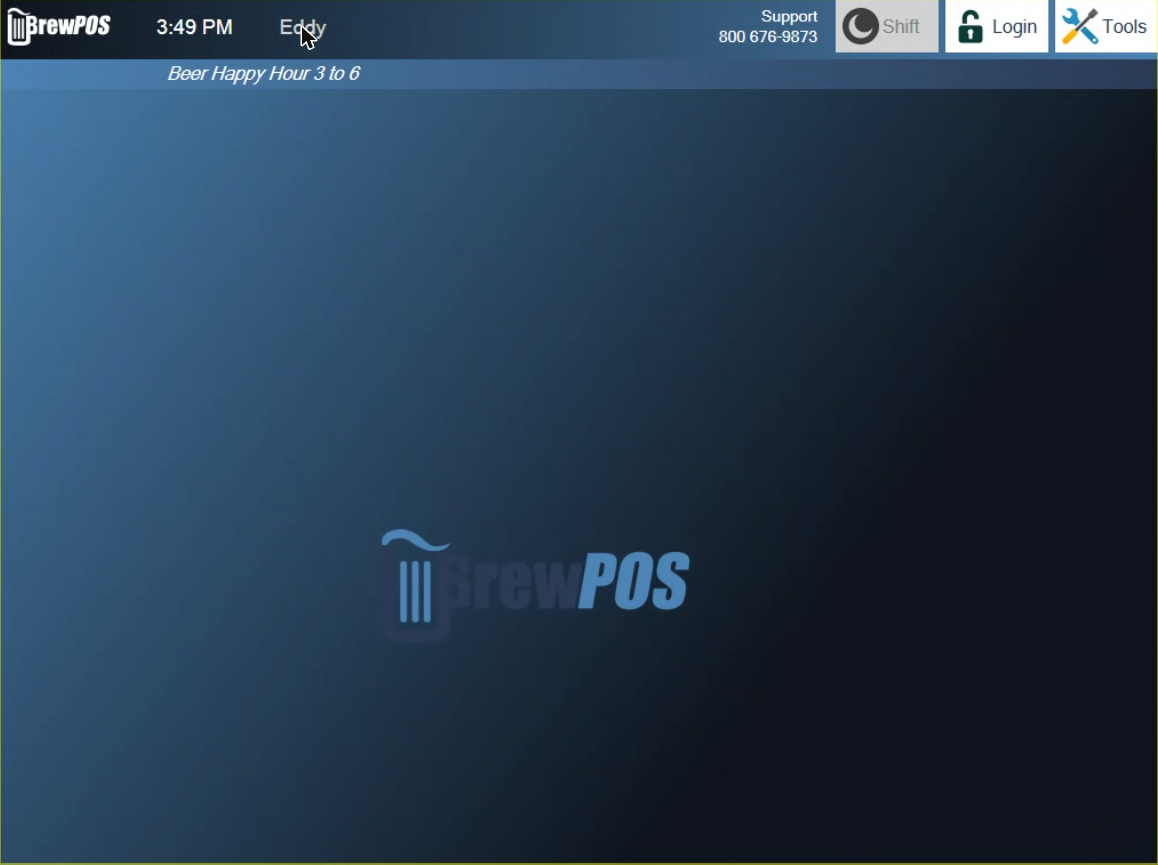
Figure 4. A locked station. Tap your name to get back in
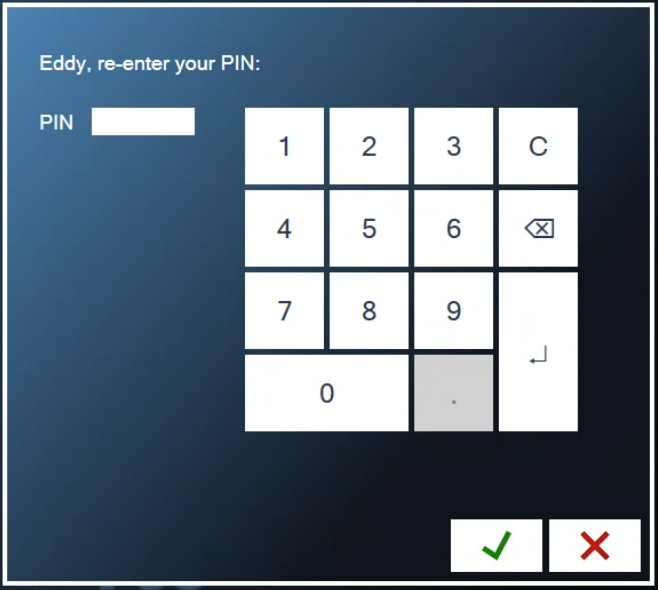
Figure 5. Your PIN unlocks it
1m may not stick. If you choose 1m and find the old setting back the next time you open Settings, use 30s or 2m.
Share a station
Several people can be logged in to one station at the same time. Each name shows at the top of the order screen.
To switch to someone who's already logged in, tap their name. You'll normally be asked for a PIN. Staff with Switch users no PIN ticked in BREW POS Admin can switch without one.
To add someone, tap Login and log in with a User ID and PIN. Their name joins the others at the top.
You can't switch while a ticket is on screen. Send it or close it first. Until you do, the names, Login and Tools don't respond.
After a switch, the station shows the new person's own tickets.
Logging out for the day is a different thing. See Starting and ending your shift.
Change your PIN
Tap Login at the top of the order screen to get to the login screen.
Type your User ID and your current PIN.
Tap Change PIN at the bottom left.
Type your new PIN beside New PIN, then type it again beside Re-enter.
Tap the green check. The POS says "PIN was changed."
Log in with your new PIN.
A PIN is at least 4 digits and can't start with 0. It's the same PIN on every station, and the station has to be online to change it.
Forgotten your PIN? A manager can set a new one for you in BREW POS Admin. See Managing employees.
Good to know
Location, the tab next to Workstation, is not a station setting. The tax rates, Receipt Promo, Whiteboard and Marquee there apply to every station at your location, and the POS asks for your PIN before each change.
Tap the station's name at the top right of Settings to see its details: location, till and printers. It's handy when you're on the phone with support.
If you close Settings while the station is offline, some changes may not hold once it's back online. Check them again.
Tools closes by itself after about half a minute if you don't tap anything.
About this guide
Applies to: the BREW POS terminal.
Last reviewed: 4 October 2026
BrewPOS How to use
Support 1-800-676-9874
Email [email protected]
© 2026 BREW POS. All rights reserved.