
Fixing an item you rang in wrong
Rang in the wrong beer, the wrong size, or one too many? How you fix it depends on one thing: whether the item has been sent to the kitchen or bar yet.
Not sent yet: take it off with Minus. Nobody else ever saw it.
Already sent: you need permission to take it off, and you may be asked for a reason, because the kitchen or bar may already have made it.
Take off an item you haven't sent
Tap the item on the ticket. It turns dark to show it's selected (Figure 1).
Tap Minus above the ticket.
The item is gone and the total drops straight away (Figure 2). If the line has a quantity of more than one, each tap of Minus takes off one.
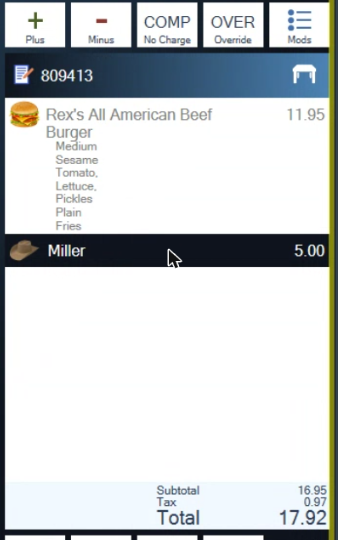
Figure 1. The Miller line is selected
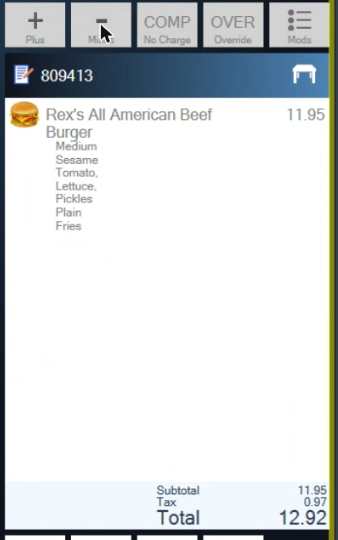
Figure 2. After Minus: the Miller is gone and the total is 5.00 less
Take off an item that's already been sent
Once an item has gone to the kitchen or bar, Minus is greyed out for most staff. To take it off:
If you're a manager, or your login has the Minus permission, select the item and tap Minus as above.
If not, ask a manager. They can switch to their login on your station, take the item off, and switch back.
Your business may also ask for a reason. If it does, a box titled Minus after Sent reason appears. Tap one of the preset reasons or type one, then tap the green check. Who removed the item, and the reason, are logged, and it counts toward Minus after Sent on the Today screen (Tools > Info > Today).
Was it made? If the kitchen or bar has already made it and the guest isn't paying for it, a manager should COMP it instead of taking it off, so the stock and the cost are counted. See Comps, voids and discounts at the POS.
Stop the kitchen making it: Don't Make
Use Don't Make when the item should stay on the ticket but must not be sent to the kitchen or bar. For example, a dessert you've already plated yourself.
Tap the item, then tap Mods above the ticket (it opens by itself on items with choices).
Tap Don't Make at the bottom. It turns red (Figure 3).
Tap the green check.
Don't Make only works before the item is sent. After that it's greyed out.
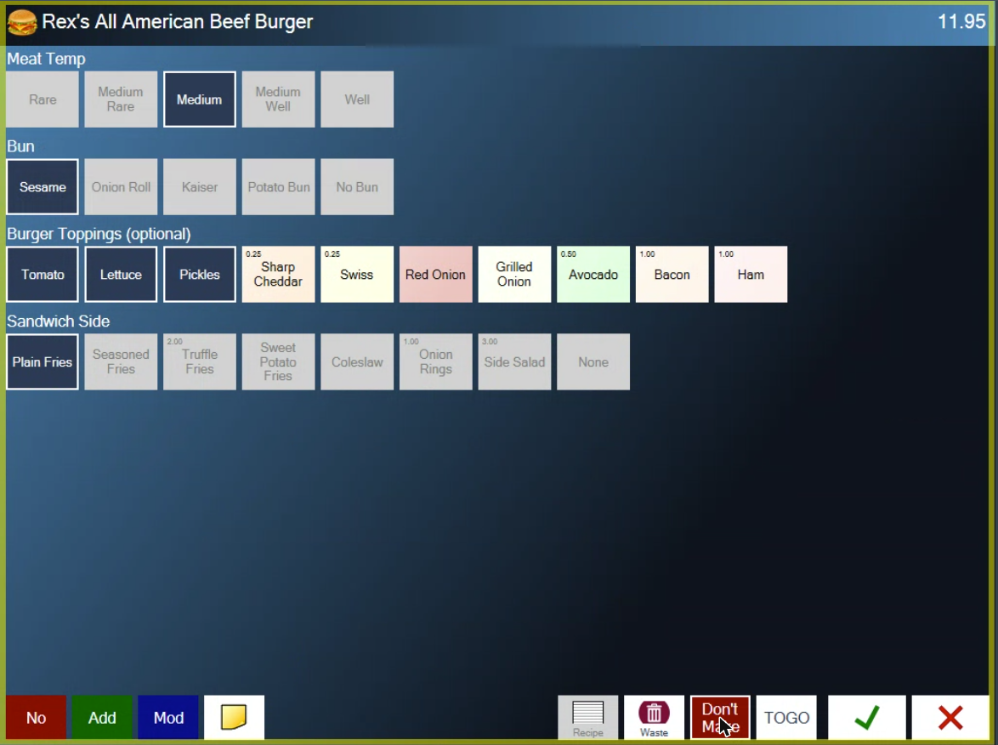
Figure 3. The modifier screen with Don't Make switched on (red). Waste is next to it
Record something that was spilled or dropped: Waste
Use Waste when a drink or dish was made but had to be thrown away: spilled, dropped, or sent back. It marks the item as waste and logs it with your name and the reason, so a manager can see what was thrown away.
Tap the item, then tap Mods.
Tap Waste at the bottom.
Type or pick a reason, for example Spilled (Figure 4), and tap the green check.
Tap the green check again to close the modifier screen.
To undo it, open Mods and tap Waste again.

Figure 4. Waste asks for a reason
Change it rather than remove it
If the item is right but the details are wrong (wrong temperature, wrong side, no onions), you don't need to take it off. Tap the item, tap Mods, change the choices, and tap the green check. See Taking an order for the modifier screen.
About this guide
Applies to: the BREW POS terminal.
Last reviewed: 1 October 2026
BrewPOS How to use
Support 1-800-676-9874
Email [email protected]
© 2026 BREW POS. All rights reserved.