
Restarting the Windows print spooler
If print jobs are backing up and nothing prints, you may need to restart the Windows Print Spooler on the terminal. The print spooler is the part of Windows that holds print jobs and passes them to the printer.
Restart the print spooler
1. On the terminal, press the Windows key and R together to open Run.
2. Type services.msc and press Enter. Services opens.
3. Find Print Spooler in the list and click it.
4. Click Restart on the left (Figure 1).
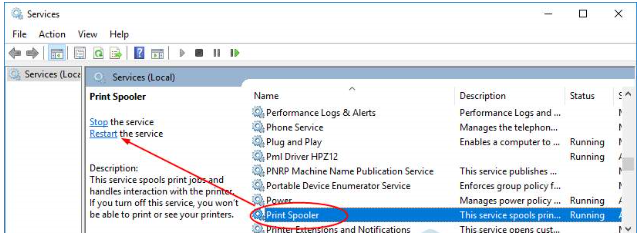
Figure 1. Services, with Print Spooler selected and the Restart link on the left
If it still does not print, call BREW POS support on 1-800-676-9874.
About this guide
BREW POS: front of house how-to guide
Applies to: BREW POS terminals running Windows. Written from the BrewPOS support note Restarting Windows Print Spooler (September 2018). Not yet re-checked against the current release.
Last reviewed: 30 September 2026 · Owner: Eddy
BrewPOS How to use
Support 1-800-676-9874
Email [email protected]
© 2026 BREW POS. All rights reserved.