
Adding a gratuity to a large party
A gratuity is a service charge added to the whole ticket, usually for a big table. It goes on as a percentage or as a dollar amount, it isn't taxed, and it's paid out to the server the same way card tips are. BREW POS can also add it by itself once a table reaches a set number of guests.
Before you start
You need the Gratuities permission, or to be a manager. Without it the Gratuity tab is greyed out. There's no way to borrow a manager's PIN on that screen, so the manager has to be the one logged in. Permissions are set on your employee record in BREW POS Admin. See Managing employees.
The ticket needs at least one item on it. more... is greyed out on an empty ticket.
Add a gratuity to a ticket
Open the ticket and tap more... at the bottom.
Tap Gratuity at the top left. The screen always opens on Discount, so don't skip this step.
Type the percentage on the keypad: 1 then 8 for 18%. The Gratuity and Total lines on the left change as you type (Figure 1).
Tap the green check.
You're back on the ticket, and the gratuity is in green between Subtotal and Tax (Figure 2).
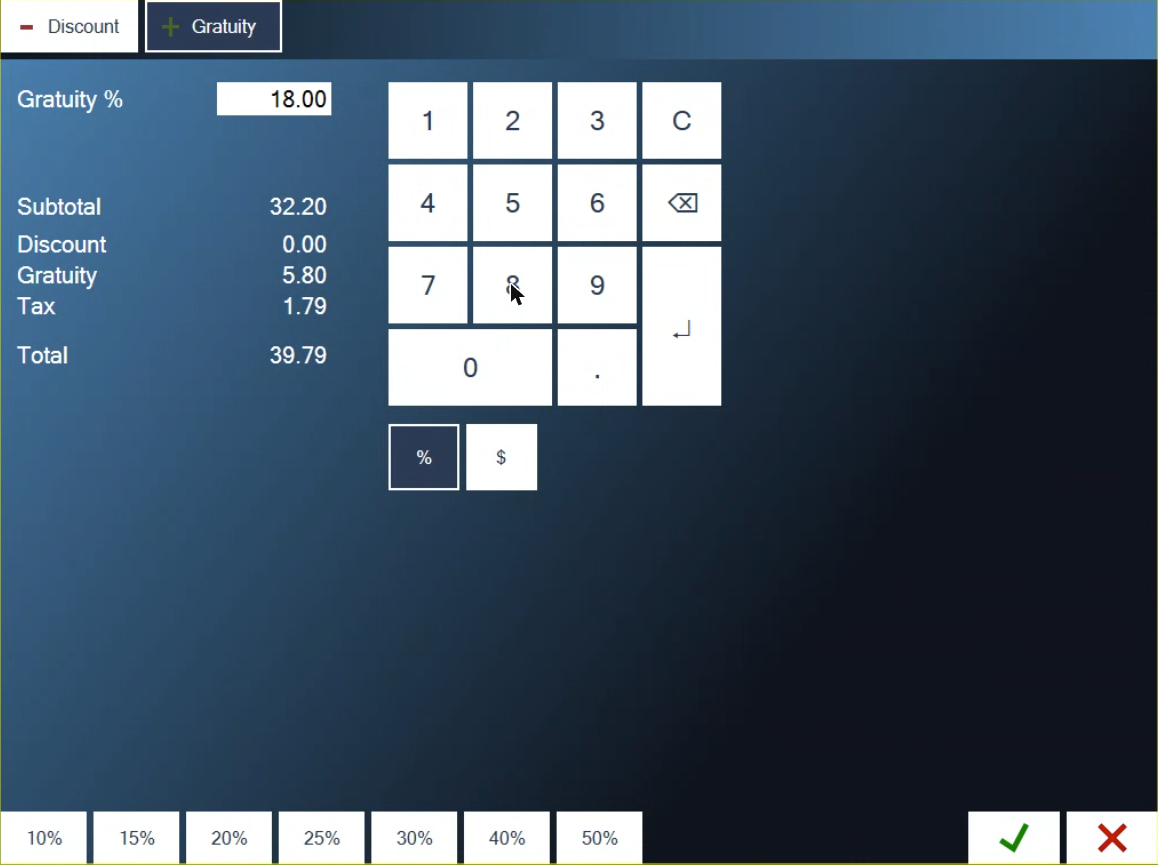
Figure 1. Eighteen percent typed on the Gratuity tab. The total on the left already includes it
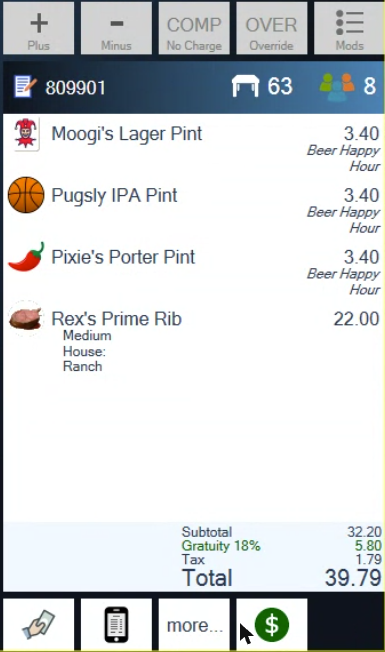
Figure 2. The gratuity on the ticket, in green
Check the tab before you tap a percentage. The screen opens on Discount (Figure 3). Tap 20% there and you've given the table 20% off, straight away, with nothing asking if you're sure. Tap Gratuity first.
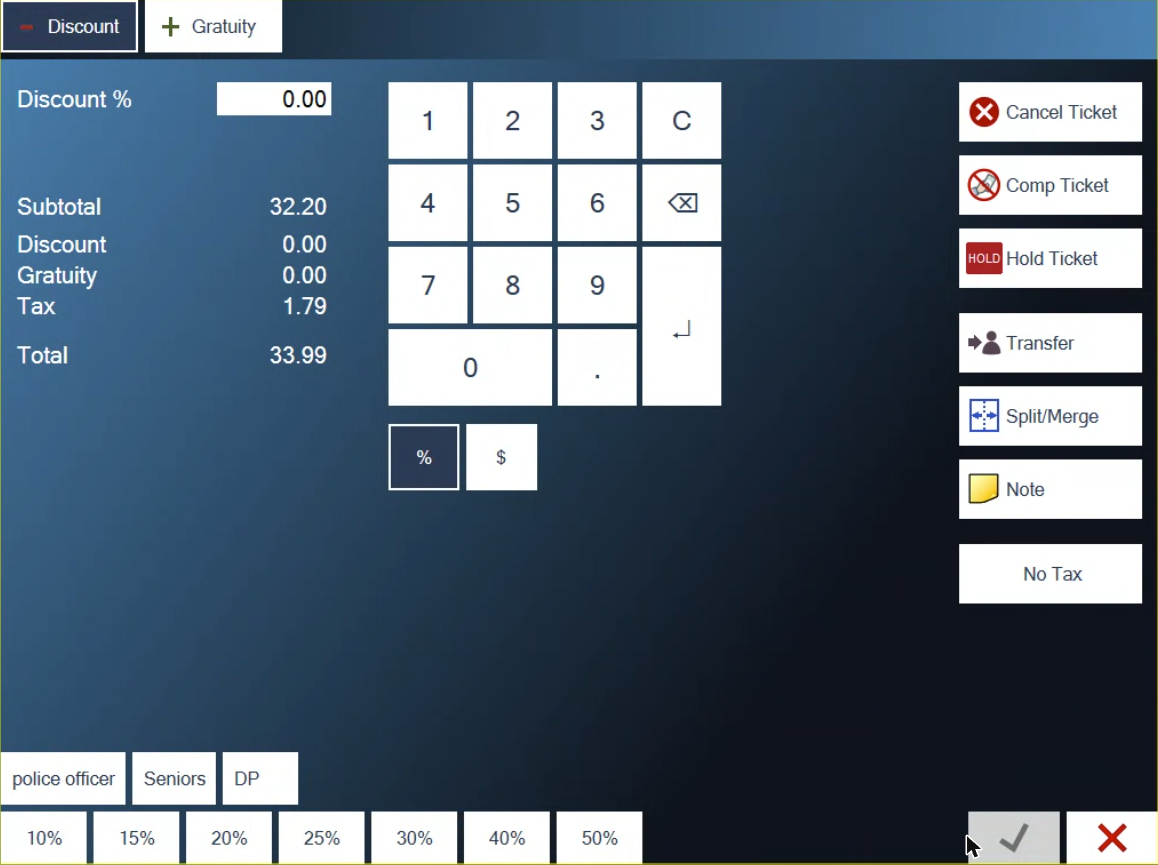
Figure 3. How the screen opens. Discount is selected, not Gratuity
A percentage gratuity is worked out on the subtotal, after any discount on the ticket and before tax. It keeps up with the ticket: ring in another round and the gratuity goes up with it.
Add the gratuity before you print the presenter ticket, so the bill the table sees already includes it.
Use a preset or a dollar amount
The buttons along the bottom, 10% to 50%, are shortcuts. Tap one on the Gratuity tab and that percentage goes on and you're taken straight back to the ticket. There's no green check to tap, so be sure before you touch one.
For a flat amount, tap $ under the keypad, type the amount and tap the green check. A dollar gratuity shows on the ticket as Gratuity with no percentage after it, and it stays the same whatever else is rung in.
Tap % or $ before you type. Switching afterwards keeps the number and changes what it means: 18 percent turns into 18 dollars.
Change it or take it off
Open the ticket and tap more..., then Gratuity. The gratuity that's on the ticket is shown.
Tap C on the keypad. The box goes to 0.00.
To change the gratuity, type the new figure. To take it off, leave the box at 0.00.
Tap the green check.
You can do this at any point before the ticket is paid in full.
Let the POS add it for big parties
BREW POS can add the gratuity for you when a table reaches a set size. It's turned on in BREW POS Admin: go to Setup, then Settings, then Company, and under Company Info find Automatic Gratuity. Set Number of guests and Percentage. Leave either one at 0 and it's off.
Once it's on:
The POS looks at the guest count when a table is picked for the ticket and every time the count changes. If the count is at or over your number and the ticket has no gratuity yet, the percentage goes on.
Picking a table sets the guest count to the number of seats at that table. Two people at an eight-top can pick up a gratuity that way. Correct the count and it comes off.
To change the count, tap the guest number at the top right of the ticket and tap the right number (Figure 4).
If the count drops below your number, the automatic gratuity comes off by itself.
It never replaces a gratuity someone has already put on the ticket.
Nothing pops up to tell you it's been added. Look for the green Gratuity line.
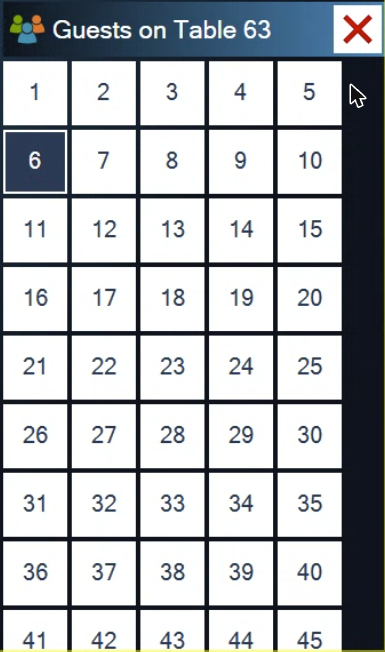
Figure 4. Tap the guest number on the ticket to set how many are at the table
The guest number only shows on the ticket when Guests in Header is turned on for that station. See Setting up a station. To-go tickets have no guest count, so they never get an automatic gratuity.
Where the gratuity shows up
On the ticket and the printed receipt, as a Gratuity line above the tax. It's part of the total the guest pays.
On the presenter ticket, the bill you print for the table, as a Gratuity line above the total (Figure 5). Suggested tips still print underneath, worked out on top of the gratuity, so tell the table the gratuity is already included.
On the card slip. With a percentage gratuity the slip says the gratuity is included and the tip line reads ADDITIONAL TIP. With a dollar gratuity the slip looks the same as usual, so tell the guest it's already on there.
In your shift report, under Gratuities. It's added to what you're owed, the same as card tips (Figure 6). The till counts it as tips paid to you, so the cash expected in the drawer goes down by that amount.
On split tickets. A percentage gratuity goes onto every ticket the split makes. A dollar gratuity stays on the original ticket. See Splitting and merging tickets.
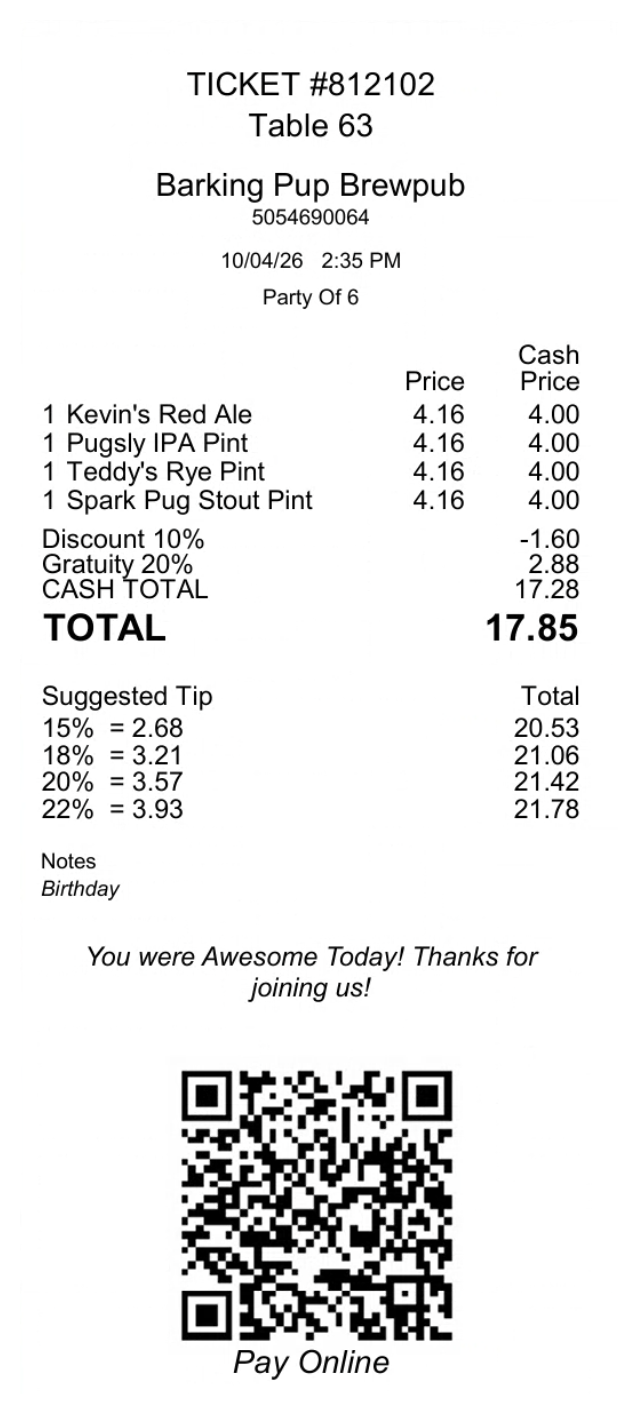
Figure 5. A presenter ticket with a 10% discount and a 20% gratuity. Suggested tips still print below the total
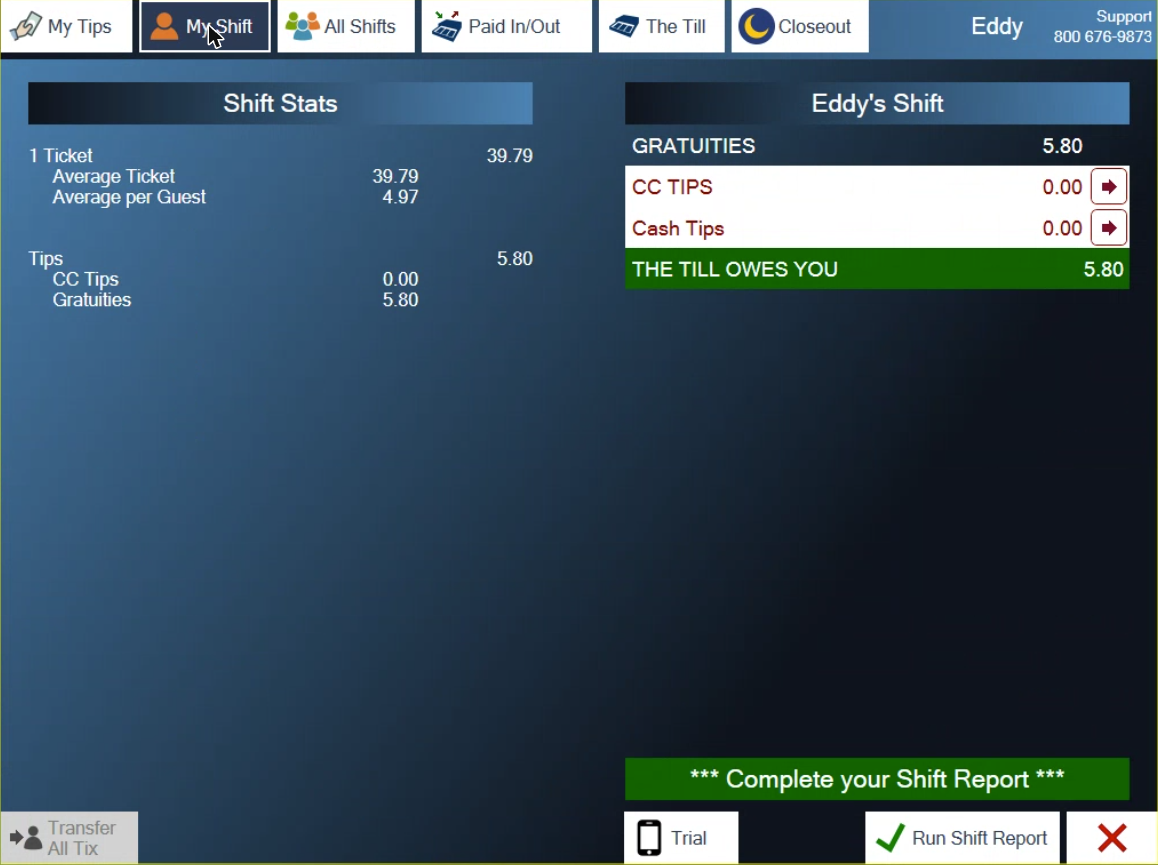
Figure 6. Gratuities on My Shift, counted with your tips
About this guide
Applies to: the BREW POS terminal.
Last reviewed: 4 October 2026
BrewPOS How to use
Support 1-800-676-9874
Email [email protected]
© 2026 BREW POS. All rights reserved.