
Ordering by seat, quantity and course
Three buttons above the ticket save a lot of tapping at a busy table. QTY rings in several of the same item at once. Seat tags an item with the guest it's for. Hold/Fire keeps food back so the mains don't land with the starters. This guide also covers notes for the kitchen and looking up a recipe.
Turn on the buttons
QTY, Seat and Hold/Fire are switched off until someone turns them on, and each station has its own setting. A manager, or anyone with the Settings permission, can do it.
Tap Tools at the top right, then Settings.
On the Appearance tab, find Line Item buttons at the bottom right (Figure 1).
Tap Quantity, Seat and Hold/Fire so each one turns dark.
Tap the red X to close Settings.
The buttons now sit above the ticket with Plus, Minus, COMP, OVER and Mods (Figure 2). They're greyed out until you tap an item on the ticket.
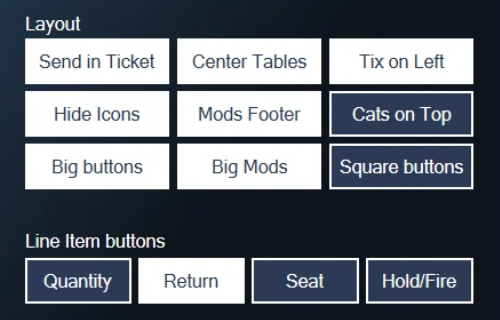
Figure 1. Line Item buttons in Settings. Dark means on
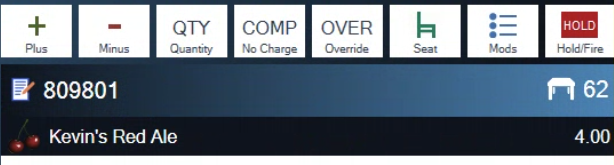
Figure 2. The buttons above the ticket work on the item you've tapped
Ring in more than one of an item
Add the item to the ticket once.
With the item still highlighted, tap QTY. The Quantity keypad opens (Figure 3).
Enter how many and tap the green check.
The line now reads "3 Kevin's Red Ale" and the price is for all three.
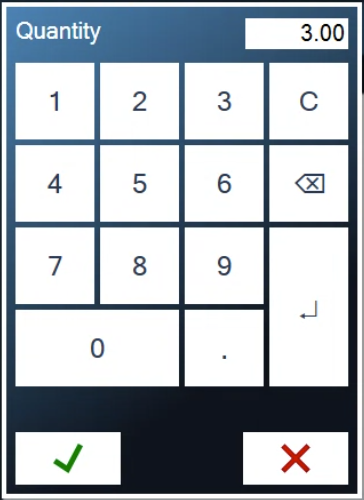
Figure 3. Enter how many and tap the green check
For one or two more, Plus is quicker: each tap adds one. Minus takes one off. If you take off the last item on a ticket you haven't sent, the POS asks "Cancel this Ticket?"
Set the quantity before you send. Once an item has gone to the kitchen or bar, QTY is greyed out for that line. Ring the extra ones in as a new line.
Put an item on a seat
Seats tell the kitchen and the food runner who gets what, and they let you split the bill by seat at the end.
Tap the item on the ticket.
Tap Seat. The seat numbers open (Figure 4). On a table ticket the heading shows the table.
Tap the guest's seat number.
"Seat 1" now shows on the line, next to the price. To change it, tap the item and tap Seat again. You can still change the seat after the item has been sent.
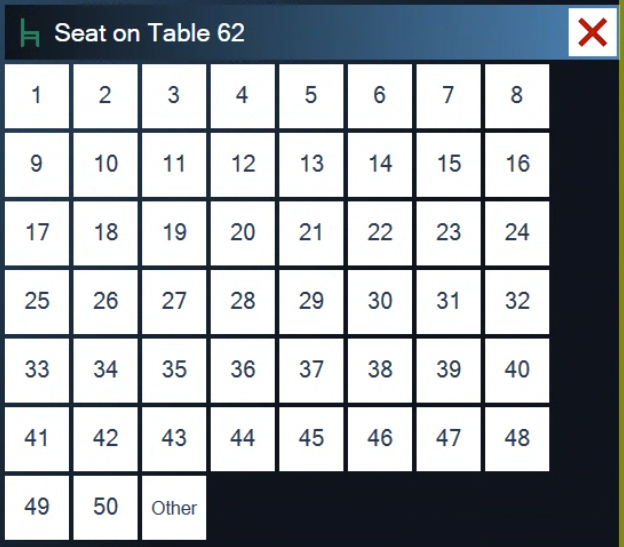
Figure 4. Tap the seat the item is for
Seat numbers print on kitchen and bar tickets. When it's time to pay, Split by seat puts each guest's items on their own ticket. See Splitting and merging tickets.
Hold an item for a later course
Ring in the whole table at once, then hold the items that shouldn't be made yet.
Tap the item on the ticket.
Tap Hold/Fire. The Hold box opens (Figure 6).
Choose how long to hold it. Hold keeps it back until you fire it yourself. 5, 10, 15 or 20 minutes sends it by itself when the time is up. Other lets you type the number of minutes.
Tap Send.
Everything that isn't held goes to the kitchen and bar straight away. The held item stays on the ticket with a red HOLD tag (Figure 5).
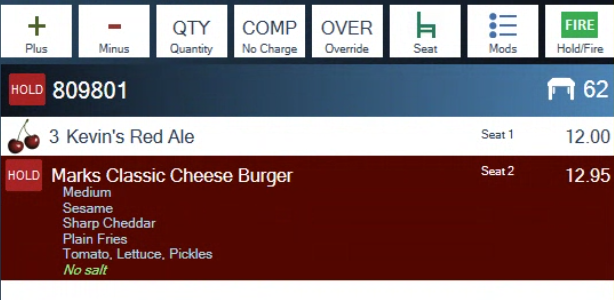
Figure 5. Seat numbers on each line, and a burger held for later
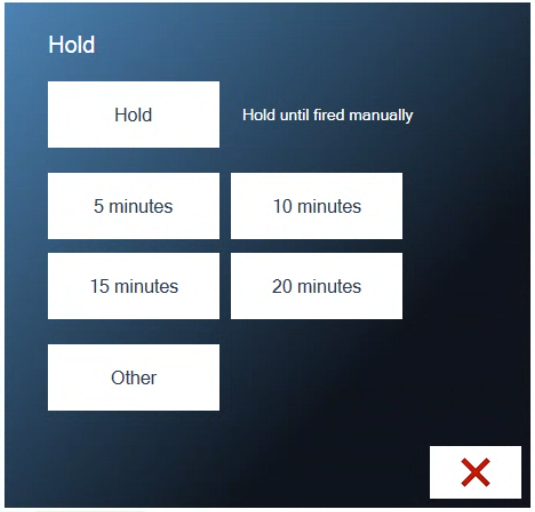
Figure 6. Hold until you fire it, or pick a time
After you send, a timed hold shows when it will go, for example "Fires at 11:42 AM" (Figure 7). On the table screen, a table with a held item has a red outline, so you can see at a glance who is still waiting on a course (Figure 8).
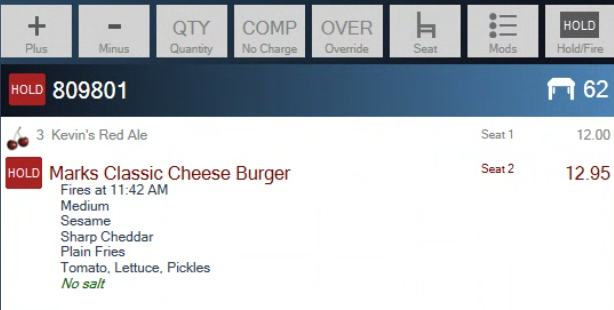
Figure 7. After Send, the beer has gone and the burger shows when it will fire
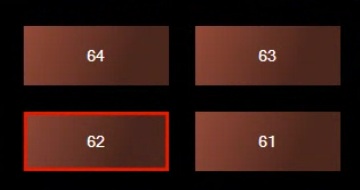
Figure 8. A red outline means the table has an item on hold
A timed hold fires from the station that rang it in. That station has to be switched on with BrewPOS running, and the ticket can't be open on screen when the time comes. If you're still in the ticket, close it with Send and the item goes.
To hold everything on a ticket at once, use more... > Hold Ticket instead. See Taking an order.
Fire a held item
Open the ticket.
Tap the held item. The Hold/Fire button turns green and reads FIRE.
Tap FIRE, then Send.
The item goes to the kitchen now, whatever time was left on it.
Add a note to an item
Use an item note for anything the modifier buttons don't cover: an allergy, "no salt", "birthday candle".
Add the item. If it has modifiers, the modifier screen opens by itself. If it doesn't, tap the item on the ticket and tap Mods.
Tap the yellow note button at the bottom left (Figure 9).
Type the note and tap the green check (Figure 10).
Tap the green check again to go back to the ticket.
The note shows in green under the item and prints on the kitchen or bar ticket with it.
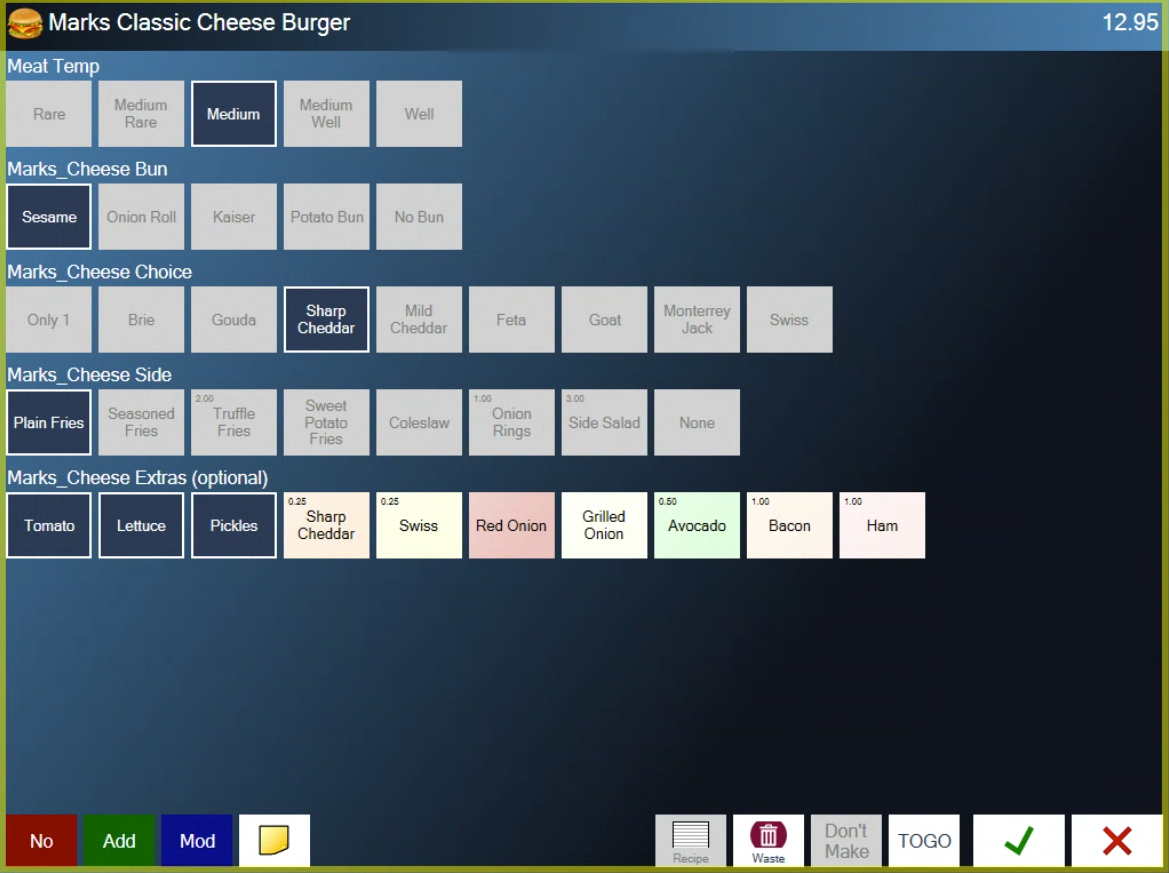
Figure 9. The yellow note button is at the bottom left of the modifier screen
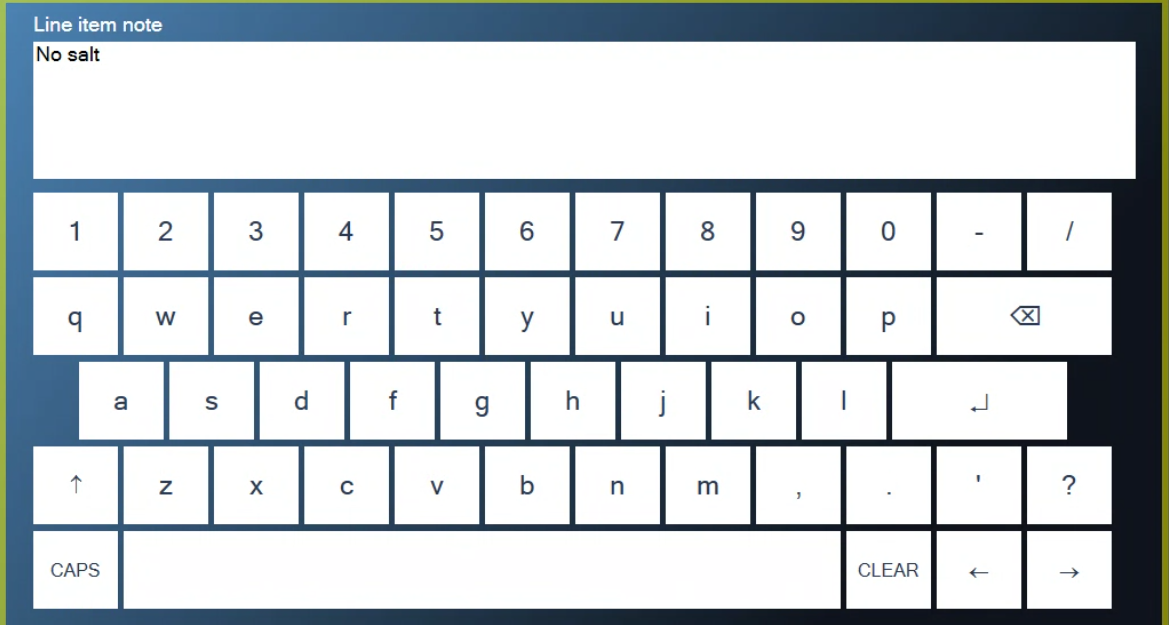
Figure 10. Type the note for this item
Add a note to the whole ticket
With the ticket open, tap more... at the bottom.
Tap Note on the right (Figure 11).
Type the note and tap the green check.
The note shows at the bottom of the ticket, above the total (Figure 12).
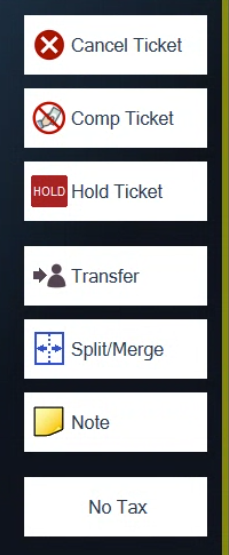
Figure 11. Note is on the right of the more... screen
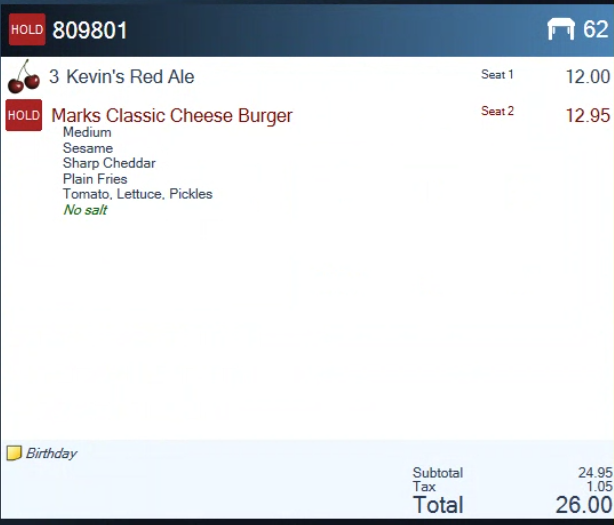
Figure 12. The ticket note sits above the total
Ticket notes print on the guest's bill and receipt. They show under Notes on the presenter ticket you take to the table, and they also go to the kitchen. Keep anything the guest shouldn't read in an item note instead.
Check a recipe
If an item has a recipe saved in Admin, you can look it up while you ring it in.
Open the item's modifier screen, as above.
Tap Recipe at the bottom. The recipe opens (Figure 13). The printer button prints it.
Tap the red X to close it.
Recipe is greyed out for items that don't have one.
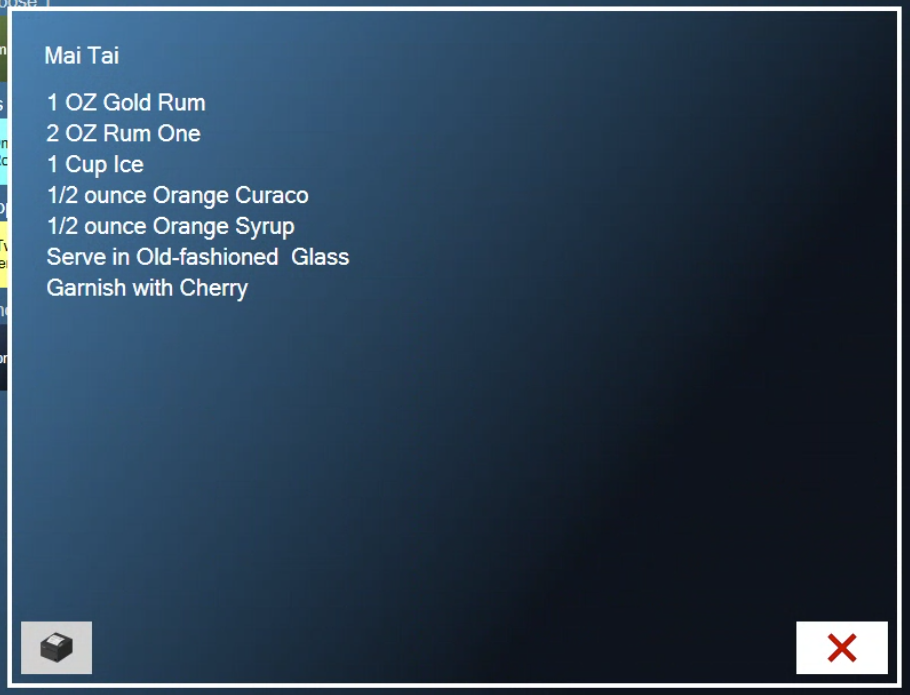
Figure 13. The recipe for the item you're ringing in
About this guide
Applies to: the BREW POS terminal.
Last reviewed: 4 October 2026
BrewPOS How to use
Support 1-800-676-9874
Email [email protected]
© 2026 BREW POS. All rights reserved.