
Taking a to-go order
A to-go ticket has no table. It's marked TOGO from the moment you start it, so the kitchen knows to pack it and you can spot it in your ticket list. You can also mark a single item to go on a table's ticket, for the guest who wants one more thing boxed up.
Start a to-go ticket
Tap Tables.
Tap TOGO at the bottom, next to New Tab (Figure 1). The customer search opens with TOGO already chosen at the bottom (Figure 2).
Put a name on the ticket. For a walk-in, type the guest's name and tap New Tab. For a regular, type their name or phone number and tap them when they show up underneath, so the order goes on their history. For someone new you want to keep on file, tap New Customer.
The ticket opens with a green arrow and TOGO where the table number would be (Figure 3).

Figure 1. TOGO is at the bottom of the table screen
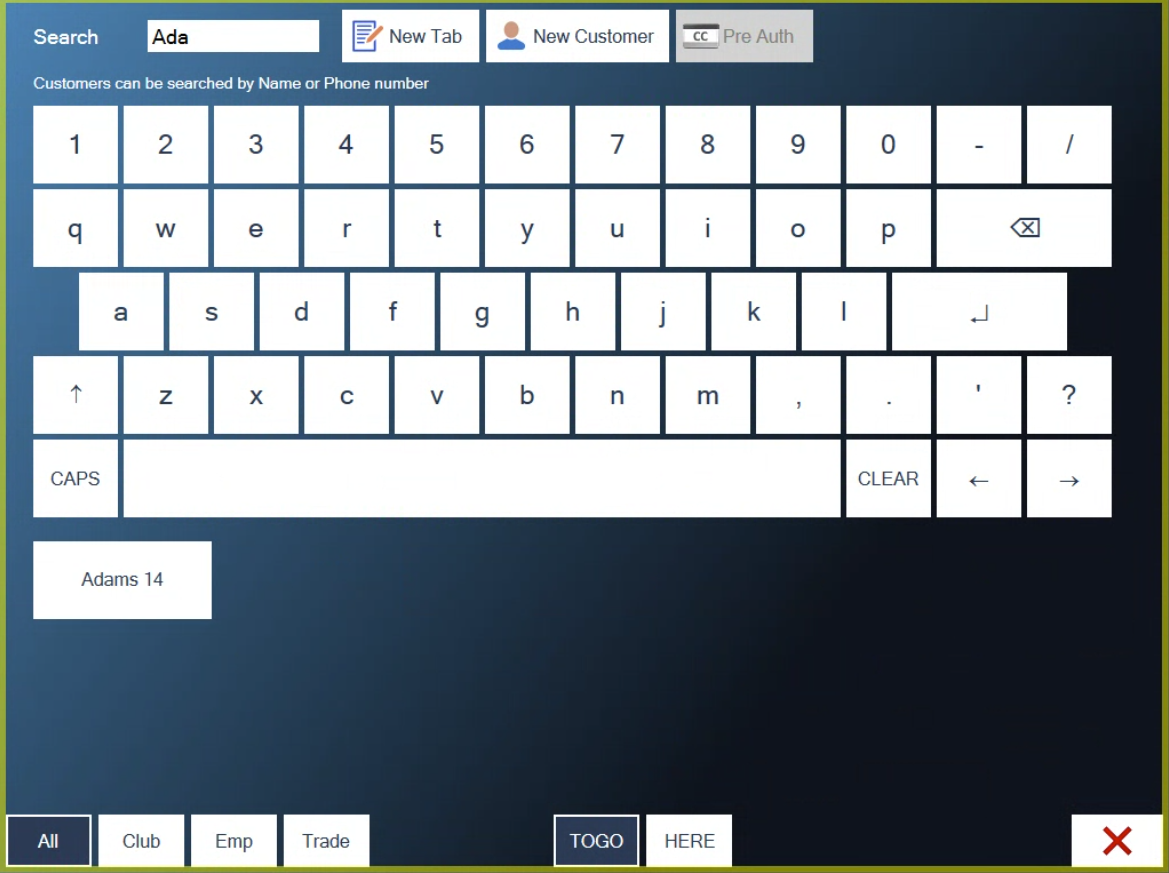
Figure 2. TOGO is already chosen. Type a name or find the customer
You can also get here from New Tab: when the customer search opens, tap TOGO at the bottom before you pick the name.
Ring in the order
Add items the usual way and tap Send. The kitchen and bar tickets are headed TOGO, so the order gets packed.
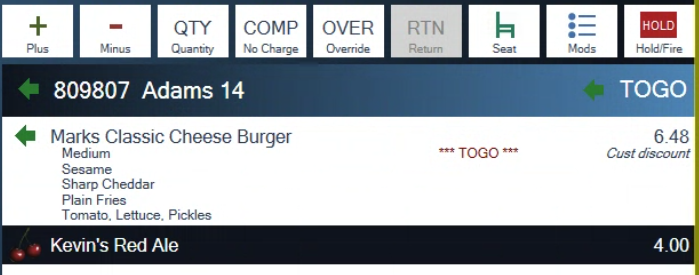
Figure 3. A to-go ticket shows TOGO in place of a table
Take payment when the guest orders or when they collect, whichever your house does. See Taking a payment and adjusting tips.
Guest decides to stay? Tap TOGO at the top of the ticket and pick their table. The ticket moves to that table.
Send one item to go from a table
On the table's ticket, add the item. If the modifier screen doesn't open by itself, tap the item and tap Mods.
Tap TOGO at the bottom of the modifier screen. It turns green (Figure 4).
Tap the green check.
The item shows a green arrow and TOGO on the ticket (Figure 5), and the kitchen sees it marked to go. The rest of the table's order isn't changed.

Figure 4. TOGO on the modifier screen marks just this item
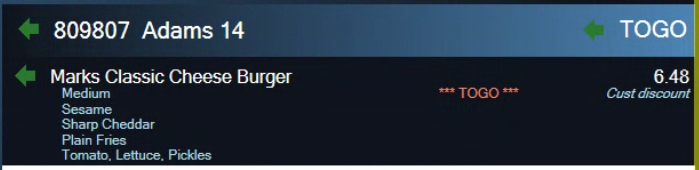
Figure 5. The item is marked TOGO on the ticket
Find a to-go ticket again
To-go tickets aren't on the table screen, because they don't have a table. Tap Toggle to see your ticket list. To-go tickets have a green arrow in front of them (Figure 6). Tap one to open it.
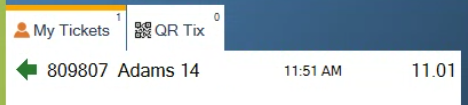
Figure 6. The green arrow marks a to-go ticket in your list
For more on the ticket list, see Finding your way around tables and tickets.
About this guide
Applies to: the BREW POS terminal.
Last reviewed: 2 October 2026
BrewPOS How to use
Support 1-800-676-9874
Email [email protected]
© 2026 BREW POS. All rights reserved.