
When your system says Offline
When the top of the screen reads OFFLINE, the system cannot see the internet (Figures 1 and 2). You can keep taking orders, and your tickets are kept on the terminal until the connection comes back. Some things stop working until then.
Work through the checks below in order. Most offline problems are a loose cable or a device that needs restarting.

Figure 1. OFFLINE in the bar at the top of the screen

Figure 2. OFFLINE on the login screen
What works while you are offline
Keeps working:
Logging in, opening tickets, adding items and sending them to the kitchen and bar.
Taking cash. Tickets, sales and voids are saved on the terminal and sent up when the connection comes back.
Asks first:
Card payments. The POS asks "Offline: process payment anyway?" and warns that it may lock the screen for several minutes. Only say yes if your card reader still has its own connection. If it doesn't, take another form of payment or keep the tab open.
Waits until you are back online:
Shift reports and closing out. The POS says "Cannot run Shift Reports while Offline."
Gift cards, unless your account is set up to take them offline.
The Wait List, web and QR orders, Count Down, and staff messages.
Tap the word OFFLINE on the login screen to open the POS's own offline help.
Check your cables
Check your terminal is connected with an Ethernet cable.
Follow the cable and see if it is connected to a switch (Figure 3).
Check the switch is powered on: is its power light on?
Unplug the switch's power cord, then plug it back in.
If your system has a switch, the switch should have a cable that runs back to your BrewPOS router. If your system does not have a switch, a cable should run from your terminal straight to your BrewPOS router.
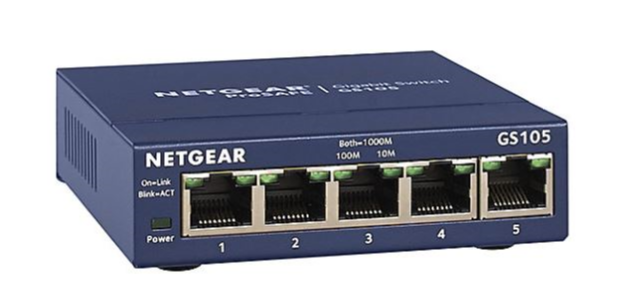
Figure 3. A network switch. Its power light is on the left
Restart your BrewPOS router
Your BrewPOS router should be a Netgear router.
Check the router has power.
Check the internet light on the front of the router (Figure 4).
If the internet light is green, the router believes there is internet. Unplug the router, wait 10 seconds, and plug it back in. It takes several minutes to start up.
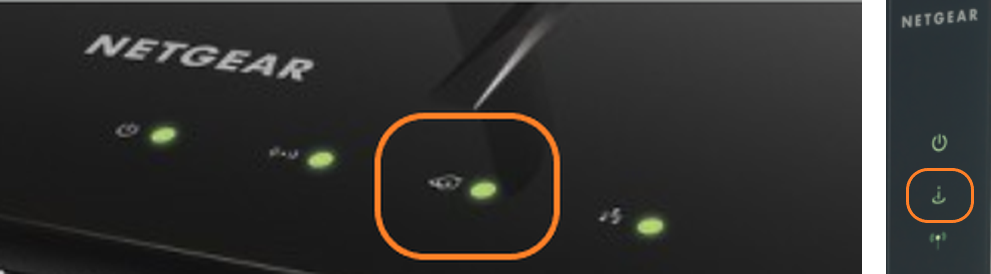
Figure 4. The internet light on two models of Netgear router
Restart your internet provider's device
If you are still offline, check the connection between your BrewPOS router and your internet service provider.
On the back of the BrewPOS router, find the cable plugged into the blue Internet port (Figure 5).
Confirm that this cable runs to your internet service provider's device.
Find your internet service provider's device. Turn it off, wait 10 seconds, then turn it back on. Unplugging it may not do the job if it has a battery backup.
Wait for your internet service provider's device to fully power on. This can take 5 minutes.
Then power your BrewPOS router off and on again.
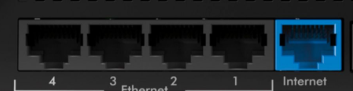
Figure 5. The blue Internet port on the back of the BrewPOS router
If you are still offline
If you still have no internet connection at this point, the most likely causes are:
Your internet service provider has an outage.
A cable you did not find is damaged or unplugged.
Your internet service provider's device is blocking your POS system from reaching the internet.
Call BREW POS support on 800-676-9874.
If your internet drops out often
If your internet service provider regularly loses connection, we recommend one of two options:
A failover or bonded connection. Work with your network company to put in a failover or bonded connection to a second internet provider. This keeps your business up when one provider goes down.
An LTE router. Talk to your cell phone company about an LTE router. That means a router with an Ethernet connection, not a hotspot. These are usually inexpensive, and BrewPOS uses very little data to run transactions.
To switch to an LTE router by hand when your internet goes down, connect the blue Internet port on the back of the BrewPOS router to the LTE router. The system starts working again. This is a good fix for locations with the occasional internet outage.
About this guide
Applies to: the BREW POS terminal and the network equipment BrewPOS installs.
Last reviewed: 1 October 2026
BrewPOS How to use
Support 1-800-676-9874
Email [email protected]
© 2026 BREW POS. All rights reserved.