
Selling kegs and taking keg deposits
A keg sale is usually three things on one ticket: the keg, a deposit on the keg, and a deposit on the tap if the customer is borrowing one. The POS ties the deposits to a customer and to the keg's serial number, so you know exactly what's owed when it comes back.
Sell a keg
Start a ticket and tap Beer, then Kegs (Figure 1).
Tap the keg the customer is buying.
The keg goes on the ticket.
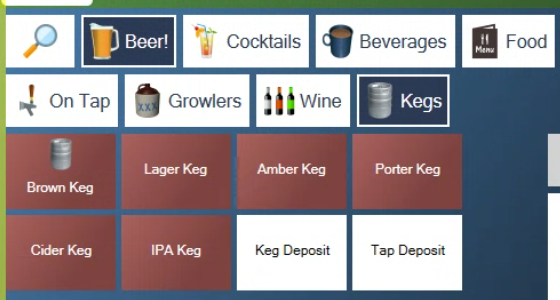
Figure 1. Kegs, with the keg and tap deposits underneath
Take the keg deposit
In Kegs, tap Keg Deposit.
The POS says "A Customer record is required" (Figure 2). Tap the red X to carry on.
Find the customer by name or phone number and tap them, or tap New Customer to add them.
The POS asks for the serial number (Figure 3). Type the number stamped or stickered on the keg and tap the green check.
The deposit goes on the ticket with the serial number beside it, and the customer's name shows at the top (Figure 4).
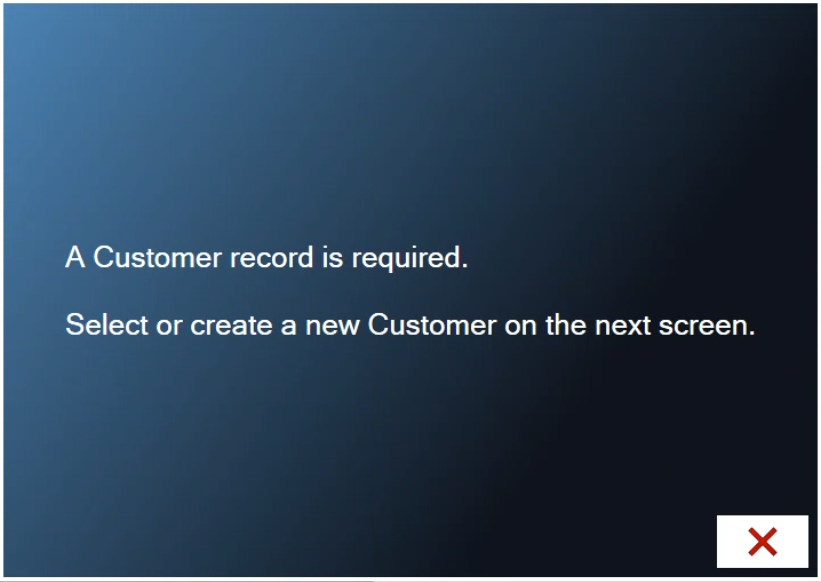
Figure 2. A deposit has to be tied to a customer
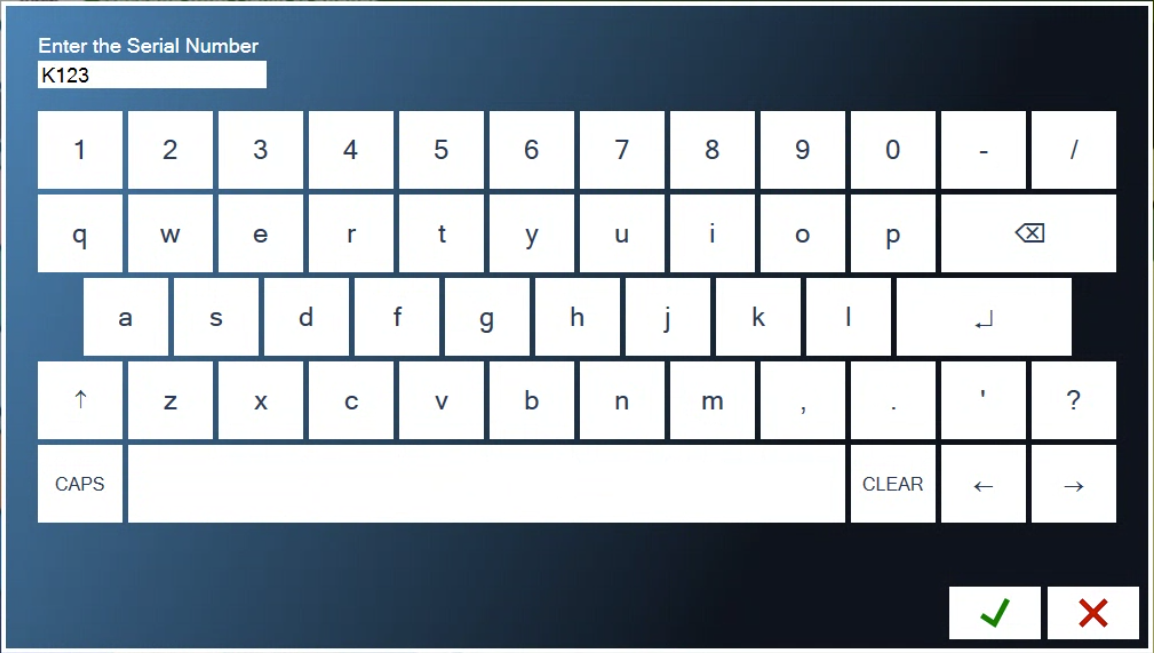
Figure 3. Type the serial number from the keg
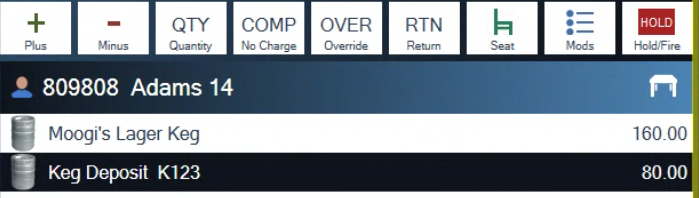
Figure 4. The keg, and its deposit with the serial number
Take care with the serial number. It's saved with the sale, and it's how you match the keg to the customer when it comes back.
For more on finding and adding customers, see Looking up and editing a customer at the POS.
Take a tap deposit
If the customer is borrowing a tap, tap Tap Deposit in Kegs. It goes on the same ticket.
Then take payment for the whole ticket as usual. See Taking a payment and adjusting tips.
Give a deposit back
When the keg comes back, ring the deposit in again and turn it into a return.
Start a ticket and tap Beer, then Kegs, then Keg Deposit.
Pick the customer, then type the serial number from the keg they've brought back.
Tap the deposit on the ticket, then tap RTN above the ticket. RTN turns red, and the bottom of the ticket now shows Refund and the amount (Figure 5).
Do the same with Tap Deposit if they've brought the tap back.
Tap Pay, then tap how you're giving the money back: Cash or Credit Card. For cash, the POS shows the payout from your till (Figure 6). Tap the green check to finish.
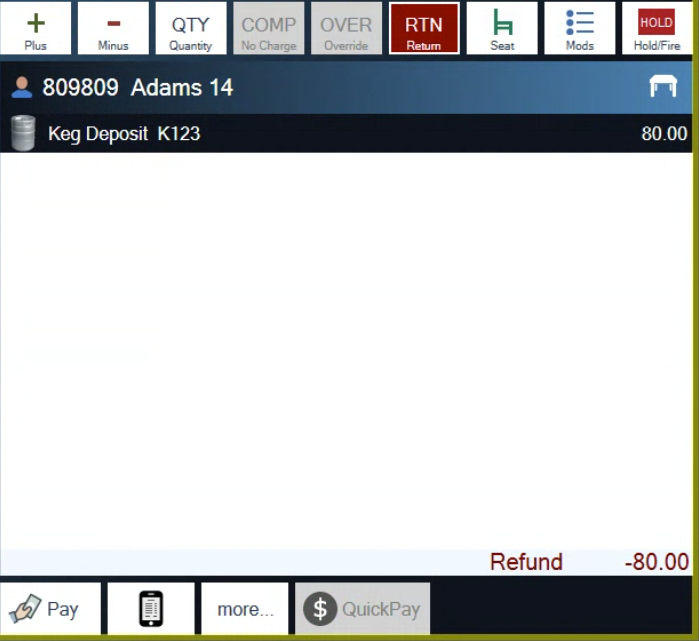
Figure 5. RTN turns the deposit into a refund
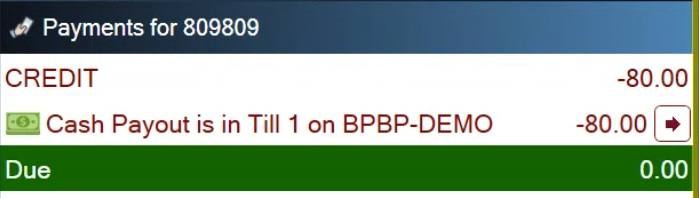
Figure 6. A cash refund comes out of your till
If the customer is buying another keg at the same time, put it on the same ticket. The returned deposit comes off what they owe.
Tapped RTN by mistake? Tap the item and tap RTN again.
No RTN button above your ticket? It's switched on for each station in Tools > Settings > Appearance, under Line Item buttons > Return. A manager can turn it on. RTN only works on items that are set as returnable in Admin.
About this guide
Applies to: the BREW POS terminal.
Last reviewed: 2 October 2026
BrewPOS How to use
Support 1-800-676-9874
Email [email protected]
© 2026 BREW POS. All rights reserved.