
Looking up and editing a customer at the POS
Putting a customer on a ticket gives them their club pricing, lets them charge to a house account, start a tab with a card, or buy a keg, and builds up their history. This guide shows how to find a customer, add a new one, and what's on their record.
Find a customer and start a ticket
Tap New Tab at the bottom left of the order screen.
Type part of their name or phone number on the on-screen keyboard. Matches appear under the keyboard as you type (Figure 1).
Tap the customer.
A new ticket opens with their name in the header. A club member shows CLUB next to their name (Figure 2), and their club prices are used automatically.
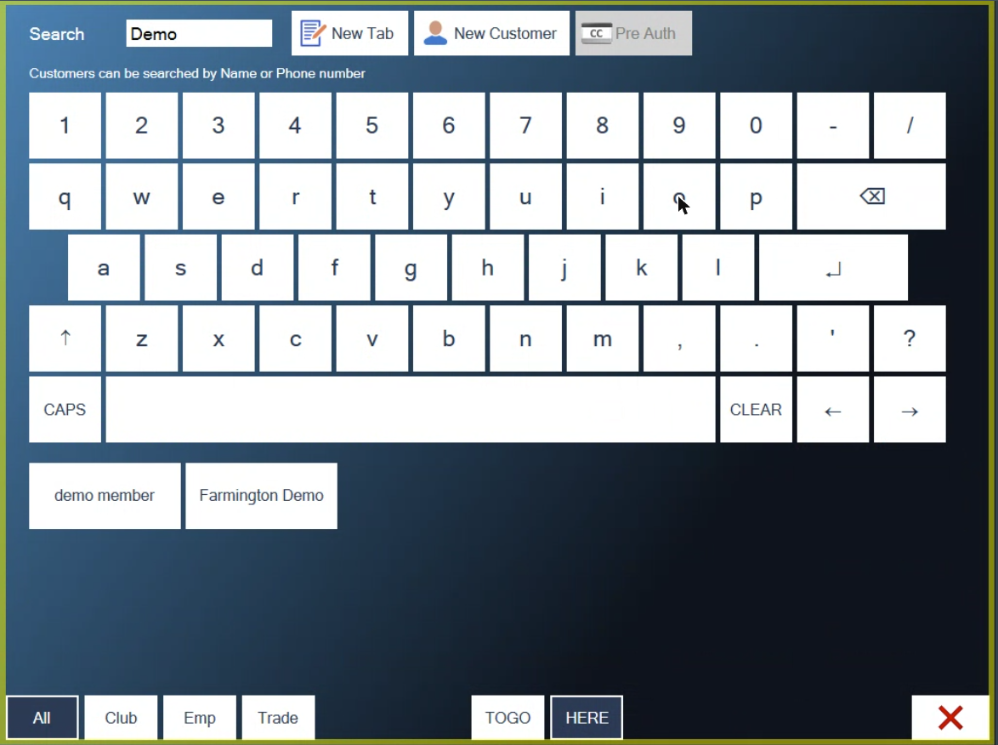
Figure 1. Type a few letters. Matching customers appear under the keyboard

Figure 2. The ticket header shows the customer. CLUB means club pricing is on
The buttons along the bottom narrow the search: All, Club (members), Emp (staff), Trade (house accounts). TOGO and HERE mark the ticket as to go or for here.
Add a new customer
Tap New Tab, then New Customer at the top.
Enter their name and phone number. Your business may require a phone number or email.
Tap the green check to save them.
Open the customer record
With the customer's ticket open, tap their name in the ticket header. The record opens on the Customer tab (Figure 3).
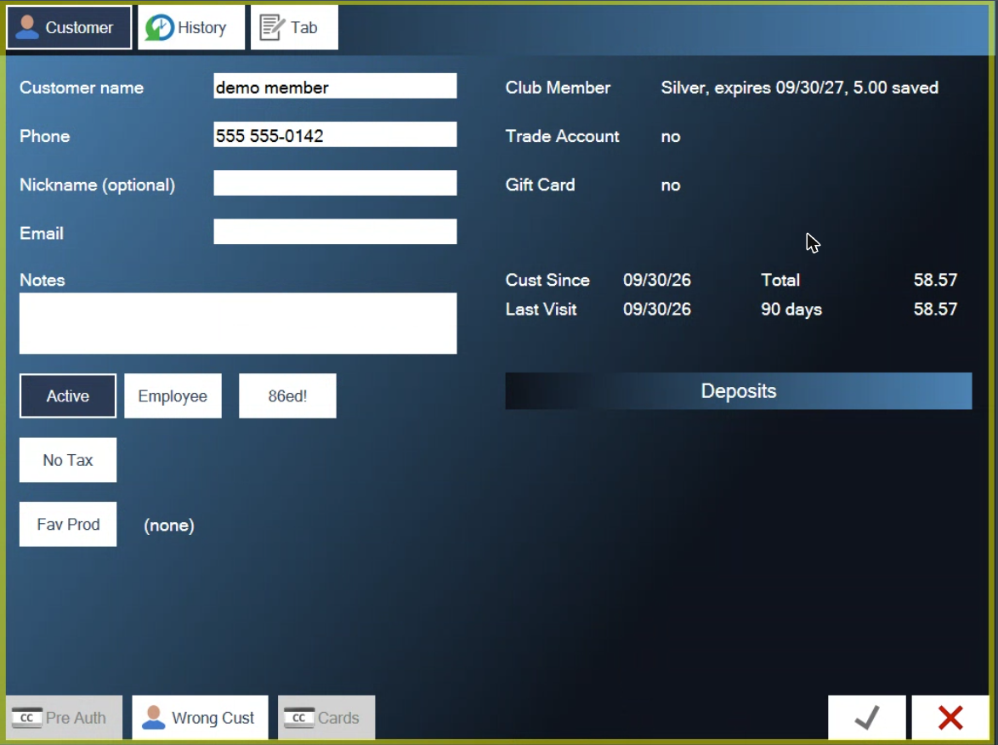
Figure 3. The customer record
Change anything you need and tap the green check to save, or the red X to leave without saving.
What's on the record
On the left:
Customer name, Phone, Nickname, Email, Notes. Notes are for things staff should know, such as allergies or a usual order.
Active. On for anyone who is still a customer.
Employee. Marks the customer as a member of staff. Only managers can change it.
86ed! Bars this customer. 86ed customers are listed on the login screen and on Tools > Info, with your notes, so every shift knows.
No Tax. Takes tax off every ticket for this customer, for tax-exempt groups. See Taking tax off an order.
Fav Prod. Pick their favourite item to save it on the record. Clear removes it.
On the right:
Club Member: their tier, when it expires and how much they've saved. See Running club memberships.
Trade Account: whether they have a house account. See Charging to a house account at the POS.
Gift Card: whether they have one.
Cust Since, Last Visit, and how much they've spent in total and in the last 90 days.
Deposits: keg and other deposits they've paid and not yet had back.
Along the bottom:
Pre Auth: start a tab by holding an amount on their card. See Starting a tab with a card pre-auth.
Wrong Cust: see below.
Cards: cards saved for this customer.
See what they've had before
Tap the History tab (Figure 4). Their past tickets are on the left; tap one to see what was on it. Receipt shows the receipt, and Events shows everything that happened on the ticket. The phone button sends the receipt by text.
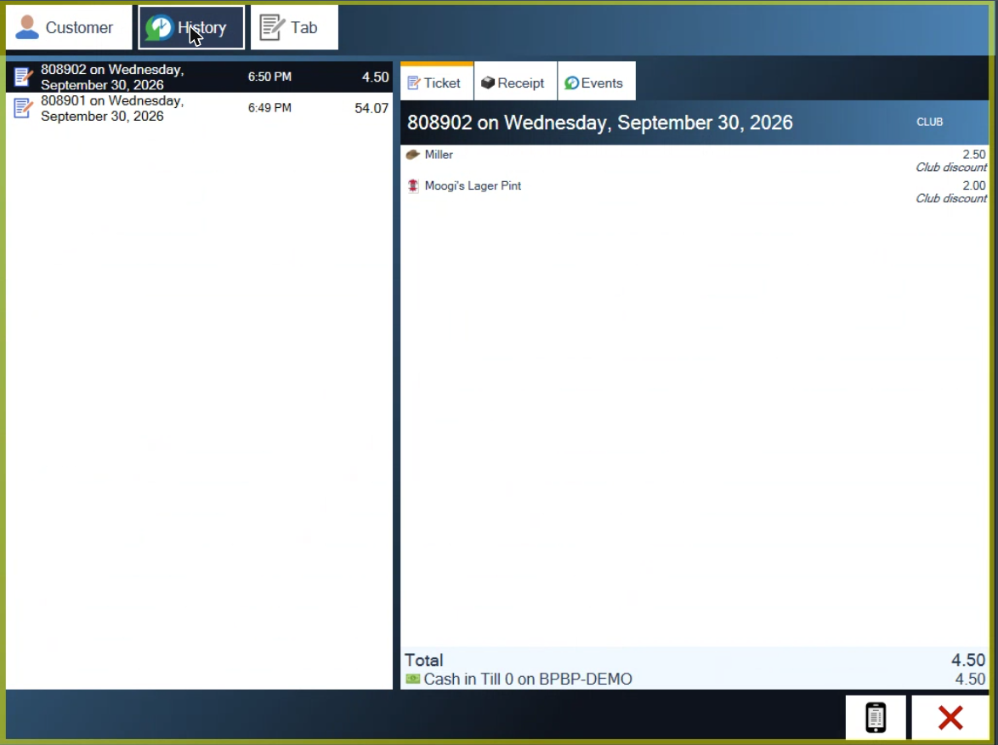
Figure 4. History: a club member's past tickets, with their club discounts
The Tab tab shows the customer's running tab, if your business lets customers run one, with Pay Tab to settle it.
Put the right customer on the ticket
If you picked the wrong person, open the record and tap Wrong Cust. The customer search opens again: find the right customer and tap them. Tap the red X to keep the customer you had.
About this guide
Applies to: the BREW POS terminal.
Last reviewed: 1 October 2026
BrewPOS How to use
Support 1-800-676-9874
Email [email protected]
© 2026 BREW POS. All rights reserved.