
Ringing flights, pour sizes and growler fills
Flights, half pours and growlers are all rung in from the Beer screen, but each one works a little differently. A flight asks which beers go on the paddle. A pour size is its own button. A growler fill is a beer plus, the first time, a deposit on the bottle.
Ring in a flight
Tap Beer, then find the Flight tile (Figure 1). You may need to scroll down.
Tap Flight. The list of beers opens, and the heading tells you how many to pick, for example "choose 4" (Figure 2).
Tap each beer the guest wants. The heading counts down: "choose 1 more".
When you've picked the last one, the other beers grey out and the green check lights up. Tap it.
The flight goes on the ticket as one line, with the beers listed under it so the bartender knows what to pour (Figure 3).
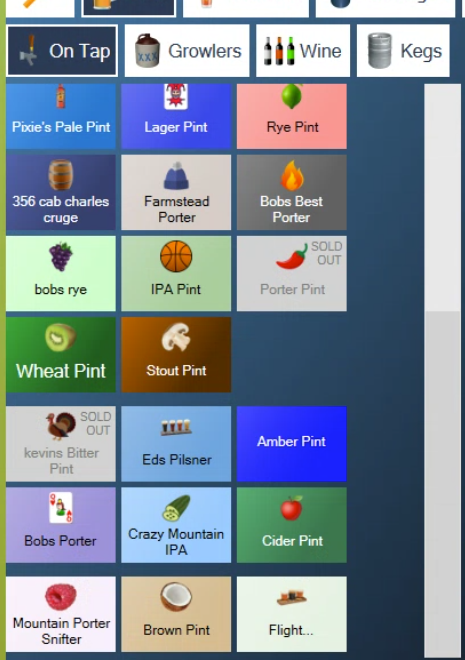
Figure 1. The Flight tile sits with your beers

Figure 2. Three picked, one to go. A sold out beer is greyed out
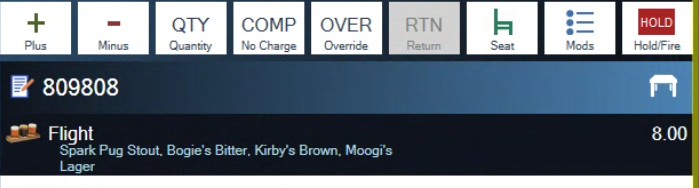
Figure 3. One line on the ticket, with the four beers under it
Picked the wrong beer? Before you tap the green check, tap the red X and start the flight again. After it's on the ticket, tap the flight, then Mods, to change the beers.
Sold out beers are greyed out in the list and marked SOLD OUT, so you can steer the guest to something else. See Marking an item sold out (86).
Ring in a different pour size
The POS doesn't ask what size you want. Each size has its own tile, with the size in its name: a pint tile, a snifter tile, a half pour tile. Tap the tile for the size the guest ordered and that size, at that price, goes on the ticket.
If a beer is missing a size you pour, it needs adding in Admin. See Making a product.
Ring in a growler fill
Tap Beer, then Growlers.
Tap the size, for example 64oz Growler. The beers you fill in that size open on the right (Figure 4).
Tap the beer.
The fill goes on the ticket.
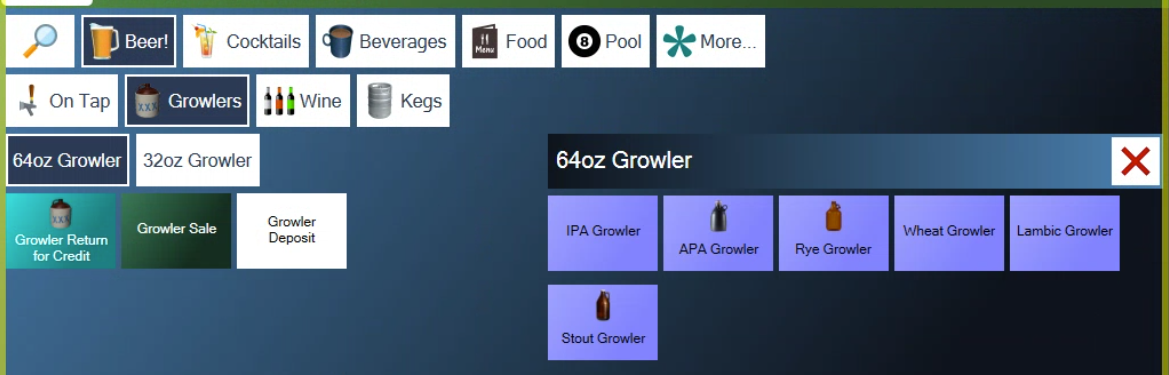
Figure 4. Pick the size on the left, then the beer on the right
Take a growler deposit
If the guest is taking one of your bottles, add the deposit to the same ticket.
In Growlers, tap Growler Deposit.
The POS says "A Customer record is required" (Figure 5). Tap the red X to carry on.
Find the customer by name or phone number and tap them, or tap New Customer to add them.
The deposit goes on the ticket under the fill, and the customer's name shows at the top (Figure 6).
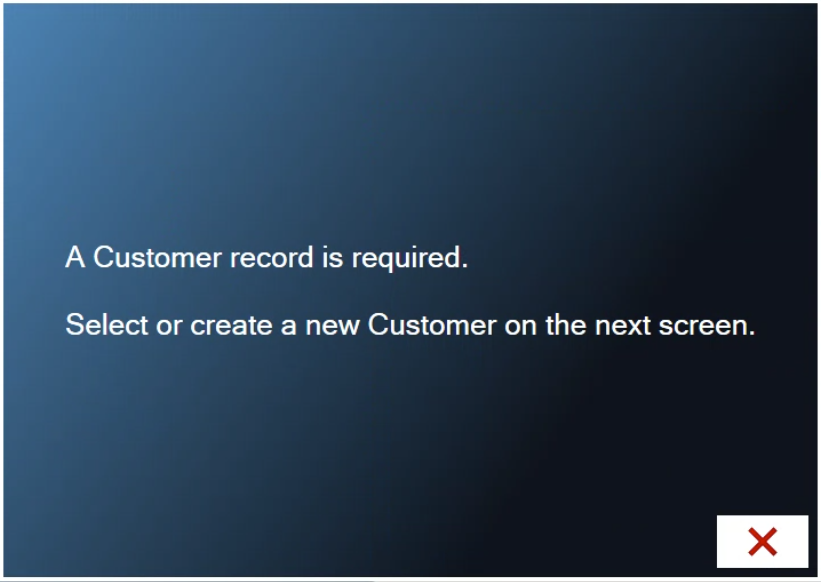
Figure 5. A deposit has to be tied to a customer, so you know who to give it back to
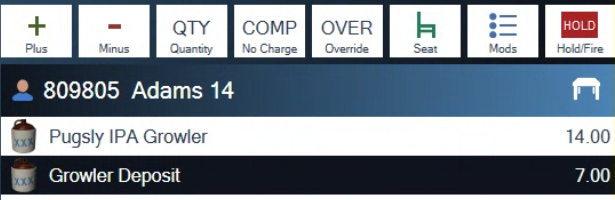
Figure 6. The fill, the deposit and the customer on one ticket
For more on finding and adding customers, see Looking up and editing a customer at the POS.
Give a growler deposit back
When the bottle comes back, ring the deposit in again and turn it into a return.
Start a ticket and tap Growlers, then Growler Deposit. Pick the customer.
Tap the deposit on the ticket, then tap RTN above the ticket. RTN turns red (Figure 7) and the deposit now counts against the total.
If the guest is buying a refill, add it to the same ticket and the deposit comes off what they owe. If they aren't, the ticket shows Refund and the amount. Tap Pay and choose how to give it back.
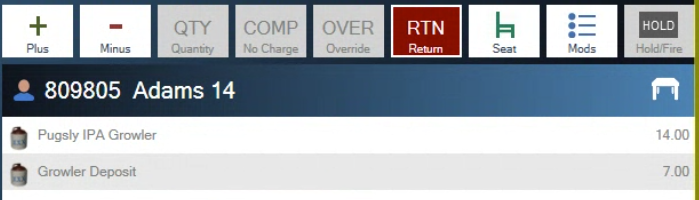
Figure 7. RTN turns the deposit into a return
Tapped RTN by mistake? Tap the item and tap RTN again.
No RTN button above your ticket? It's switched on for each station in Tools > Settings > Appearance, under Line Item buttons > Return. A manager can turn it on. RTN only works on items that are set as returnable in Admin.
About this guide
Applies to: the BREW POS terminal.
Last reviewed: 2 October 2026
BrewPOS How to use
Support 1-800-676-9874
Email [email protected]
© 2026 BREW POS. All rights reserved.