
Marking an item sold out (86)
When you run out of something, tell the POS so nobody rings it in by mistake. You can mark it sold out straight away, or give it a count so the POS counts it down as it sells and marks it sold out by itself when it hits zero. Both happen on the Count Down screen.
Open Count Down
Tap Tools at the top right.
Tap Count Down at the top.
Items being counted are listed under IN STOCK in green, with how many are left. Items at zero are under SOLD OUT in red (Figure 1).
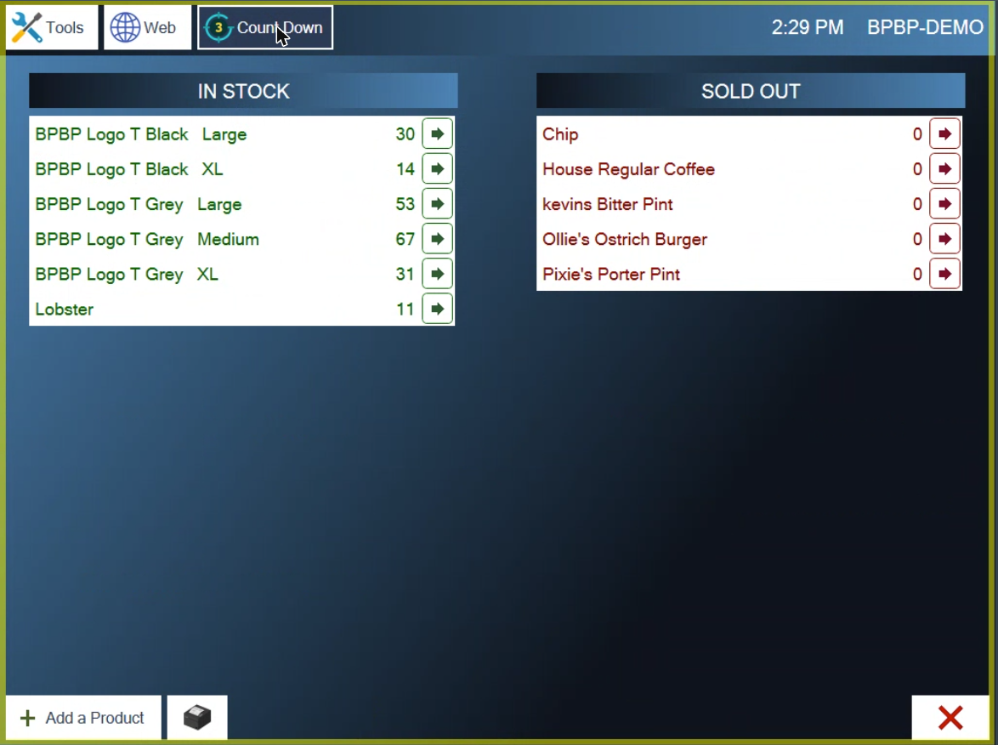
Figure 1. Count Down. In stock on the left with their counts, sold out on the right
Count Down needs the internet. It works across every station at once, so it isn't available while the POS is offline.
Mark an item sold out now
On the Count Down screen, tap Add a Product at the bottom left. Your menu opens (Figure 2).
Find the item and tap it. The POS asks "Add product to Count Down?" (Figure 3). Tap the green check.
The Quantity keypad opens (Figure 4). Leave it at 0 and tap the green check.
The item moves straight to SOLD OUT (Figure 5).
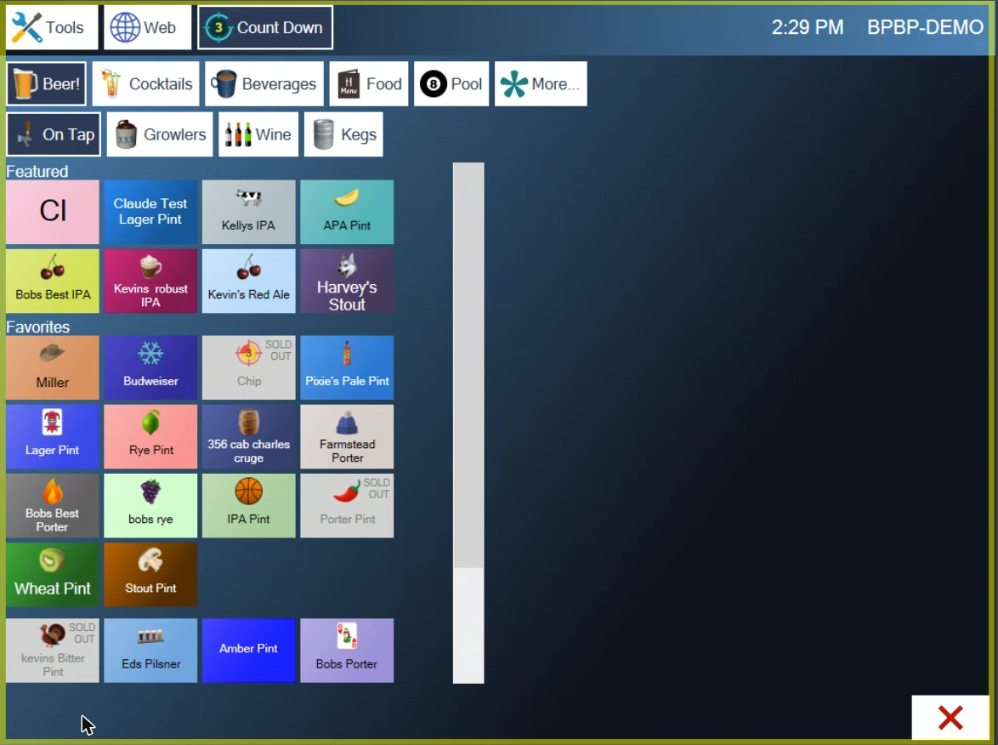
Figure 2. Add a Product shows your menu. Tap the item you've run out of
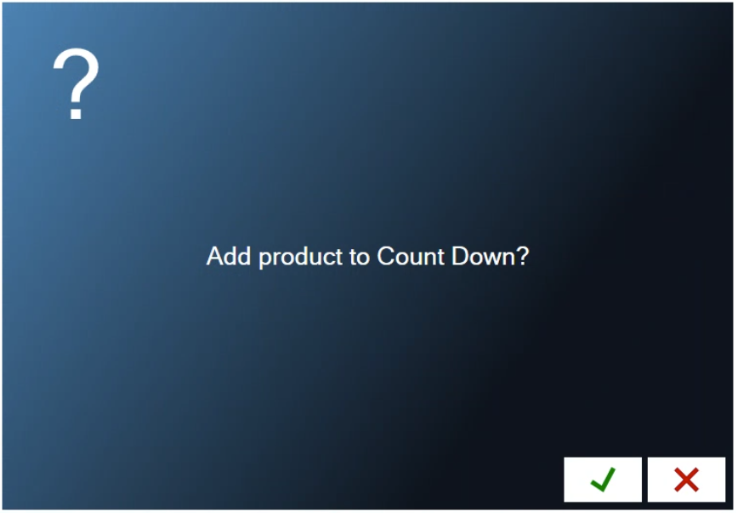
Figure 3. Confirm you want to count this item
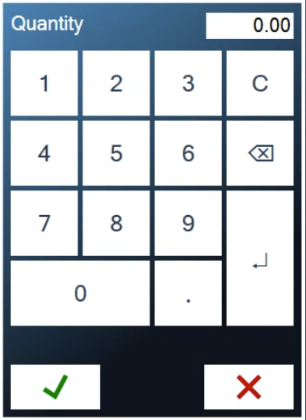
Figure 4. Enter how many are left. Zero means sold out now
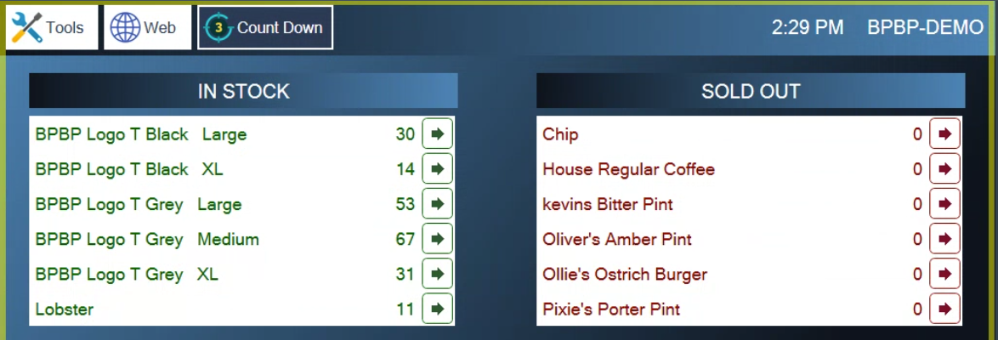
Figure 5. Oliver's Amber Pint is now sold out
Count an item down as it sells
Use this for specials and anything you only have a few of, like the last six lobsters or the end of a keg.
Follow the steps above, but in step 3 enter how many you have left instead of 0.
The item goes under IN STOCK with its count. Every time one is sent from any station, the count goes down by one, and the menu tile shows how many are left. When it reaches zero, it moves to SOLD OUT by itself.
Taking an item off a ticket doesn't put it back. If an item is sent and then taken off with Minus, the count stays down. Fix the count by hand, as below.
What staff see when an item is sold out
The item's tile on the order screen is greyed out and marked SOLD OUT (Figure 6).
If someone taps it anyway, the POS asks "(item) is SOLD OUT. Add it anyway?" Tapping the green check still adds it, so it's a warning, not a block.
Sold out items are listed on the login screen and on Tools > Info, under Sold Out / 86ed, so staff see them when they start their shift.
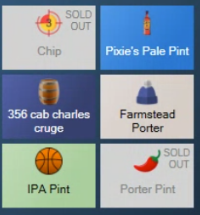
Figure 6. Sold out tiles are greyed out with SOLD OUT in the corner
Put an item back in stock
On the Count Down screen, tap the arrow next to the item (Figure 7).
Choose one:
Quantity: enter the new count and tap the green check. The item moves back to IN STOCK.
Remove: stops counting the item altogether. The POS warns that this applies at all your locations and asks for your PIN.
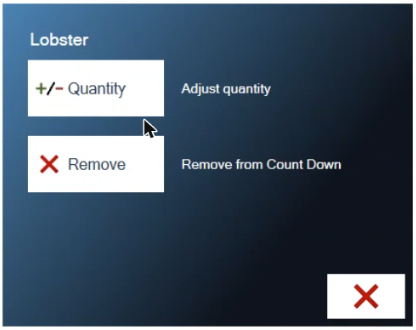
Figure 7. Each item's arrow offers Quantity and Remove
To print the list, tap the printer button next to Add a Product.
About this guide
Applies to: the BREW POS terminal.
Last reviewed: 1 October 2026
BrewPOS How to use
Support 1-800-676-9874
Email [email protected]
© 2026 BREW POS. All rights reserved.