
When your weekend deposits arrive
Card sales from Friday, Saturday and Sunday usually reach your bank on Monday or Tuesday, and they don't always arrive in order. This guide explains the path your money takes, what's normal, when to call us, and how to get an email the same day if a batch fails.
What a batch is
A batch is one day's card sales. It's sent when the day is closed out at the POS. Each closeout sends that day's batch, so a weekend gives you three batches: Friday's, Saturday's and Sunday's.
What goes into a batch depends on how your card readers are connected to BrewPOS (see Which card reader do I have, BroadPOS or Datacap?):
Datacap. One batch can hold every card transaction in your system, from every station.
PAX BroadPOS. A batch can cover one station or several, so a day can produce more than one batch.
Online and QR code orders may settle in a batch of their own, separate from the sales rung at the POS.
So one day can show up in your bank as more than one deposit. That's normal.
To close out the day, see Closing out the end of the day.
The path your money takes
Closeout. You close out the day at the POS, and the batch goes to the credit card processor.
The processor. The processor handles the batch that same day.
The Fed. From the processor, the money goes to your bank through the Fed.
Your bank. Your bank decides when the money lands in your account.
Once the batch leaves the processor, the timing is up to your bank. We can't speed it up or change the order it arrives in.
Why the weekend lands on Monday or Tuesday
Banks don't post deposits on weekends. So the batches from Friday, Saturday and Sunday closeouts all arrive at the start of the week, usually on Monday or Tuesday.
Out of order is normal
Your bank may not post the weekend's batches in the order you closed them out. For example:
Saturday's deposit can land before Friday's.
One day can show as pending while another doesn't show at all yet.
That's your bank's timing, not a missing batch. Give it until the end of Tuesday before you worry.
Check what was batched
Each closeout in BrewPOS Admin shows what was in that day's batch.
In BrewPOS Admin, click Reports.
Click Activity, then Closeouts.
Set the From and To dates, then press Refresh.
Each closeout is one row. Click the arrow at the left of a row to open it.
For more on reading closeouts, see Using Reports.
Get told when a batch fails
If a batch fails to settle, the money for that day won't arrive until the batch is fixed. BrewPOS can email you the same day it happens, so you're not left wondering about a missing deposit days later.
What the email tells you
The email is sent from BrewPOS when a card batch settles at closeout, and it tells you when one didn't. Its subject starts with CC Batch Settlment (spelled that way), then the location and the day. When a batch fails, it says NOT SETTLED! and lists the station or stations that didn't settle, so you can tell whether it was one terminal or all of them.
When you get a NOT SETTLED! email, contact BrewPOS Support and have the closeout date ready.
Turn it on for yourself or a team member
You choose who gets these emails on each person's employee record. Turn it on for yourself, for a team member, or for both.
Before you start:
You need Employees access in BrewPOS Admin. If Employees isn't in the dark menu on the left, ask whoever manages staff records.
The person needs a working email address on their record. The email goes to that address only.
In the dark menu on the left, click Employees.
At the left of the person's row, click the blue arrow. Their record opens.
Check the Email box, top left. Correct the address if it's wrong.
Under Email Notifications, tick CC batch settlements (Figure 1).
At the top right, click Save.
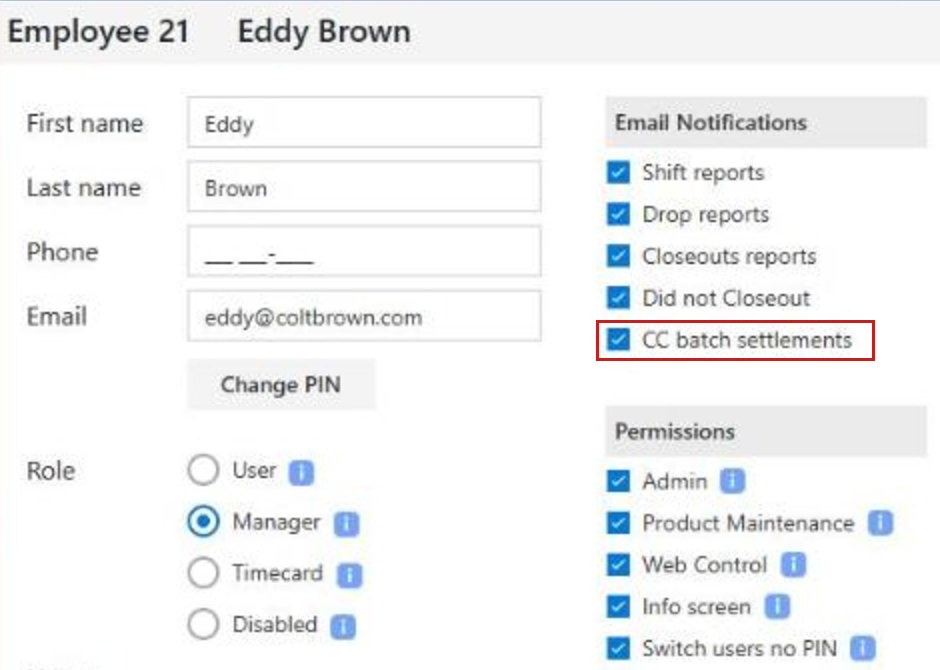
Figure 1. An employee record. Under Email Notifications, CC batch settlements is ticked
To send it to more than one person, repeat these steps on each person's record. Each person's boxes are separate.
If the boxes under Email Notifications are grey and can't be ticked, that person's role is Disabled, and a disabled employee gets no emails.
Add a team member who doesn't use the POS
A bookkeeper or partner can get the email without working a shift.
On the Employees screen, click New.
Type their First name, Last name and Email.
Next to Role, click Timecard. A Timecard employee can only clock in and out at the POS.
Under Email Notifications, tick CC batch settlements.
At the top right, click Save.
For the other end-of-day emails, such as the closeout report, see Getting end-of-day reports by email. For more on employee records, see Managing employees.
When to contact us
Contact BrewPOS Support if:
a batch still hasn't shown up in your bank by the end of the day on Wednesday, or
a deposit doesn't match the card total on that day's closeout, or
you get a NOT SETTLED! email.
Have the closeout date ready. We'll ask for the date, not a screenshot.
About this guide
Applies to: BrewPOS Admin
Last reviewed: 26 October 2026