
Getting end-of-day reports by email
BREW POS can email the day's reports to anyone on your staff list: the closeout when the day is closed, each server's shift report, each till drop, and a warning if a location has not closed out. You turn them on person by person, on their employee record. This guide also covers choosing which end-of-day reports print at the POS. To close out at the POS, see Closing out the end of the day. To read reports inside BREW POS Admin, see Using Reports.
Before you begin
You are an owner or manager who can sign in to BREW POS Admin and open Employees. If Employees is missing from the dark menu on the left, ask whoever manages staff records.
The person who will get the emails has an employee record with a working email address on it. The emails go to the address in the Email box on their record and nowhere else.
To change what prints at the end of the day, you also need Settings access, under Setup.
There is no company-wide list of recipients.
The five emails
There are five boxes under Email Notifications on every employee record (Figure 1). Each one sends that person an email when something happens at the POS.
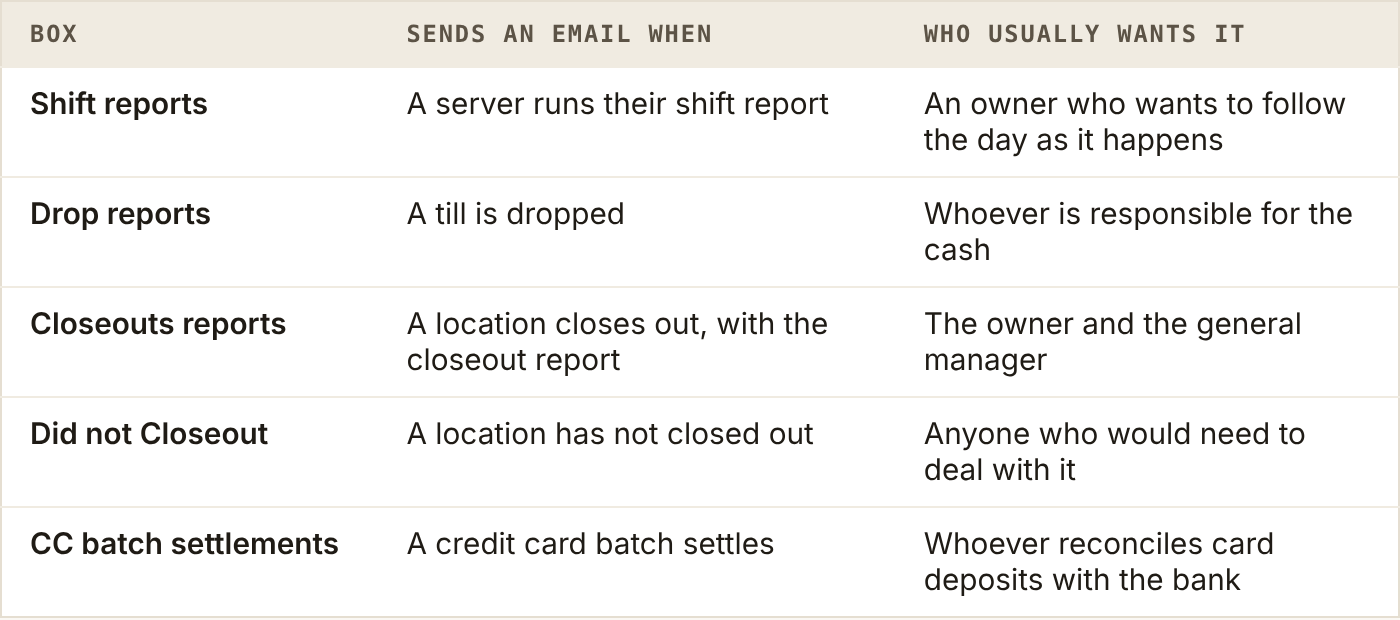
Which email each box sends, and who usually wants it
Start with Closeouts reports. It is the whole day in one email, and it is the one that reconciles cash.
Watch out: a day that is not closed out is missing from your reports
Until a day is closed out, its figures are not sent up for your reports. Tick Did not Closeout for at least one person, so someone hears when a location has not closed out. The same warning shows as a pink bar on the Home screen in BREW POS Admin.
Turn the emails on for someone
In the dark menu on the left, click Employees. The Employees screen opens.
At the left of the person's row, click the blue arrow. Their record opens.
Look at the Email box, top left. The emails go to this address.
If the address is wrong, correct it.
Under Email Notifications, tick each email this person should get (Figure 1).
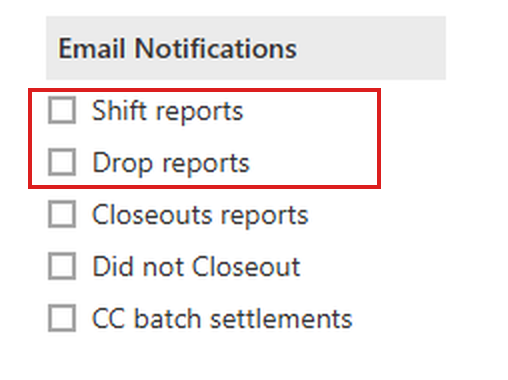
Figure 1. The Email Notifications boxes on an employee record, with Shift reports and Drop reports outlined
At the top right, click Save. The Employees screen comes back.
Optional: on the Employees screen, click the blue arrow on the same person again. The boxes you ticked are still ticked.
At the top right, click Cancel to close the record.
The closeout email starts with the next closeout after you save.
If all five boxes are grey and cannot be ticked, the person's role is Disabled. A disabled employee gets no emails. See Managing employees for roles.
What the closeout email contains
The closeout email arrives as soon as the closeout finishes at the POS. It comes from [email protected], and the subject line names the location and the day, for example Closeout Santa Fe Wed 10/7, so with more than one location you can tell them apart.
The body is the closeout report in plain columns (Figure 2), in this order:
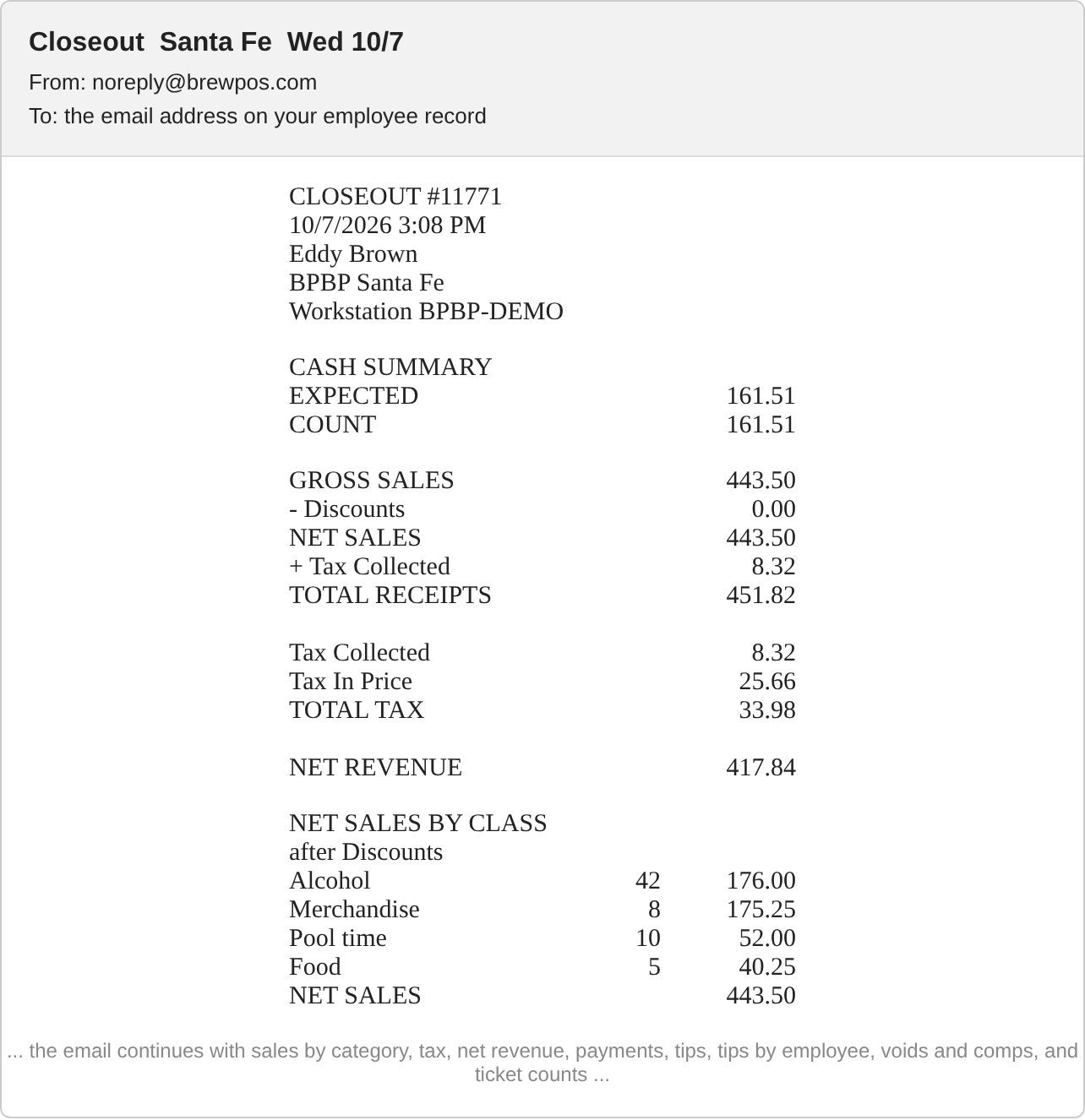
Figure 2. The top of a closeout email: who closed out and where, the cash summary, and the day's sales
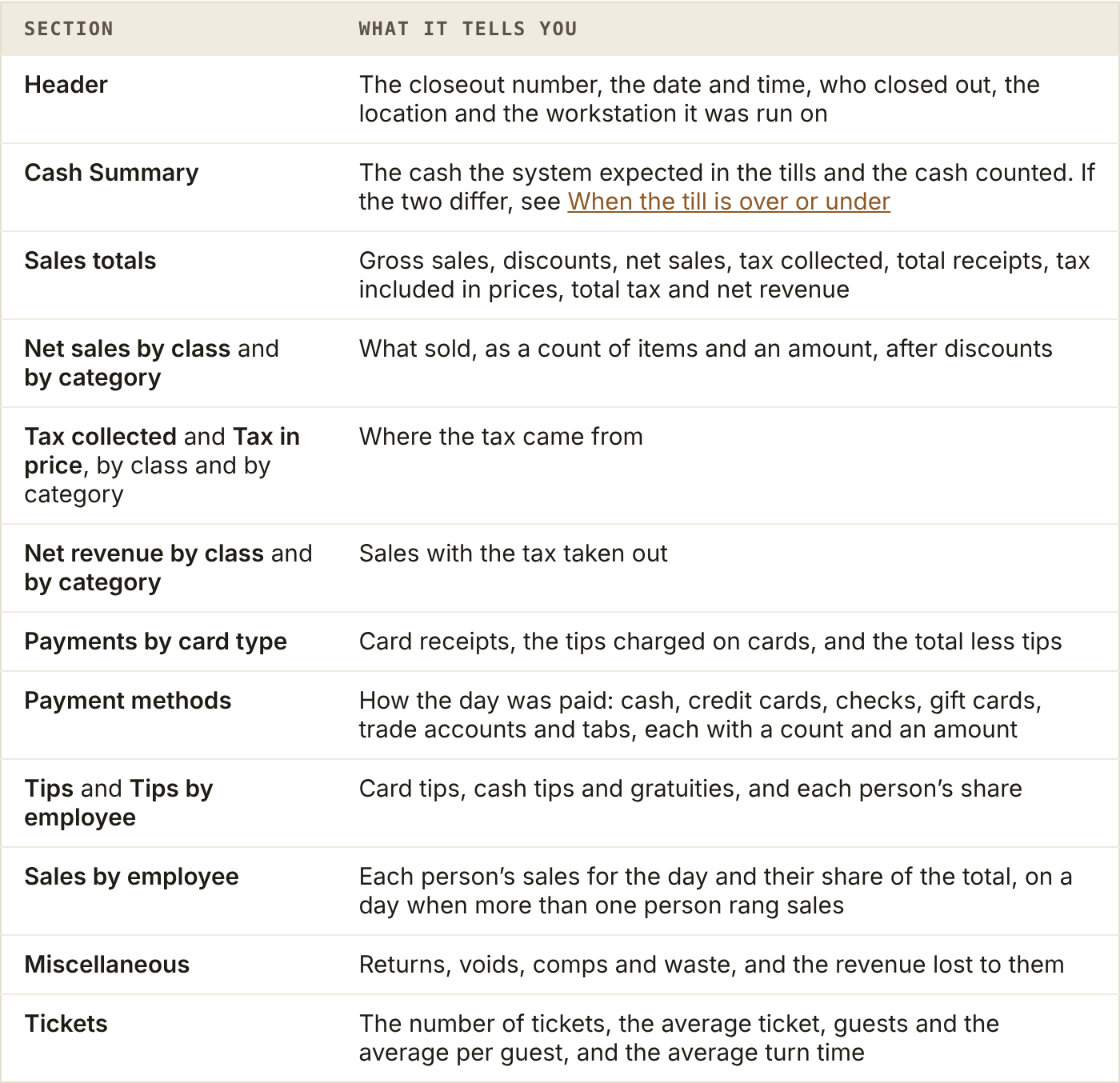
Each section of the closeout email, and what it tells you
A section with nothing to show is left out. On a day with no tax collected, for example, the tax collected tables do not appear.
Look at two numbers first. In Cash Summary, the count should match what was expected. In Miscellaneous, voids and comps should look like a normal day. If either one is off, open the full reports in BREW POS Admin the next morning.
Shift and drop emails
Shift reports and Drop reports are the shift and till versions of the closeout email:
A shift report email is sent each time a server runs their shift report at the end of their shift. It carries their card tips and gratuities and the tip cash to take out of the till for them. If they clocked in, it carries their time card too. The subject line names the location, the day and the server, for example Shift Report Santa Fe Thu 10/8 for Josh Server.
A drop report email is sent each time a till is dropped. It carries what was paid in, the cash sales, the tips paid out, the count, and who counted it. The subject line names the location, the day and who dropped the till, for example Drop Report Santa Fe Thu 10/8 for Josh Server.
Both come from [email protected], like the closeout email, and arrive within a minute of the shift report or drop.
There is one email for every shift and every drop, so a busy location sends several a day before the closeout email arrives. Tick them for one person at one location first, and see how many arrive before you turn them on for everyone.
Send the reports to someone who does not work a shift
A bookkeeper or an accountant can get the closeout and card batch emails without ever using the POS. Give them an employee record with the Timecard role. A Timecard employee can only clock in and out at the POS.
Watch out: a Disabled employee gets no emails
A bookkeeper set up as Disabled never receives the closeout. Next to Role, choose Timecard.
On the Employees screen, click New. A blank record opens, headed Employee (new).
In First name and Last name, type their name.
In Email, type their email address.
Next to Role, click Timecard (Figure 3). The Email Notifications boxes can now be ticked.
Under Email Notifications, tick Closeouts reports and CC batch settlements (Figure 3). Tick any others they need.
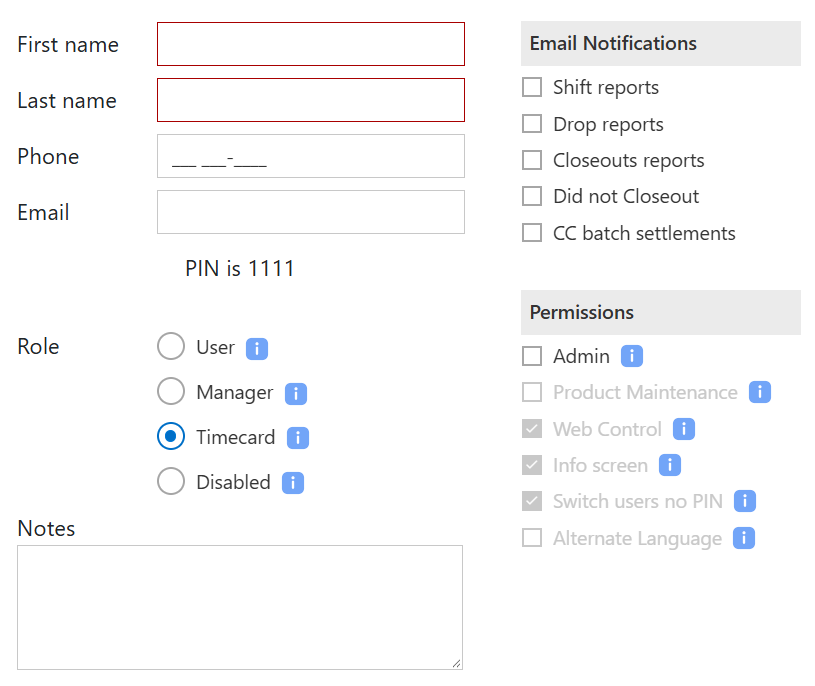
Figure 3. A new record with the Timecard role chosen. The Email Notifications boxes can be ticked, and Admin under Permissions stays unticked
Unless they also need to sign in to BREW POS Admin themselves, leave Admin, under Permissions, unticked (Figure 3).
At the top right, click Save. The Employees screen comes back with the new person in it.
Choose what prints at the end of the day
The emails are set on each person's record. What prints at the POS at the end of the day is set once for the whole company, at Setup > Settings > Company > Print Options (Figure 4).
In the dark menu, click Setup, then the Settings tab, then Company.
Click Print Options to open it.
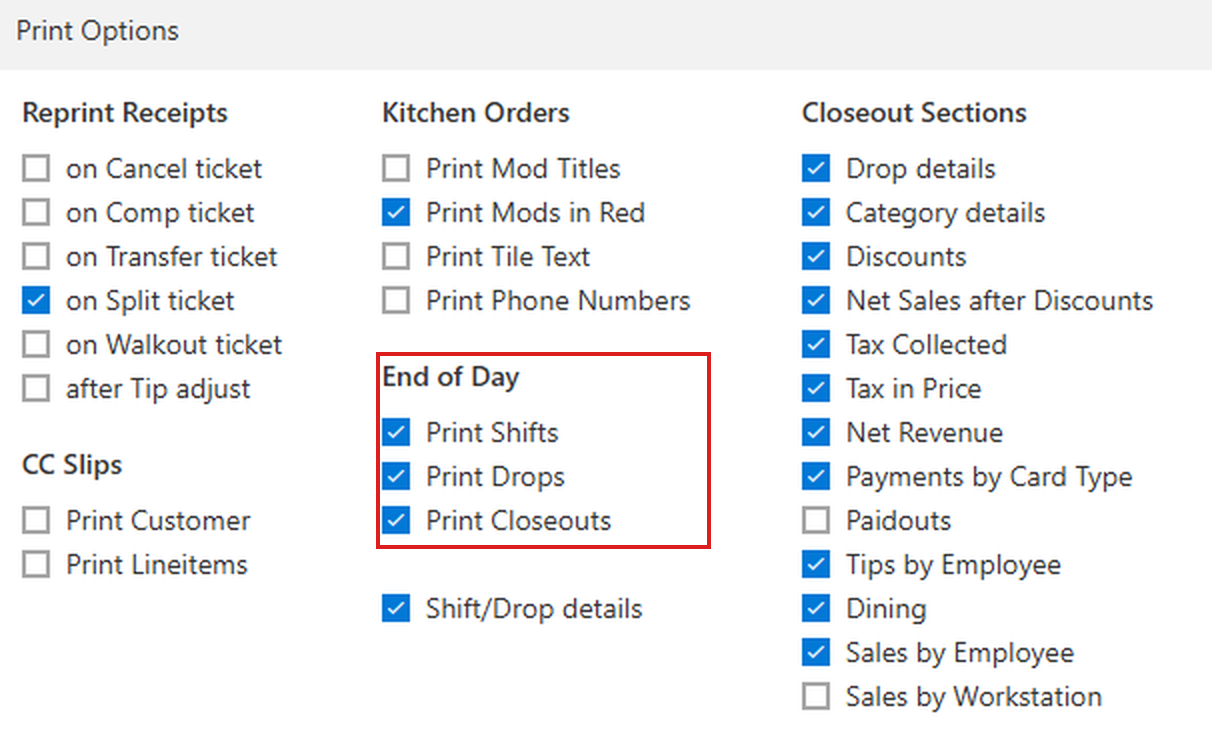
Figure 4. Print Options. The End of Day block, outlined, decides which end-of-day reports print. Closeout Sections, on the right, decides what goes on the printed closeout
Under End of Day, tick each report that should print (Figure 4):
Print Shifts prints a server's shift report when they run it.
Print Drops prints the drop report when a till is dropped.
Print Closeouts prints the closeout report.
To print the shift and drop reports with their details, tick Shift/Drop details, below them (Figure 4).
Under Closeout Sections, tick each section the printed closeout should include (Figure 4).
If your staff pay cash out of the till, tick Paidouts (Figure 4) so it shows on the closeout. It is off unless someone has turned it on.
At the top right, click Save. The next shift report, drop or closeout prints the way you set it.
If something goes wrong
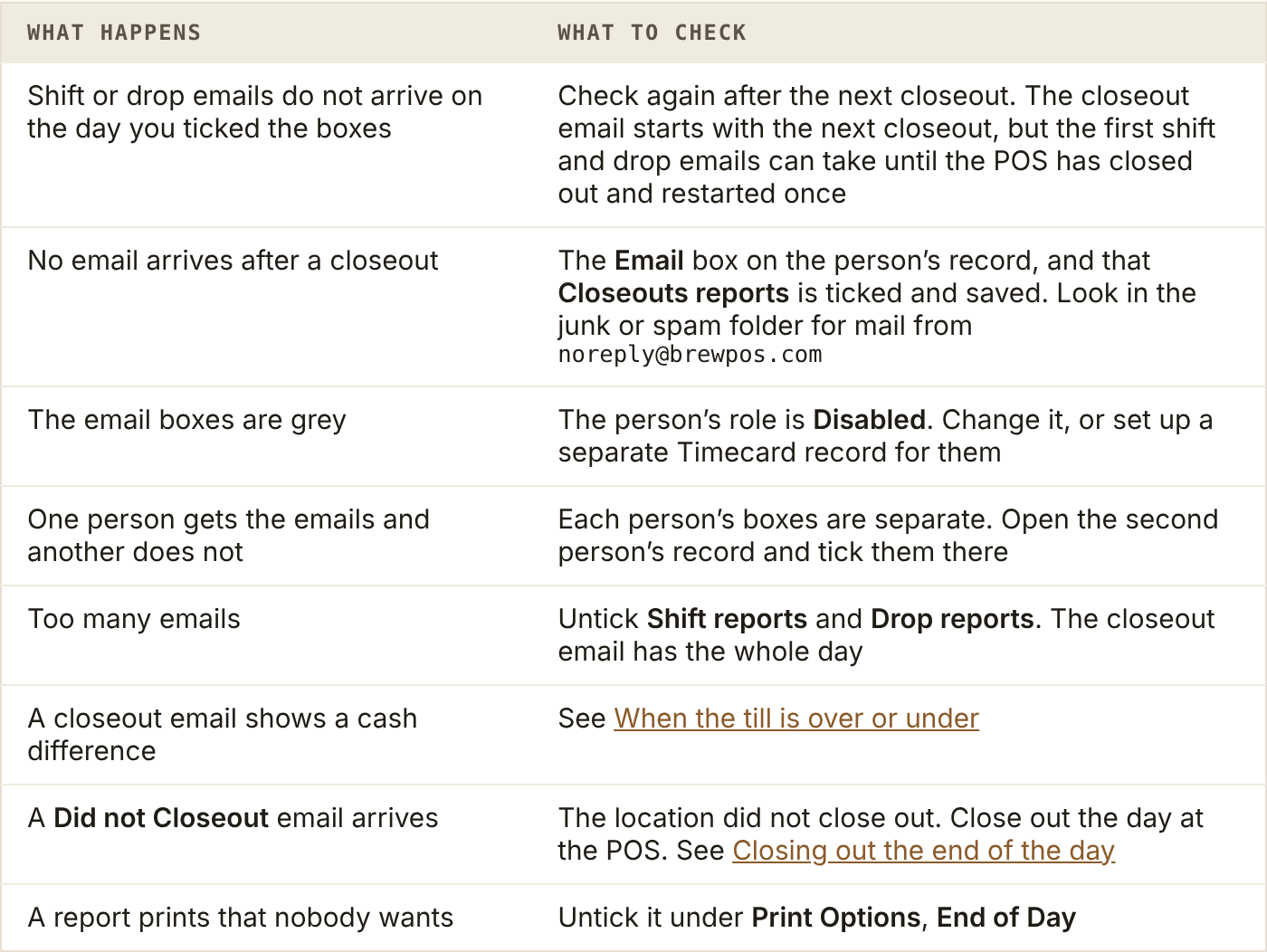
What to check when an email does not arrive or a report misbehaves. For the steps at the POS, see When the till is over or under and Closing out the end of the day
About this guide
Applies to: BREW POS Admin
Last reviewed: 20 October 2026
BrewPOS How to use
Support 1-800-676-9874
Email [email protected]
© 2026 BREW POS. All rights reserved.