
Sharing tips with your staff
Many bars and restaurants share tips: a server tips out the bartender and the bussers at the end of a shift, or the whole house pools its tips and splits them later. Each location handles tips one of three ways: Tips paid from Till, Tips on Checks or Pooled Tips. The way yours is set up decides whether staff can tip out at the POS, who they tip out to, and where the money is counted. This guide is for owners and managers who set things up in BREW POS Admin, and for the servers who tip out at the end of a shift. Taking a tip on a card is covered in Taking a payment and adjusting tips, and running a shift report in Starting and ending your shift.
Before you begin
Find out how your location handles tips. The choice between the three ways, and the switch that turns tip outs on, are set by BrewPOS for each location. They are not on any screen you can change in BREW POS Admin. To check or change them, call BrewPOS support on 1-800-676-9874.
BrewPOS can change them only between days. The tip settings are locked while the location is open, so a change is made after the day has been closed out and before the next one starts. Plan it for a quiet day, not halfway through a pay period.
To set up tip out names you need to sign in to BREW POS Admin and open Setup, then Settings. If Setup is missing from the dark menu on the left, or Settings is missing inside it, ask whoever manages staff records to give you Settings access.
Staff tip out at the POS, on their own shift screen, before they run their shift report. Nothing is needed from a manager unless the manager is running the shift for them.
Tip settings belong to one location. If you have more than one location, each can be set up differently, and tip out names made at one location do not appear at another.
The three ways tips are handled
Every location uses exactly one of these. The names are the ones BrewPOS uses, so use them when you call.
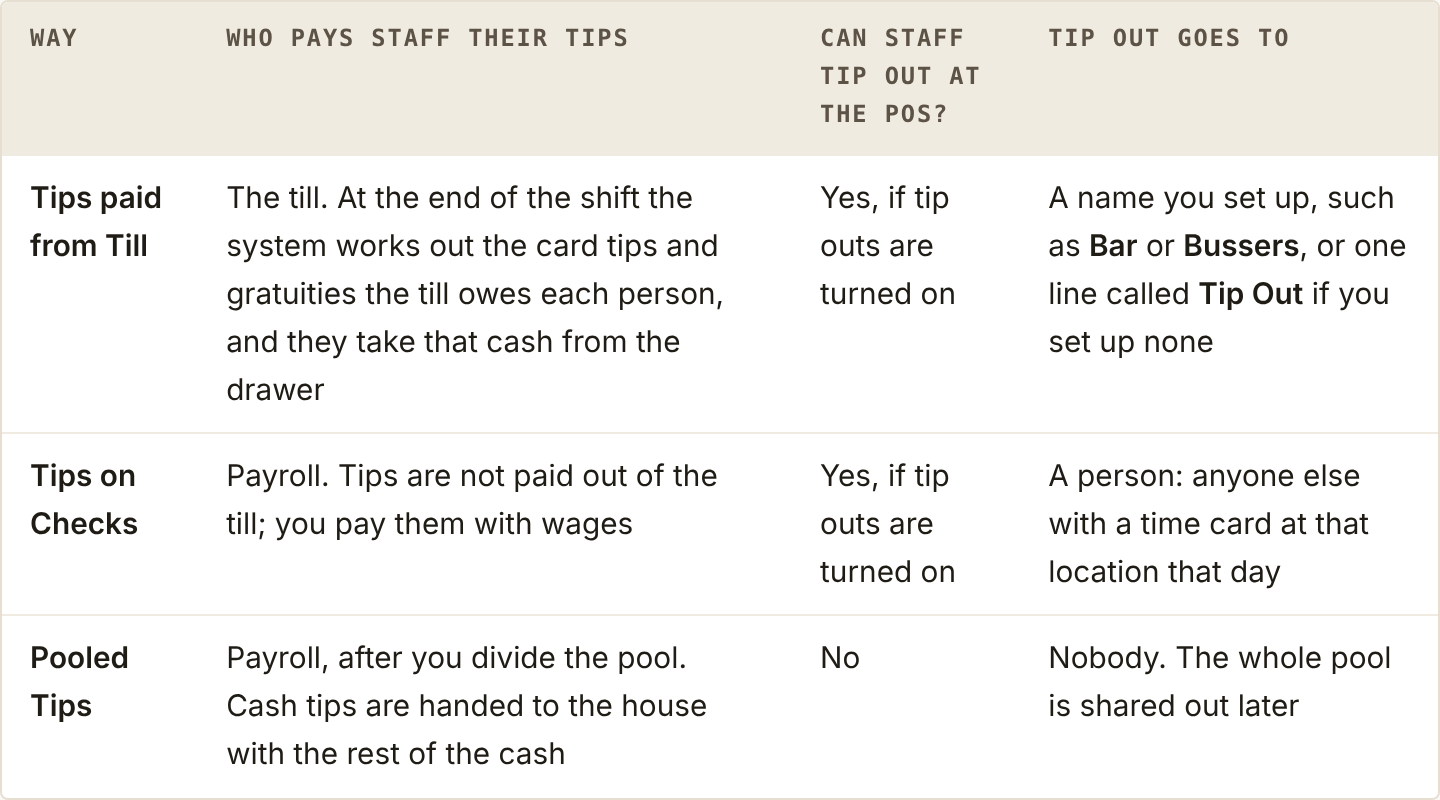
The three ways, and what each one means for your staff
A tip out is always an amount in dollars, typed by hand. The system has no percentages and no automatic rule such as a share of sales. If your house rule is 3 percent of sales to the bar, the server works the figure out and types it in.
Gratuities count as tips. Card tips, cash tips and gratuities all go into the tip total a server tips out from.
Set up tip out names
Tip out names are for Tips paid from Till. They are the lines a server sees when they tip out, one for each group they might tip: Bar, Bussers, Kitchen. With Tips on Checks the lines are people, not names you set up, so you can skip this part. With Pooled Tips there is no tip out at all.
Click Setup in the dark menu on the left, then Settings, then Locations.
If you have more than one location, choose the location at the top of the page.
Open Location Info if it is closed, and scroll down. Tipout Buttons is on the right, below the paid out buttons, with New and Delete above the list of names you already have. Until you add your first name there is no list, only the two buttons.
Click the green New. The Tip Out Button box opens with one box in it, Tip Out button.
Type the name staff will see, for example Bussers. Up to 16 characters fit; the box stops taking letters after that.
Click the green Ok. The box closes and the name is in the list. The list keeps itself in alphabetical order.
Repeat for each group your staff tip out to.
There is no Save to click. Each name is saved when you click Ok, and the green Save button at the top right stays faded.
To remove a name, click it in the list so that Delete lights up, click Delete, then click the green Ok at Delete the Tip Out button? Tip outs already recorded under that name keep it on their shift and closeout reports.
Each POS station picks up new names from BREW POS Admin. A station that is already running may not show them until you tap Tools, then Sync, or Tools, then Restart.
Tip out at the end of a shift
Staff tip out on their own shift screen, just before they run their shift report. The tip out is recorded when the shift report runs, not before.
Close or transfer any tickets you still have open. While you have an open ticket the tip out lines do not show.
Tap Shift, at the top of the screen, then My Shift.
Look for the dark green Tip Out heading. Below it is one line for each place you can tip out to:
with Tips paid from Till, one line for each tip out name, or a single line called Tip Out if none have been set up
with Tips on Checks, one line for each person who has a time card at this location today
Tap the line you are tipping out to. A keypad opens with the line's name at the top.
Type the amount and tap the green check mark. The line turns blue and shows the amount, and the total beside the Tip Out heading goes up.
Repeat for each line. To change an amount, tap the line again and type the new amount. To take a tip out off, tap the line and enter 0.
Tap Run Shift Report and finish your shift as usual. This is the moment the tip outs are saved.
The system records a tip out; it does not move any money. With Tips paid from Till, the screen still says the till owes you your full card tips and gratuities. Take that cash from the till as usual, then hand each person or group their share. The printed shift report shows the tip outs and what you keep.
A manager running a shift for someone else, from All Shifts, sees the same Tip Out lines on that person's shift and can enter their tip outs for them before running it.
Where tip outs show up
On the server's shift report. Under TIPS, the report lists cash tips, card tips, gratuity and the total. Below that, TIPPED OUT lists each tip out, with a total if there is more than one, and MY TIPS is what the server keeps: the total tips less the tip outs.
On the drop report. TIPPED OUT DETAIL from Shifts groups the day's tip outs by where they went, with the shift number and server for each one and a total for each group. This is the page to use when you hand the bar or the kitchen their share.
On the closeout report. TIP OUTS gives one total for each tip out name for the whole day.
On a time card, with Tips on Checks. A tip out to a person reaches their time card. Opening the time card shows their Shift Tips, a line from each person who tipped them out, and Total Tips, so payroll can see what they were given and by whom.
Pooled tips
With Pooled Tips nobody tips out. Instead:
At the end of the shift, staff enter their Cash Tips on My Shift as usual. The screen tells a till user YOU OWE THE TILL and an apron user YOU OWE THE HOUSE, because cash tips stay with the house. The printed shift report says POOLED TIPS: Cash Tips are owed to the House.
When the till is counted, the cash tips are part of the cash the till should hold. They show on the drop as CASH TIPS from Shifts in Till.
Card tips are not paid out of the till either.
The system does not divide the pool for you. There is no split by hours, by points or by role. You work out each person's share yourself, then enter it on their time card so it reaches payroll:
In BREW POS Admin, click Timecards.
Click the blue arrow beside the shift.
Type the person's share in Tips, then save the time card.
A manager can also do this at the POS, on a recent time card. The POS does not offer Tips on today's time cards, so enter shares there once the day is over.
With Pooled Tips, a time card with no tips on it is coloured orange, matching the orange No Tips key at the foot of the Timecards tab. That is your reminder that someone's share has not been entered yet. Do this before you close the pay period with Do Payroll.
Other tip settings
BrewPOS sets these for each location too. Ask support if you want one changed.
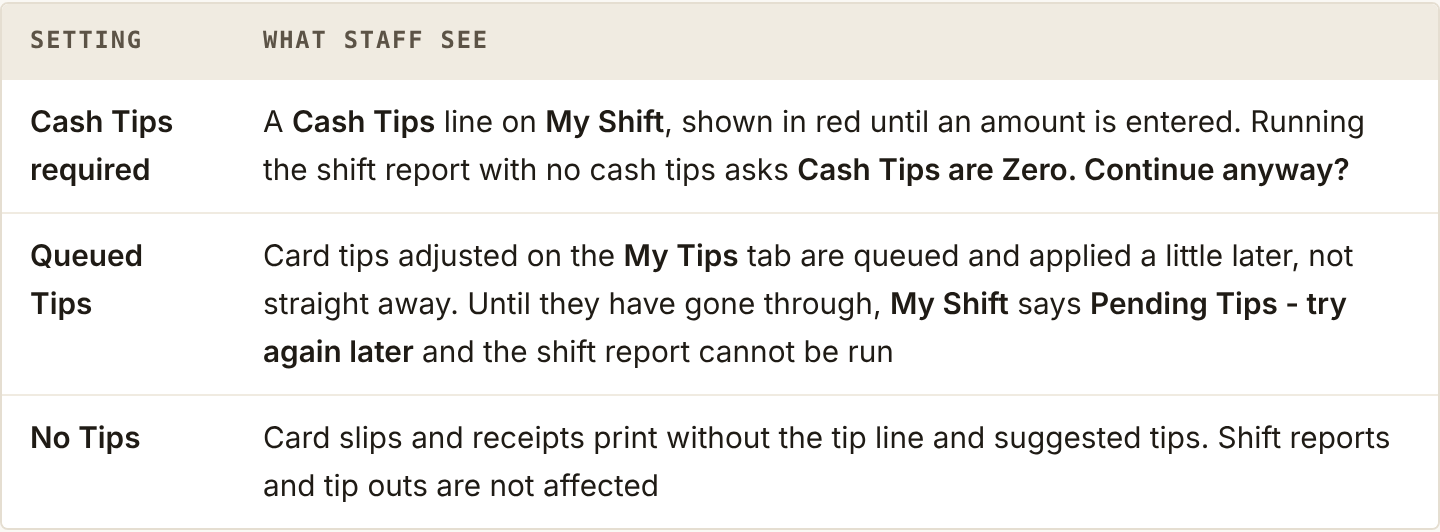
What each of the other tip settings changes for staff
If something goes wrong
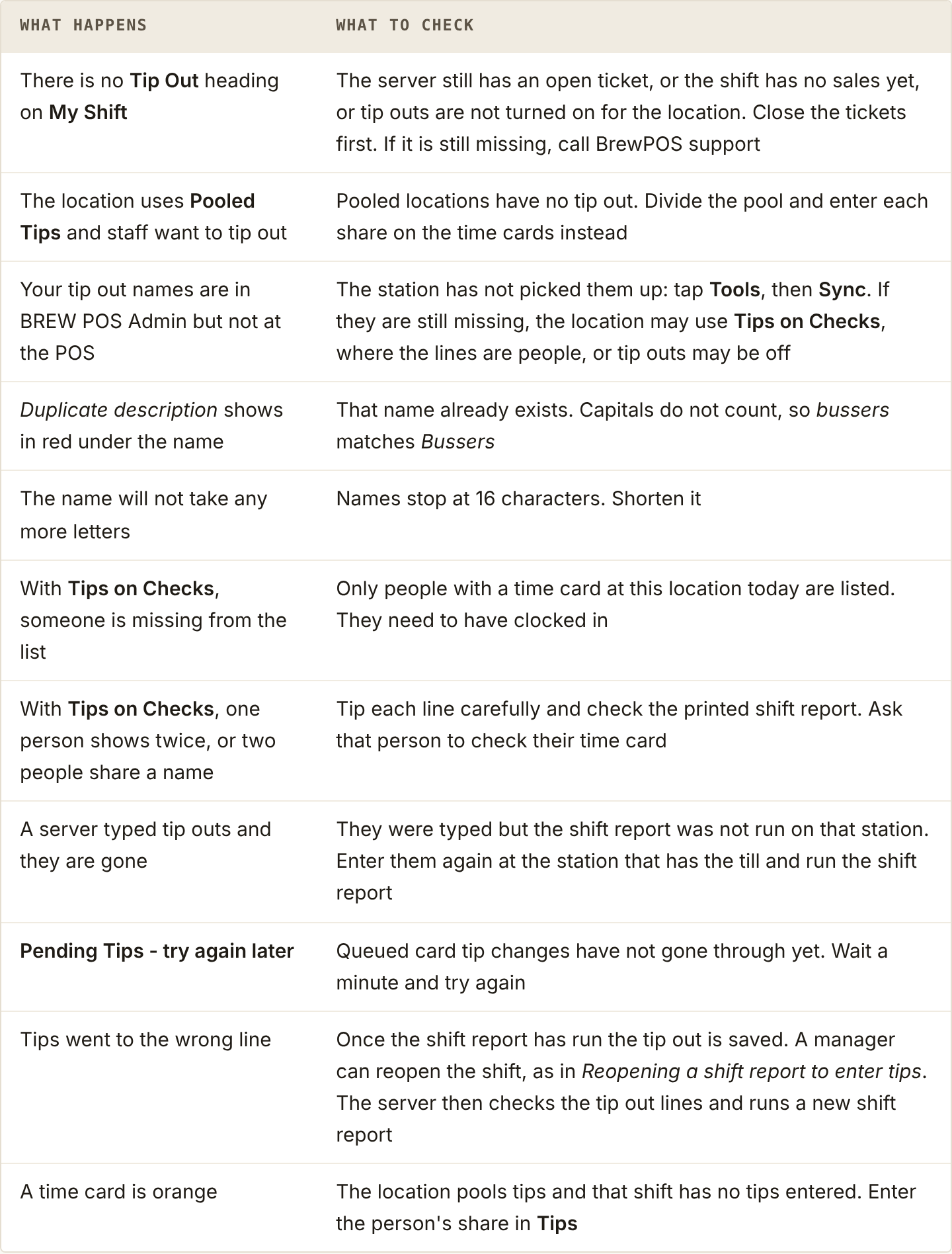
What to check when a tip out does not look right
Next: Starting and ending your shift covers the rest of the shift report and dropping the till.
About this guide
Applies to: BREW POS Admin
Last reviewed: 20 October 2026
BrewPOS How to use
Support 1-800-676-9874
Email [email protected]
© 2026 BREW POS. All rights reserved.