
Staff messages and opening and closing checklists
Two small tools for keeping a team on the same page. Messages go from one person to another, or from a manager to everybody, and wait at the POS until they're read. Checklists are your opening and closing duties, kept at the POS and printed when you want them.
Read a message
When someone has sent you a message, a green bar appears under the top of the order screen. It says Message from and their name, or You have 3 messages when there's more than one (Figure 1). It follows you: you'll see it on whichever station you log in to.
Tap View at the left of the bar. The message opens with the sender's name and when it was sent. If there are several, the oldest comes first.
Tap Reply to answer. Type your reply and tap the green check. If no answer is needed, tap the red X.
Either way that message is finished with and the next one opens. There's no way to leave one for later: once you've tapped View, each message has to be answered or closed. You can still read it afterwards in Old Messages.

Figure 1. The green bar means a message is waiting for you
Send a message
Tap Tools at the top right, then New Message at the bottom left (Figure 2).
Under Send a message to, tap the person's name. The list is everyone in the company in alphabetical order, so scroll if you need to.
Tap the white box under Message. A keyboard opens. Type your message and tap the green check.
Check the name and the message (Figure 3), then tap the green check to send.
The window closes and you're back on Tools. The POS doesn't tell you the message was sent. To make sure it went, look in Old Messages under Outbox.
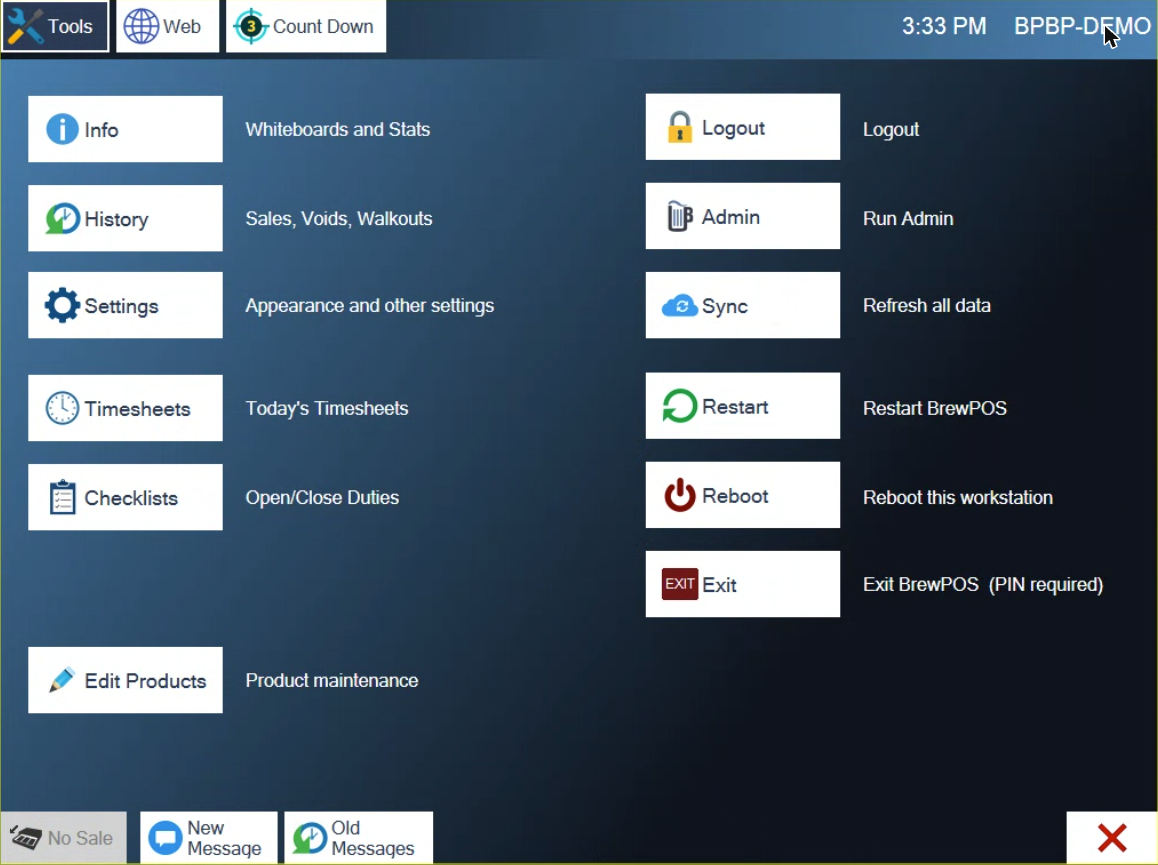
Figure 2. New Message, Old Messages and Checklists are all on the Tools menu
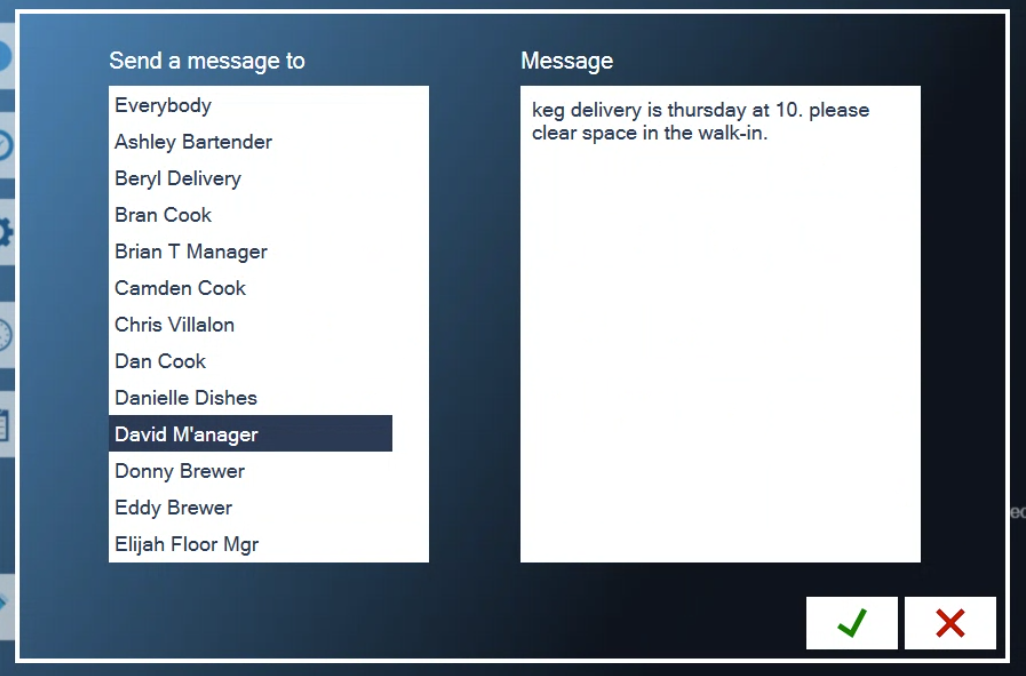
Figure 3. A name picked and a message typed, ready to send
Pick the name first. The green check lights up as soon as there's a message, even if no name is highlighted. Make sure one is before you send.
Managers have one more line at the top of the list: Everybody. It sends the same message to the whole team.
Look back at old messages
Tap Tools, then Old Messages. Inbox lists what you've received and Outbox what you've sent, newest first, with the date and time (Figure 4). Tap a line to read it on the right.
Reply sends a new message to that person. Messages can't be deleted here.
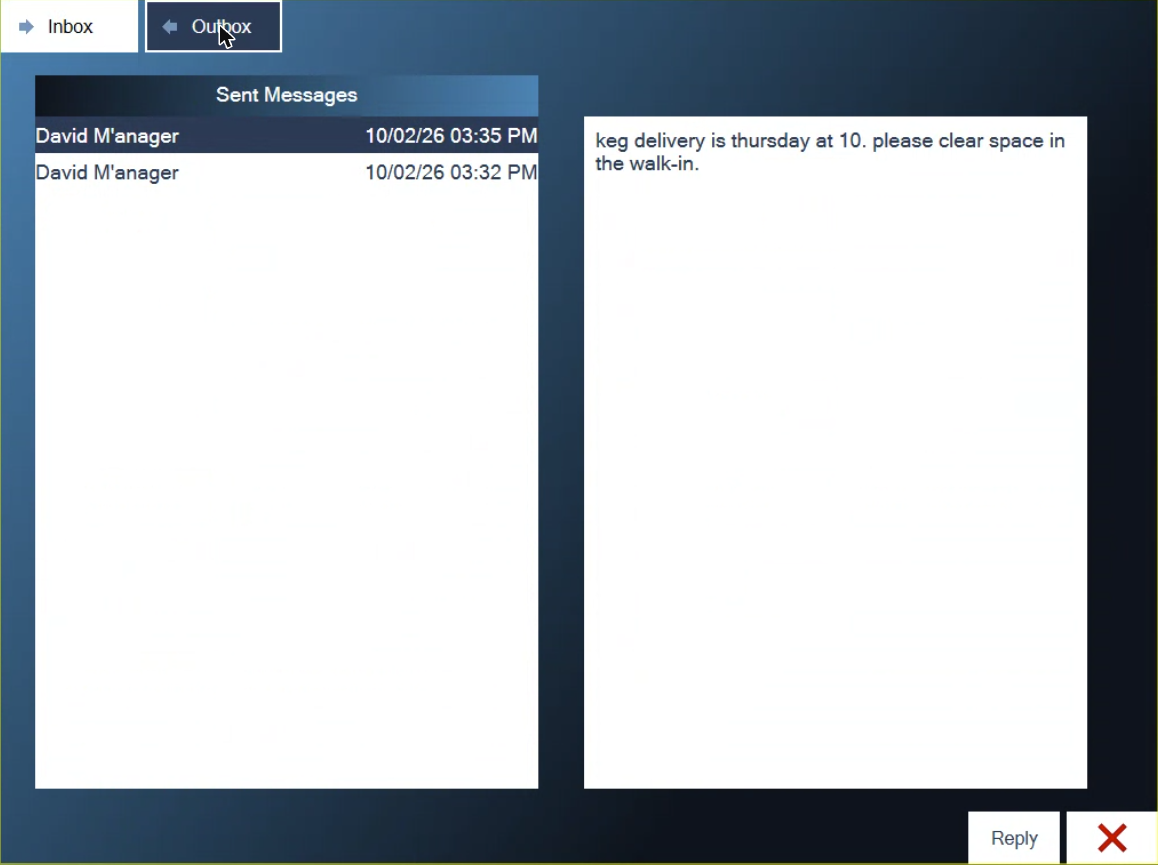
Figure 4. Outbox shows what you've sent and when
Messages or the Whiteboard
A message is for one person, or from a manager to everyone, and it waits until each person has read it.
The Whiteboard is a notice for the whole location. It's on the login screen and under Tools, then Info, where anyone can read it, and there's nobody to reply to. Use the Whiteboard for tonight's specials or what's 86ed. Use a message when you need a particular person to see something.
A manager can change the Whiteboard at the POS under Tools, Settings, Configure, Location, or in BREW POS Admin.
Use the checklists
Tap Tools, then Checklists. Your opening duties are on the left and your closing duties on the right (Figure 5). They're lists to read: there's nothing to tick on the screen.
To work from paper, tap the printer button under either list. It prints on this station's receipt printer, with the date, your location and your name at the top.
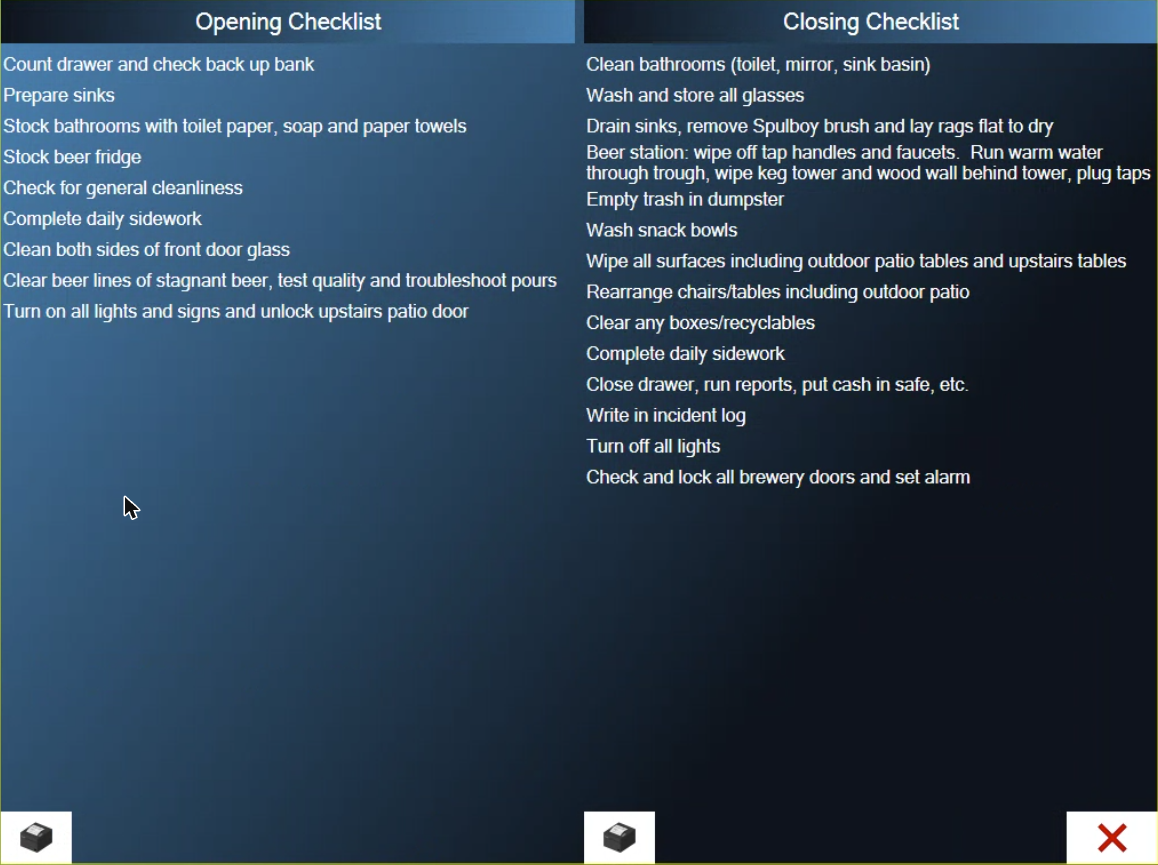
Figure 5. Opening duties on the left, closing duties on the right, and a print button under each
The closing checklist also prints by itself when the day is closed out. See Closing out the end of the day.
The Checklists button only shows on Tools once at least one task has been set up. Tasks are added in BREW POS Admin: go to Setup, then Settings, then Locations, and open Checklists. There's a tab for Opening Checklist and one for Closing Checklist. Changes reach the POS the next time it syncs, or straight away if you tap Tools, then Sync.
Good to know
Messages need the station to be online. When it's offline, New Message and Old Messages are greyed out.
The green bar only shows on the order screen, and it can take about 20 seconds to appear after you log in.
Staff who only clock in and out never see the green bar. Their messages print on their clock-in slip instead.
Tools closes by itself after about half a minute if you don't tap anything.
If a printer button does nothing, the station has no receipt printer set up.
About this guide
Applies to: the BREW POS terminal.
Last reviewed: 2 October 2026
BrewPOS How to use
Support 1-800-676-9874
Email [email protected]
© 2026 BREW POS. All rights reserved.