
Editing products at the POS
Most menu work is done in BREW POS Admin, but the everyday changes can be made at the terminal: a price, a name, a tile's colour or picture, whether an item is for sale, where it sits on the screen. You can add a product there too. This guide covers what Edit Products can change, what it can't, and what happens when you save.
Before you start
You need Product Maintenance ticked on your employee record in BREW POS Admin. Being a manager isn't enough: without that box, Edit Products is greyed out on the Tools menu. See Managing employees.
Have your PIN ready. The POS asks for it every time you save a product.
Make sure the station is online. Changes are saved straight to the cloud, and an offline station can't save them.
There's no undo. A saved change is live straight away, and Edit Products keeps no copy of what was there before. Note the old price or name before you change it.
Open Edit Products
Send or close any ticket that's on screen. Tools is greyed out while a ticket has changes that haven't been sent.
Tap Tools at the top right.
Tap Edit Products, the last button on the left (Figure 1).
The screen looks like the order screen without the ticket: the same categories across the top and the same tiles (Figure 2). The difference is that tapping a tile opens the product instead of ringing it in. Products that aren't for sale show here too, in grey, under Inactive Products at the bottom of their category.
When you've finished, tap the red X at the bottom right to go back to taking orders.
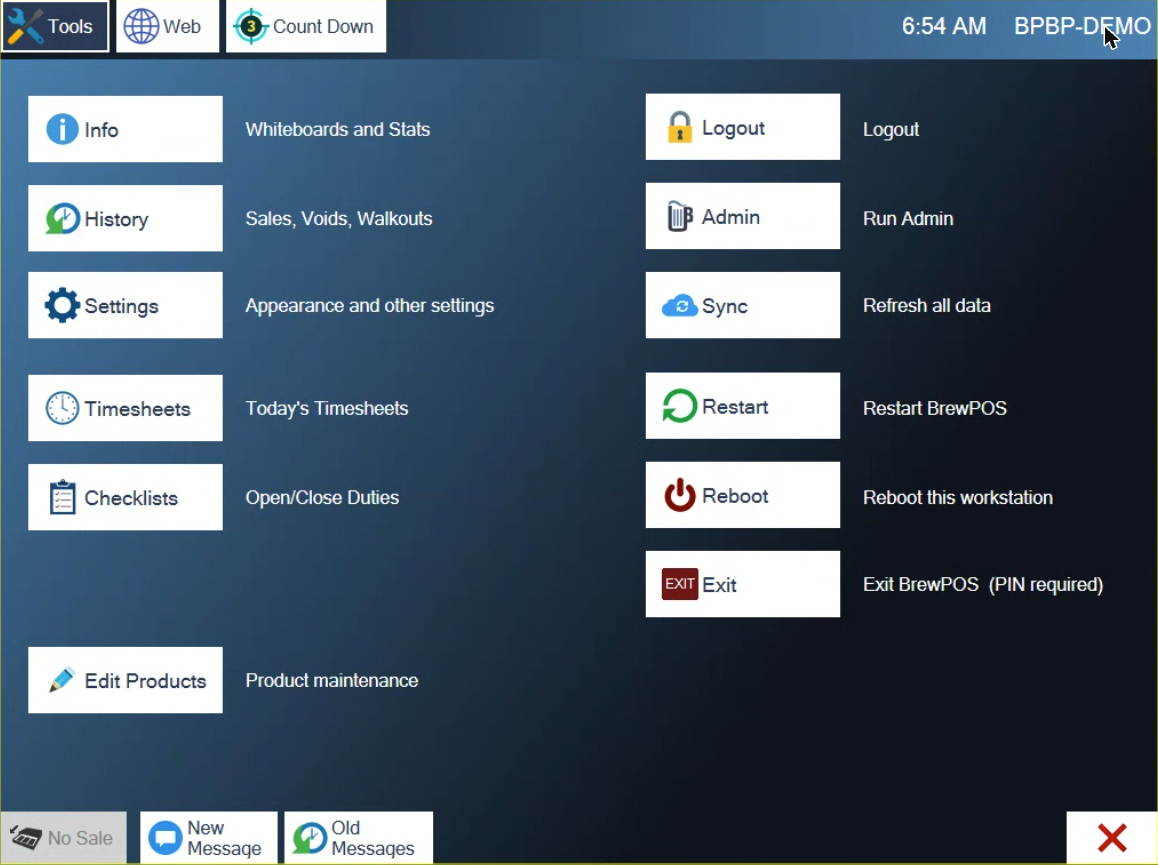
Figure 1. Edit Products is at the bottom of the left column on Tools
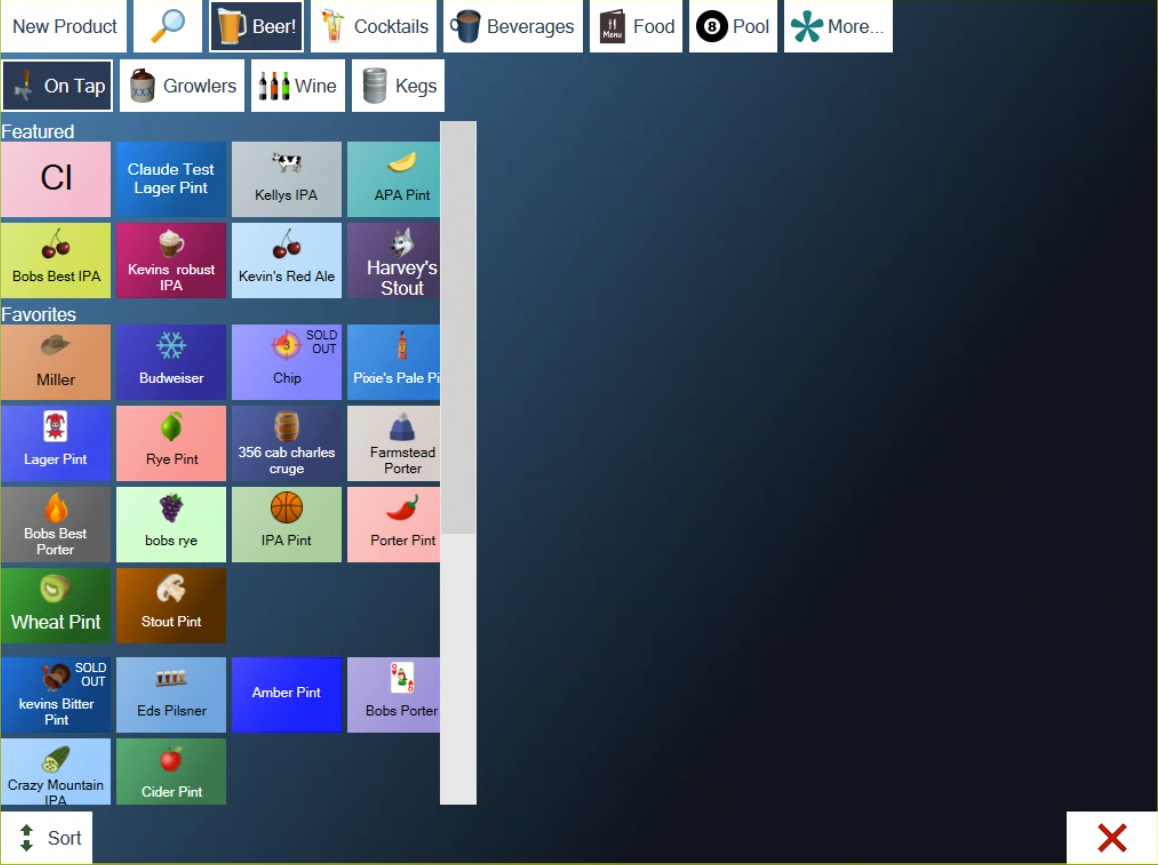
Figure 2. Edit Products. Tap a tile to open that product
Change a product
Tap the category, then the product's tile. If you can't see it, tap the magnifying glass and type part of its name or its Prod ID (Figure 3), then tap it in the results.
The product opens (Figure 4). Tap the box or button for whatever you want to change. A box opens a keyboard or keypad: type the new value and tap its green check.
Tap the green check at the bottom right. It stays grey until you've changed something.
Type your PIN and tap the green check (Figure 5).
The product closes and you're back on the tiles. Nothing says it was saved: the tile shows the change.
To leave a product without saving, tap the red X instead. The POS doesn't ask if you're sure. Whatever you changed is dropped.
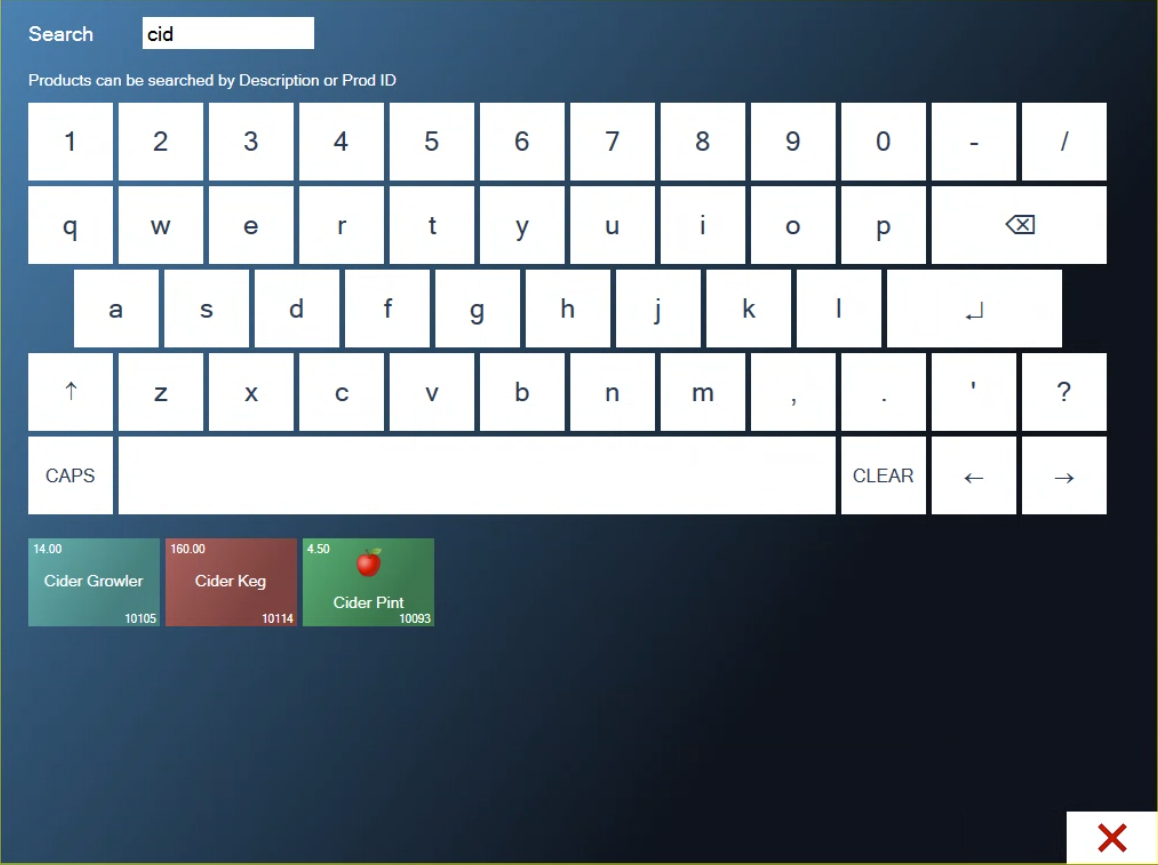
Figure 3. The lookup. Each result shows its price and Prod ID
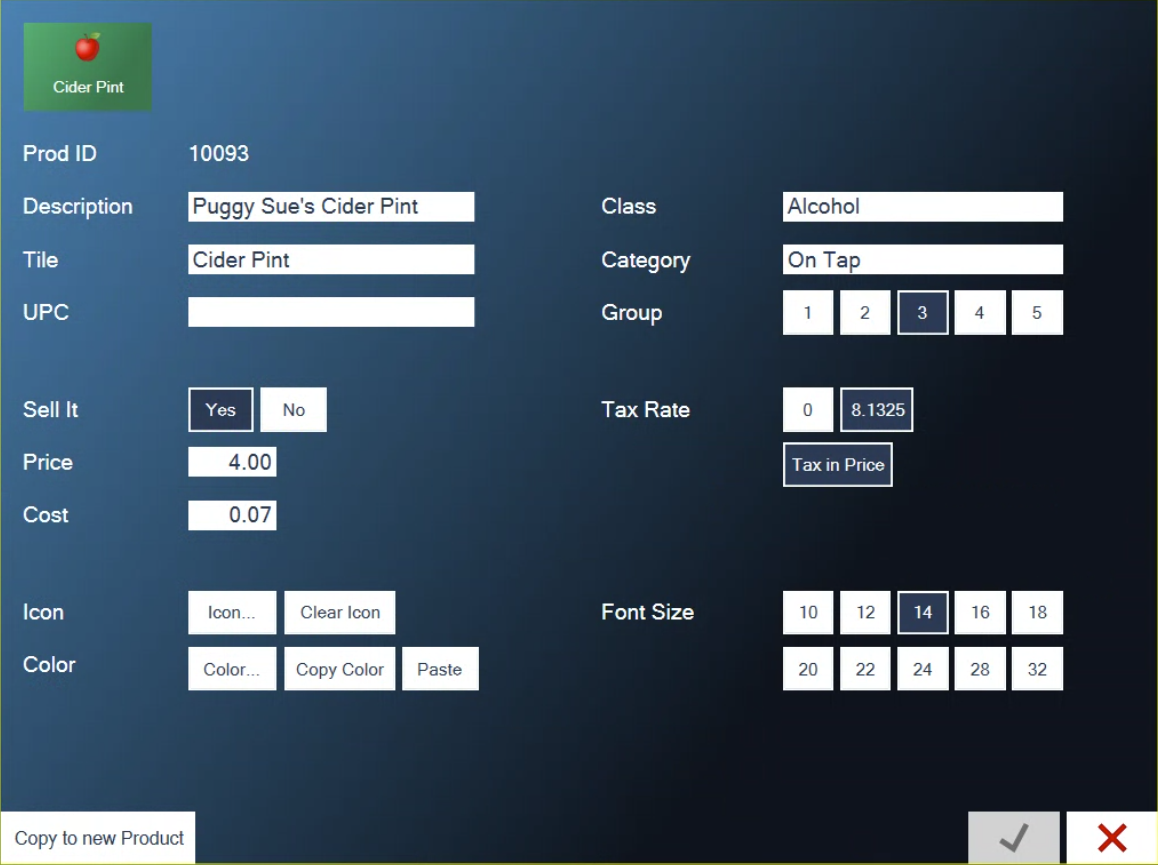
Figure 4. A product open in Edit Products
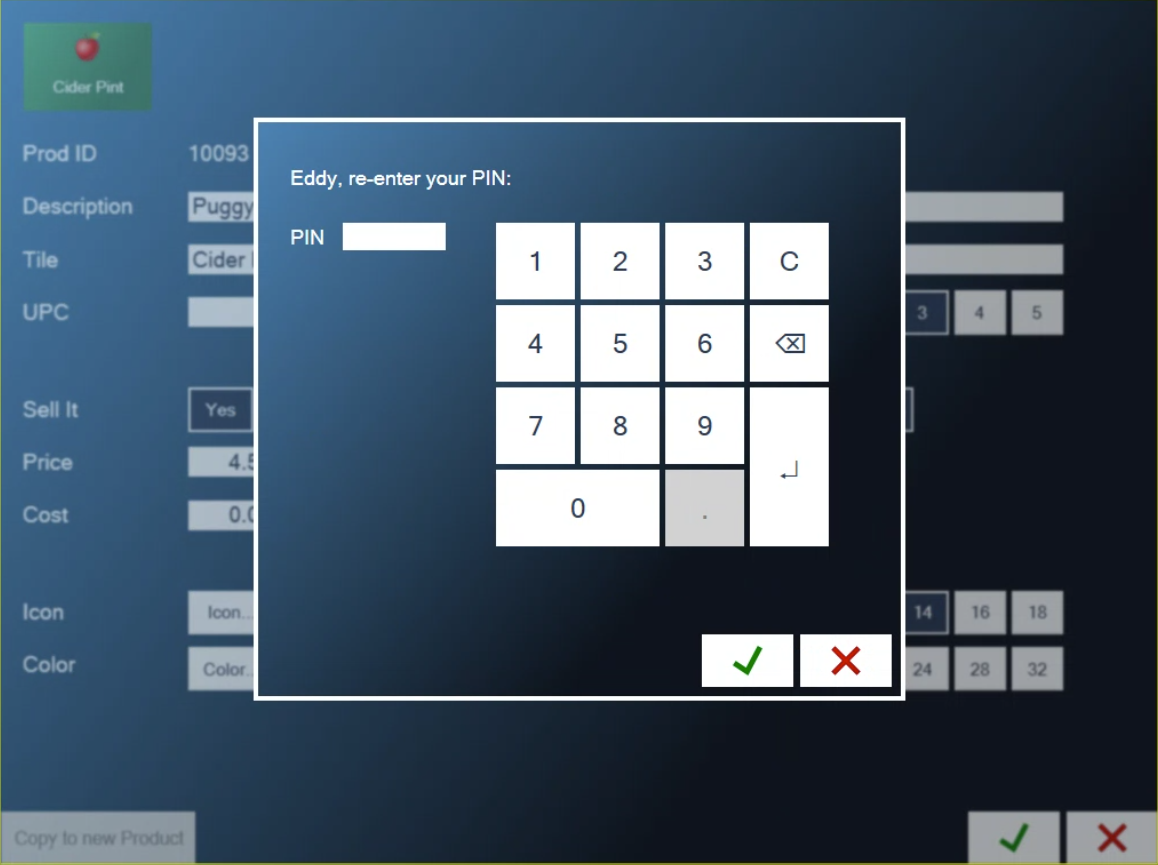
Figure 5. Every save asks for your PIN
What each field does
The tile at the top left shows how the button will look as you make changes.
Prod ID. The product's number. It can't be changed.
Description. The full name, as it appears on tickets and receipts. No two products can have the same description.
Tile. The shorter name on the button. This has to be different for every product too.
UPC. The barcode, if the product is scanned.
Sell It. Yes puts the product on the order screen. No takes it off.
Price and Cost. Tap the box, type the amount on the keypad and tap the green check.
Icon. Icon... opens the pictures you can choose from. Clear Icon takes the picture off.
Color. Color... opens the colour chart (Figure 6). Tap a colour, then the green check. To give several tiles the same colour, open one and tap Copy Color, then open each of the others and tap Paste.
Class. What the sale is reported under, such as Alcohol or Food. Pick it from the list.
Category. Where the tile sits on the order screen. Pick it from the list.
Group. Which group the tile is in inside its category, 1 to 5. Groups are the headed rows of tiles, such as Featured and Favorites.
Tax Rate. 0 for no tax, or one of your location's rates. Tax in Price means the price already has the tax in it.
Font Size. The size of the name on the tile.
Countdown Qty. How many are left. It only shows on a product that's being counted down. See Marking an item sold out (86).
Price, Cost, Sell It and the tax settings are saved for your location only. Everything else is part of the product, so if your company has more than one location, a new name, tile, colour or category shows at all of them.
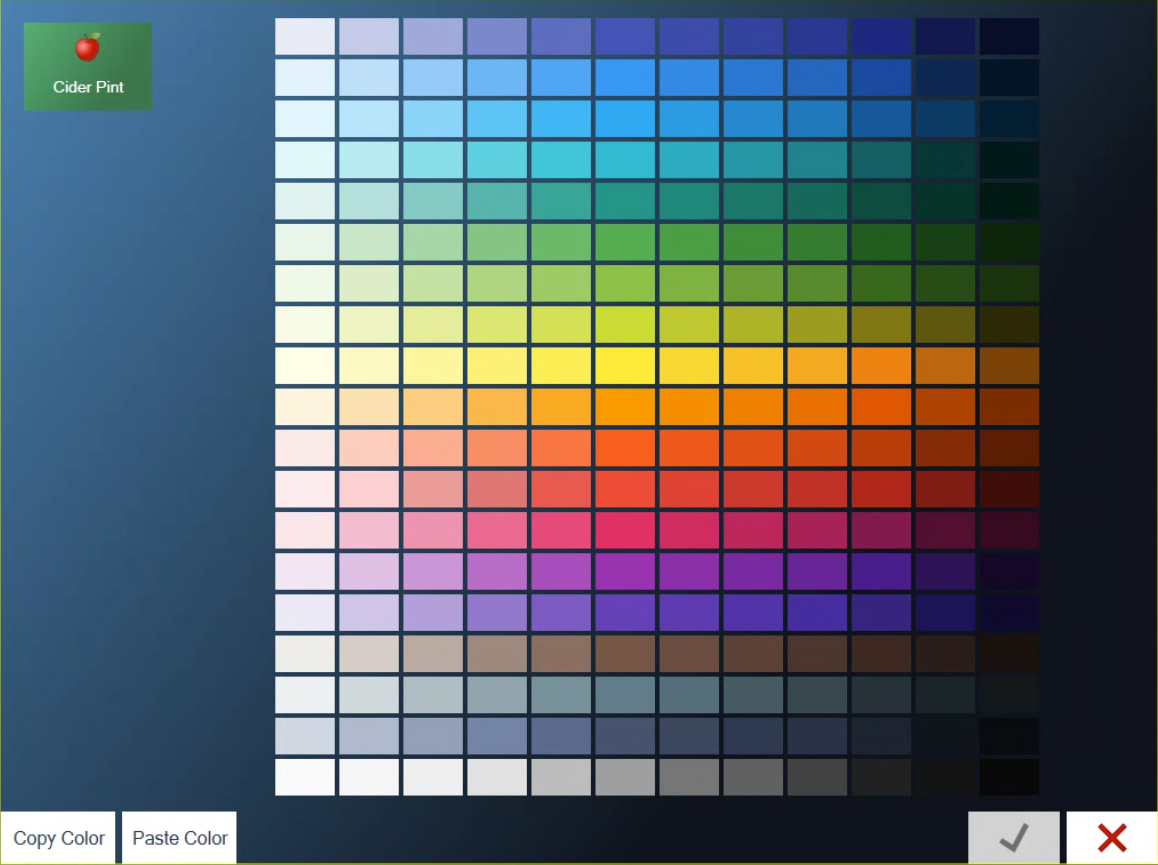
Figure 6. The colour chart, with the tile shown at the top left
Add a product
There are two ways.
From scratch. Tap New Product at the top left. A blank product opens (Figure 7). Fill in Description, Class and Category at least: the green check stays grey until you have. Tile fills itself in from the description, and you can shorten it. Set the price and the tax rate, then tap the green check and type your PIN.
By copying one. Open a product that's close to what you want and tap Copy to new Product at the bottom left, before you change anything else. Type the new description and tap the green check. Everything else is carried over from the original. Change what's different, then save. If the original has a UPC, clear it or change it on the copy, because two products can't share one.
In the Category list, the green check only lights up when you tap a line. If the category you want is already highlighted, tap another line and then tap yours.
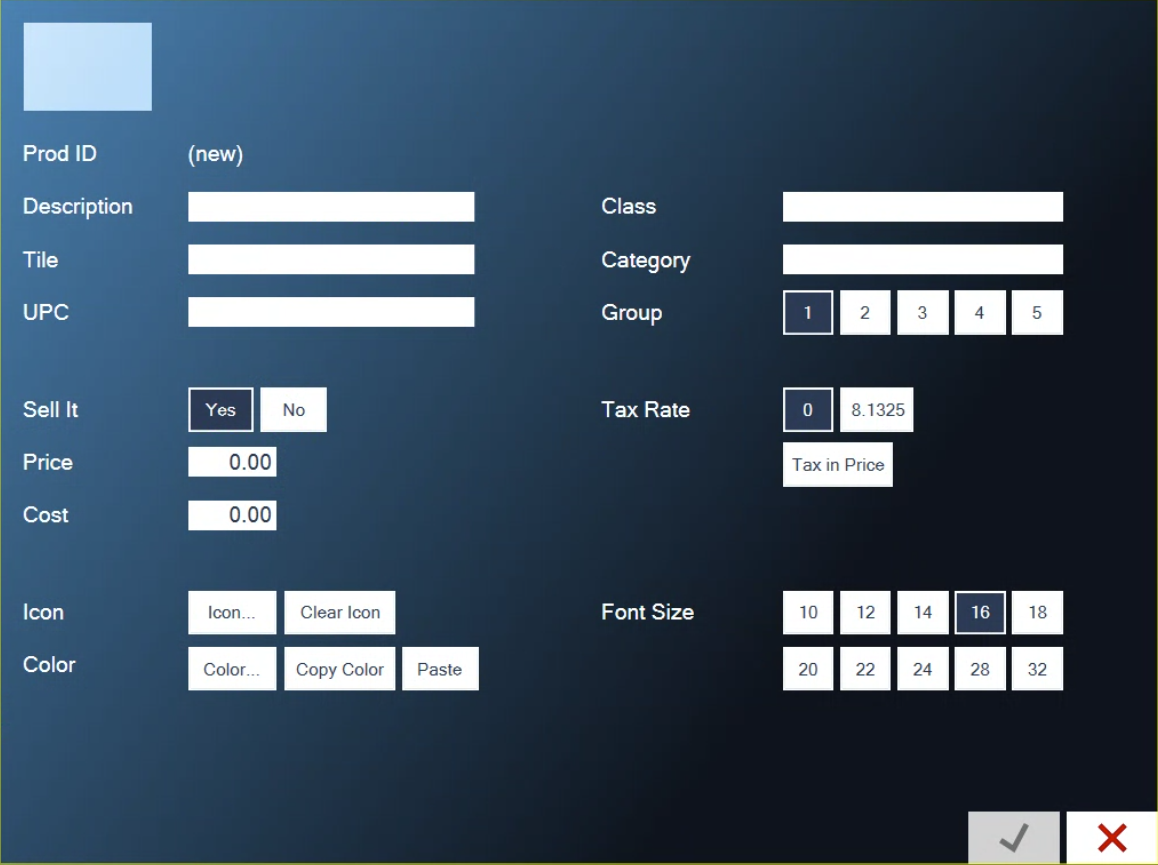
Figure 7. A new product. Description, Class and Category have to be filled in
Finish a new product in Admin. A product added at the POS has no modifiers, and it may not print in the kitchen or at the bar until its printers are set. Both are done in BREW POS Admin. See Making a product.
Change the order of the tiles
Tap the category whose tiles you want to move.
Tap Sort at the bottom left.
Tap the Group the tiles are in.
Tap a product in the list, then tap the up or down arrow to move it (Figure 8). The tiles on the right show the new order as you go.
Tap the green check.
Sort only lists products that are for sale. To move a tile into a different group, open the product and change Group.
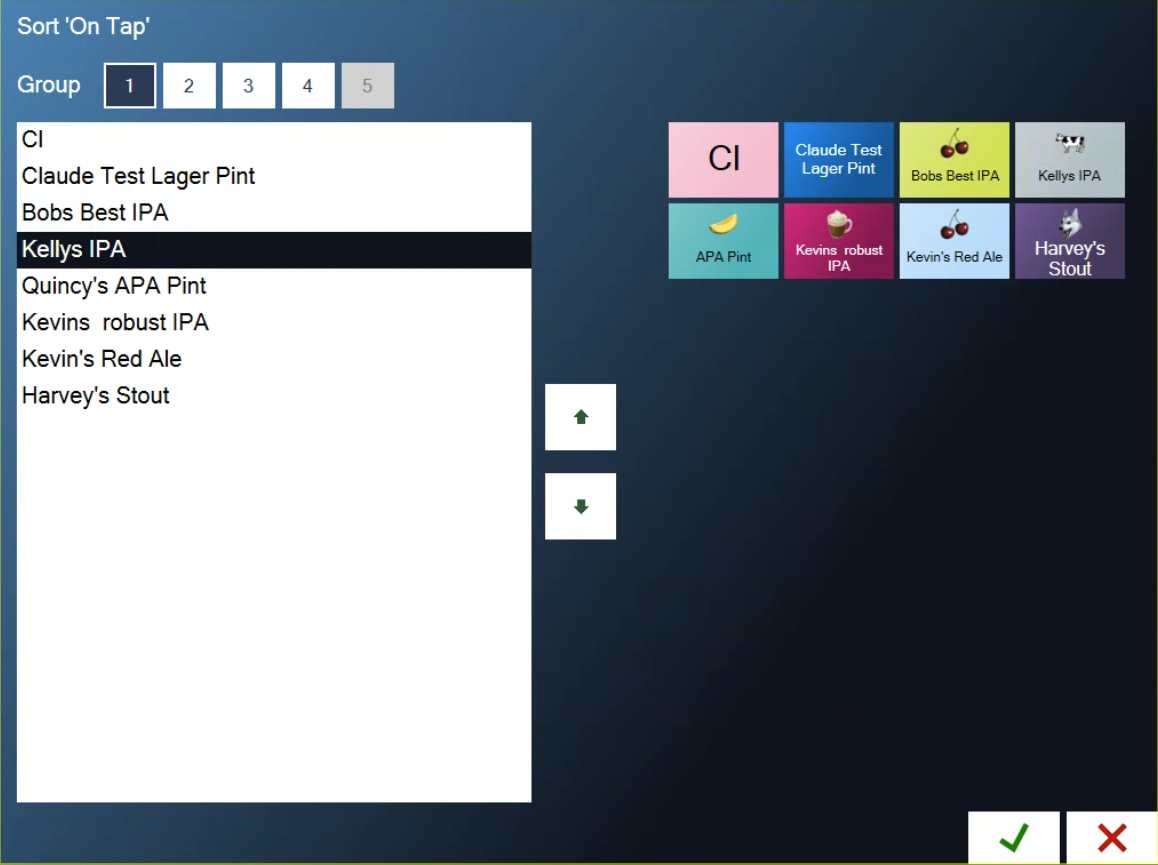
Figure 8. Sort. Kellys IPA has been moved down one place
Take a product off the menu
There's no delete. Open the product, tap No beside Sell It, and save. The tile leaves the order screen and moves to Inactive Products in Edit Products, in grey. To bring it back, open it there and tap Yes.
If you've only run out for tonight, don't switch the product off. Mark it sold out instead, and it comes back by itself. See Marking an item sold out (86).
What you can't change here
These are set in BREW POS Admin:
Modifiers and forced choices
Which printers and kitchen screens a product goes to
Happy hour prices and other price levels
Stock tracking
The categories, group names and classes themselves
See Making a product.
Good to know
A new price applies to items rung in after you save. Items already on an open ticket keep the price they were rung in at.
This station shows a change straight away. Other stations at your location pick it up once you close Edit Products with the red X. If one hasn't, tap Tools, then Sync on that station.
Every change is logged with your name. Anyone can see it under Tools, Info, Events: it reads Product changed, with the old and the new value.
If you scan a barcode the POS doesn't know, and you have Product Maintenance, a new product opens with the UPC already filled in. Save it and it's added to the ticket.
About this guide
Applies to: the BREW POS terminal.
Last reviewed: 3 October 2026
BrewPOS How to use
Support 1-800-676-9874
Email [email protected]
© 2026 BREW POS. All rights reserved.