
Before you start
Today is switched on person by person. In BREW POS Admin, open the employee's record and tick Info screen. Being a manager isn't enough: without that box the Today button is greyed out. See Managing employees.
The station has to be online, because Today gets its figures from the cloud.
Open Today
Tap Tools at the top right. If nothing happens, send or close the ticket that's on screen first.
Tap Info (Figure 1).
Tap Today at the top.
Info opens first, with the whiteboards, what's sold out and recent walkouts. Today opens on Status (Figure 2). Tap the red X when you want to go back to taking orders.
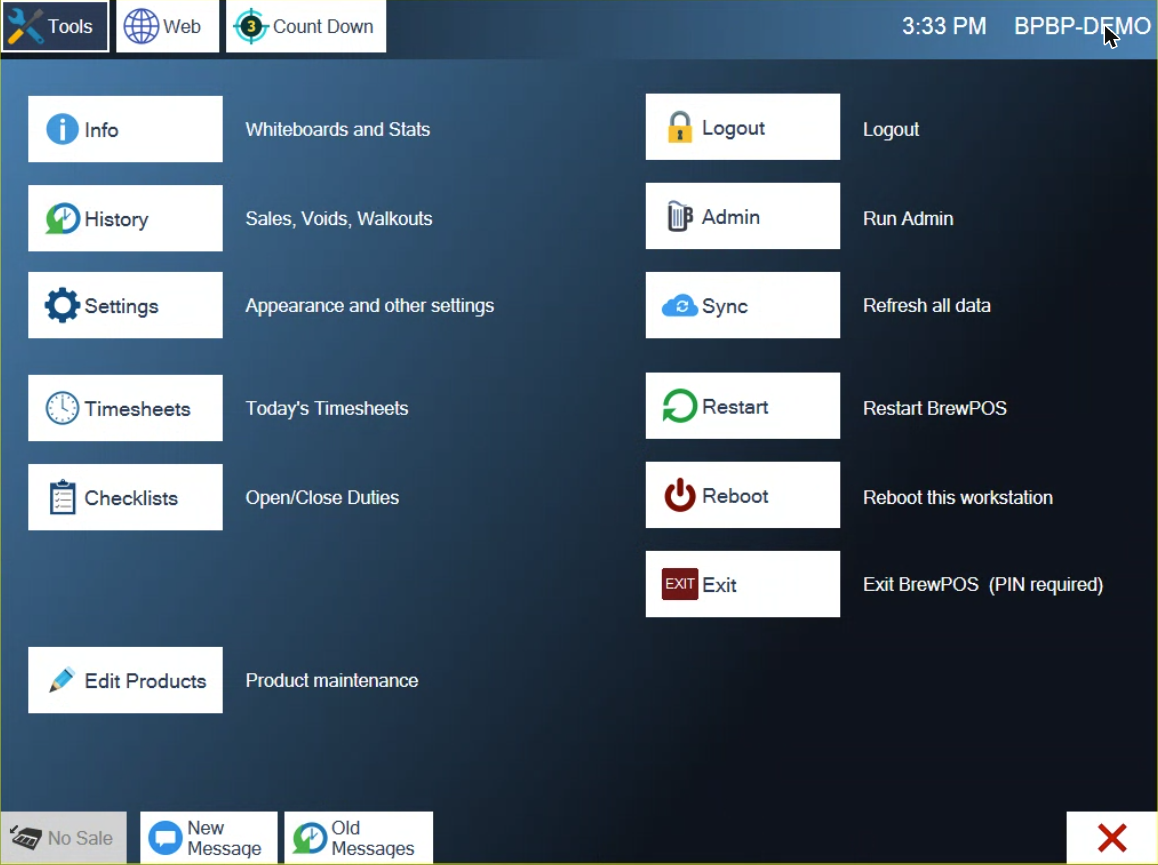
Figure 1. Info is the first button on the Tools menu
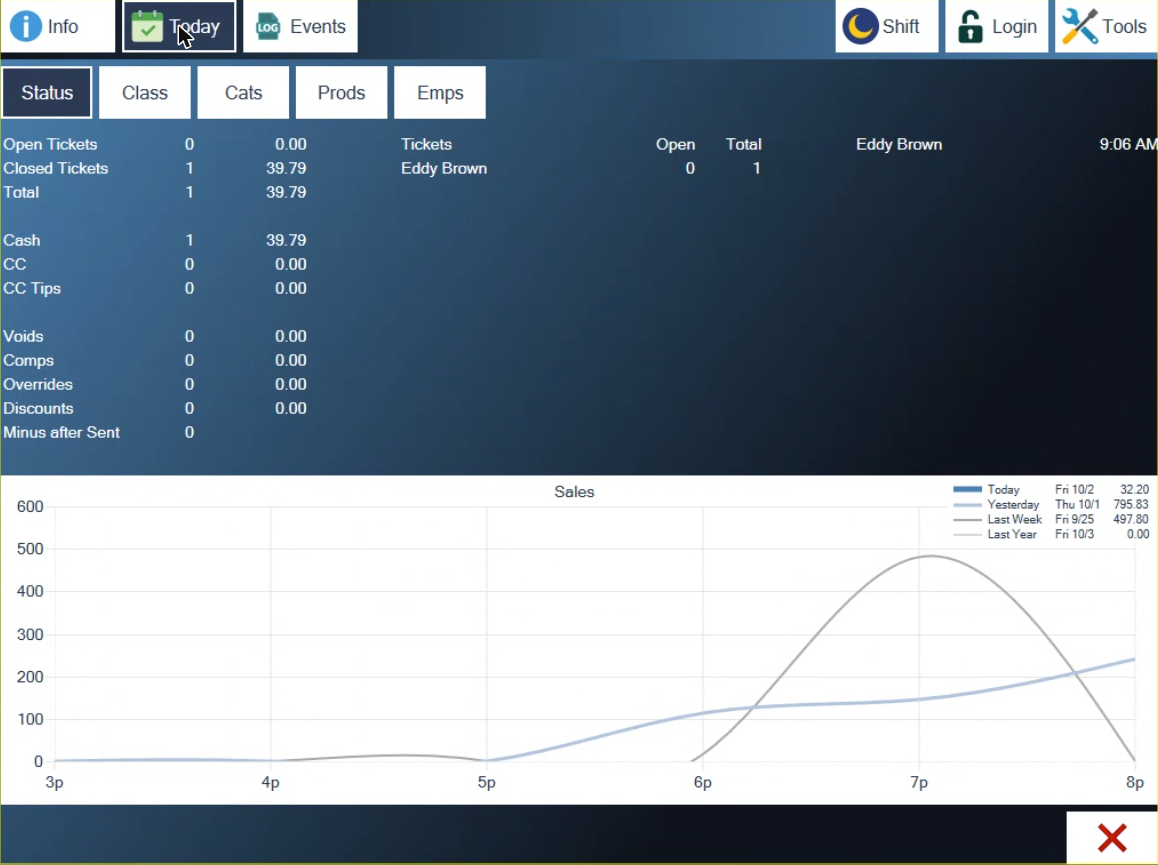
Figure 2. Today opens on Status
Read the Status view
The list on the left has three groups:
Open Tickets, Closed Tickets and Total. How many there are and what they add up to. These amounts are full ticket totals, with tax and any gratuity in them.
Cash, CC and CC Tips. What's been taken so far on closed tickets. Other kinds of payment, such as gift cards, don't have a line, so Cash and CC won't always add up to Closed Tickets.
Voids, Comps, Overrides, Discounts and Minus after Sent. How many of each there have been today.
In the middle is everyone with tickets today: how many each person still has open, and their total for the day. On the right is who's clocked in, and since when, if your location uses timecards.
The chart underneath is sales hour by hour.
See what's selling
The buttons along the top cut the same sales four ways:
Class. By accounting class, such as Alcohol and Food (Figure 3).
Cats. By menu category.
Prods. By product. Tap Quantities at the bottom to see how many were sold instead of dollars.
Emps. By employee (Figure 4).
Each line shows the figure for the day, its share of the total, and then the same figure hour by hour. Tap a line and the chart below redraws for that line alone. The chart button at the bottom left hides the chart to give the list more room.
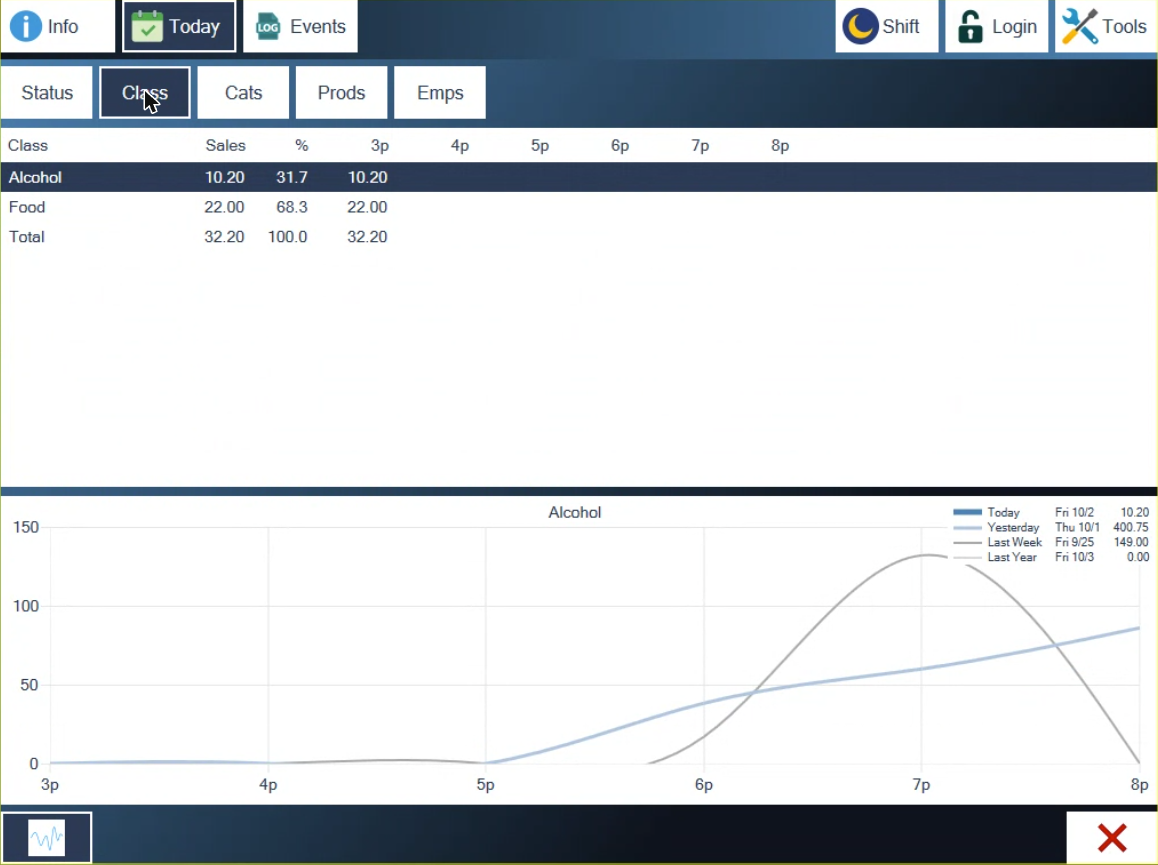
Figure 3. Sales by class. Tap a line to chart it
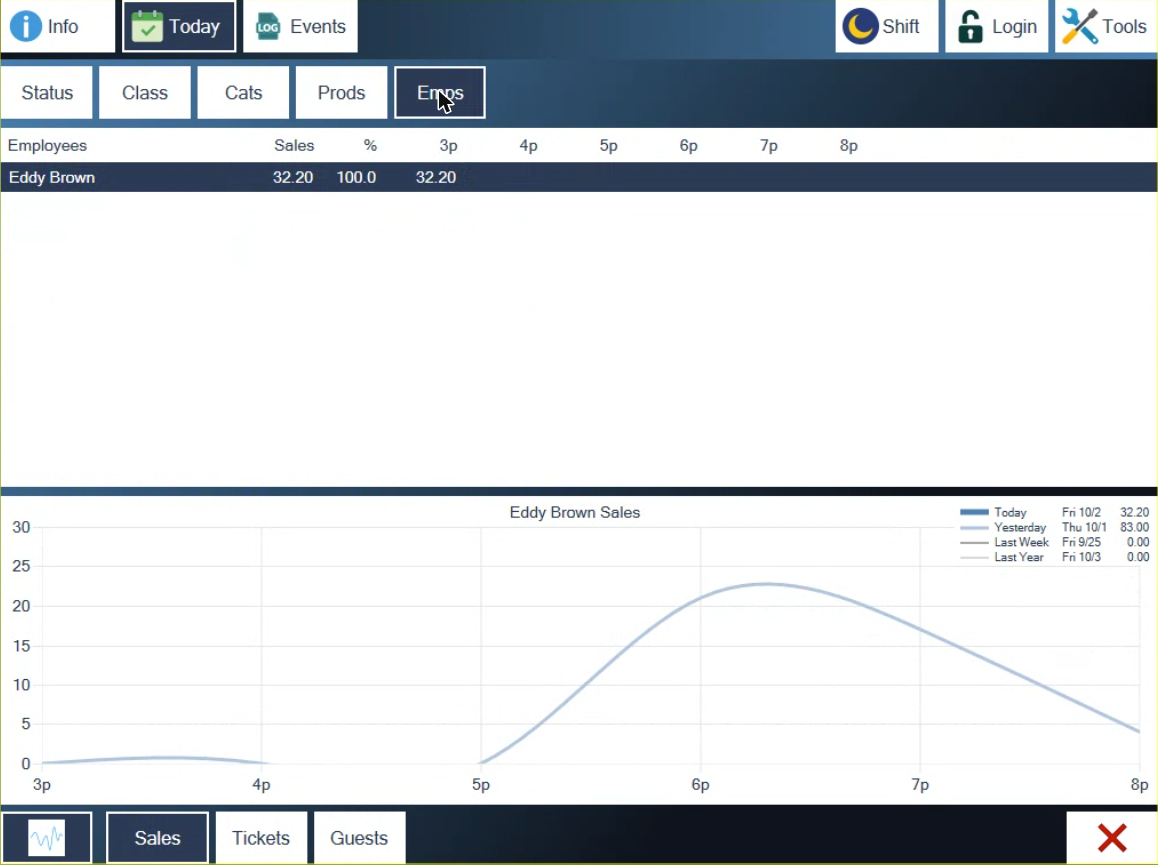
Figure 4. Sales by employee, with Sales, Tickets and Guests at the bottom
These are sales before tax and gratuity. That's why the Total here is lower than the Total on Status.
Use Status for ticket counts. On Emps, Tickets and Guests count once for every item rung in, so they run high. The middle list on Status has the real number of tickets for each person.
Compare with other days
The box at the top right of every chart lists four days: Today, Yesterday, Last Week (the same weekday a week ago) and Last Year. Each has its date and its total, and each gets a line on the chart so you can see hour by hour whether you're ahead or behind.
The totals for the other days are for the whole day. At three in the afternoon, don't put today's total next to yesterday's and decide you're down. Follow the lines as far as the current hour.
Check what's been happening
Tap Events at the top. It lists what's been done today on every station at your location: the time, the station, who did it, the ticket number and what it was (Figure 5). Items added, guest counts changed, gratuities, payments and button taps are all there. Warnings are in orange.
The list doesn't update by itself. Tap Refresh at the bottom left to load the latest and jump to the newest lines.
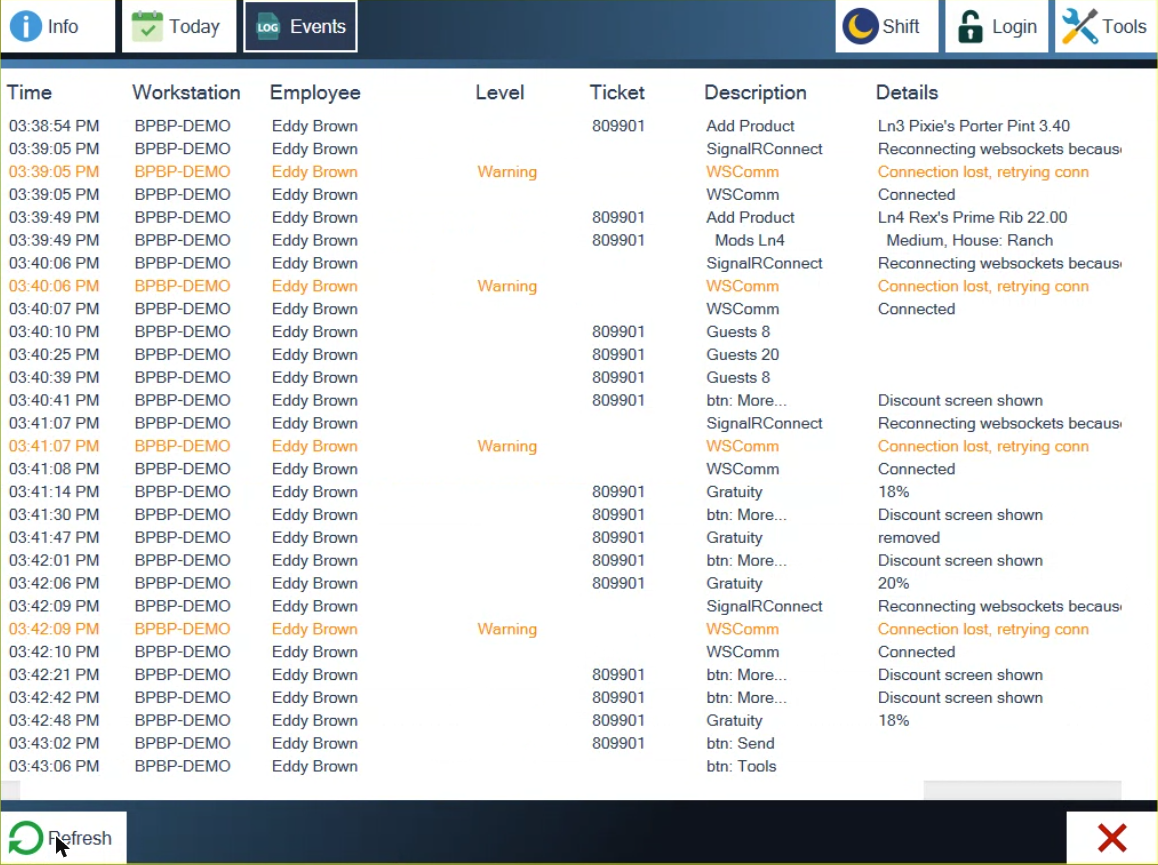
Figure 5. Events, newest at the bottom
Events isn't restricted. Anyone who's logged in can open Info and read it.
Good to know
Today means the day you have open. After a close-out it starts again from zero, even when it's still the same date.
The figures refresh about once a minute. There's no refresh button on Today.
A line only appears once it has sales today. Something that sold yesterday and not today isn't listed.
Nothing prints from these screens. For reports you can print or save, see Using Reports.
If the station goes offline, Today keeps showing the last figures it loaded and doesn't say so. See When your system says Offline.
About this guide
Applies to: the BREW POS terminal.
Last reviewed: 2 October 2026
BrewPOS How to use
Support 1-800-676-9874
Email [email protected]
© 2026 BREW POS. All rights reserved.