
Selling and redeeming gift cards at the POS
Gift cards are sold like any other item and redeemed like any other payment. This guide covers both at the POS. Issuing, adjusting and looking up cards in BREW POS Admin is covered in Managing gift cards.
Sell a gift card
1. Tap the Gift Card button. Where it lives depends on how your menu is set up; on many systems it is under More....
2. At Swipe the Gift Card, swipe the card on the card reader (Figure 1). For a card with no magnetic strip, tap Manual Entry, type the card number and tap the green check mark.
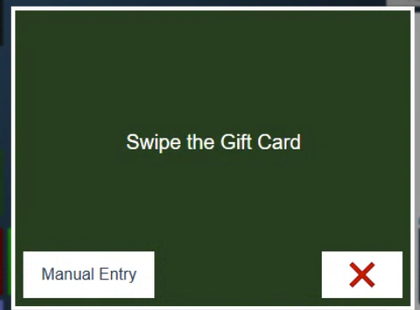
Figure 1. Swipe the card, or tap Manual Entry to type its number
3. On Sell a Gift Card, type the amount to load onto the card, and tap the green check mark (Figure 2).
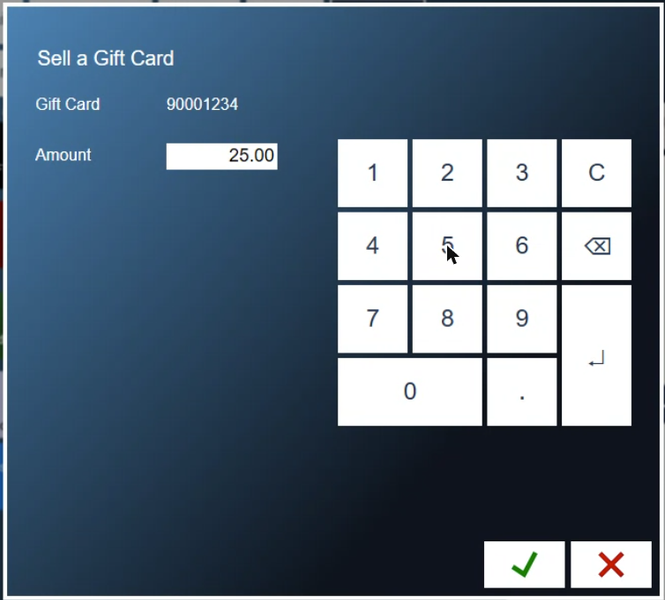
Figure 2. Loading 25.00 onto a card
4. The card goes on the ticket with its number (Figure 3). Take payment for the ticket as normal.
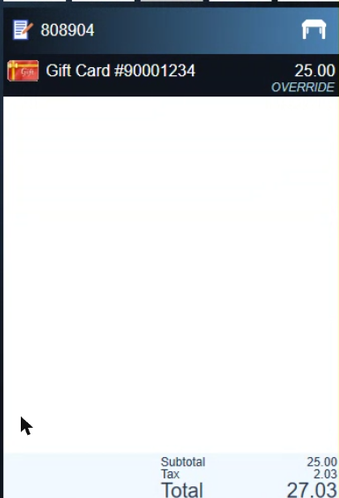
Figure 3. The gift card on the ticket
Pay with a gift card
1. Tap Pay, then Gift Card, the third of the four payment buttons.
2. Swipe the card on the card reader. If the card has no strip, or the strip is damaged, tap Manual Entry and type the number.
3. On Pay with a Gift Card, the amount starts at whatever is left to pay on the ticket (Figure 4). Change it if only part is going on the card. Remaining is the card's balance, and its recent history is listed below it.
4. Tap the green check mark.
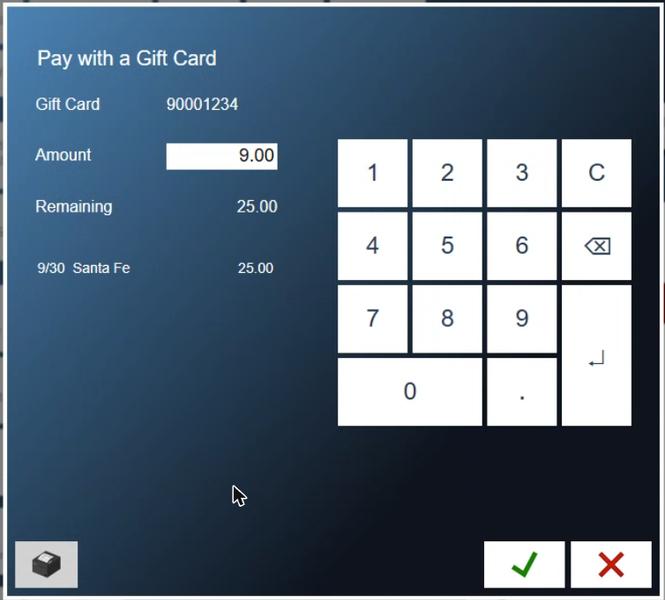
Figure 4. Paying 9.00 from a card with 25.00 on it
About this guide
BREW POS: front of house how-to guide
Applies to: the BREW POS terminal, build installed 23 September 2026. Checked on a running terminal on 30 September 2026 using Manual Entry. Swiping a card was not tried.
Last reviewed: 30 September 2026 · Owner: Eddy
BrewPOS How to use
Support 1-800-676-9874
Email [email protected]
© 2026 BREW POS. All rights reserved.