
Paying cash in and out of the till
Any time cash goes into or out of the till without a sale, record it in the POS. Paying the window cleaner, buying ice, or adding change to the drawer all count. If you don't, the till comes up over or under at the end of the shift.
Open Paid In/Out
Tap Shift at the top of the screen.
Tap Paid In/Out.
Money paid in to the till is listed on the left in green, starting with the Bank Start. Money paid out is on the right in red. Each line shows who paid it out and when (Figure 1).
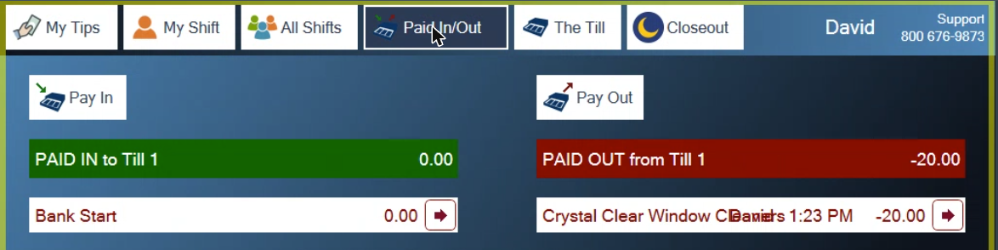
Figure 1. Paid In/Out. One 20.00 pay out to the window cleaner
You'll only see Paid In/Out on the station that has the till, and only if you've claimed the till or have closeout rights.
Pay cash out
Tap Pay Out.
Type the amount on the keypad (Figure 2). The keypad takes whole dollars unless you press the decimal point: 20 is 20.00, 4.50 is 4.50.
Say what it was for. Either tap one of the buttons below Description, or tap the Description box and type it.
Tap the green check.
The pay out is added to the list, a slip prints, and the drawer opens so you can take the cash out.
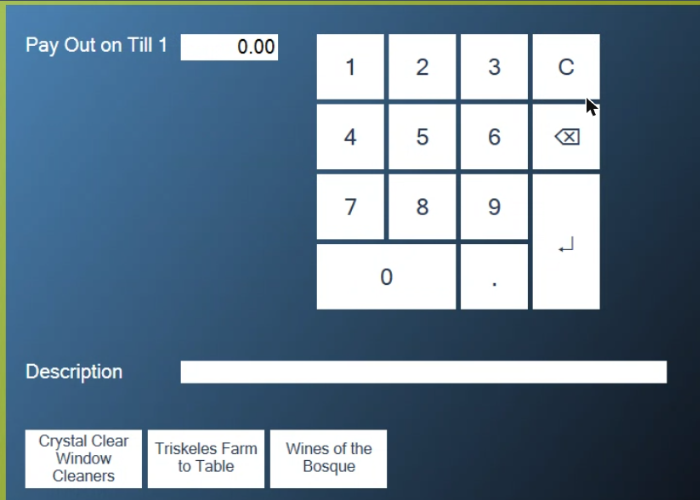
Figure 2. Pay Out. The buttons under Description are your regular payees
Regular payees. The buttons under Description, such as your window cleaner or a local farm, are set up in BREW POS Admin. Ask a manager to add the ones you pay often.
Pay cash in
Tap Pay In.
Type the amount.
Tap the green check.
Use this when cash is added to the till during the shift, such as extra change from the safe.
Fix or reprint a paid out
Tap the arrow at the end of the line (Figure 3).
Reprint prints the slip again.
Edit lets you change the amount or the description.
The box also shows the amount, who paid it out and when.
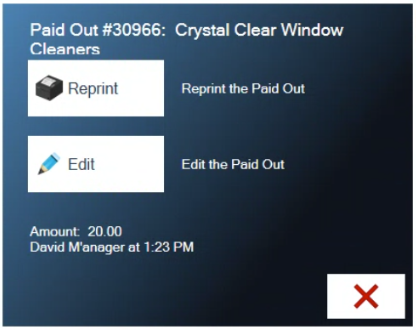
Figure 3. Each paid out can be reprinted or edited
Check the till
Tap The Till at the top (Figure 4). Pay ins and pay outs are already counted in CASH EXPECTED:
cash expected = bank start + paid in + cash sales, minus paid out and tips paid
Tap Trial at the bottom for a mid-shift report of the till. It prints, or is sent by text if there's no receipt printer. See When the till is over or under if the count doesn't match.
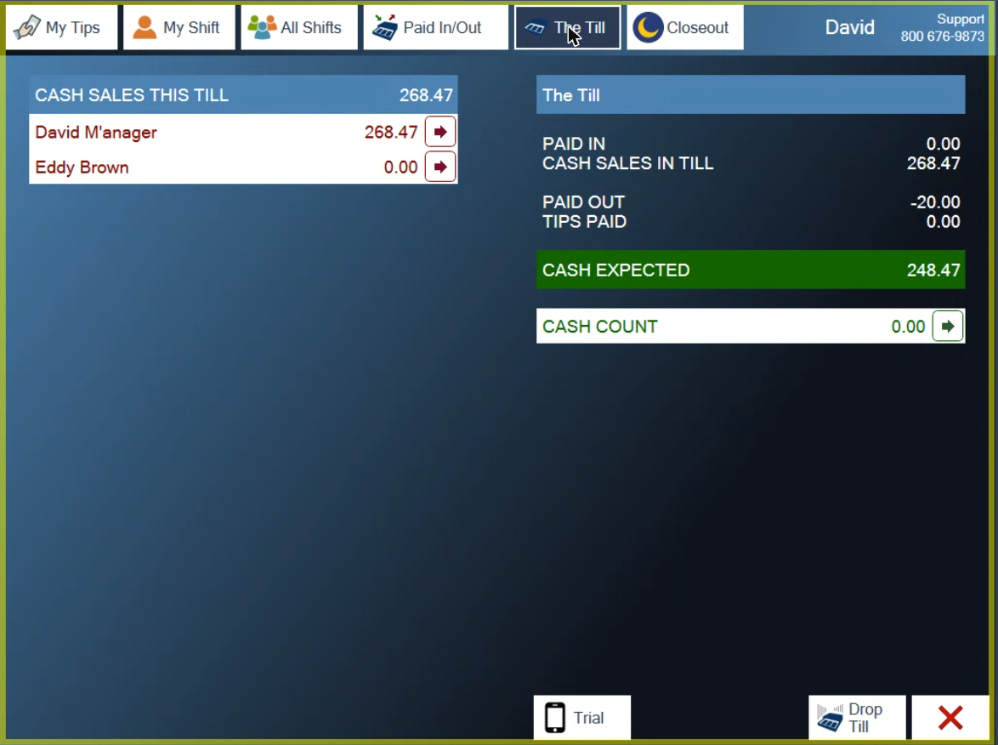
Figure 4. The 20.00 pay out is taken off what the till should hold
About this guide
Applies to: the BREW POS terminal.
Last reviewed: 1 October 2026
BrewPOS How to use
Support 1-800-676-9874
Email [email protected]
© 2026 BREW POS. All rights reserved.