
Handling web and QR orders at the POS
Online orders and order-at-the-table orders come into the POS by themselves, but staff still look after them: sending, approving, telling customers their food is ready, and shifting out the web user at the end of the day. This guide covers all of that at the POS.
Setting up online ordering in BREW POS Admin is covered in Setting up online ordering, and order at the table in Setting up order at the table with QR codes.
Two kinds of online order
Web tickets are pickup orders customers place from the link on your website. They pay the web price, discounts do not apply, and the customer chooses a pickup time. They can go to the kitchen by themselves or wait for someone to approve them.
QR tickets are placed by customers sitting in the building, by scanning the QR code on their table. They pay the normal location price, discounts such as happy hour do apply, and they go straight to the kitchen or bar.
The Web Controller station
One station is the Web Controller. It brings web and QR tickets into your system, checking for new ones once a minute.
To make a different station the Web Controller:
1. Tap Tools, top right.
2. Tap Settings on the left, then Configure at the top, then Workstation.
3. Tap Web Controller (Figure 1). Changing it needs manager or Settings permission.

Figure 1. The Web Controller button, far right
The Web screen
On the Web Controller station, tap Tools, then Web (Figure 2). Which tabs you see depends on your location's website settings.
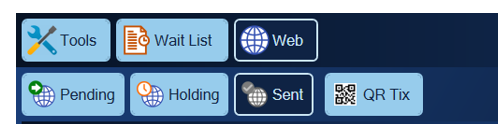
Figure 2. The Web screen's tabs
Once a web ticket is released, the Web Controller sends it to the kitchen. Web tickets go straight into History and never show on the order screen.
• Pending holds orders waiting for approval. It only appears if your location requires approval. See Approve web orders.
• Holding holds orders that are not due in the kitchen yet because of their pickup time. Tickets turn green 10 minutes before they are sent. From here you can Void an order (which voids its payment and removes it), change its Pick Up Time, or add Notes.
• Sent lists every finished web ticket. Tap Go to Ticket to open one in History, which is handy when someone asks how an order was handled.
• QR Tix lists QR tickets. See QR orders.
To switch the ordering website on or off from the POS, tap Turn it ON/OFF on this screen.
Approve web orders
If your location requires approval, web tickets wait on Pending until a person approves them. They show in green.
• Approve releases the ticket so the controller sends it.
• Void voids the payment and removes the ticket.
• Pick Up Time changes the pickup time.
• Notes adds or edits a note on the ticket.
Tickets turn red 10 minutes before they are due to be sent. While any order is waiting, a flashing banner on the Web Controller's order screen says so (Figure 3). It turns red when an order is due in the next 10 minutes.
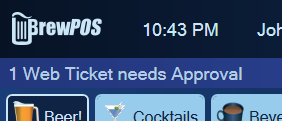
Figure 3. The banner that tells staff a web order is waiting
QR orders
The Web Controller sends every QR ticket to the kitchen straight away. Unlike web tickets, QR tickets stay on the order screen even once paid, so a server can add to them and claim them.
On the QR Tix tab (QR Tickets on some versions) (Figure 4):
• Open QR Tickets, on the left, are paid tickets still open on the order screen. Transfer gives one to a server, and Ticket shows it in a pop-up.
• Closed QR Tickets, on the right, are in History. Go to Ticket opens one.
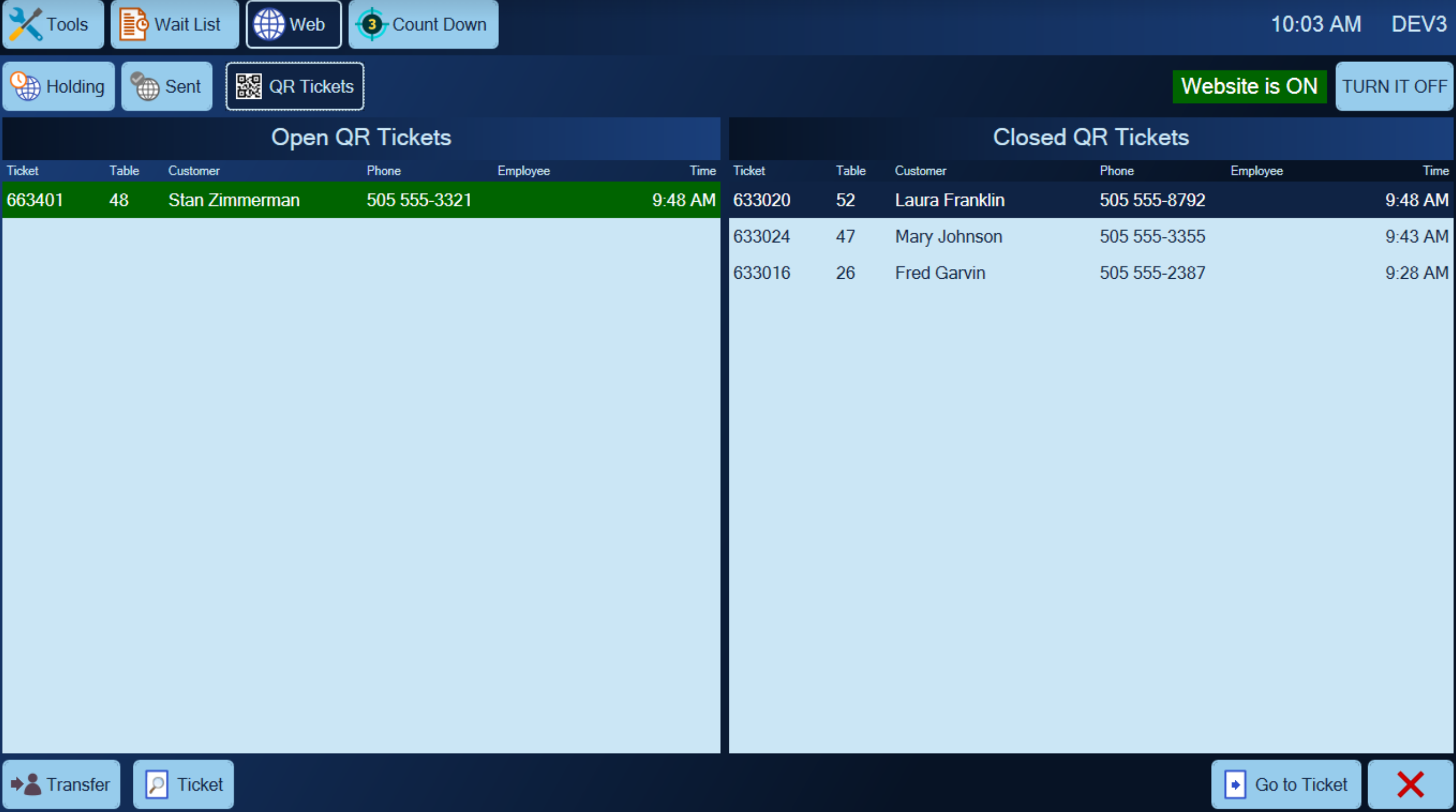
Figure 4. Open QR tickets on the left, closed ones on the right
QR tickets have to be closed by hand, unless your location closes them automatically. To close one, tap Go to Ticket, tap the payment button, then the green check mark.
On the order screen, open QR tickets that nobody has claimed get their own QR Tix tab (Figure 5).
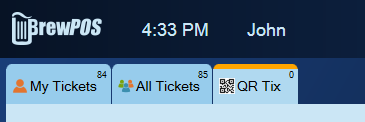
Figure 5. The QR Tix tab beside My Tickets and All Tickets
If your location asks servers to claim QR tickets, unclaimed ones flash light blue on the tables screen, and a server who opens one is asked whether to claim it or just look at it. Claiming it transfers it to that server.
Tell customers their order is ready
If your location has this switched on, a QR Notify tab lets you text customers when their order is ready (Figure 6).
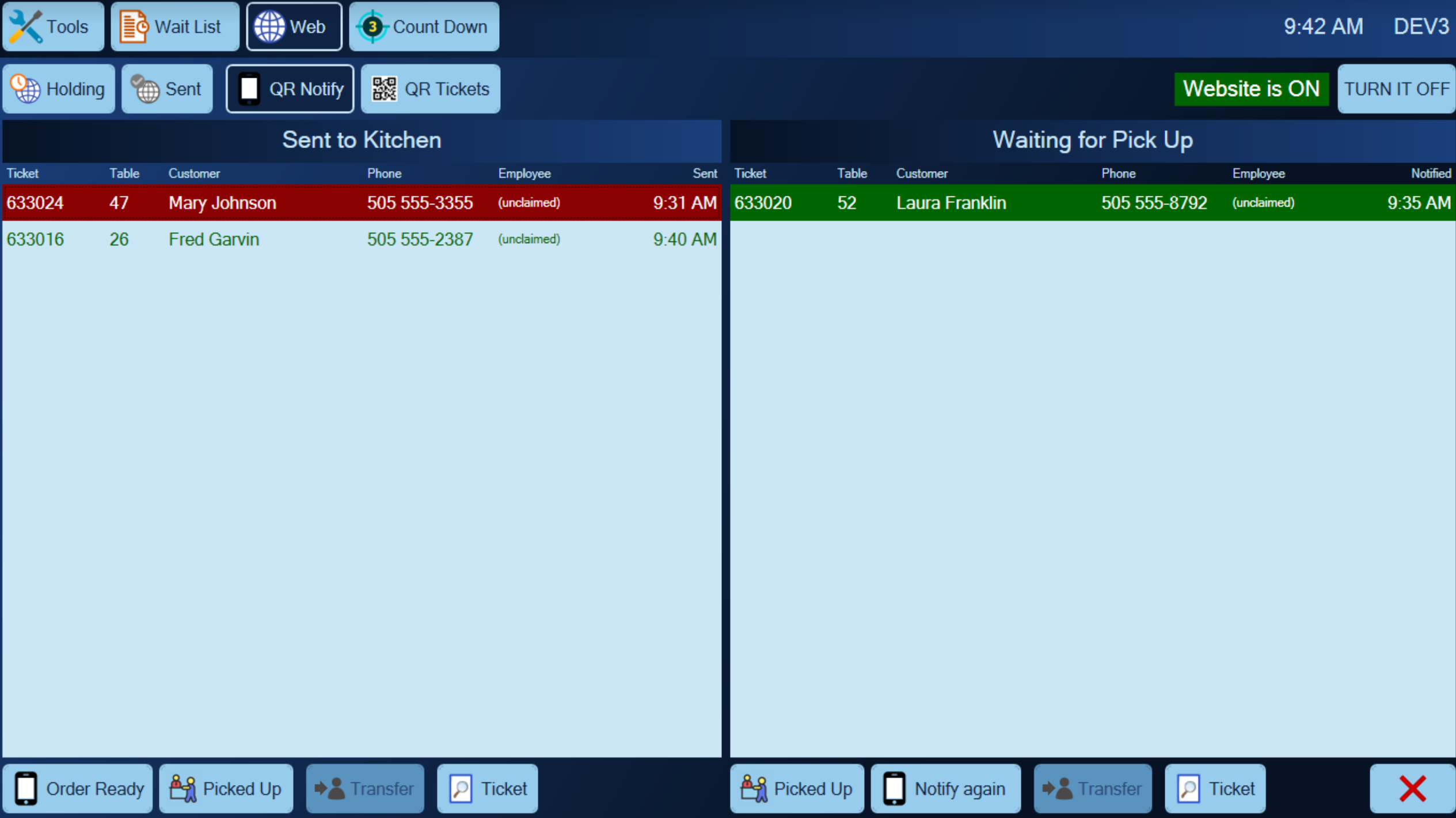
Figure 6. Orders in the kitchen on the left, customers told to collect on the right
Sent to Kitchen, on the left, lists orders whose customers have not been told yet. They turn red after 10 minutes in the kitchen.
• Order Ready texts the customer and moves them to the right.
• Picked Up takes the ticket off this screen.
• Transfer gives the ticket to a server.
• Ticket shows it in a pop-up.
Waiting for Pick Up, on the right, lists customers who have had the text. They turn red 10 minutes after being told.
• Picked Up takes the ticket off this screen.
• Notify again sends another text.
Web and QR orders in History
History has its own QR Tix and Web Tix tabs (Figure 7).

Figure 7. The Web Tix and QR Tix tabs in History
Shift out the web user
Web and QR tickets belong to a special web user, employee number 999, and that user needs a shift report at the end of the day like anyone else. Any station can run it. It cannot be run while there are open QR tickets or web tickets still pending or holding.
1. Tap Shift.
2. Tap All Shifts.
3. Tap Web needs a Shift Report in the open shifts on the left (Figure 8).
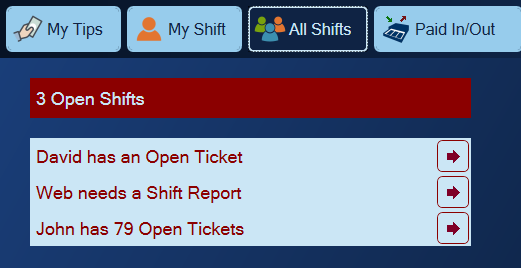
Figure 8. The web user's shift, waiting for its report
Tickets transferred to other staff, and QR tickets claimed by servers, go on those people's shifts instead.
About this guide
BREW POS: front of house how-to guide
Applies to: the BREW POS terminal, build installed 23 September 2026. The Web Controller setting and the QR Tix tab on the tickets screen were checked on a running terminal on 30 September 2026. The rest comes from the BrewPOS quick reference BrewPOS Online Ordering (June 2023) and was not re-checked, since the demo station is not the Web Controller.
Last reviewed: 30 September 2026 · Owner: Eddy
BrewPOS How to use
Support 1-800-676-9874
Email [email protected]
© 2026 BREW POS. All rights reserved.