
Managing time cards and payroll
Every time a member of staff clocks in or out at the POS, the timecard lands on the Timecards screen in BREW POS Admin. This guide covers the pay-period routine from start to finish: reading the list, fixing timecards where somebody forgot to clock out, adding a timecard that was never clocked, checking hours and overtime, and closing the period with Do Payroll. It also covers job codes, which carry your pay rates, including putting yourself on the clock at a rate of zero.
Adding staff and deciding what they can do is in the Managing employees guide. This one picks up once your people are set up.
Contents
Before you start
This guide is for owners and managers who run payroll. It assumes you already use BREW POS Admin day to day.
You need Timecards access. If Timecards is missing from the menu on the left, either your own record does not have it, in which case whoever manages staff can tick Timecards under Admin Permissions, or time cards are not switched on for your business. For the second, call BrewPOS Support on 1-800-676-9874.
Find your payweek before you start. The payweek is the seven days overtime is counted over. It is set by BrewPOS Support, not on this screen, and it is printed at the bottom left of the Hours And Wages tab: Payweek is Sun-Sat. Each person's block on that tab is also headed with the week it covers, for example Payweek Sun 9/13 - Sat 9/19.
How time cards work
Staff clock in and out at the POS against a job code, such as Bartender or Cook 1. Each pair of punches is one timecard, and it appears on the Timecards tab straight away.
The job code carries the pay rate. Rates belong to job codes, not to people: everyone clocked in as Bartender is paid the Bartender rate. One person can hold several job codes and be paid a different rate on each.
Overtime is counted per payweek. Hours past 40 in one payweek are paid at one and a half times the job code's rate, worked out per person across all the job codes they worked.
Timecards stay open, and editable, until you run payroll. Do Payroll moves open timecards into a closed batch, where they are no longer editable. Timecards in the current payweek cannot be closed. Closed batches are shown on the Closed Batches tab. The last batch can be reopened in case you need to make changes.
The Do Payroll button is disabled if there are timecards that did not clock out. Timecards that were not clocked out are shown in pink.
Step 1. Open Timecards and read the colours
In the menu on the left, click Timecards. The Timecards tab opens, listing every open timecard, grouped by member of staff (Figure 1).
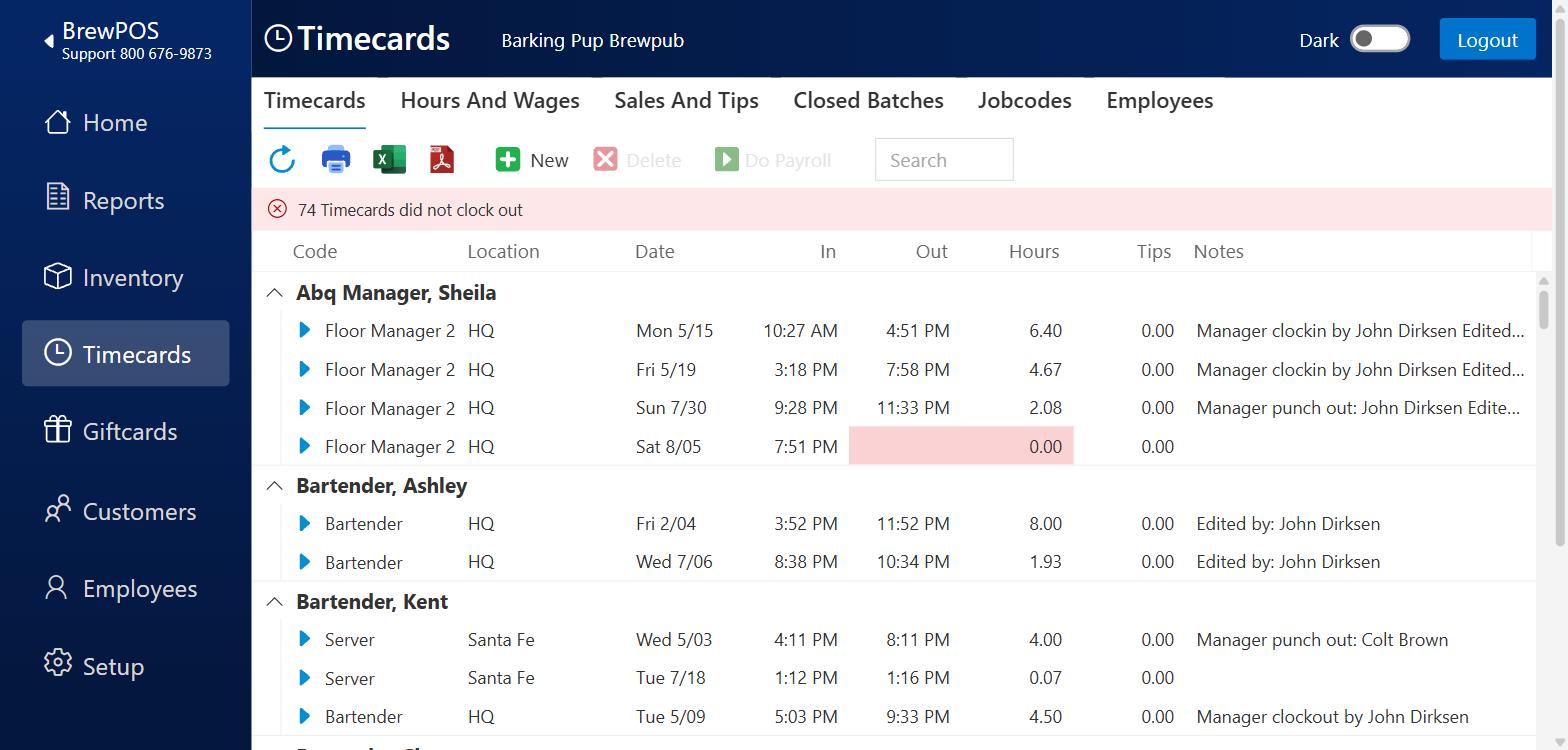
Figure 1. The Timecards tab. The red bar counts the timecards nobody clocked out of, pink marks each one, and Do Payroll is greyed out until they are fixed
Each row is one timecard: Code (the job code), Location, Date, In, Out, Hours, Tips, Status and Notes. Status flags a timecard that needs attention, for example No Clockout, and the filter icon in its heading narrows the list to those timecards.
The strip along the bottom of the screen is a colour key (Figure 2). It tells you what the colours mean and nothing else.

Figure 2. The colour key along the bottom of the Timecards tab
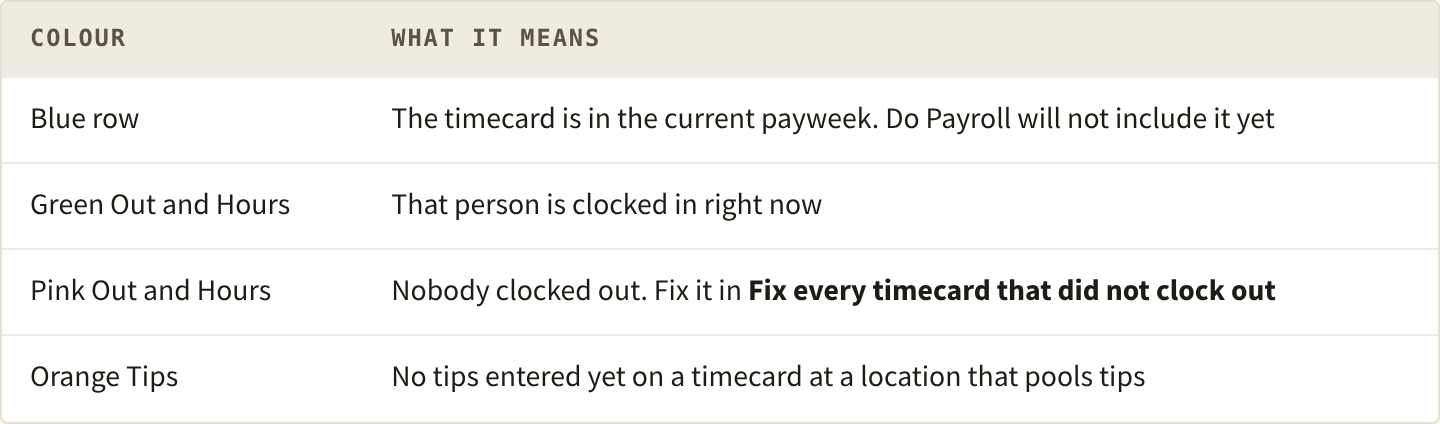
The red bar above the list counts the pink timecards, for example 74 Timecards did not clock out. Take that count seriously when you plan your time: each one is a separate edit.
Notes are written by the POS, recording who intervened on a timecard: Manager clockin by ..., Edited by: ..., Manager punch out: .... You can add your own note when you edit a timecard.
To find one person quickly, type part of their name in Search.
Step 2. Fix every timecard that did not clock out
Scroll the list for pink cells and work through them one at a time. Ask the person, or use your schedule, for the time they actually left. Use the filter on the Status column to show only the timecards that did not clock out.
On the pink row, click the blue arrow at the left. The timecard opens, headed Timecard with the person's name and location (Figure 3). Out is empty and Hours reads 0.
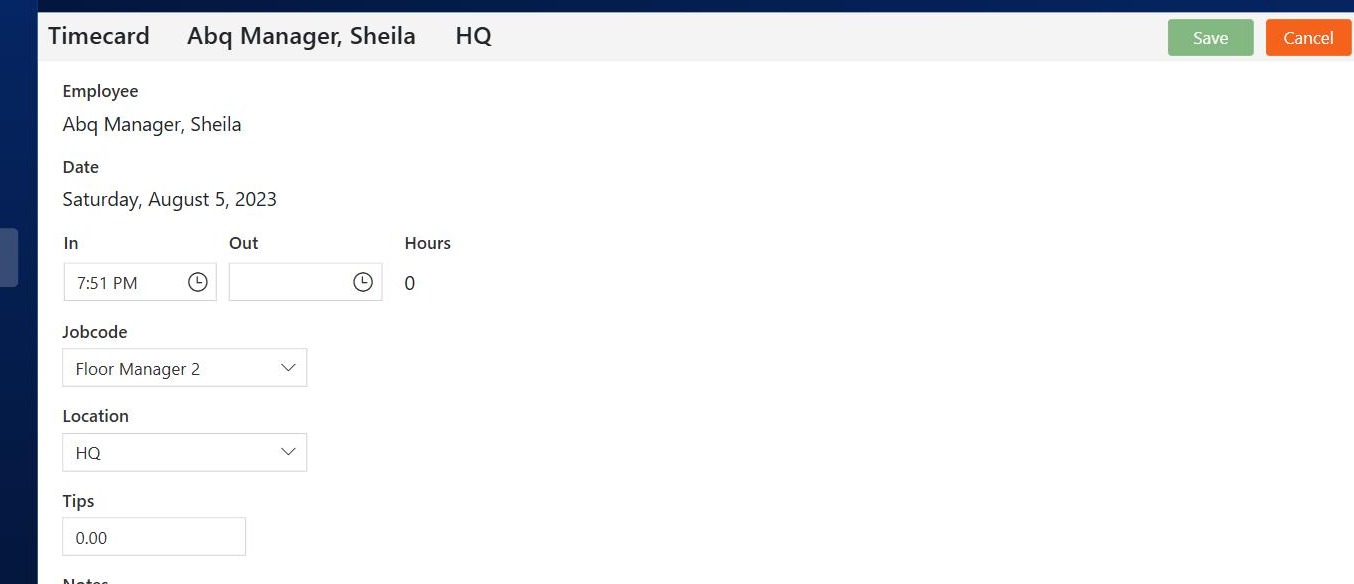
Figure 3. A timecard nobody clocked out of: Out is empty, Hours is 0, and Save is pale
Click in the Out box and type the time they left, for example 11:51 PM.
Press Tab. Hours fills in and Save turns from pale to solid green (Figure 4).
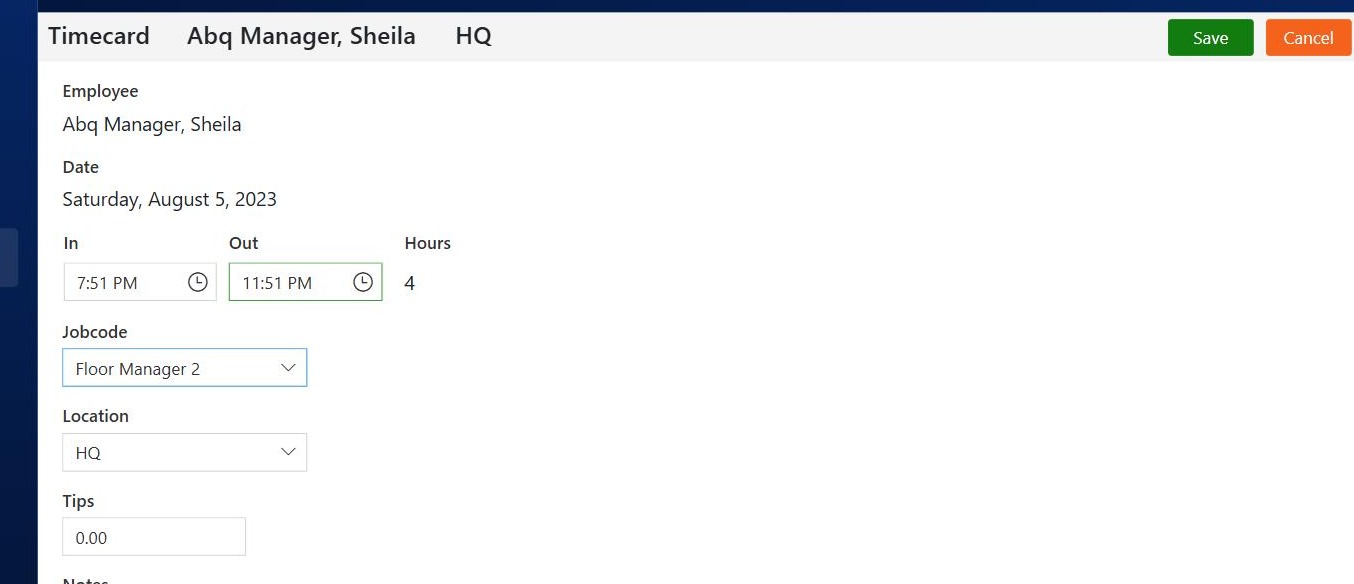
Figure 4. The same timecard with the Out time typed in. Hours reads 4 and Save has turned solid green
Click Save. You are back on the list, the row shows the Out time and hours, and the count in the red bar drops by one.
Timecards that run past midnight are fine. Type the Out time as it was, for example 1:15 AM. A timecard from 8:39 PM to 12:39 AM saves as 4 hours.
Watch out: a timecard that starts after midnight
A timecard that starts between midnight and 5:00 AM and also ends before 5:00 AM is stored as ending the next night. The editor shows the right number of hours, and the list then shows something like 27.00 against a three-hour timecard. Check the Hours figure on the list after you save one of these. If it is wrong, open the timecard and set the Out time to 5:00 AM or later, or delete the timecard and add it again.
The other boxes on an open timecard can be corrected the same way: In, Jobcode, Location, Tips and Notes. The date of an existing timecard cannot be changed.
A timecard of 16 hours or more cannot be saved at all: Invalid hours appears in red and Save stays pale (Figure 5). Split a genuine double shift into two timecards.
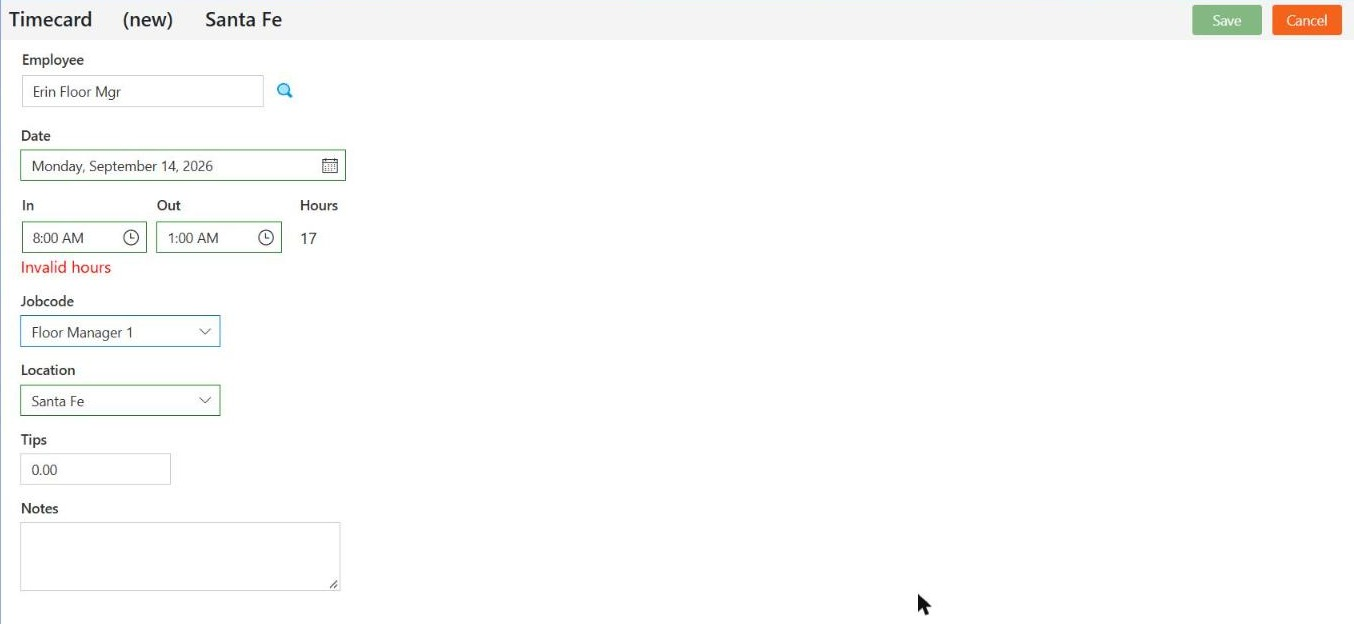
Figure 5. Over 16 hours: Invalid hours in red, and Save stays pale
Every change is recorded. Open a timecard you have corrected and an Audit Trail appears under Notes, with the date, who did it and what changed, for example Clock Out from 09/20/26 11:00 AM to 09/20/26 12:30 PM (Figure 6).
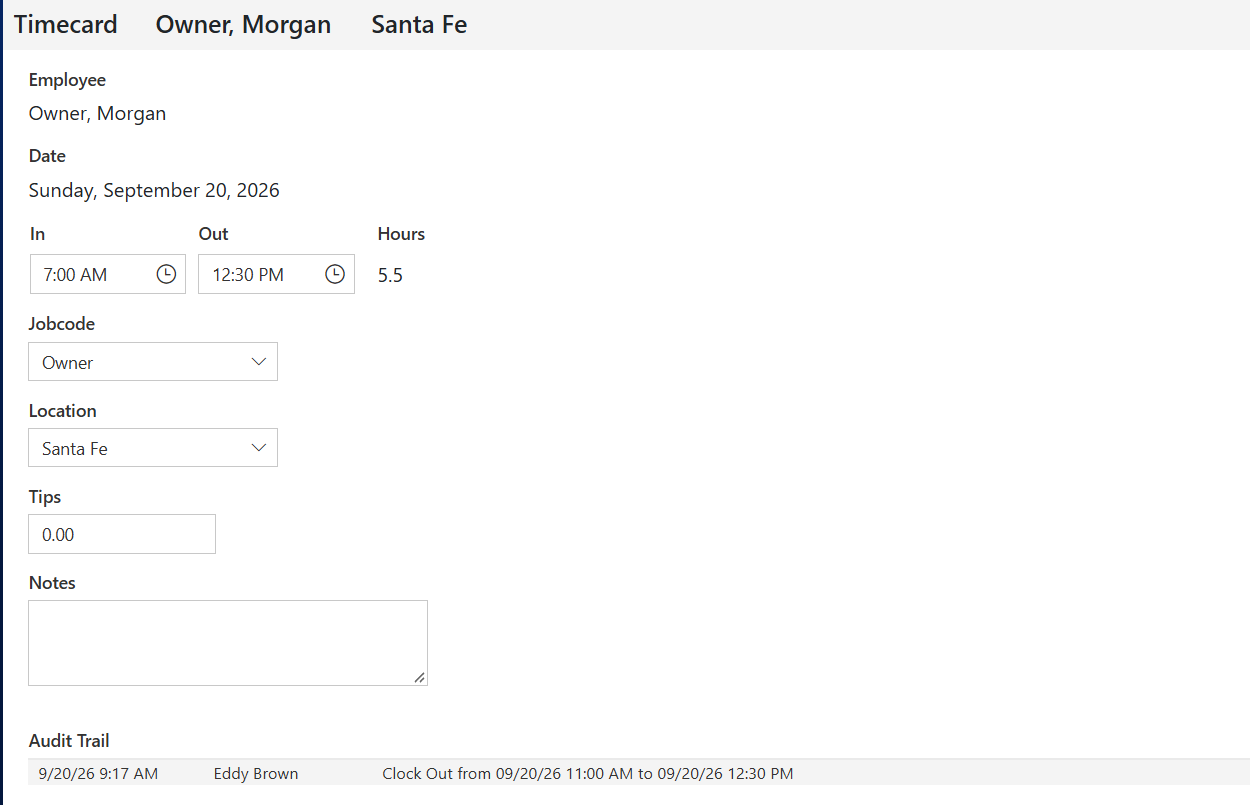
Figure 6. The Audit Trail at the foot of a corrected timecard
Deleting a timecard cannot be undone. If a pink timecard should not be there at all, because somebody clocked in by mistake, click the row once to select it, click Delete in the toolbar, then Ok (Figure 7).
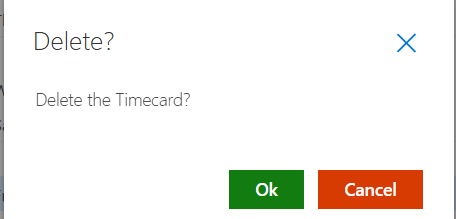
Figure 7. Deleting a timecard
Step 3. Add a timecard that was never clocked
If somebody worked and never clocked in, put the timecard in by hand.
On the Timecards tab, click New. A blank timecard opens, headed Timecard (new), with the date set to yesterday (Figure 8).
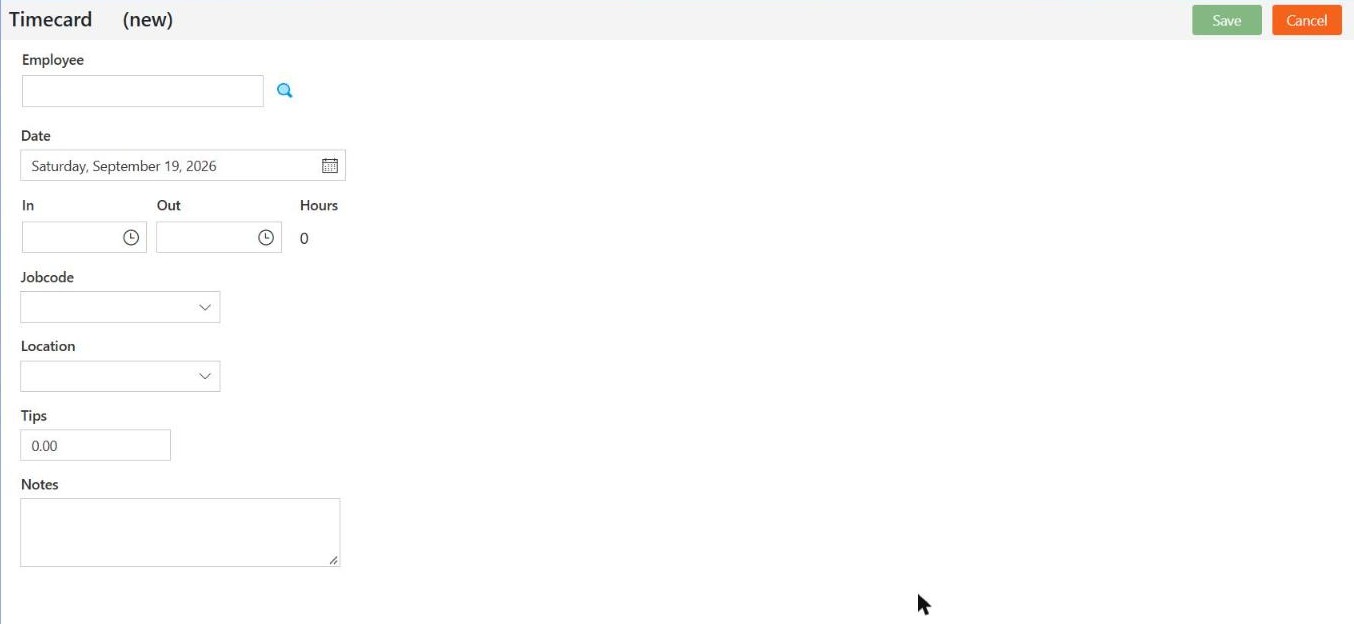
Figure 8. A new, blank timecard
Click the magnifying glass beside Employee. Select Employee opens.
Type part of the name in Search, click their row, then click OK (Figure 9).

Figure 9. Select Employee, searched down to one person
Watch out: type the date in full
A short date such as 9/14/2026 turns the box into Monday, January 1, 0001. Save then behaves normally, you are returned to the list, and the timecard is never created. Type the date the way the box already shows it.
Click in Date and type the date the way the box already shows it, for example Monday, September 14, 2026, then press Tab.
Type the In time and press Tab.
Click in Out, type the time the timecard ended, and press Tab. Hours fills in.
Check Jobcode. It lists only the job codes that person holds, so somebody who serves and runs the floor has two to choose from (Figure 10). The one you pick decides the rate.
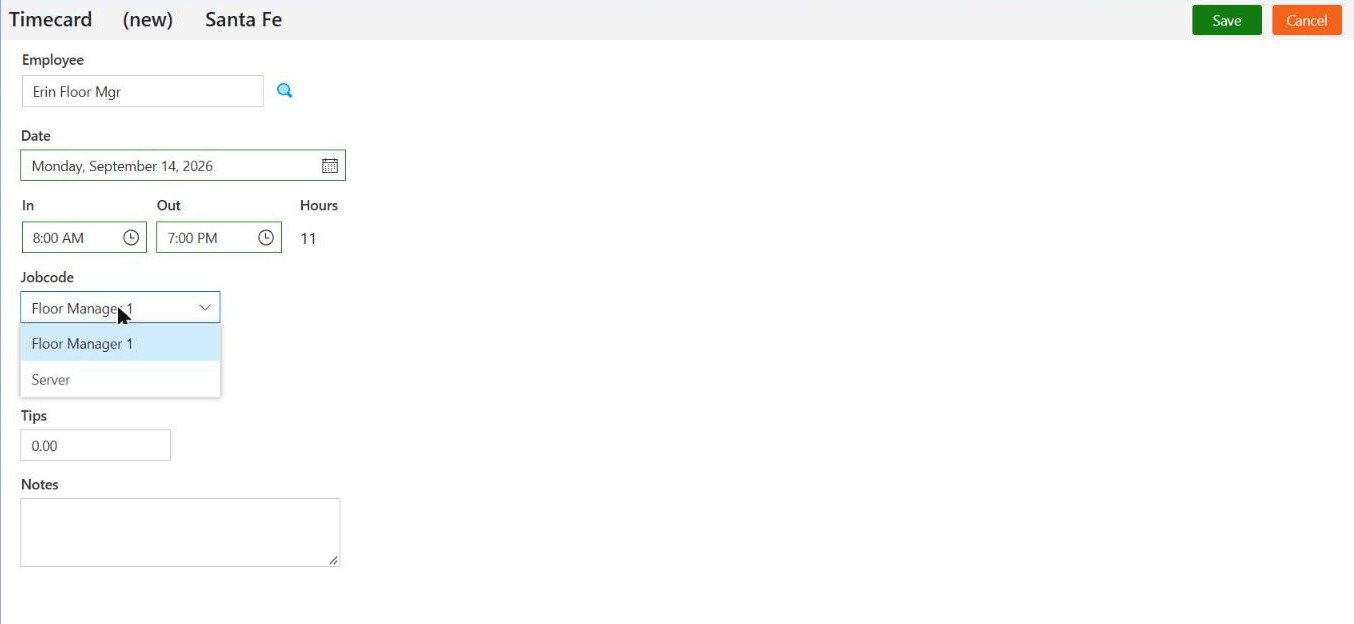
Figure 10. The Jobcode list holds only the codes this person can clock in as
Optional: Location. If you run more than one location, check Location shows the one the timecard was worked at.
Optional: Tips and Notes. If you record tips on time cards, type the amount in Tips. In Notes, say why the timecard was added by hand.
Click Save (Figure 11).
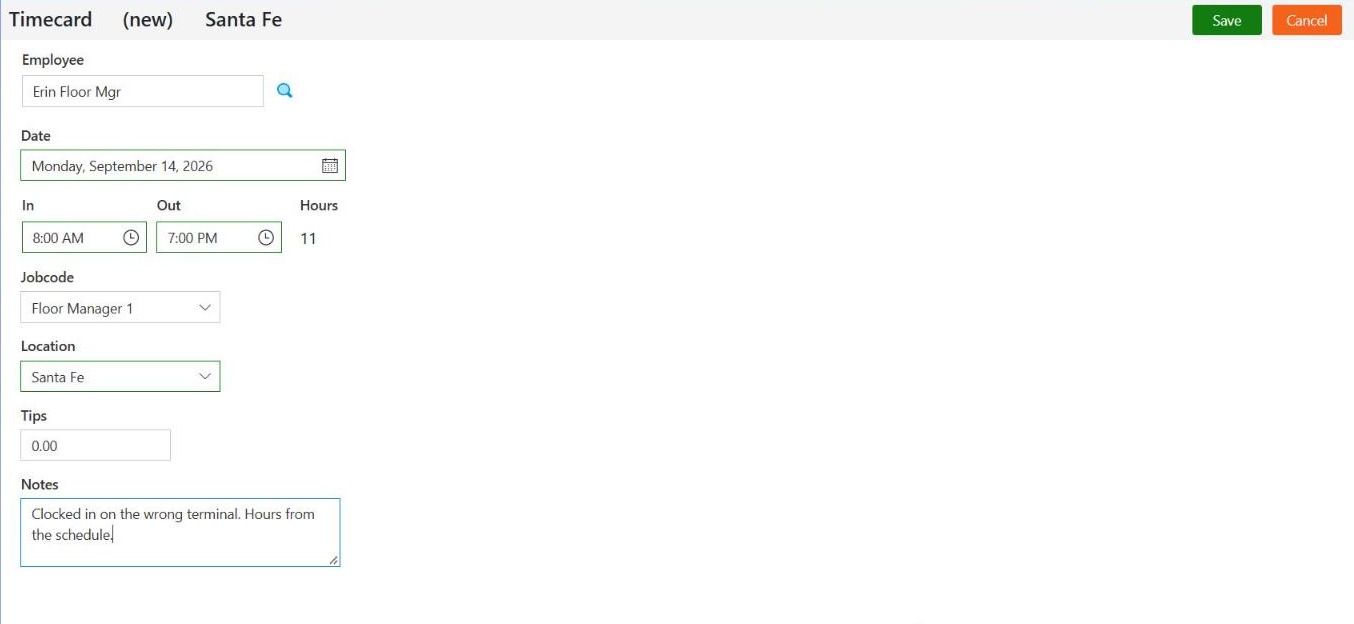
Figure 11. A finished timecard, with a note saying why it was added by hand, ready to save
Somebody missing from Select Employee, or a job code missing from the list? Only staff who hold at least one job code can have a timecard. Tick their job codes on their employee record first: see the Employees tab.
Step 4. Check tips
Look down the Tips column on the Timecards tab for timecards that should carry tips and do not.
Open any timecard that needs changing with the blue arrow, type the amount in Tips, and click Save.
If a location pools tips, an orange Tips cell marks a timecard with nothing entered yet. Put each person's share in before you run payroll.
Changing tips here does not change the Shift Report at the POS. It changes the time card and what Sales And Tips shows.
Step 5. Check the hours in Hours And Wages
Click the Hours And Wages tab.
Set the first date box to the first day of the pay period and the second to the last day.
Click the round Refresh arrow at the left of the toolbar. Changing the dates on their own does nothing, so the tab stays empty until you press it. This catches everybody once.
The report lists each person, then each payweek inside your range, then their timecards, with a Totals for Week line after each week (Figure 12). The payweek is printed at the bottom left.
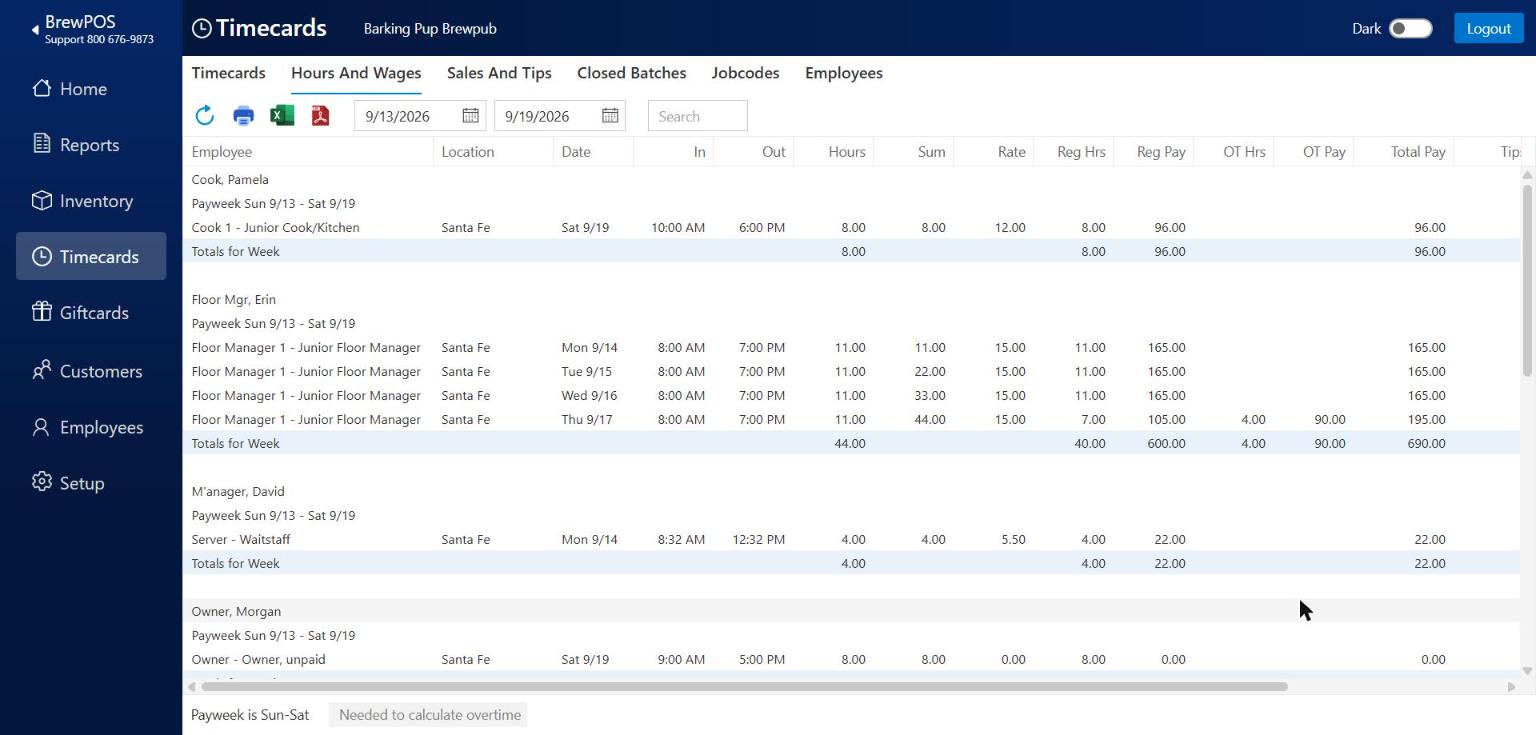
Figure 12. Hours And Wages for one week. The manager's fourth 11-hour timecard tips her into 4 hours of overtime
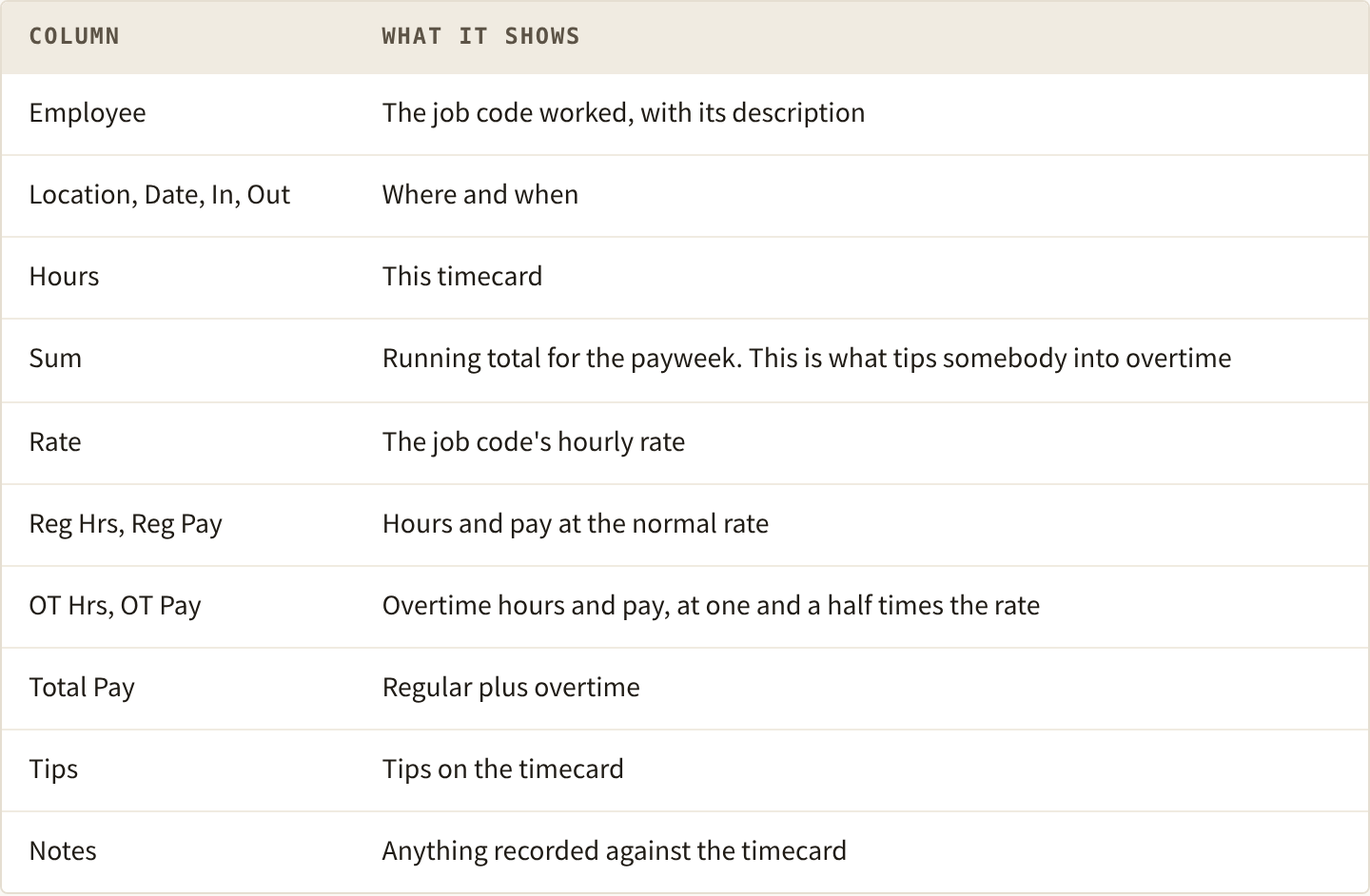
At the foot are an Employee Summary, one line per person, and a Job Code Summary, one line per job code, for the whole range (Figure 13). Those two are what a bookkeeper usually wants.
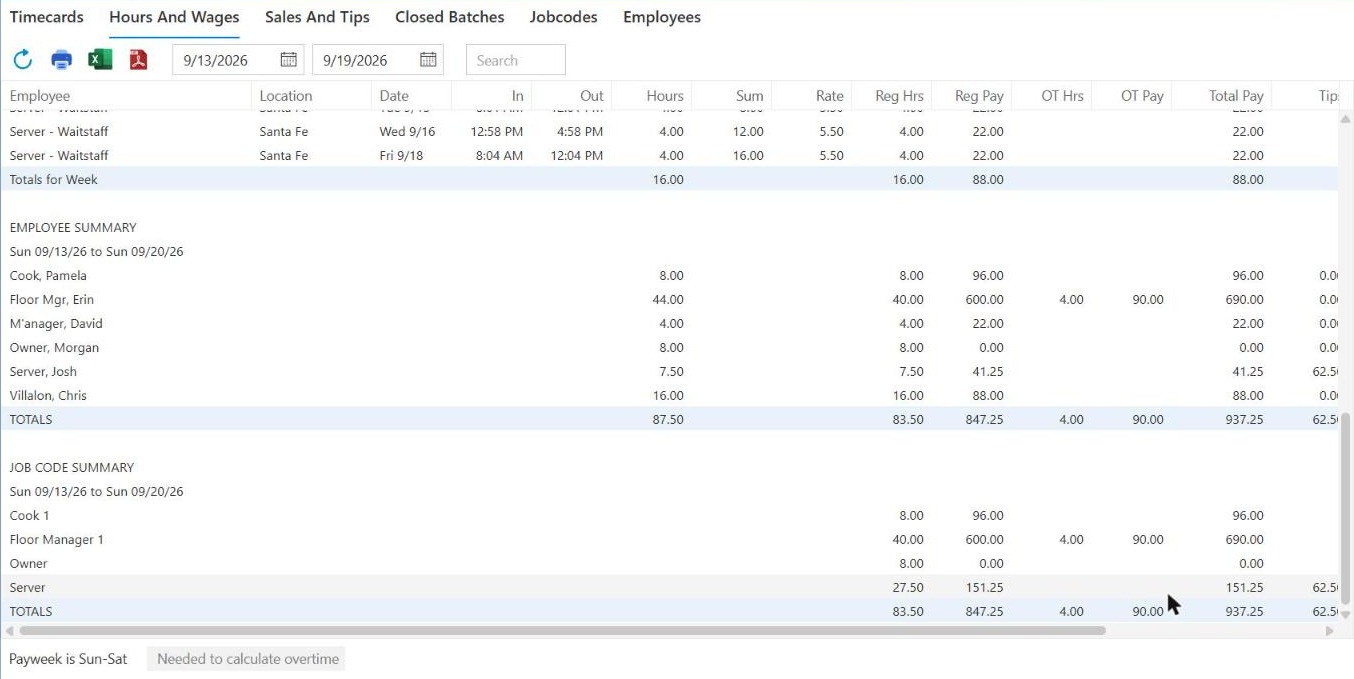
Figure 13. The Employee Summary and Job Code Summary at the foot of the report. The summary headings print the day after the date you asked for
Run it on whole payweeks. Overtime is counted per payweek, so a range starting mid-week pulls in the earlier days of that week to count it properly. Those rows show in grey and are not added into your totals.
Pink timecards count for nothing here. A timecard with no clock-out carries no hours, so it adds nothing to anybody's pay. One more reason to fix every timecard that did not clock out first.
Read the list for anything that looks wrong: a 14-hour timecard, overtime nobody expected, somebody on the wrong job code. Fix it on the Timecards tab and press Refresh again.
Print, Excel and PDF are on the toolbar. The file is named for the tab and the dates.
Step 6. Run Do Payroll
Do Payroll draws a line under a period. The timecards inside it are done and go forward for payment.
Before you press it: the red bar is gone, or every timecard it still counts is inside the current payweek, tips are in, and Hours And Wages looks right.
The list should look like Figure 14: no red bar, and Do Payroll in solid green.
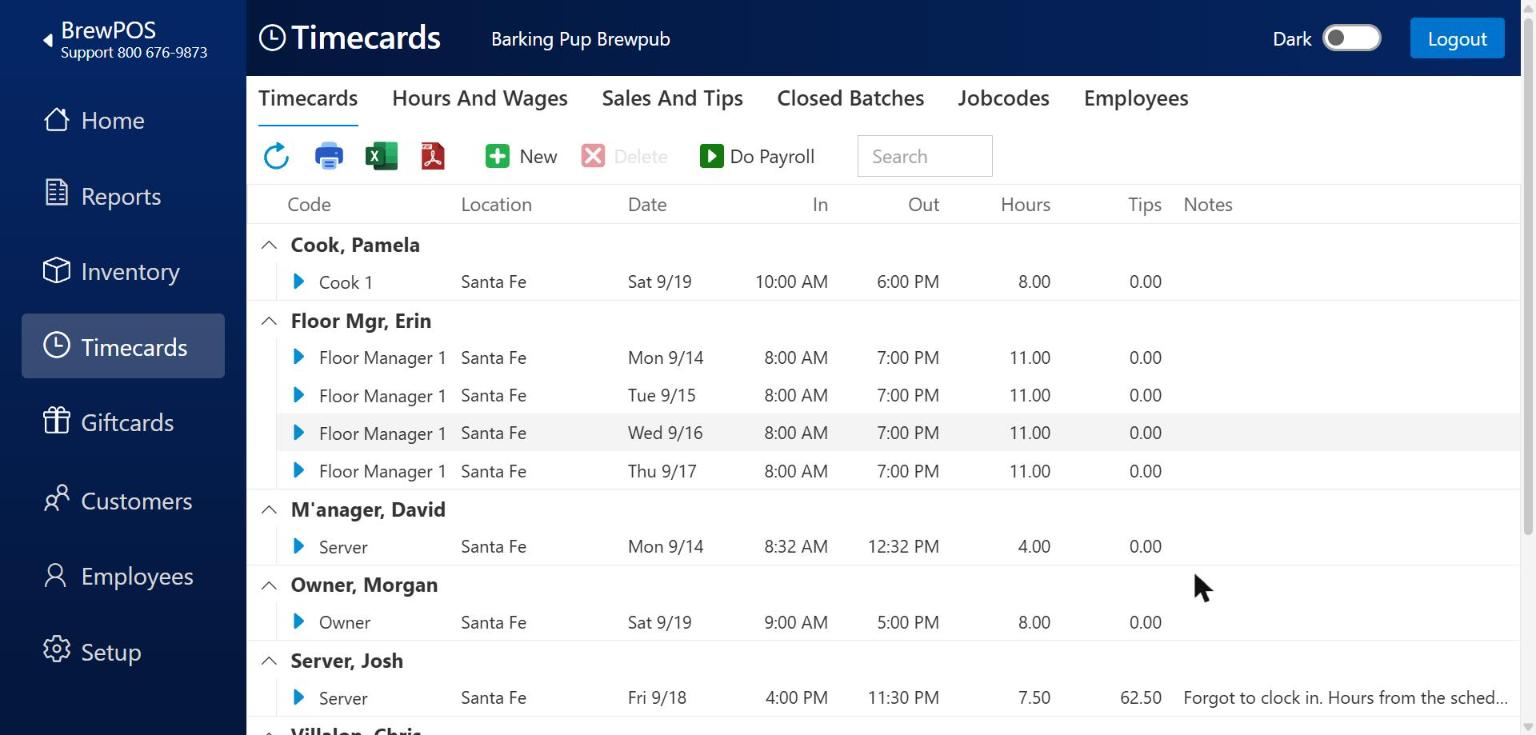
Figure 14. Every timecard clocked out, and Do Payroll now active
Watch out: closed timecards cannot be edited
Once a batch is closed, its timecards are locked and stop appearing on the Timecards tab. A mistake found afterwards means reopening the batch, so finish the checks above first.
On the Timecards tab, click Do Payroll. Close Batch opens with two dates (Figure 15).
From is fixed. It is the day after your last batch ended, so no day is ever missed. The first time you ever run payroll it is the date of your oldest open timecard.
To is the last day to include. It starts on the date of your most recent timecard outside the current payweek.
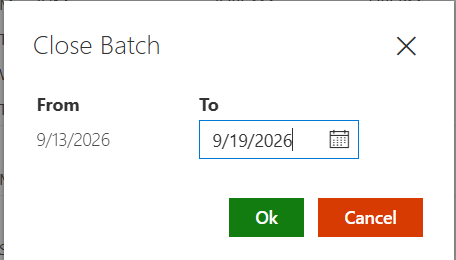
Figure 15. Close Batch. From is fixed at the day after the last batch; To is the last day being paid
Click in To, type the last day of the period you are paying, and press Tab.
Click Ok. Closed appears with The Batch was closed. (Figure 16).
Click Close.
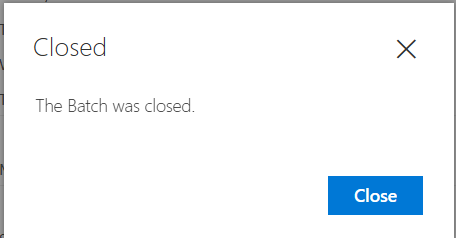
Figure 16. The batch is closed
Every open timecard that started between those two dates moves into the new batch and leaves the Timecards tab. Anything later stays open for next time.
The first run is usually a catch-up. If payroll has never been run, From goes back to the oldest open timecard. Close that history off as one batch first, with To set to the day before the period you actually want to pay. Then run Do Payroll again: From now sits neatly on the first day of your period.
You can close a batch for any run of dates that matches how you pay: weekly, fortnightly, or the 1st to the 15th and the 16th to the month end. You cannot include the current payweek.
Step 7. Check Closed Batches
Click the Closed Batches tab. One row per batch: the Batch number, when it was Closed, who closed it under Employee, and the From and To dates it covered (Figure 17).
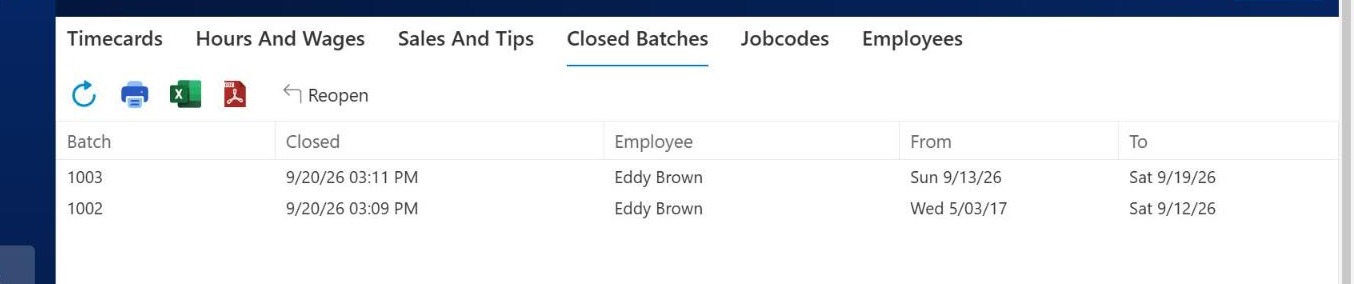
Figure 17. Two closed batches: the catch-up, then the week being paid
Hours And Wages still shows closed timecards. Set the dates over a period you have already closed, press Refresh, and the report comes back exactly as it was, so you can reprint it whenever payroll or your accountant asks.
Reopening a closed batch
Watch out: talk to whoever pays your staff first
If people have already been paid from a batch, reopening it and changing hours leaves their pay and your records disagreeing. Agree the correction before you reopen anything.
If a mistake turns up in a period you have already closed, click Closed Batches, then Reopen in the toolbar, then Ok on Reopen the last batch? (Figure 18). Its timecards come back to the Timecards tab, where you can correct them and run Do Payroll again.
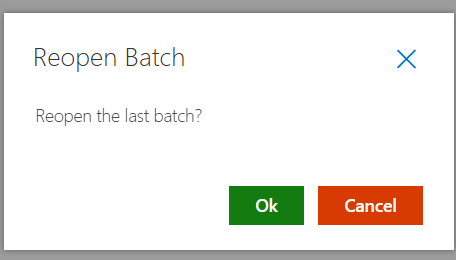
Figure 18. Reopening the last batch
Only the most recent batch can be reopened. To reach an older one, reopen the latest, then the one before it, and so on.
Job codes and pay rates
The Jobcodes tab is your rate card: every job code, its Description, its hourly Rate, and an optional Group (Figure 19).
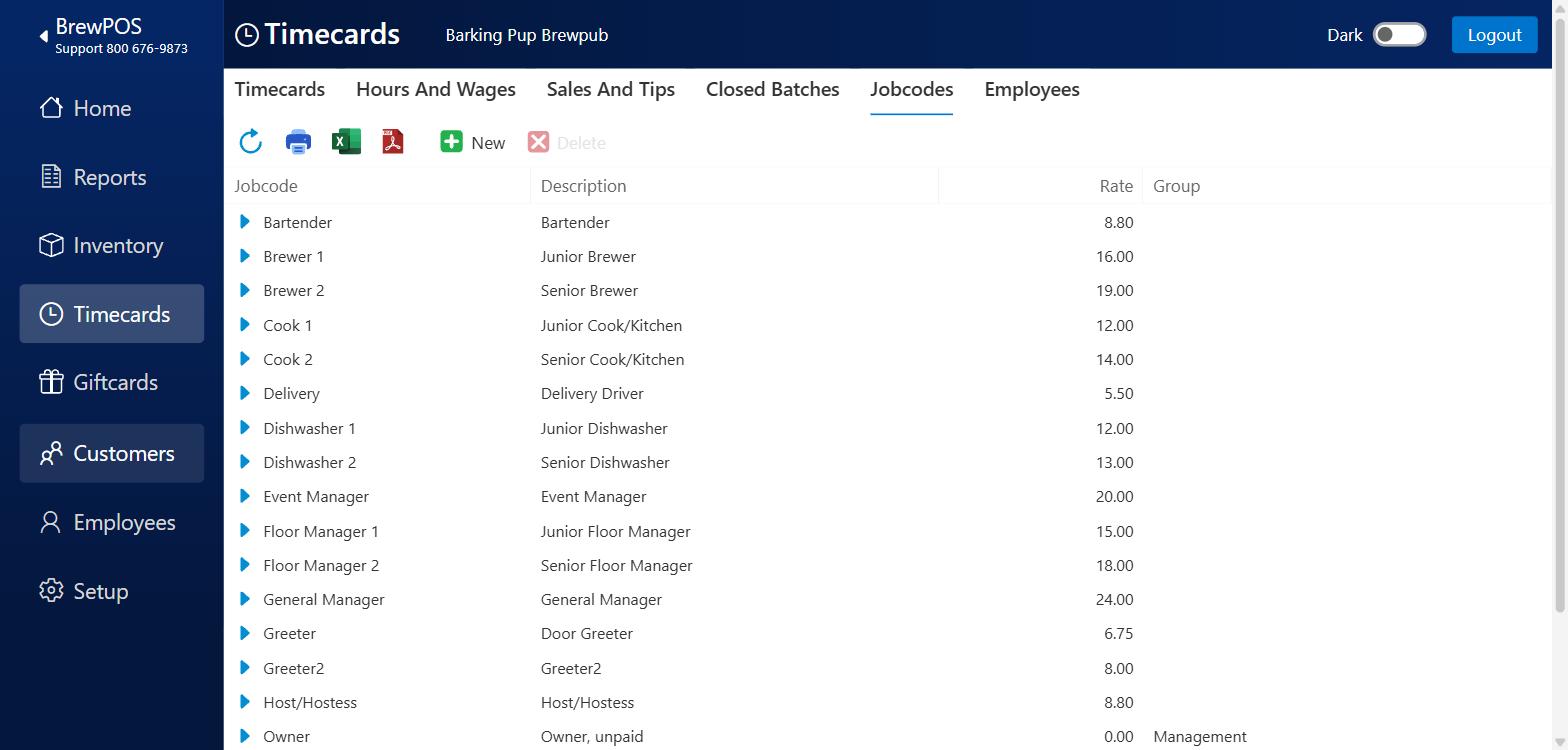
Figure 19. The Jobcodes tab
Add a job code
Click the Jobcodes tab, then New.
In Jobcode, type the short name staff see at the POS, for example Barback. It has to be different from every other code; if it is not, Jobcode is already in use appears. You cannot rename a job code later, so get it right now.
In Description, type the longer name, for example Bar support.
Optional: Group. The list offers the groups already in use on your account. Pick one, or type a new group name and press Enter.
In Rate, type the hourly rate (Figure 20).
Click Save.
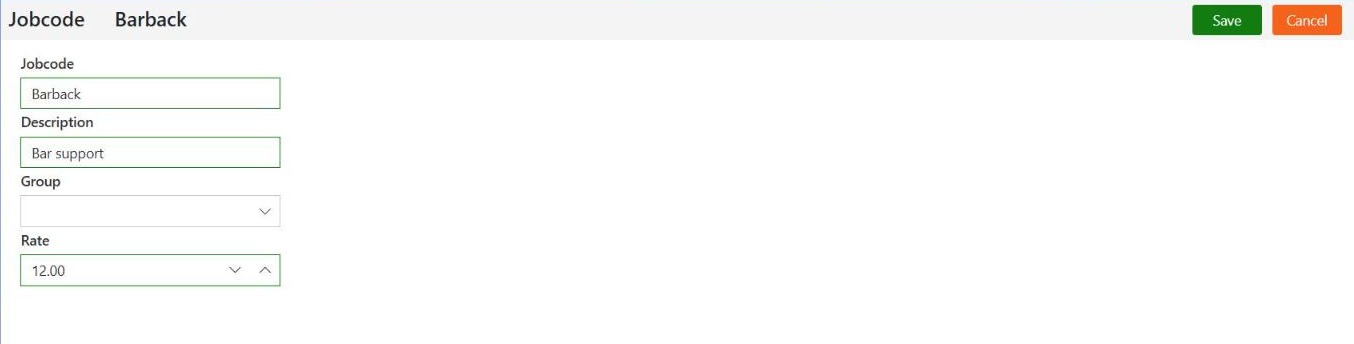
Figure 20. A new job code, filled in and ready to save
A new job code does nothing until you tick it for the people who do that job: see the Employees tab.
Change a rate
Watch out: a rate change is not just from today
Pay is worked out from the job code's rate at the moment you look at the report, so changing a rate changes what every timecard on that code is worth, including timecards already worked and timecards in batches you have already closed. Change rates straight after you run payroll, never in the middle of a period, and never to correct one person's pay.
Open the job code with the blue arrow, change Rate, and click Save. Every change is listed in the Audit Trail on the job code (Figure 21).
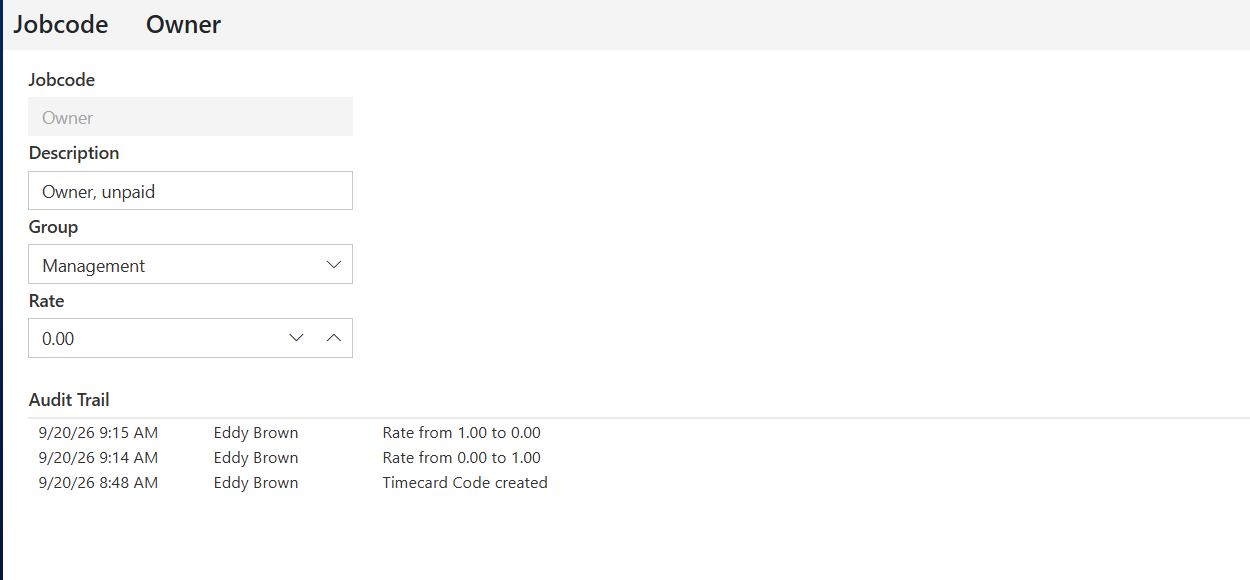
Figure 21. Rate changes are recorded on the job code
Delete a job code
Select the row, click Delete, then Ok. A code that anybody still holds, or that is on any timecard, cannot be deleted: Could not Delete appears (Figure 22). Untick it from your staff first, and remember that timecards in closed batches still count as using it.
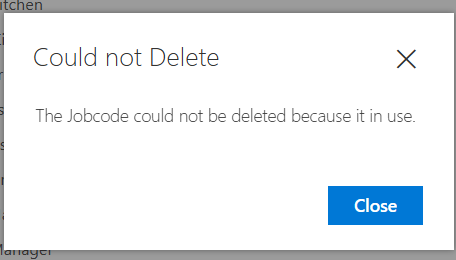
Figure 22. A job code in use cannot be deleted
Putting the owner on the clock
If you work shifts yourself, put them on time cards too. Your hours then show in your labour figures and your cover is counted, without adding anything to the wage bill.
On the Jobcodes tab, click New and make a code called Owner, described as Owner, unpaid, with Rate set to 0.00.
On your own employee record, tick Owner in the Jobcodes list, and click Save.
Clock in against it at the POS, or add them by hand as in Add a timecard that was never clocked.
Your timecards then appear in Hours And Wages with a rate of 0.00 and a pay of 0.00, so the hours are in the report and the wage cost is unchanged. The same works for anybody salaried: give them a job code at 0.00 and pay them outside BREW POS.
Sales And Tips
The Sales And Tips tab shows the same timecards from the other side: what each one brought in. Set the dates and press Refresh, as on the Hours And Wages tab (Figure 23).
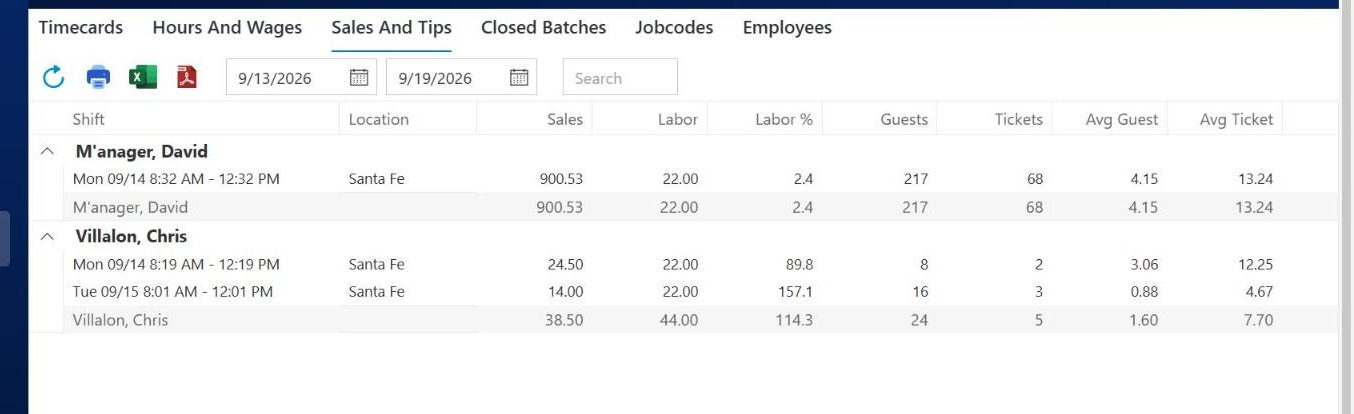
Figure 23. Sales And Tips for the same week
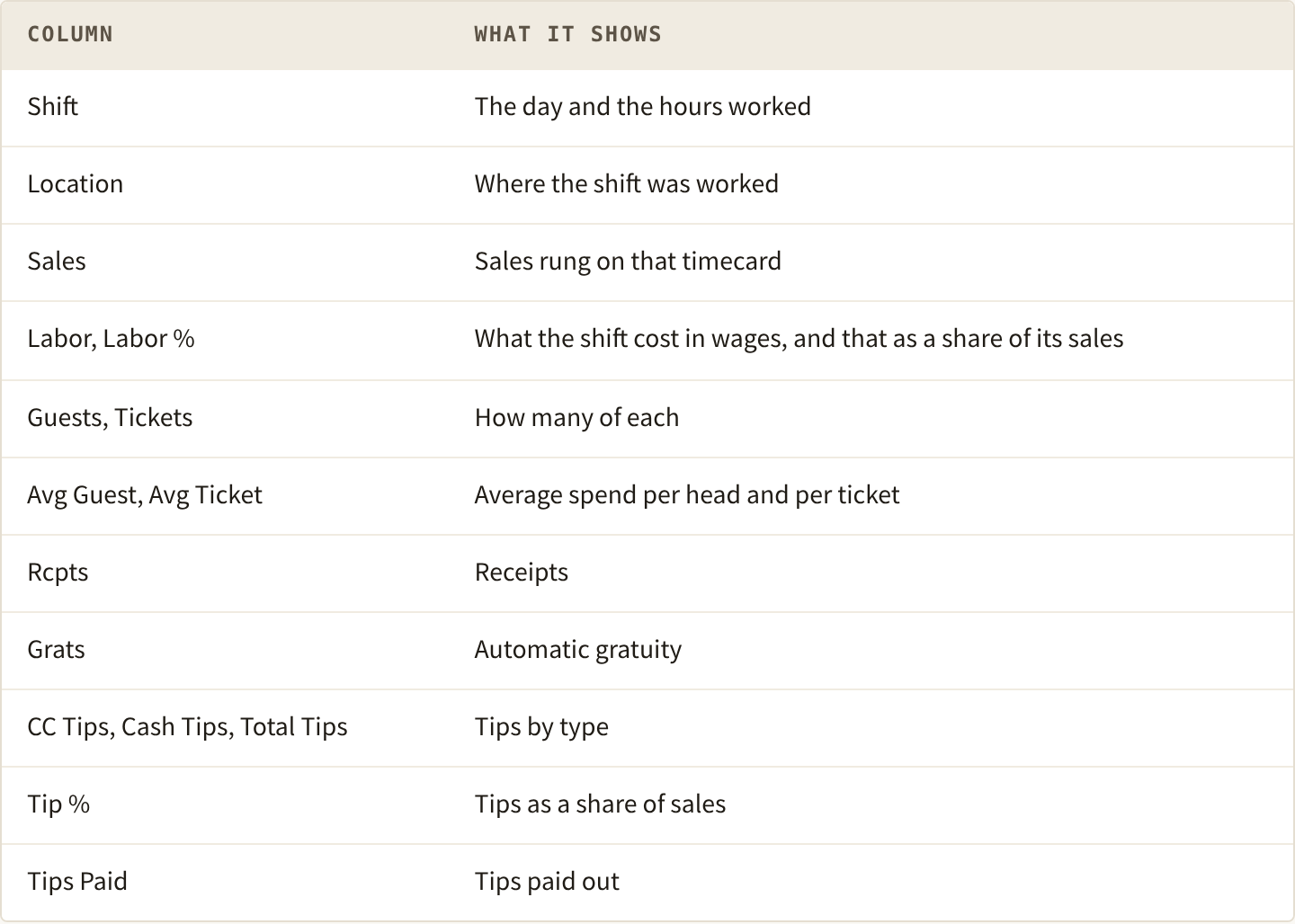
The tip columns sit off the right of the screen at most window sizes. Scroll the report sideways to reach them, or use the Excel or PDF icon in the toolbar to take the whole table out at once.
Labor shows as 0.00 on a timecard nobody clocked out of, and the timecard reads as ending at 3:33 AM, which is the time the automatic clock-out stamps. Fix the timecard on the Timecards tab and the figure appears.
Avg Ticket is the fairer way to compare staff. Total sales mostly tells you who worked the busy nights.
The Employees tab
This tab lists every member of staff against each job code they hold, with the Rate and Group (Figure 24). The filter icons in the column headings narrow it to one job code or one person.
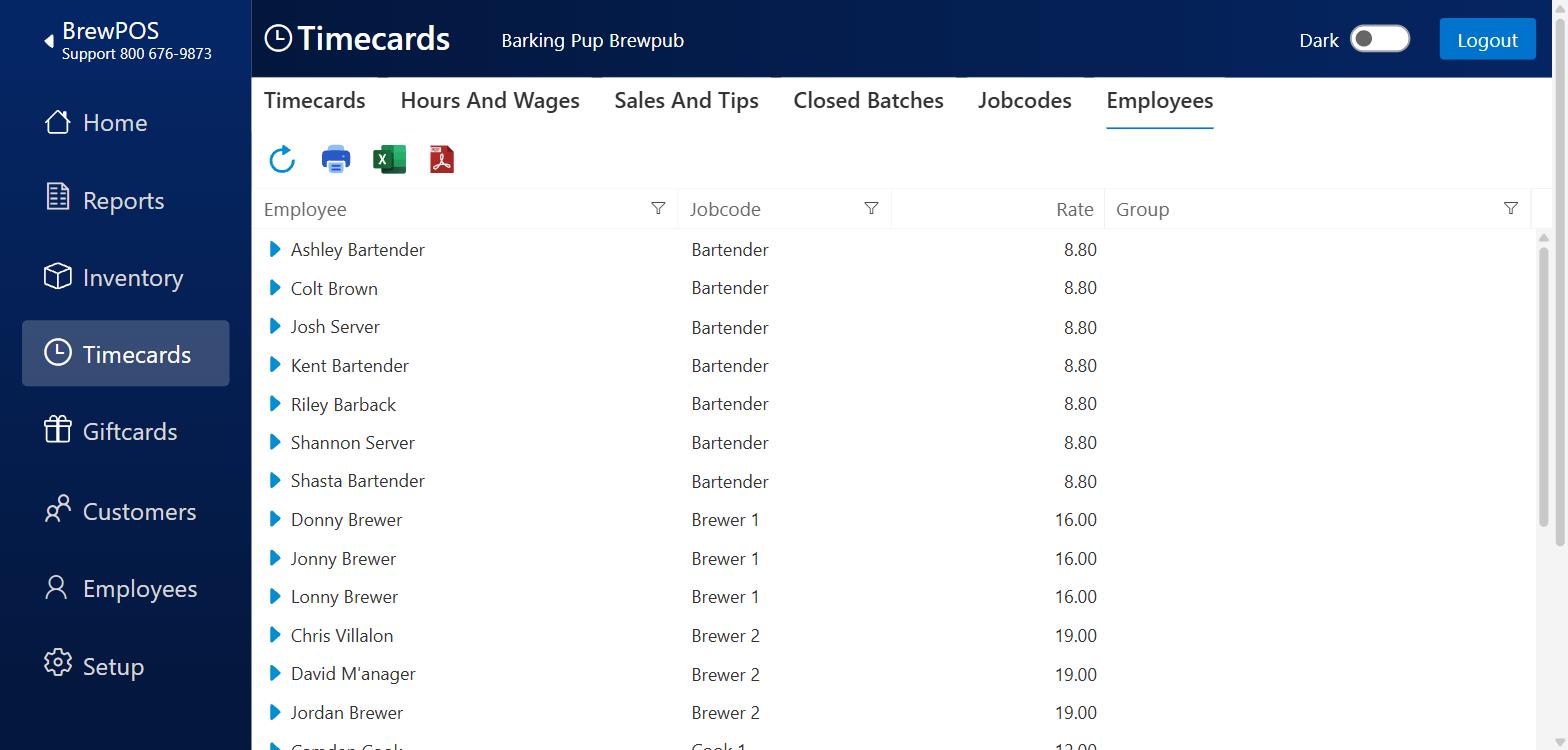
Figure 24. The Employees tab: who holds which job code
The blue arrow opens that person's full employee record. Tick or untick their job codes in the Jobcodes list on the right, then click Save (Figure 25). It is the same record as on the Employees screen; Managing employees covers the rest of it.
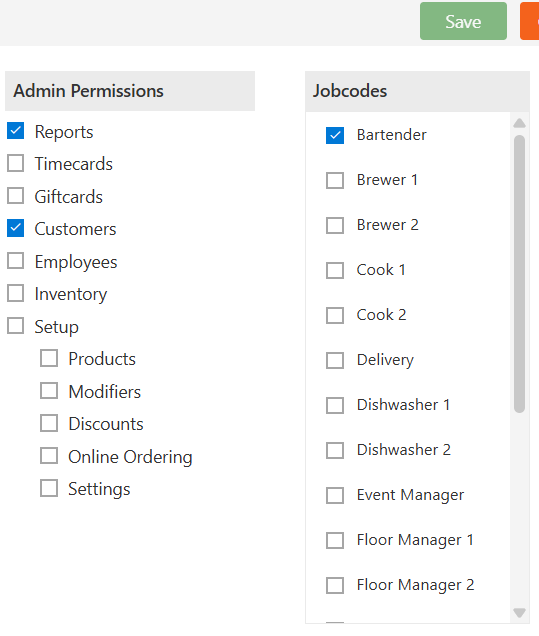
Figure 25. The Jobcodes list on an employee record
Reference
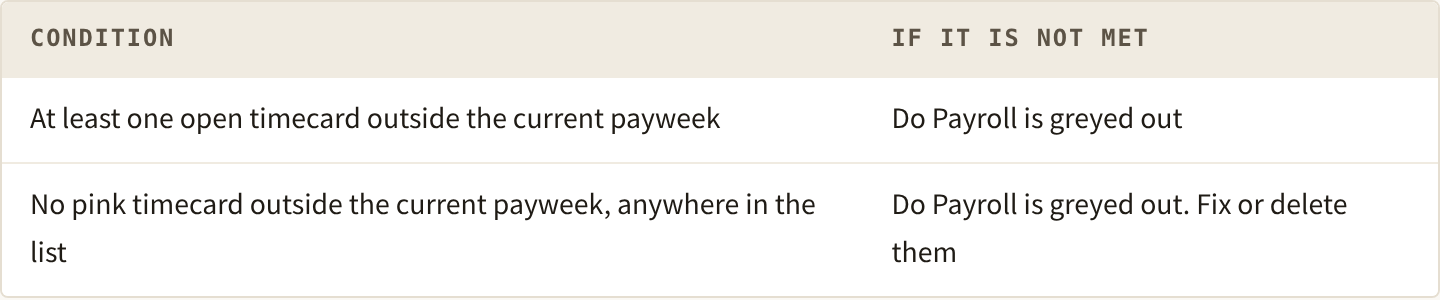
What Do Payroll needs before it will run
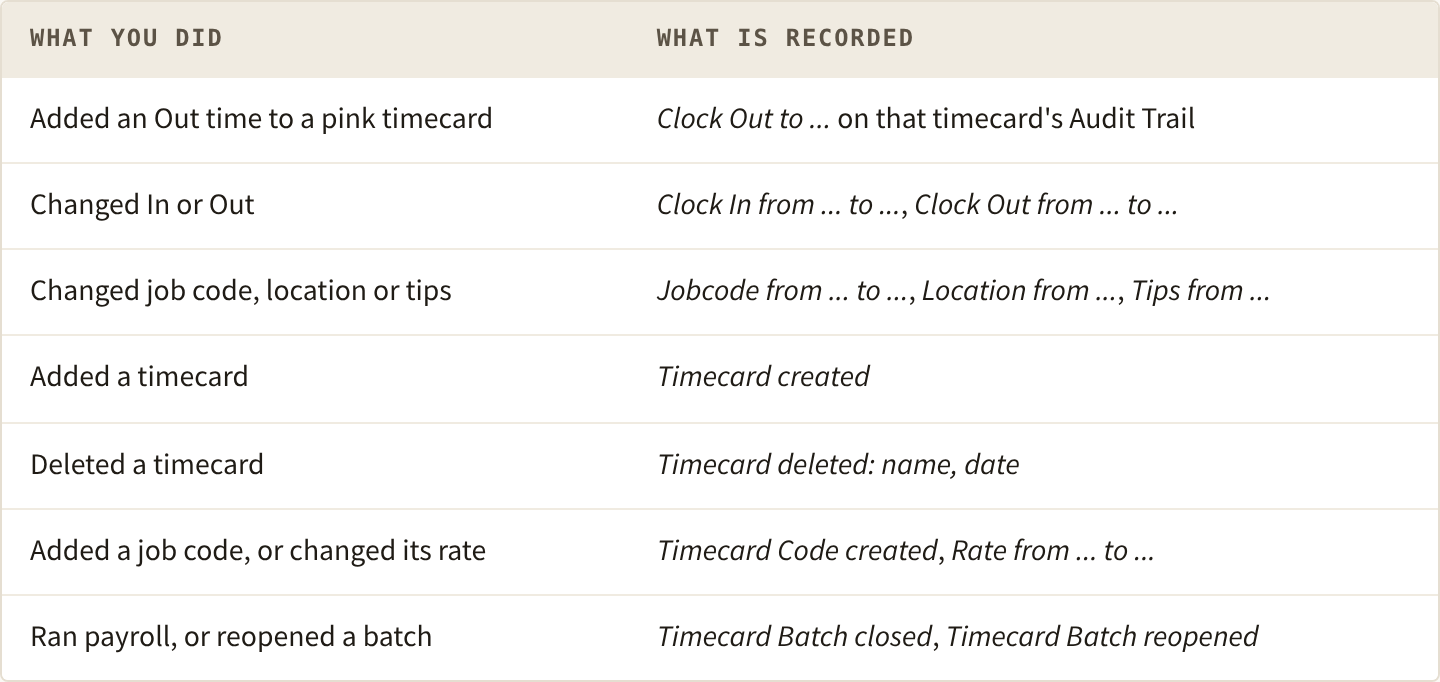
Where changes are recorded
Troubleshooting
Do Payroll is greyed out. A pink timecard from before the current payweek is still in the list. Scroll for pink cells and fix each one. If there are none, every open timecard is in the current payweek and there is nothing to close yet.
Clicking No Clock Out at the bottom of the screen does nothing. That strip is a colour key, not a set of filters. Use the filter on the Status column to limit the list, or use Search for one person.
Hours And Wages or Sales And Tips is empty. Set the dates, then press the round Refresh arrow. Dates alone do not reload either tab.
A timecard I added is not in the list. The date was typed in short form and the box turned into Monday, January 1, 0001, so nothing was saved. Add it again and type the date in full.
A timecard shows far more hours than it lasted, around 27. It started after midnight and ended before 5 AM. See the warning under Fix every timecard that did not clock out.
Save stays pale and Invalid hours is showing. The timecard works out at 16 hours or more, or the Out time is earlier than the In time. Split a real double shift into two timecards.
Overtime looks wrong. Check for pink timecards in that week, and check the report covers whole payweeks.
Somebody is paid at the wrong rate. Check the job code on the timecard first, then that job code's rate.
Somebody cannot clock in as a job code. Tick that code on their employee record.
A job code will not delete. Somebody still holds it, or it is on a timecard, including timecards in closed batches.
A closed period needs changing. Reopen the last batch from Closed Batches, after agreeing it with whoever pays your staff.
The Timecards menu item is missing. Either your record does not have Timecards access, or time cards are not switched on for your business. Call BrewPOS Support for the second one.
The payweek starts on the wrong day. Call BrewPOS Support. Moving it stretches the current period once, then settles.
About this guide
Applies to: BREW POS Admin.
Last reviewed: 5 October 2026
BrewPOS How to use
Support 1-800-676-9874
Email [email protected]
© 2026 BREW POS. All rights reserved.