
Setting up a custom tender
A custom tender is a way to pay that the system does not have built in. It might be your own house money, a rewards or gifting program run by another company, or a payment app you settle outside the system. In BREW POS Admin it is called a custom payment method, and at the POS it is a button on the Other payments screen. Taking payments in general is covered in Taking a payment and adjusting tips.
Before you begin
You can sign in to BREW POS Admin and open Setup, then Settings. If Setup is missing from the dark menu on the left, or Settings is missing inside it, ask whoever manages staff records to give you Settings access.
You know the name you want on the button. Staff read it at the POS, so keep it short and use the name they will recognize, such as the partner's brand name. Up to 64 characters fit in the box, but a long name is hard to read on the button.
You know how many custom tenders you already have. Only the first six in the list reach the POS.
A custom tender belongs to the whole company, not to one location. If you have more than one location, every station at every location gets it.
What you can and cannot set
The only thing you set for a custom tender is its name. BREW POS Admin has no other settings for it:
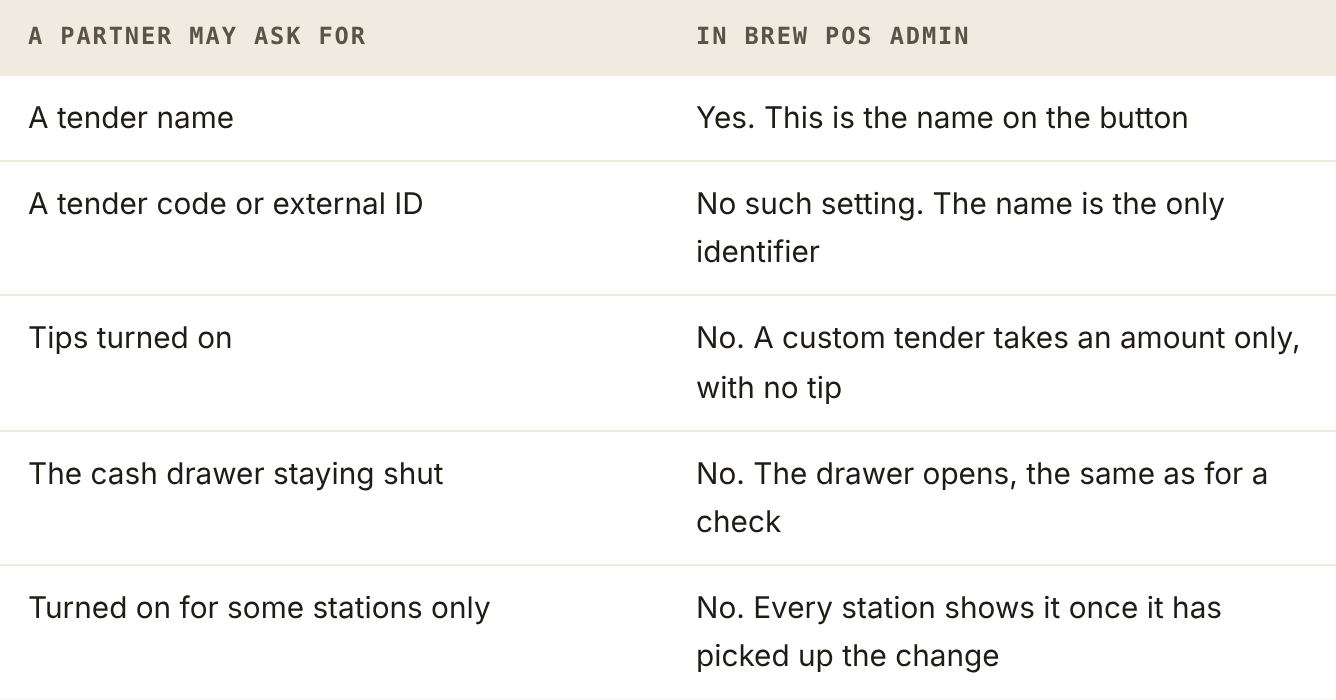
What BREW POS Admin can and cannot set for a custom tender
Watch out: only the first six reach the POS
The Other screen at the POS has room for six custom tenders, and it shows the first six in the list. A seventh saves in BREW POS Admin and never appears on a station, with no message to say so. If you already have six, delete one you no longer use first.
Add the tender
Click Setup in the dark menu on the left, then Settings, then Company. Company Info opens. Custom Payment Methods is the box on its right, with New and Delete above the list of tenders you already have (Figure 1). Until you add your first tender there is no list, only the two buttons.
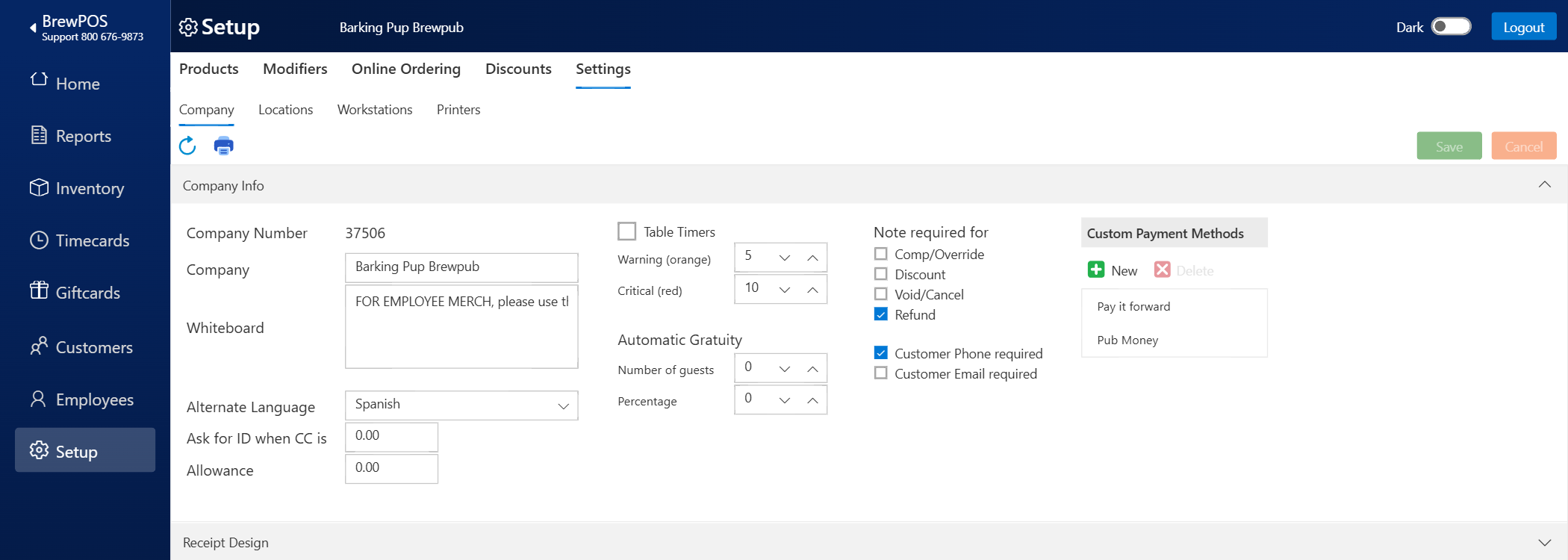
Figure 1. Setup, Settings, Company. Custom Payment Methods is on the right of Company Info, here with Pay it forward and Pub Money in the list
Click the green New. The New Custom Payment Method box opens with one box in it, Custom Payment.
In Custom Payment, type the name staff will see on the button: Pub Money (Figure 2).
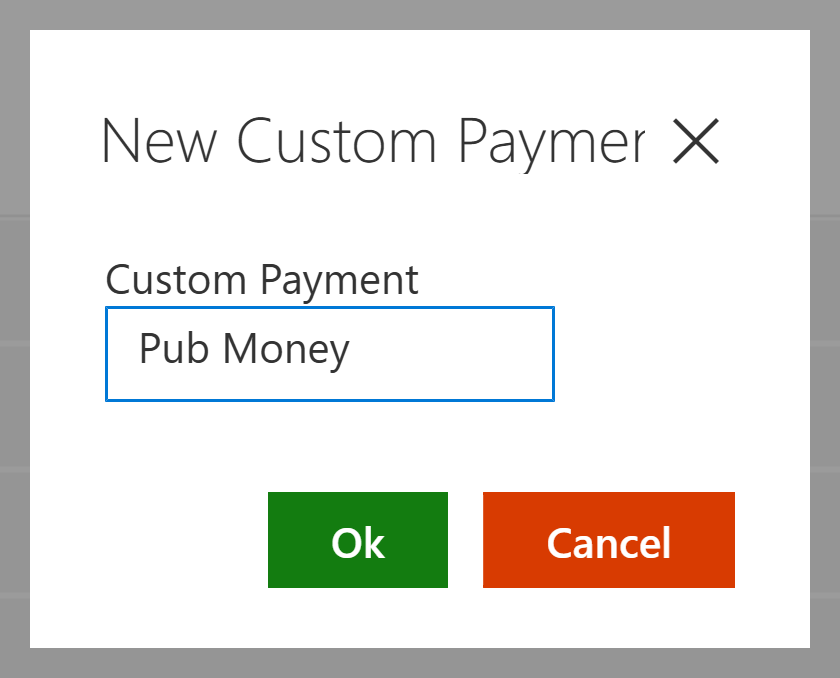
Figure 2. The name typed into the New Custom Payment Method box
Click the green Ok. The box changes to Saved, with the name box empty and one blue Close button (Figure 3).
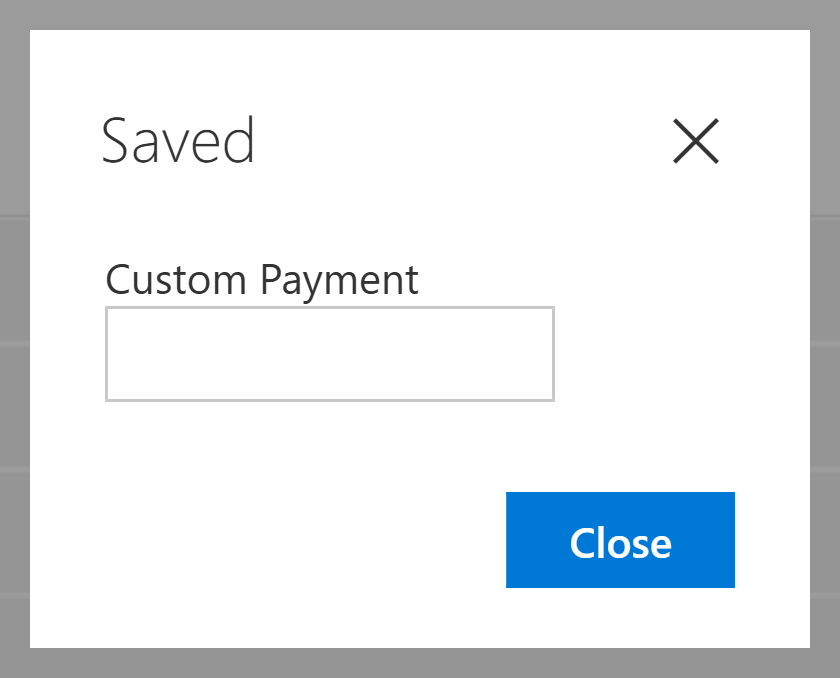
Figure 3. Saved. The tender has been created
Click Close. Pub Money is now in the Custom Payment Methods list, as in Figure 1.
There is no Save to click. The tender is saved when you click Ok, and the green Save button at the top right stays faded.
Get it onto the POS
Each POS station picks up the new tender from BREW POS Admin. A station that is already running may not show it straight away.
At each POS station, tap Tools, then Sync.
Ring up a ticket and tap Pay.
Tap Other, the last of the four payment buttons along the bottom. The Other screen opens.
Look on the right of the screen. Your tender is a button there, with any others you have added (Figure 4).
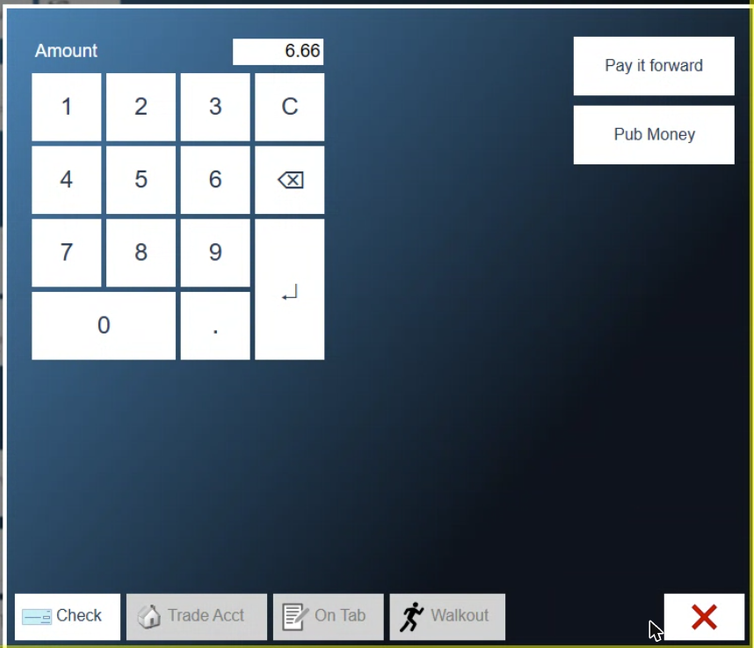
Figure 4. The Other payments screen at the POS. Each custom tender is a button on the right
If it is not there, tap Tools, then Restart, and check again.
Tap the red X to leave the Other screen without paying.
Do this at every station. If you would rather not interrupt a shift, restarting at the start of the next day is enough.
Take a payment with it
Open the ticket and tap Pay, then Other.
Amount, at the top left of the Other screen, holds what is still owed (Figure 4, under Get it onto the POS). If the guest is paying only part of the ticket this way, type the part they are paying.
Tap your tender's button, for example Pub Money. The payment window shows the payment and anything still owed, the same as for any other payment.
A custom tender takes an amount and nothing else, so a server cannot add a tip to it. Take any tip in cash or on a card.
Where the money shows up
On the closeout. Each custom tender has its own line in the payments list, with the number of payments and the total.
In BREW POS Admin. Reports, then Activity, then Custom Payments lists them for any dates you choose.
On the ticket. The payment carries the tender's name, so the receipt and the ticket history read Pub Money, not Other.
Nothing is batched or deposited for you. Collecting the money from whoever owes it is up to you, and the report is how you know what to ask for.
Rename or remove a tender
There is no way to rename a tender. To change a name, add a new tender with the right name, then delete the old one.
To delete a tender:
In Custom Payment Methods, click the tender's name. It turns blue and Delete lights up (Figure 5).
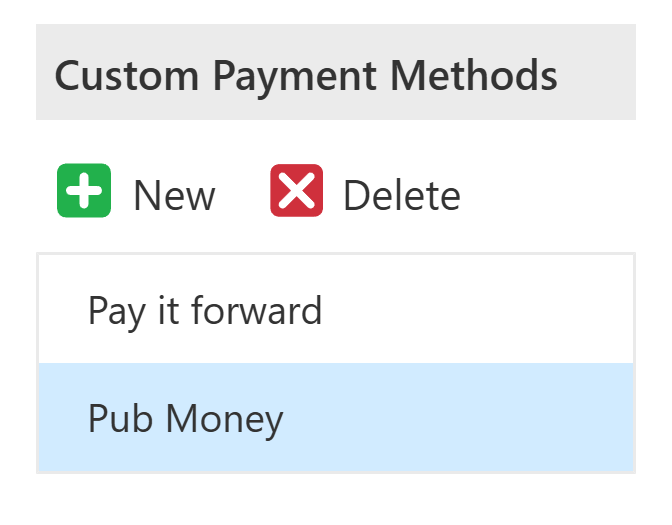
Figure 5. Pub Money selected. Delete is lit only while a tender is selected
Click Delete. A Delete? box asks Delete the Custom Payment Method? (Figure 6).
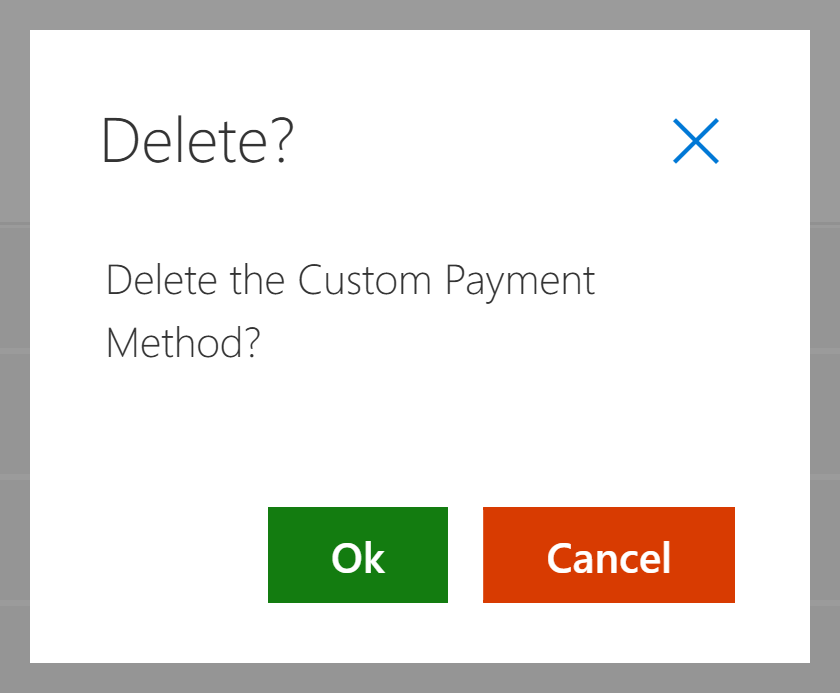
Figure 6. The Delete? box. It does not name the tender being deleted
Check that the tender you want to remove is the blue one, then click the green Ok. The box closes with no message and the tender is gone from the list.
Then sync each POS station as in Get it onto the POS, so the button goes from the Other screen. Payments already taken keep the name they were taken under, on their tickets, closeouts and reports. Swapping a tender halfway through a day splits that day's takings across two names, so do it between days.
If something goes wrong
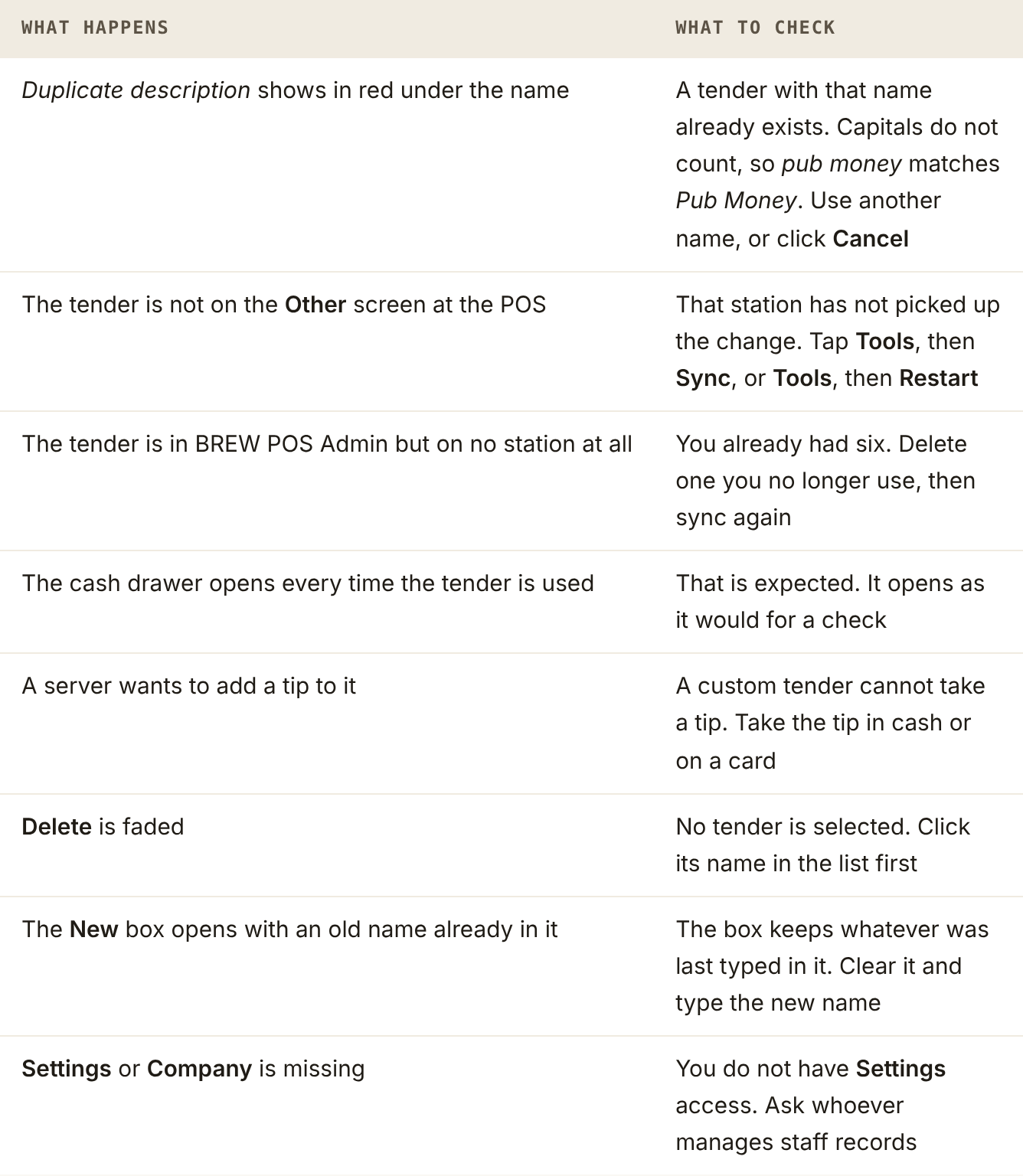
What to check when a custom tender goes wrong
Next: Taking a payment and adjusting tips covers the rest of the payment window.
About this guide
Applies to: BREW POS Admin
Last reviewed: 19 October 2026
BrewPOS How to use
Support 1-800-676-9874
Email [email protected]
© 2026 BREW POS. All rights reserved.