
Setting up order at the table with QR codes
Order at the table lets customers in the building scan a QR code on their table, order from their phone, and pay. The order goes straight to the kitchen or bar. It runs on the same online ordering setup as your pickup website, so most of the work is done once you have followed Setting up online ordering. This guide covers the parts that are different for QR orders.
Handling QR orders at the POS once they arrive is covered in Handling web and QR orders at the POS.
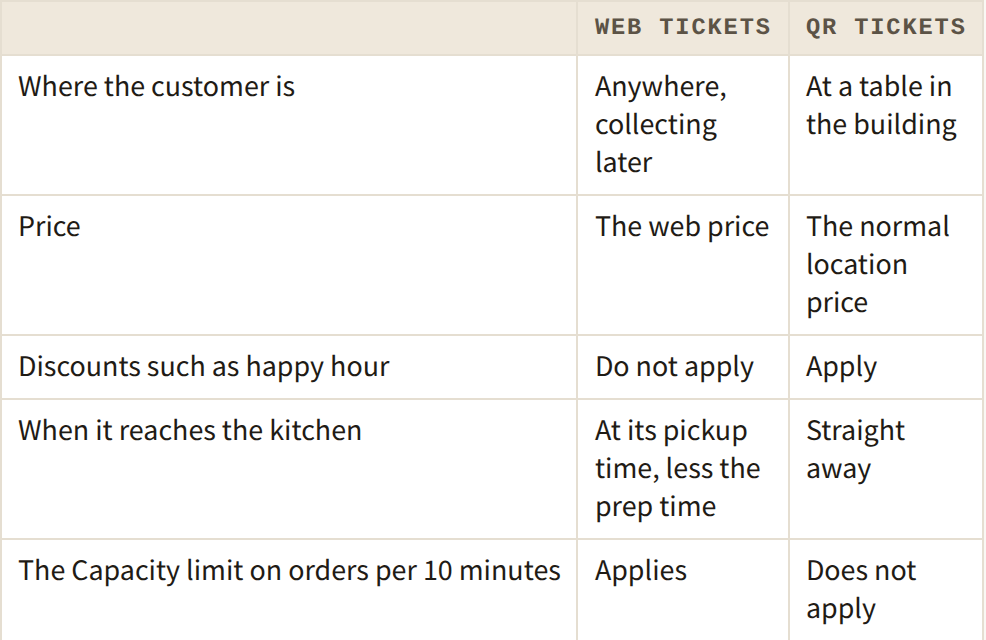
How QR orders differ from web orders
Before you start
• Online ordering has to be switched on for your business, and you need online access on your employee record. Both are explained in Setting up online ordering.
• Each table has its own QR code. The customer scans the one on their table, so the order arrives against that table.
Choose what can be ordered at the table
Two settings decide what customers see when they scan.
Web categories. Each web category has a Show for setting: Web for the ordering website only, QR for order at the table only, or Both (Figure 1). A drinks category might be QR only, so it never appears on the pickup website.
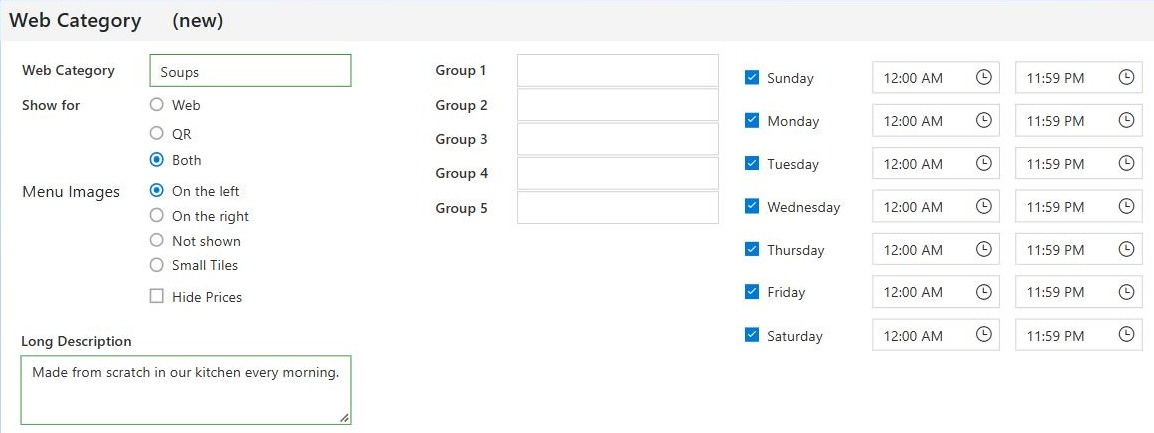
Figure 1. A web category shown for Both
Products. On the Web Prices tab, the QR column says whether each product can be ordered from the table at this location (Figure 2). A product can be sold on the website, at the table, both, or neither. It does not have to be sellable on the POS: you can have products that only exist online.
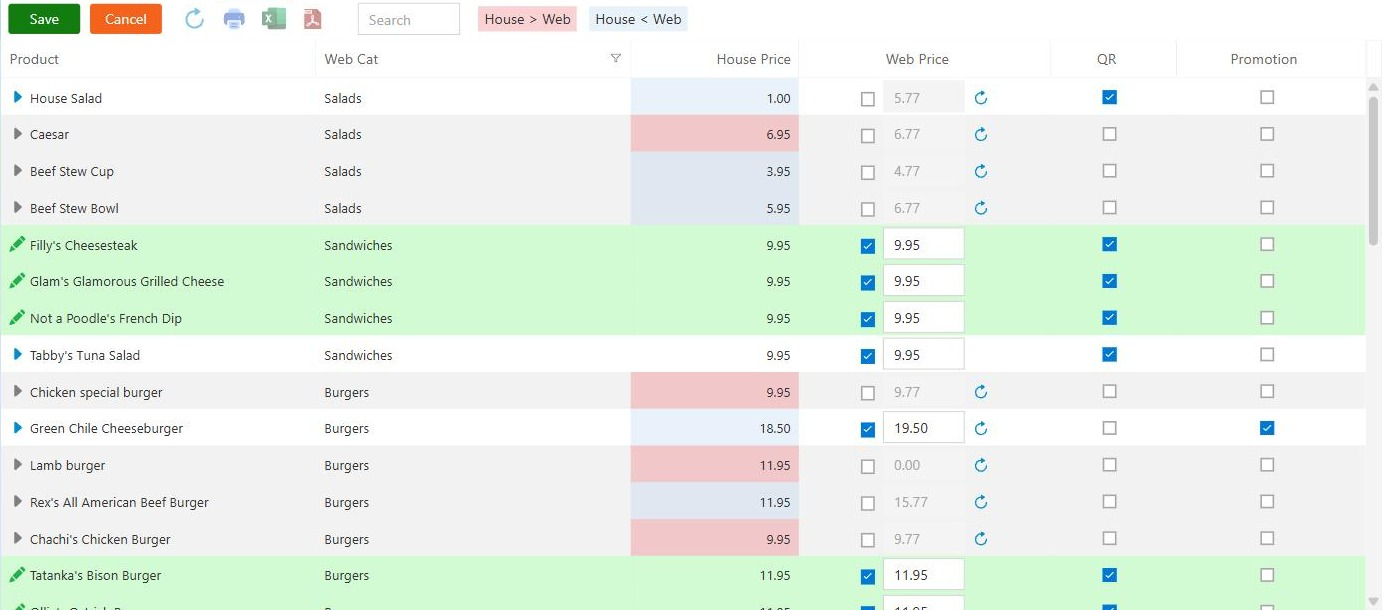
Figure 2. Web Prices. The QR column is next to Web Price
Set the QR options
The QR settings are in the middle column of the Configuration tab, QR Tickets - Order at the Table (Figure 3).
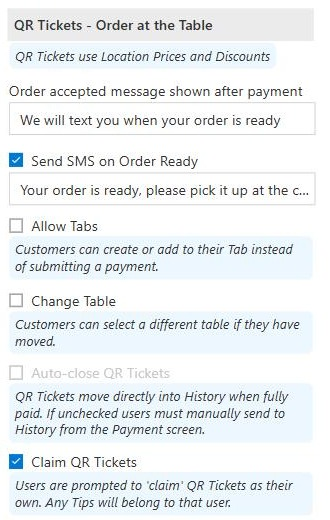
Figure 3. The QR Tickets column of the Configuration tab
• Order accepted message shown after payment: what the customer reads once they have paid.
• Send SMS on Order Ready: lets staff text the customer when their order is ready, with the message you type underneath. Staff send it from the QR Tix screen at the POS.
• Allow Tabs: customers can start or add to a tab instead of paying for each order.
• Change Table: customers can pick a different table if they have moved.
• Auto-close QR Tickets: fully paid QR tickets move straight into History. Leave it unticked and staff close them by hand from the payment screen.
• Claim QR Tickets: servers are asked to claim unclaimed QR tickets as their own, and any tips go to the server who claims it.
Click Save at the top right.
Prompt Tips, Popup Mods and the note options in the Appearance section apply to QR orders as well as web orders.
About this guide
BREW POS Admin: merchant how-to guide
Applies to: BREW POS Admin. Written from the BrewPOS quick reference BrewPOS Online Ordering (June 2023), with screen names from Setting up online ordering. Not yet re-checked against the current release.
Last reviewed: 29 September 2026 · Owner: Eddy
BrewPOS How to use
Support 1-800-676-9874
Email [email protected]
© 2026 BREW POS. All rights reserved.