
Forgot password or locked out
Someone can't get in. Maybe a server has forgotten their PIN halfway through a shift, or a manager can't sign in to BrewPOS Admin from home. This guide covers what to do in each case, who at your business can fix it, and when it's time to call us.
The short version
The POS uses a PIN. A forgotten PIN is reset by a manager in BrewPOS Admin. Nobody at the POS can look it up.
BrewPOS Admin has no password. You sign in with your email address and a code that is sent to you. If you can't get in, the fix is almost always on your employee record: the email address, the Admin tick, or your role.
If nobody at your business can get into BrewPOS Admin, call BrewPOS Support.
A staff member forgot their PIN
There's no "forgot PIN" button at the POS, and nobody can see what someone's PIN is, not even a manager. Instead, a manager gives them a new one.
On the login screen, Change PIN stays grey until a User ID and PIN are typed in (Figure 1). It's only for changing a PIN you already know. A forgotten PIN has to be reset in BrewPOS Admin.
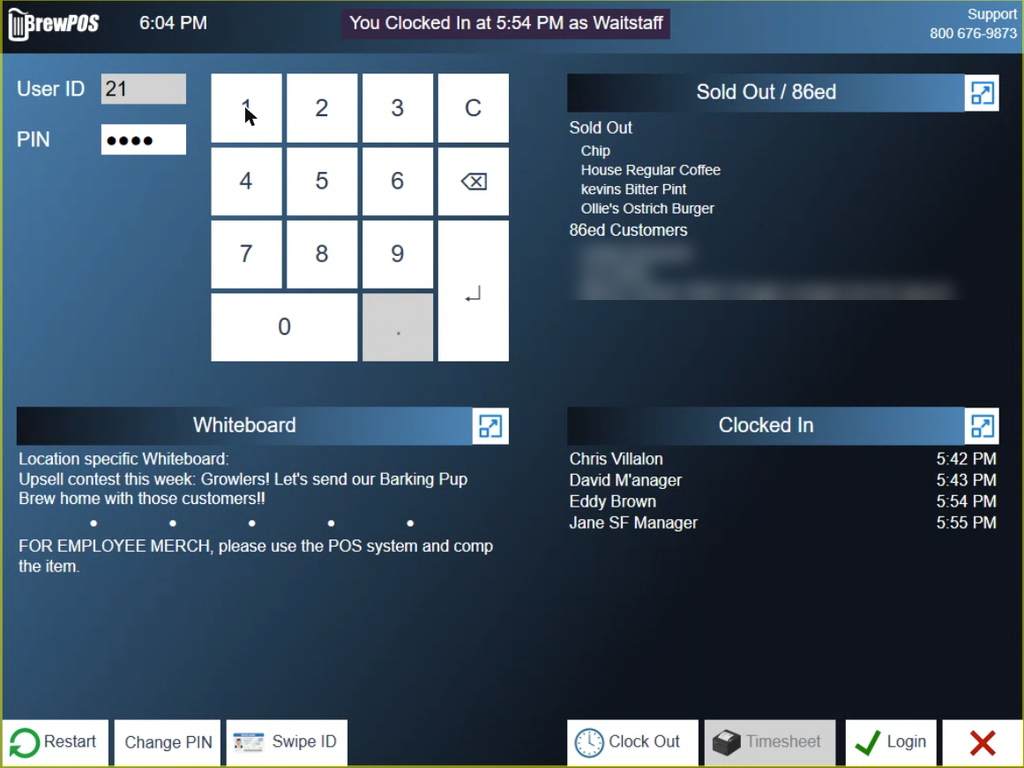
Figure 1. The POS login screen with a User ID and PIN typed in. Change PIN is at the bottom left.
Get them back in
Find a manager, or anyone with Employees ticked under Admin Permissions on their own record.
They sign in to BrewPOS Admin at brewposadmin.com, on any computer or phone.
In the dark menu on the left, click Employees.
At the left of the person's row, click the blue arrow. Their record opens.
Under the email box, click Change PIN (Figure 2).
Type a new PIN and click Ok.
Click Close, then click Save at the top right.
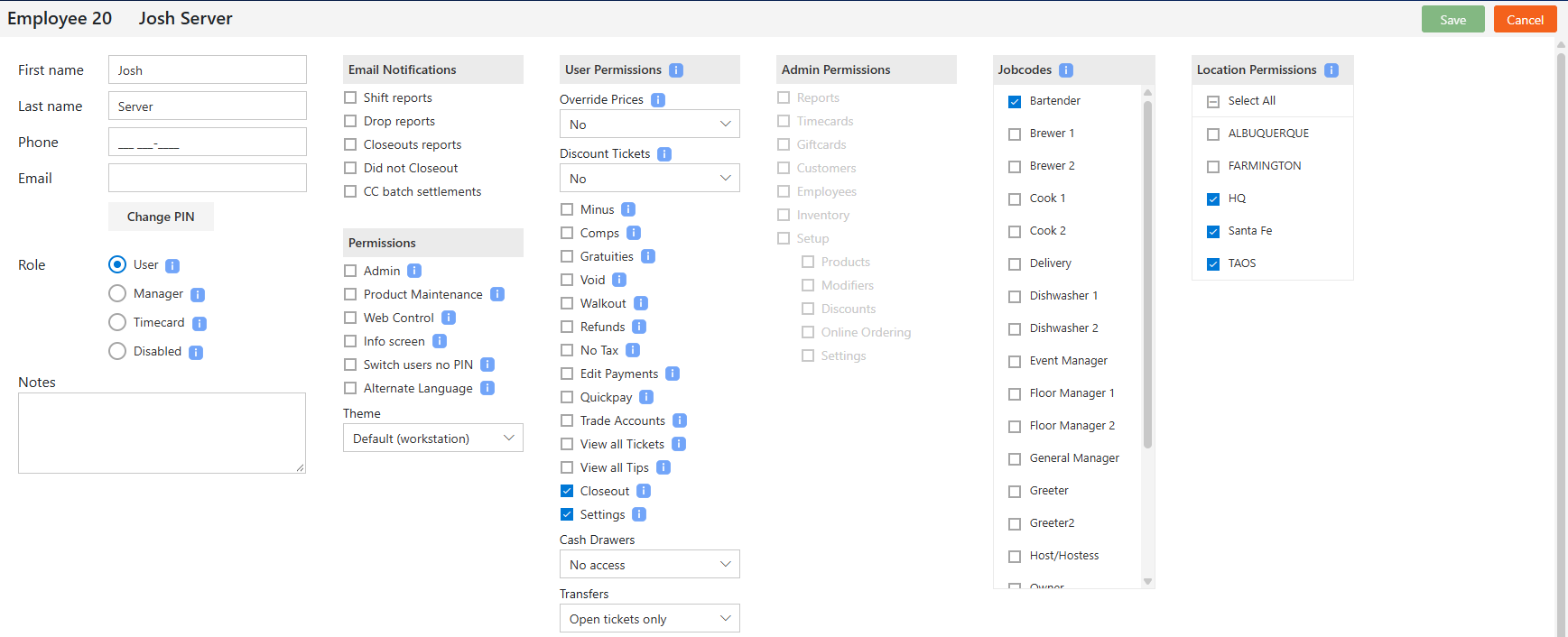
Figure 2. An employee record. Change PIN sits under the email box.
Watch out: nothing changes until you click Save
The new PIN only takes effect when the record is saved. Close the record without saving and the old PIN stays.
The new PIN reaches the POS on its own, usually within a few minutes. If you're in a hurry, go to the POS login screen and tap the BrewPOS logo at the top left to make it pick up the change straight away.
Tell the staff member their new PIN in person, not on the whiteboard or in a group message. Once they're logged in, they can change it to one of their own choosing with Change PIN on the login screen.
The full steps for both are in Managing employees and PINs and the lock screen.
No manager on site?
A manager doesn't have to be in the building. BrewPOS Admin works in any web browser, so they can reset the PIN from home or from their phone. See Getting into Admin from anywhere.
Until the new PIN comes through, someone else can log in and ring the sale for them.
The station is locked
A locked station isn't the same as being locked out. When a station has sat idle, it covers the order screen with a drifting logo. The names of everyone logged in stay at the top.
Tap your name.
Type your PIN.
To get on as someone else, tap Login and log in with a User ID and PIN.
If you can't remember the PIN, it's a forgotten PIN: see A staff member forgot their PIN. How long a station waits before it locks, and how to lock it yourself, are covered in PINs and the lock screen.
A manager can't sign in to BrewPOS Admin
There is no password for BrewPOS Admin, so there's nothing to reset. You sign in at brewposadmin.com with your email address, and a sign-in code is sent to you. When that doesn't work, it's nearly always one of the things below.
Work through these in order
Check the address. It's brewposadmin.com. An old bookmark or a link from an old email can take you somewhere else.
Check the email address you typed. It has to be the one on your employee record, spelled exactly the same.
Look for the code. Check your spam or junk folder, and give it a minute or two.
Try another browser, or close the browser and open it again.
If it still doesn't work, the problem is on your employee record. Someone else with Employees access needs to open your record in BrewPOS Admin and check three things:
Email. Is your address right? If you've changed email address, or the old one no longer works, they type in the new one and click Save.
Admin. Under Permissions, is Admin ticked? Without it you can't sign in to BrewPOS Admin, even as a manager.
Role. Is Disabled chosen next to Role? A disabled employee can't sign in to the POS or to BrewPOS Admin. Choose their level again and click Save.
Watch out: give everyone their own login
Each person who uses BrewPOS Admin should sign in with their own email address. If several people share one login and that email stops working, all of them are locked out at once. It also means the audit trail can't tell you who changed what.
Who can reset what
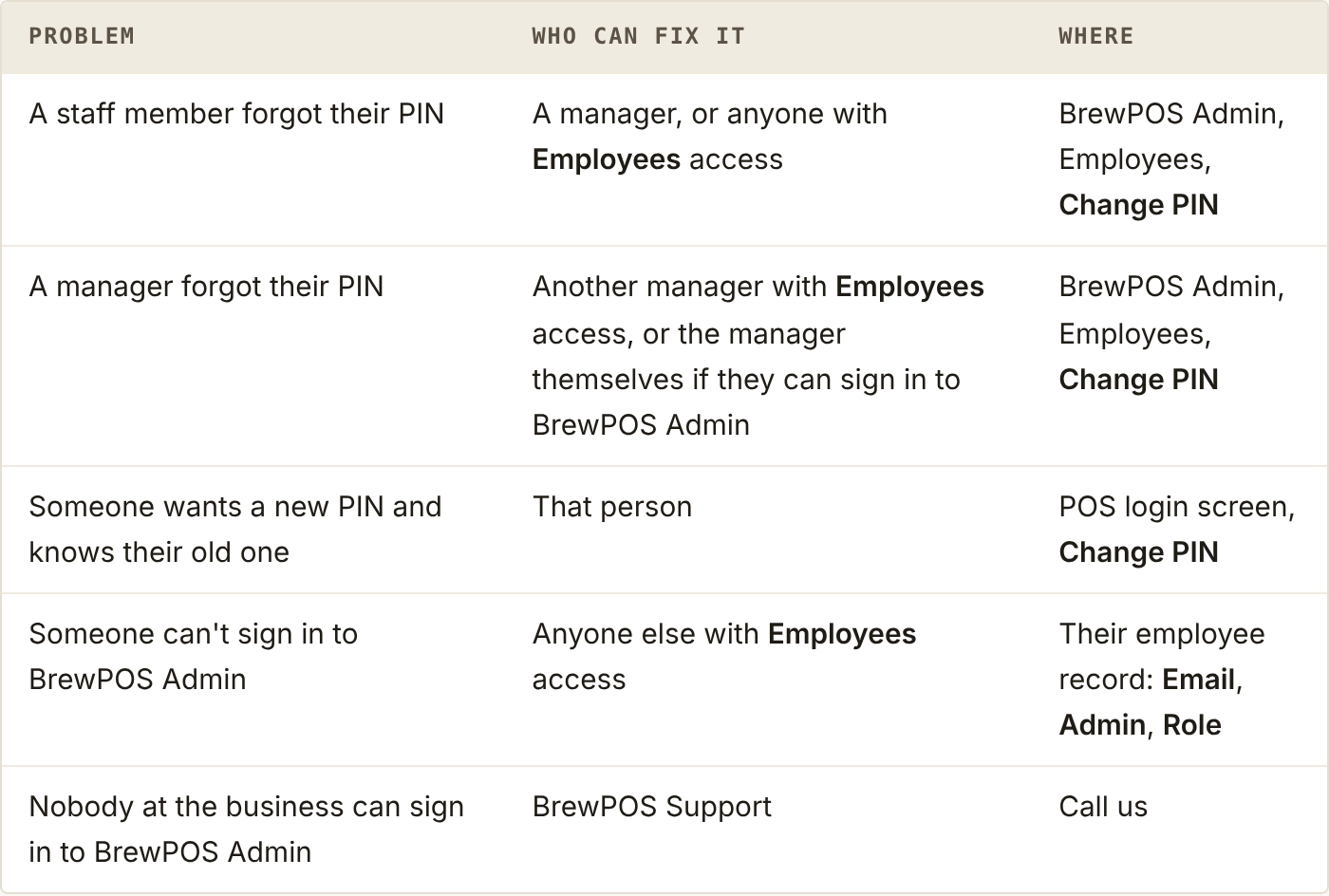
Who fixes each kind of lockout, and where in BrewPOS they do it.
It's worth having at least two people at your business with Employees access, so one can always get the other back in.
When to call BrewPOS Support
Call BrewPOS Support on 1-800-676-9874 when:
nobody at your business can sign in to BrewPOS Admin, so nobody can reset a PIN or fix an employee record
the only person with Employees access has left, or their email address no longer works
you've checked the email, Admin and Role on the record and the sign-in code still doesn't arrive
you've reset a PIN, saved the record, tapped the BrewPOS logo on the login screen, and the new PIN still doesn't work at the POS
Have the name of the person who is locked out ready when you call.
We will never ask you for a PIN or a sign-in code, and nobody else should either. Don't read them out over the phone or send them in an email.
About this guide
Applies to: the BrewPOS terminal and BrewPOS Admin
Last reviewed: 26 October 2026