
Changing your tax rate
Tax rates are set for each location, and each location can have up to three. Change a rate and every product at that location that uses it is charged the new rate.
Change the rate
Click Setup in the menu on the left, then the Settings tab, then Locations (Figure 1).
If you look after more than one location, click the location in the row of location buttons above the settings.
Under Location Info, type the new rate in Tax Rate 1, Tax Rate 2 or Tax Rate 3. Type it as a percentage: 8.25 means 8.25%.
Click Save, top right. It turns green once something has changed.
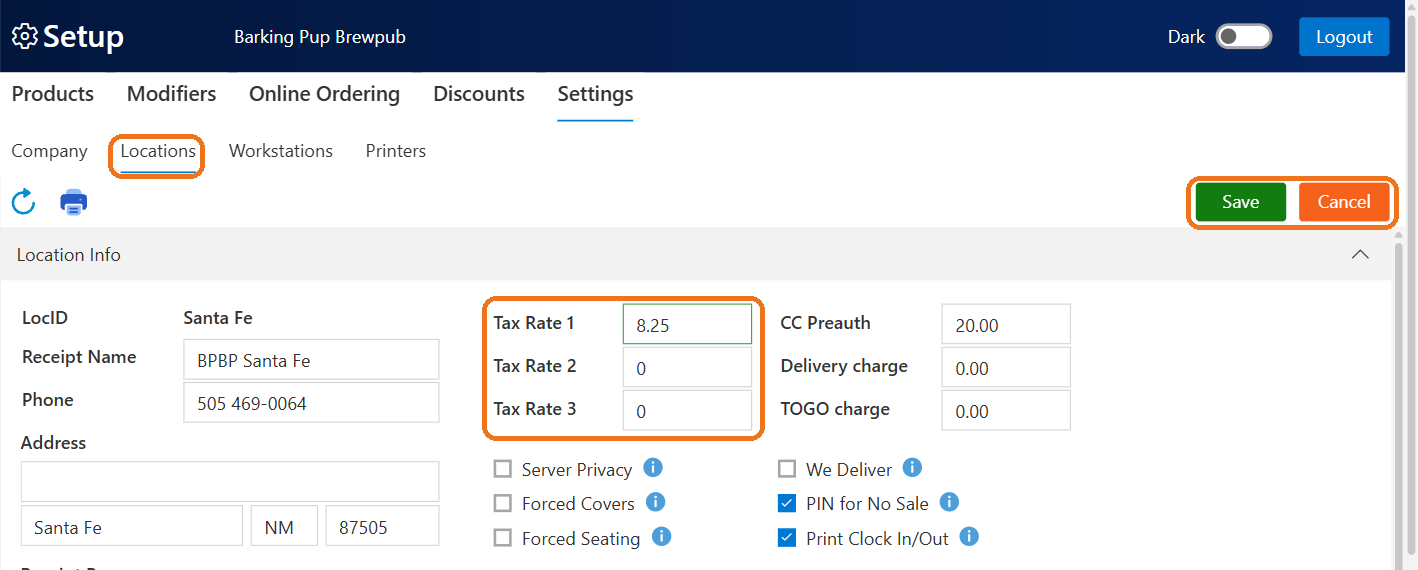
Figure 1. Tax Rate 1 being changed to 8.25. Save and Cancel light up once something has changed
Watch out: click Save
The new rate does nothing until you save. Products at that location that use the rate change as soon as you do. If you click Cancel instead, Admin asks whether to save your changes: No puts the old rate back.
If Admin was already open on a product when you changed the rate, it can still show the old rate in that product's Tax %. Refresh the page and it shows the new one.
A manager can also change the three rates at the POS: tap Tools, Settings, Configure, then Location. The POS asks for your PIN before it makes the change. These are the same rates as the ones in Admin, and they apply to every station at the location. See Setting up a station.
Which rate a product uses is set on the product, in the Tax % column of its location rows. See Make a product.
About this guide
Applies to: BREW POS Admin
Last reviewed: 3 October 2026
BrewPOS How to use
Support 1-800-676-9874
Email [email protected]
© 2026 BREW POS. All rights reserved.