
Building your floor plan
The floor plan is the tables screen your staff see at the POS. You draw it in BREW POS Admin, one location at a time. Each location can have up to ten floor plans, so a big place can give the patio, the main floor, the bar, the lounge, upstairs or a seasonal yard their own. Staff switch between them at the bottom of the tables screen.
Open the floor plan builder
1. Click Setup, then Settings, then Locations (Figure 1).
2. Select your location in the list on the left.
3. Click Floorplans in the toolbar.
4. In the Floorplan box at the top left of the new window, choose which floor plan to work on.
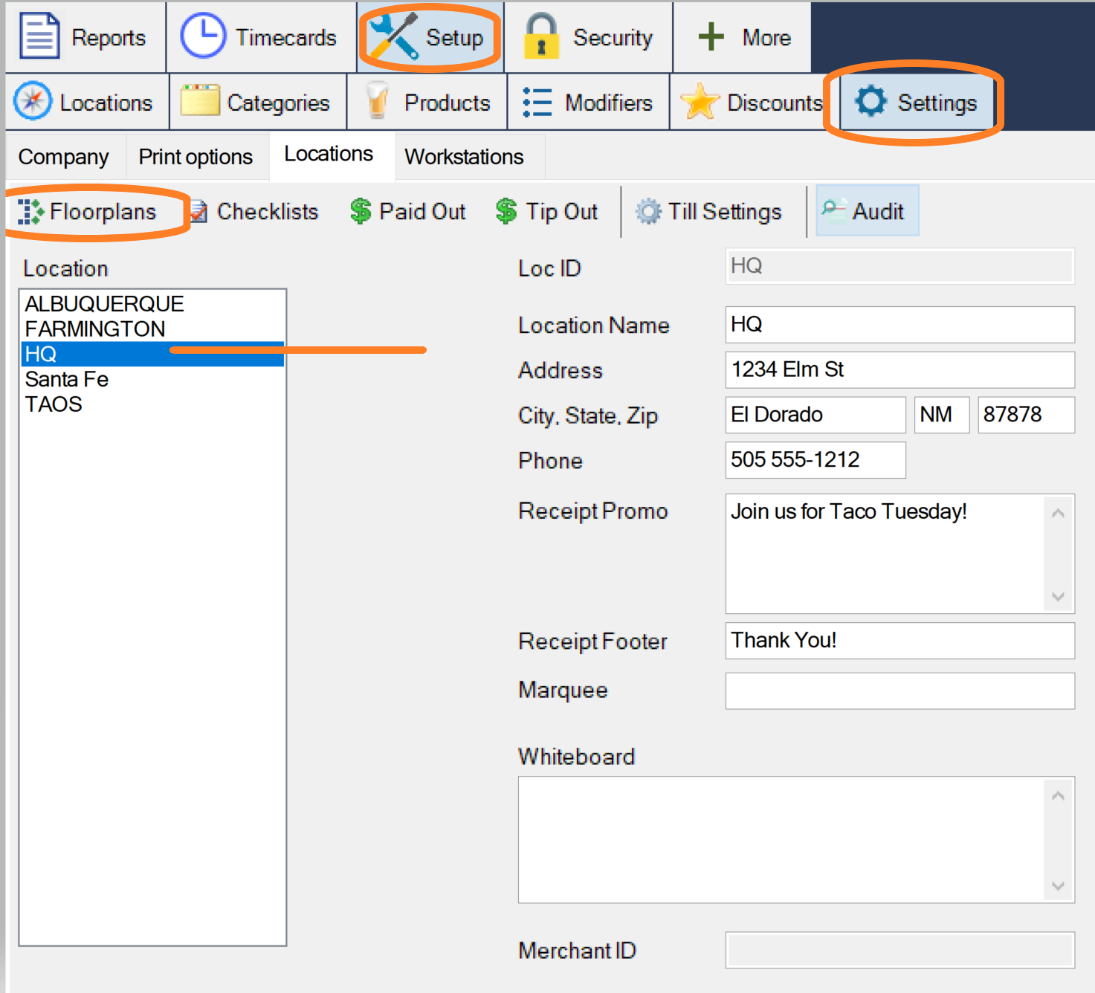
Figure 1. Setup, Settings, Locations, then Floorplans with the location selected
Add a table
1. Click the rectangle or the circle in the toolbar to add a square or round table (Figure 2).
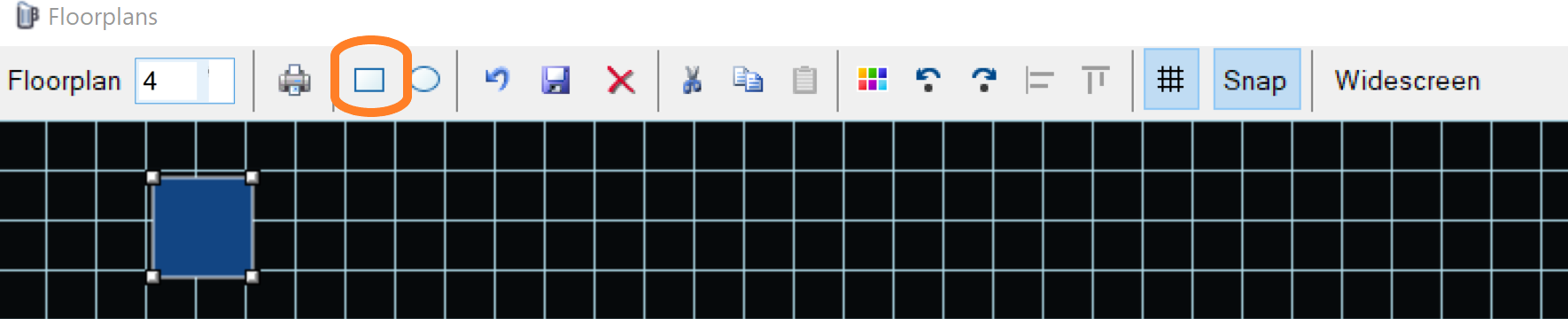
Figure 2. The rectangle and circle buttons add a table
2. Drag the table where it belongs.
3. Drag the handles on its corners and sides to change its shape.
4. To color it, select it and pick a color from the palette in the toolbar.
5. Click Save in the toolbar (Figure 3).

Figure 3. Save, the disk in the toolbar
Watch out: save as you go
Changes are only kept when you click the Save button in the toolbar.
Name a table and set its seats
Double-click the table. In the window that opens, change its name and how many people it seats.
Copy, move and delete tables
• Several tables the same: select one, click Copy, then Paste as many times as you need.
• Move a table to another floor plan: select it, click Cut, switch to the other floor plan in the Floorplan box, and click Paste.
• Delete a table: select it and click the red X.
The toolbar
Hover over any button to see its name. From left to right, the toolbar has: choose floor plan, print, add a rectangle, add a circle, undo, save, delete, cut, copy, paste, color, rotate, align left and align top.
Grid shows or hides the grid behind the tables. Snap makes tables line up with the grid as you drag them.
About this guide
BREW POS Admin: merchant how-to guide
Applies to: BREW POS Admin. Written from the BrewPOS quick reference Building your floorplan in BrewPOS (May 2021). Not yet re-checked against the current release. The screens shown are from an older version of Admin and may look different on yours.
Last reviewed: 29 September 2026 · Owner: Eddy
BrewPOS How to use
Support 1-800-676-9874
Email [email protected]
© 2026 BREW POS. All rights reserved.