
Adding your logo
Your logo can print at the top of every receipt and show in the middle of the POS order screen and on the screensaver, in place of the large BREW POS logo. Both are added in BREW POS Admin, one location at a time, and you can change or remove them later. The third logo, the one on your online ordering website, is added the same way and is covered in Setting up online ordering.
Before you begin
You can sign in to BREW POS Admin and open Setup, then Settings. If Setup is missing from the dark menu on the left, or Settings is missing inside it, ask whoever manages staff records to give you Settings access.
You have your logo saved as a PNG file on the computer you are using. The next section explains what makes a good file.
Logos belong to a location, not to the company. If you have more than one location, each one has its own receipt, screen and web logo, and you add them one location at a time. A location with no logo of its own shows none.
The three logos
Open Setup in the dark menu on the left, then Settings, then Locations. Click Logos to open it. It has three tabs (Figure 1).
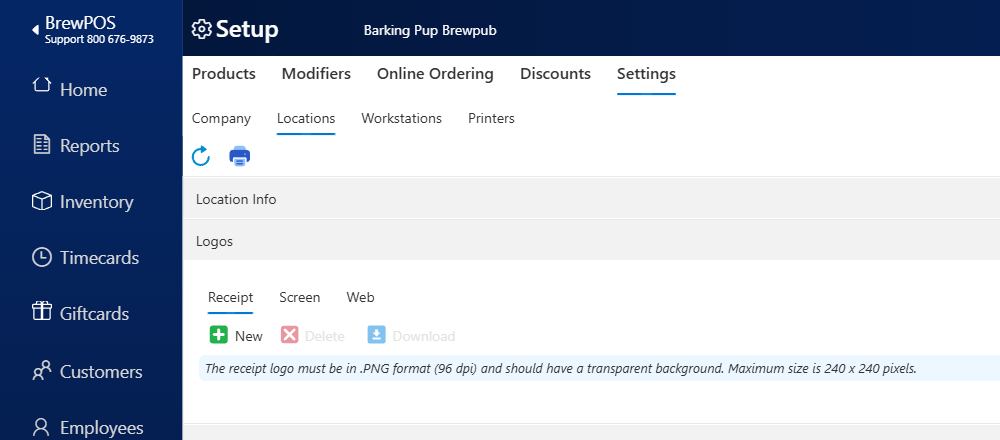
Figure 1. Setup, Settings, Locations, with the Logos section open on the Receipt tab. No receipt logo has been added yet, so only New is lit
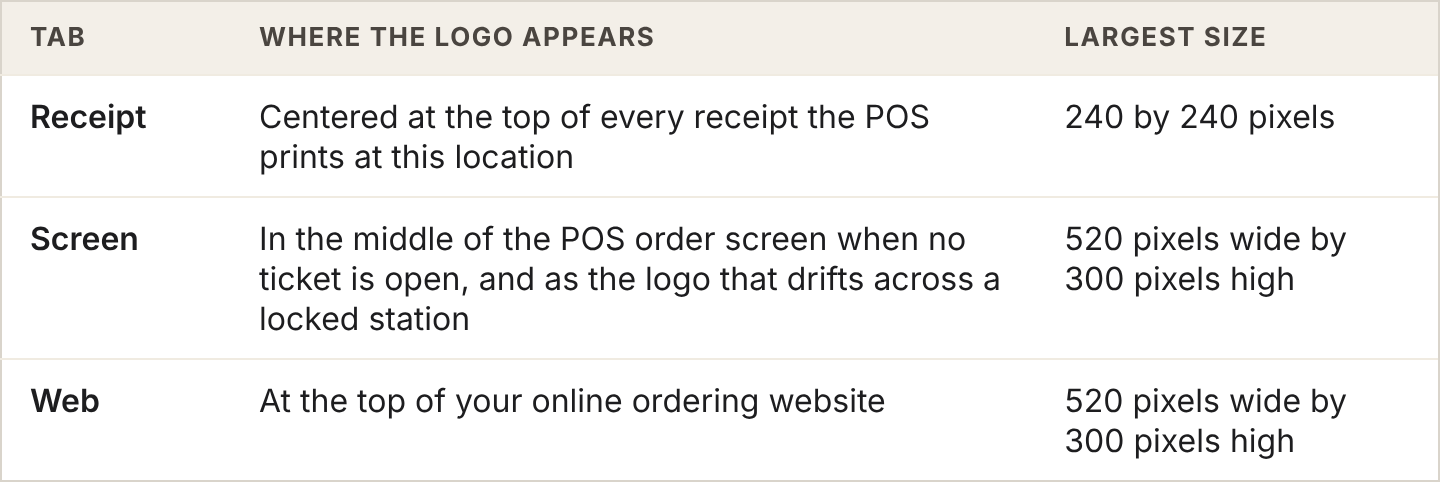
Where each logo appears, and the largest size for each
The pale blue note under the buttons gives the size and file rules for that logo. Each tab has the same three buttons: New, Delete and Download.
Get your logo files ready
Most people need two files, because a receipt and a screen want different things.
Both files must be PNG. The upload box will not take a JPG or a PDF. The note on screen also asks for 96 dpi, which is the usual setting when a PNG is saved for screens. If your logo is in another format, open it in any image editor and save a copy as PNG.
Give both a transparent background. A logo saved on a white square shows as a white box on the POS screens and on the website. Your designer can export a PNG with transparency, or a free background remover will do it.
For the receipt logo:
Make it black on transparent. Receipt printers print in one color, so shades of color and fine gradients come out grey and patchy.
Keep it no bigger than 240 by 240 pixels. The POS prints the logo at its real size and does not shrink it, so a bigger file prints bigger and can run off the edge of the paper.
Keep lines thick and words few. Your business name in bold reads well. A tagline in small type usually does not.
For the screen logo:
Full color is fine.
Keep it no bigger than 520 pixels wide and 300 pixels high. A wide logo, with the name beside the mark, fits the space best.
Name each file so you can tell them apart, for example receipt-logo.png and screen-logo.png.
Add your receipt logo
Click Setup in the dark menu on the left, then Settings, then Locations.
If you have more than one location, a row of buttons with your location names sits under the blue refresh arrow. Click the location you are adding the logo to, and check its name next to LocID under Location Info before you go on. The logo goes on whichever location is chosen. With one location there is no row, and the location is already chosen.
Click Logos. The Receipt tab opens first (Figure 1). If it does not, click Receipt.
Click New. A box opens above the buttons with Browse... and Or drop files here (Figure 2).
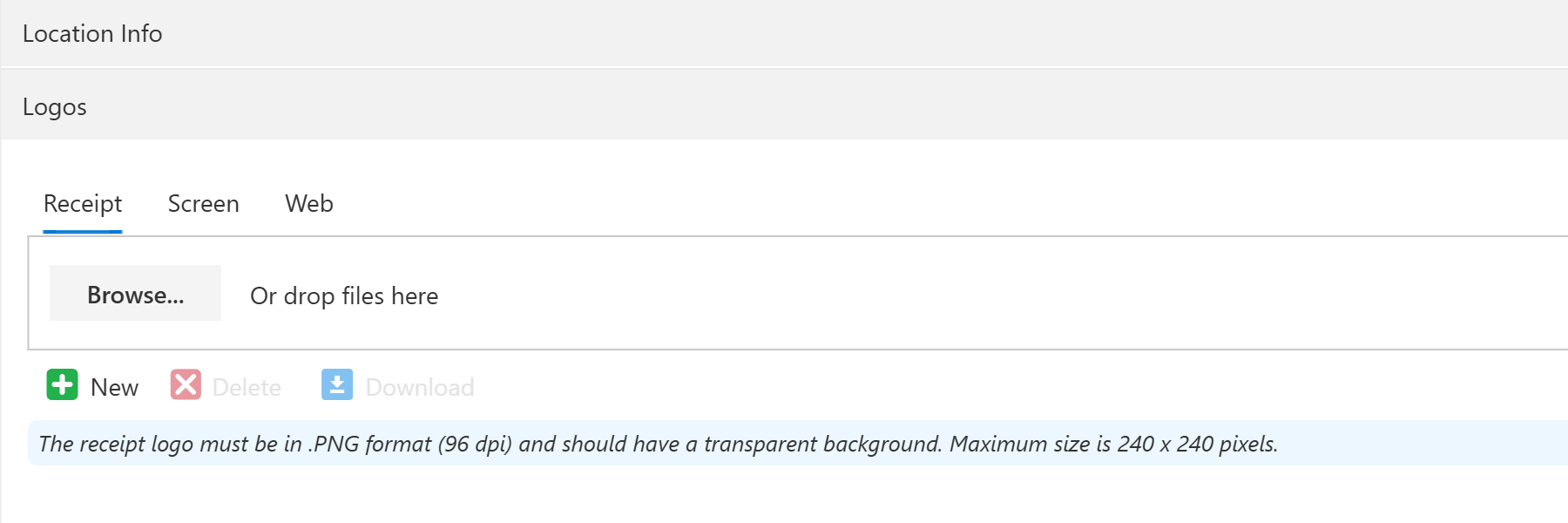
Figure 2. After New is clicked, the upload box opens above the buttons
Click Browse..., find your receipt logo file and click Open. You can also drag the file from a folder onto the box. The box closes, your logo appears below the pale blue note, and Delete and Download light up (Figure 3).
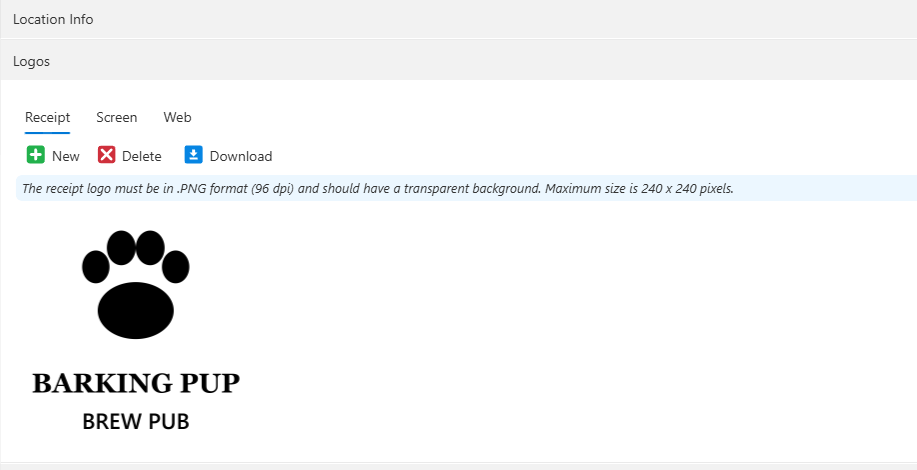
Figure 3. The receipt logo in place. Delete and Download are now lit
There is no Save to click. The logo is saved the moment you choose the file, and the green Save button at the top right stays faded. It is the same on all three tabs.
Add your screen logo
Still in Logos, click the Screen tab.
Click New, then Browse..., and choose your screen logo file. The box closes and the logo appears below the pale blue note (Figure 4).
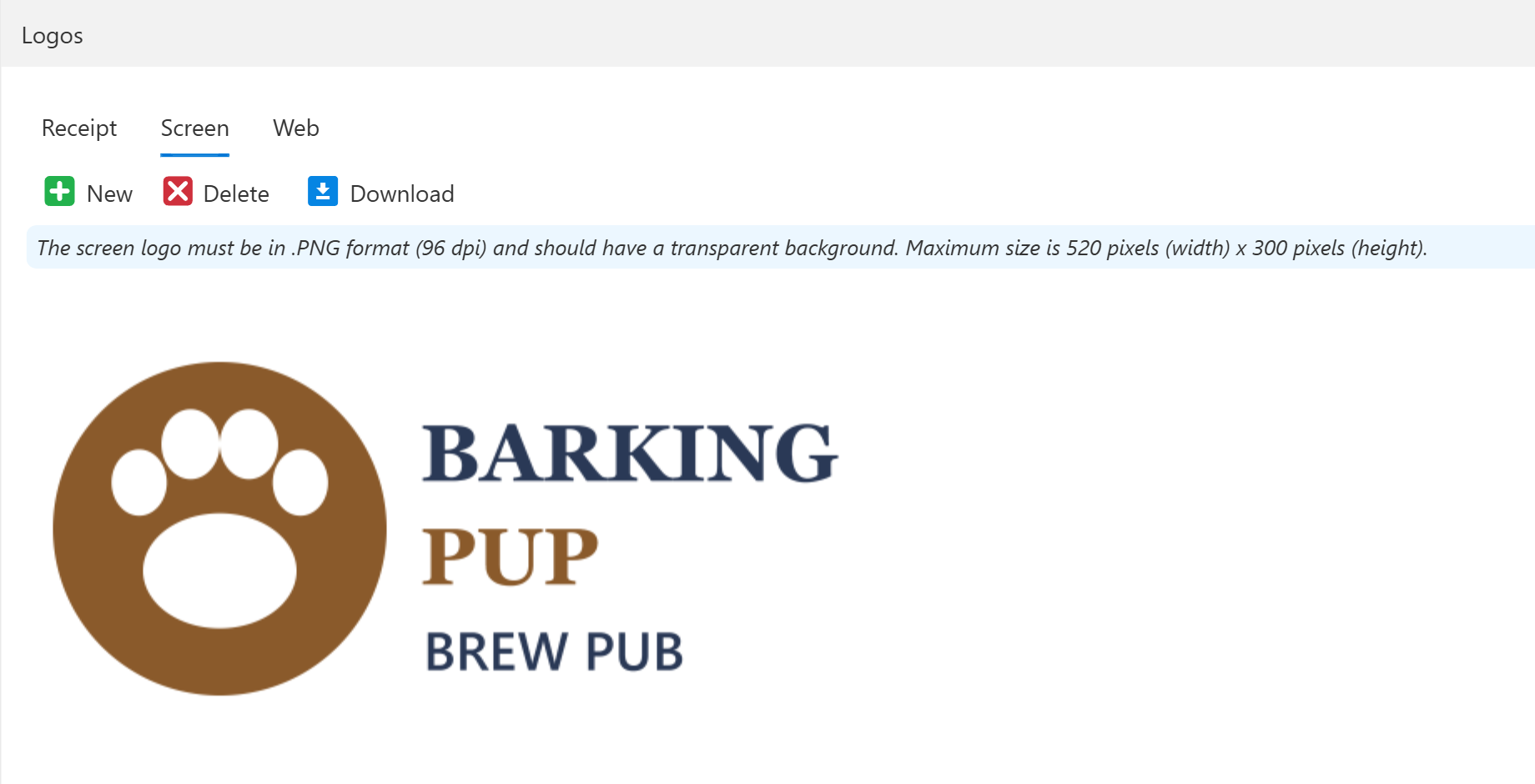
Figure 4. The screen logo in place on the Screen tab
If you also take orders online, click the Web tab and add the same file the same way. The website has its own settings that go with the logo, such as the color behind it. See Setting up online ordering.
Get the new logo onto the POS
The POS fetches the receipt and screen logos when BREW POS starts up. A station that was already running when you added the logo keeps showing the old one, or none, until it starts again.
At each POS station at this location, tap Tools, then Restart.
When the station is back, check that your logo shows in the middle of the order screen when no ticket is open. The small BREW POS logo at the top left of the screen stays as it is.
Check the receipt logo on the next receipt that station prints.
The Web logo needs no restart at the POS, because it belongs to the website.
Change or remove a logo
To change a logo, click its tab and click Download first, so you keep a copy of the old one. There is no undo. Then click New and choose the new file. It replaces the old one straight away. You do not need to delete the old one first. Then restart the POS stations, as above.
To remove a logo, click its tab and click Download first if you might want it back. Then click Delete, and click the green Ok in the Delete? box. A deleted logo cannot be brought back in BREW POS Admin. The tab goes back to how it looks in Figure 1. After a restart, receipts print without a logo and the order screen and screensaver show the BREW POS logo again.
To get a copy of the logo in use, click its tab and click Download. The file is saved to your computer's downloads, named LogoRcpt.png, LogoScreen.png or LogoWeb.png. This is useful when you want to copy one location's logo to another: download it from the first location, then choose the second location and add it there.
Every logo you add is recorded under Audit Trail, at the bottom of the same Locations screen, as a line such as Receipt Logo set to receipt-logo.png, with the date and who did it. The line shows after you leave Settings and come back.
If something goes wrong
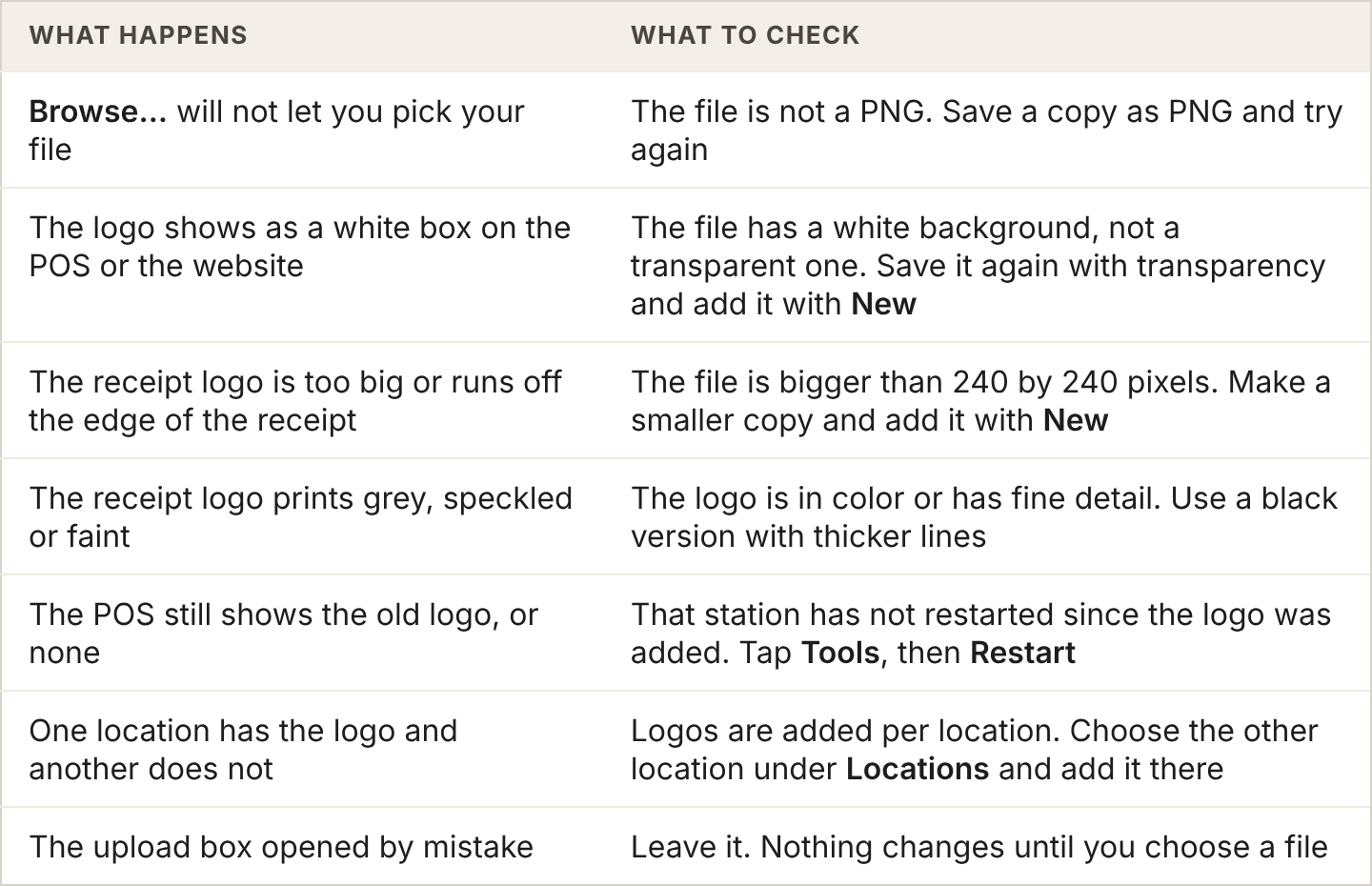
What to check when a logo goes wrong
Next: Setting up online ordering covers the Web logo and the rest of your ordering website.
About this guide
Applies to: BREW POS Admin
Last reviewed: 14 October 2026
BrewPOS How to use
Support 1-800-676-9874
Email [email protected]
© 2026 BREW POS. All rights reserved.