
Editing timesheets at the POS
Managers can clock people in and out, and fix or add timesheets, straight from the POS. Running payroll from the timesheets is done in BREW POS Admin and covered in Managing time cards and payroll.
Before you start
You need manager permission. Without it, Timesheets is greyed out on the Tools screen.
Open the timesheets
1. Tap Tools, top right.
2. Tap Timesheets, Today's Timesheets (Figure 1).
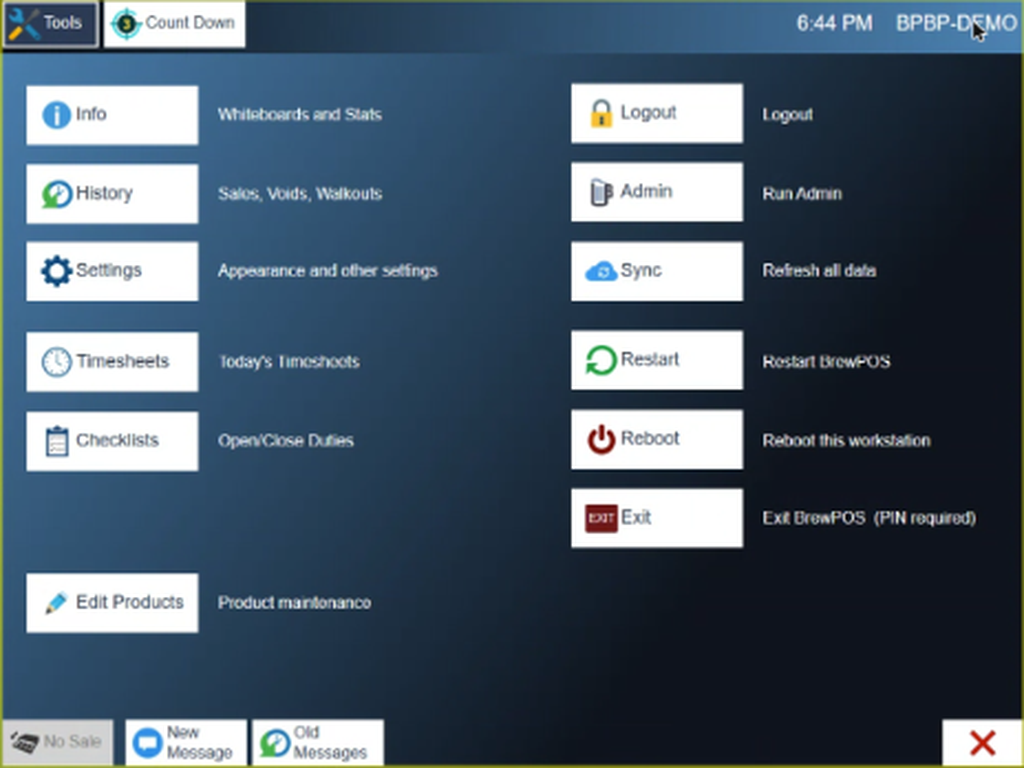
Figure 1. The Tools screen. Timesheets is on the left
3. The POS opens on My Timesheets: your own recent clock-ins and a Clock Out button (Figure 2). Tap All Timesheets, at the top, for everyone's.
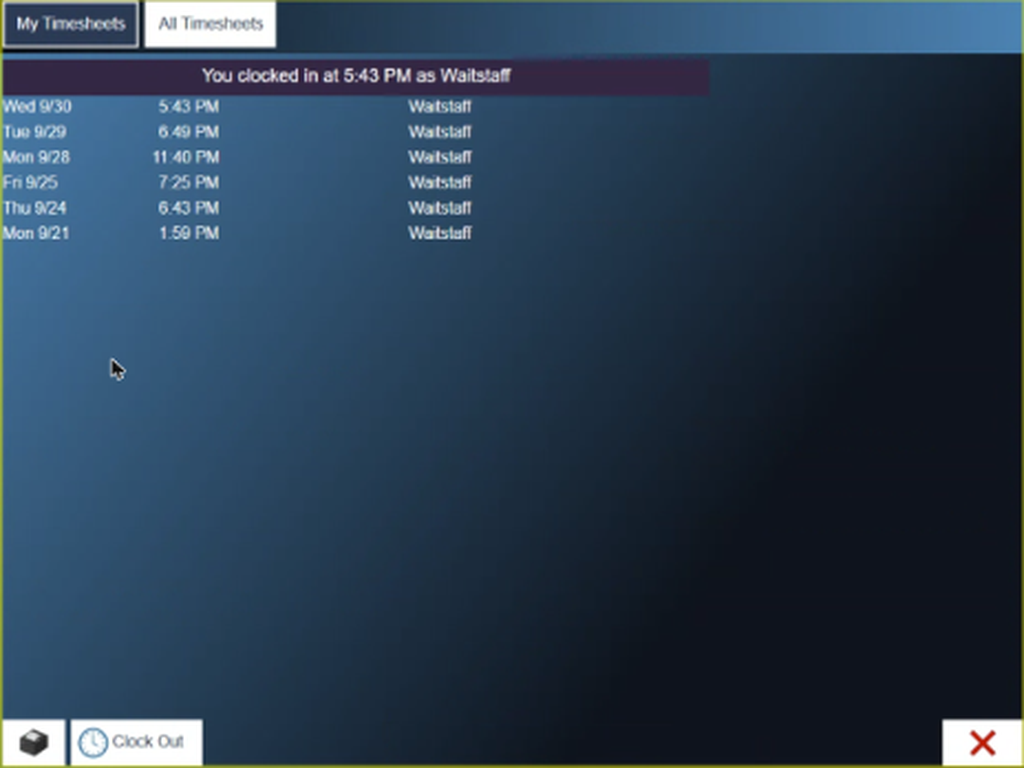
Figure 2. My Timesheets
All Timesheets has two halves (Figure 3).
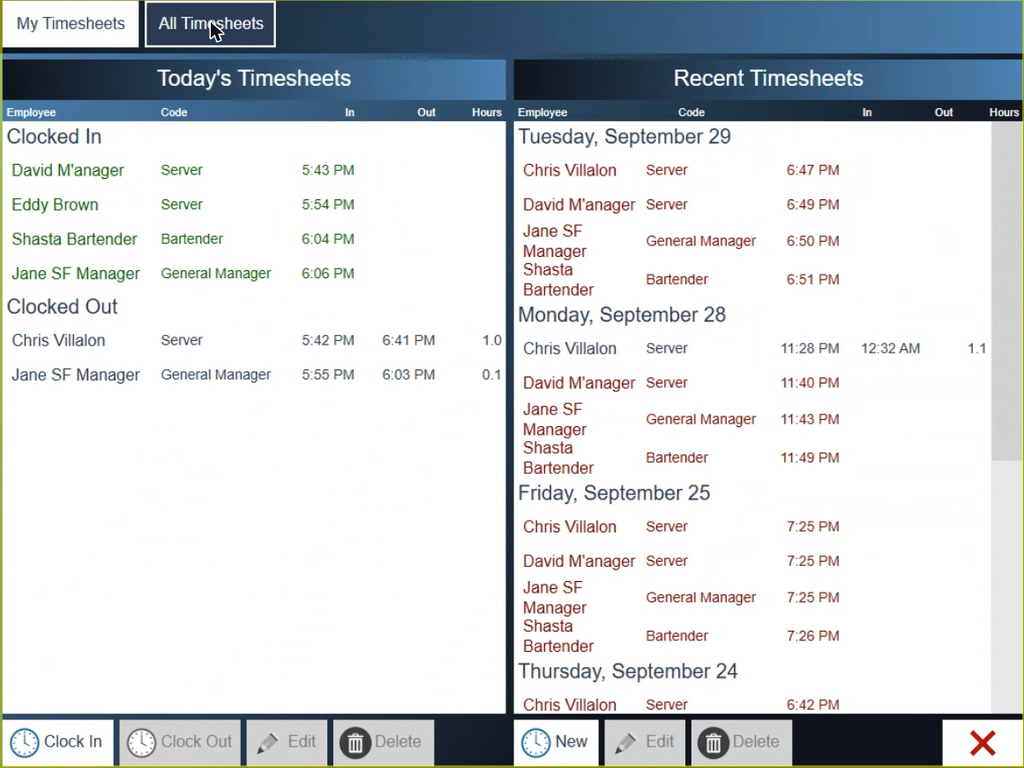
Figure 3. All Timesheets. Today on the left, recent days on the right
Today's timesheets, on the left
People clocked in now are listed under Clocked In, in green. People who have clocked out today are under Clocked Out, with their hours.
• Clock In clocks someone in. You are asked who.
• Clock Out clocks out the person selected in the list.
• Edit changes the selected timesheet.
• Delete removes the selected timesheet.
Recent timesheets, on the right
The last few days, newest first. People who never clocked out are shown in red.
• New adds a timesheet for a day other than today.
• Edit changes the selected timesheet.
• Delete removes the selected timesheet.
Change a timesheet
Select a timesheet and tap Edit. The timesheet opens (Figure 4). You can change the job Code with Change..., and the Clock In and Clock Out times; Hours works itself out. Tap the check mark to save, or the red X to leave it as it was.
On a timesheet for an earlier day there is also a Tips box, where you can enter or correct the tips for that shift. It doesn't show on today's timesheets.
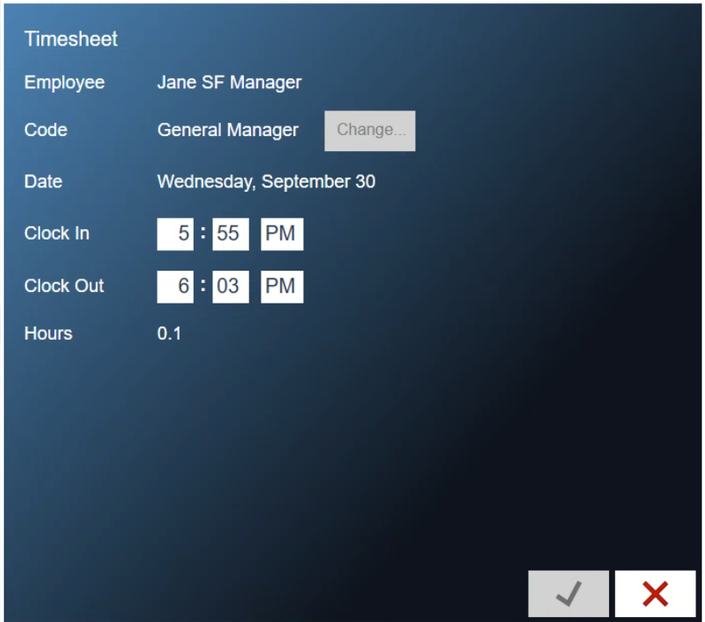
Figure 4. Editing a timesheet
About this guide
Applies to: the BREW POS terminal.
Last reviewed: 3 October 2026
BrewPOS How to use
Support 1-800-676-9874
Email [email protected]
© 2026 BREW POS. All rights reserved.