
Tracking a product in stock
Some products are counted one at a time: cans and bottles of beer, T-shirts, stickers. Switch on stock tracking for a product like that and you can receive it, count it, and have each sale taken off the stock.
Before you start
• Stock tracking has to be switched on for your business by BrewPOS.
• The product has to exist already. See Make a product.
Switch on tracking
1. Click Setup, then Products (Figure 1).

Figure 1. Setup, then Products
2. Open the product.
3. On the Locations tab, make sure it is ticked to sell at your locations and has a price (Figure 2).
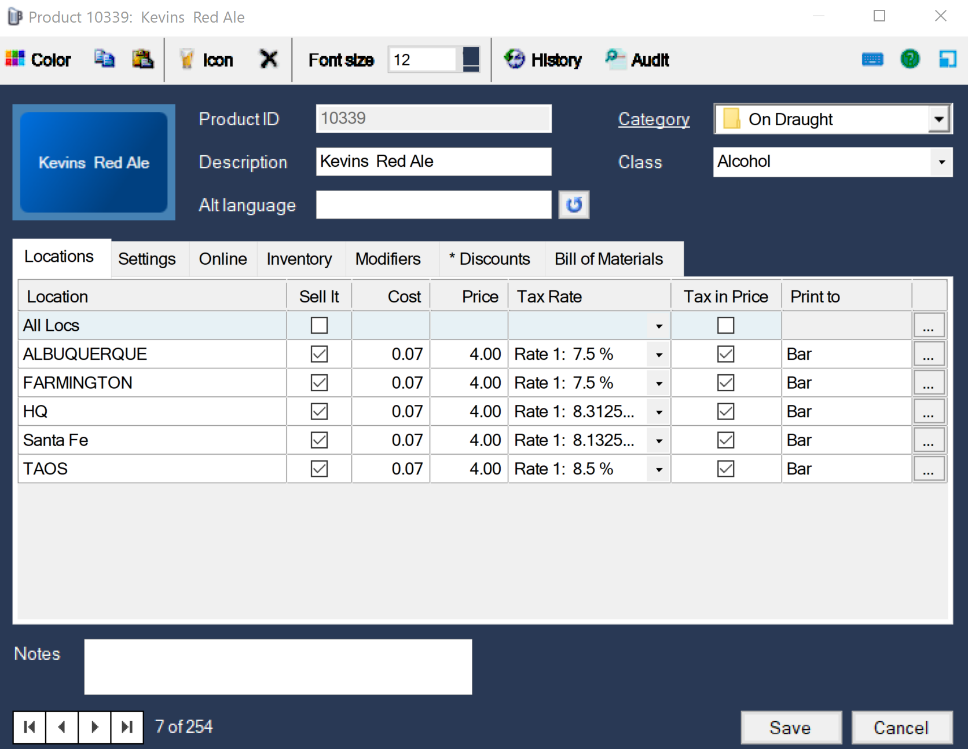
Figure 2. The product sells at every location for 4.00
4. Open the Inventory tab and tick Track Inventory (Figure 3).
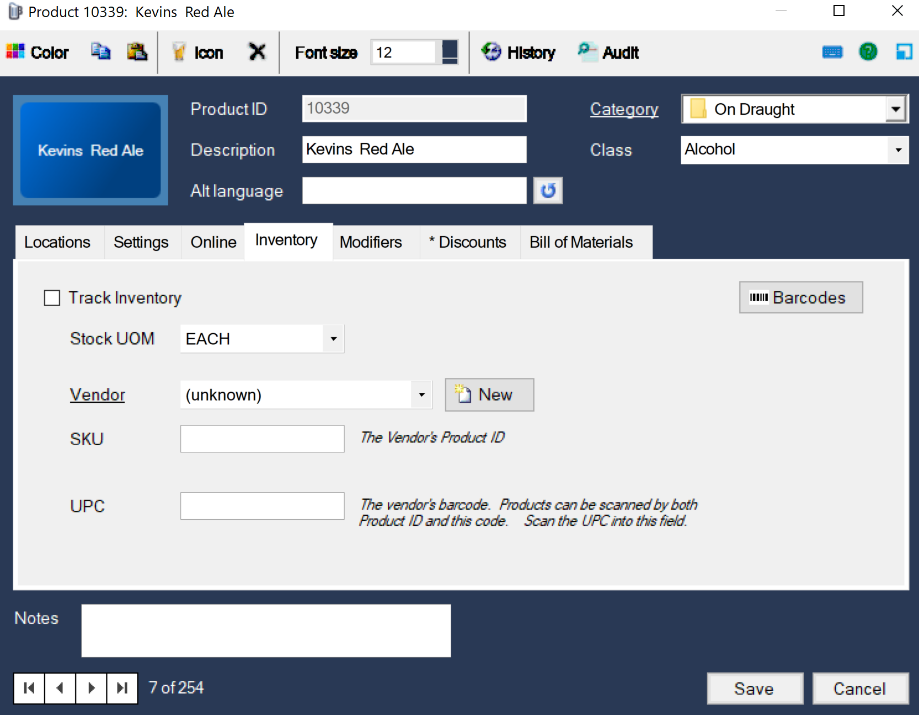
Figure 3. Track Inventory, top left of the Inventory tab
5. Click Save.
You can now receive this product and have its sales taken off your stock. To scan it, put its barcode in UPC on the same tab: products can be scanned by their product ID or by that code.
About this guide
BREW POS Admin: merchant how-to guide
Applies to: BREW POS Admin. Written from the BrewPOS quick reference Adding a Product to tracked inventory (May 2021). Not yet re-checked against the current release. The screens shown are from an older version of Admin and may look different on yours.
Last reviewed: 29 September 2026 · Owner: Eddy
BrewPOS How to use
Support 1-800-676-9874
Email [email protected]
© 2026 BREW POS. All rights reserved.